
The Impact Score is calculated on the Starter plan and above. Changing the weights and limits requires the Business plan or above. See Plans and billing. Only workspace owners and admins can open the Impact Score settings. See Roles and permissions.
Why a score beats a vote count
A vote count is a popularity contest. It treats every voter the same, rewards whoever shouted first, and never fades. That produces three familiar problems:- Your biggest customer counts once. One vote from the account paying you the most looks identical to one vote from a free trial that churned last year.
- “Nice to have” looks like “we will churn without this”. A vote records that someone wants it, never how badly.
- Old posts stay on top forever. A request that peaked three years ago outranks something the market is asking for today, because votes only ever accumulate.
What goes into the score
Sleekplan tracks eight signals. Seven of them make up the base score, and recency is applied on top when the board is displayed.Company weight only counts once you have groups. It reads the weight you set on each company or team, which needs the Business plan and customers who arrive with a company attached. Until then this part of the score contributes nothing, so set Company weight to
0 and give that share to Customer weight instead.If you do have groups, check Max company weight before you rely on this signal. It ships at 50, and at the default group weight of 1 a post would need fifty different companies to get full credit. Set it near the number of companies you would expect on a genuinely popular post, or raise the weight on the accounts that matter most.How recency behaves
Recency is applied when the board is read, not when the score is stored, so it is always current without waiting for a recalculation. A post loses freshness gradually and reaches zero freshness once it has gone untouched for the length of your recency window. What counts as “touched” is the post’s last-updated time, which moves when your team edits the post, when someone leaves a comment, or when tags change. Votes, priority votes, and new followers update the score itself but do not reset the freshness clock. In practice that means a slow trickle of votes will not keep an otherwise dead post permanently fresh, while a live discussion will.Sort and read your board by impact
1
Open the Display panel
Go to Feedback and click Display in the header.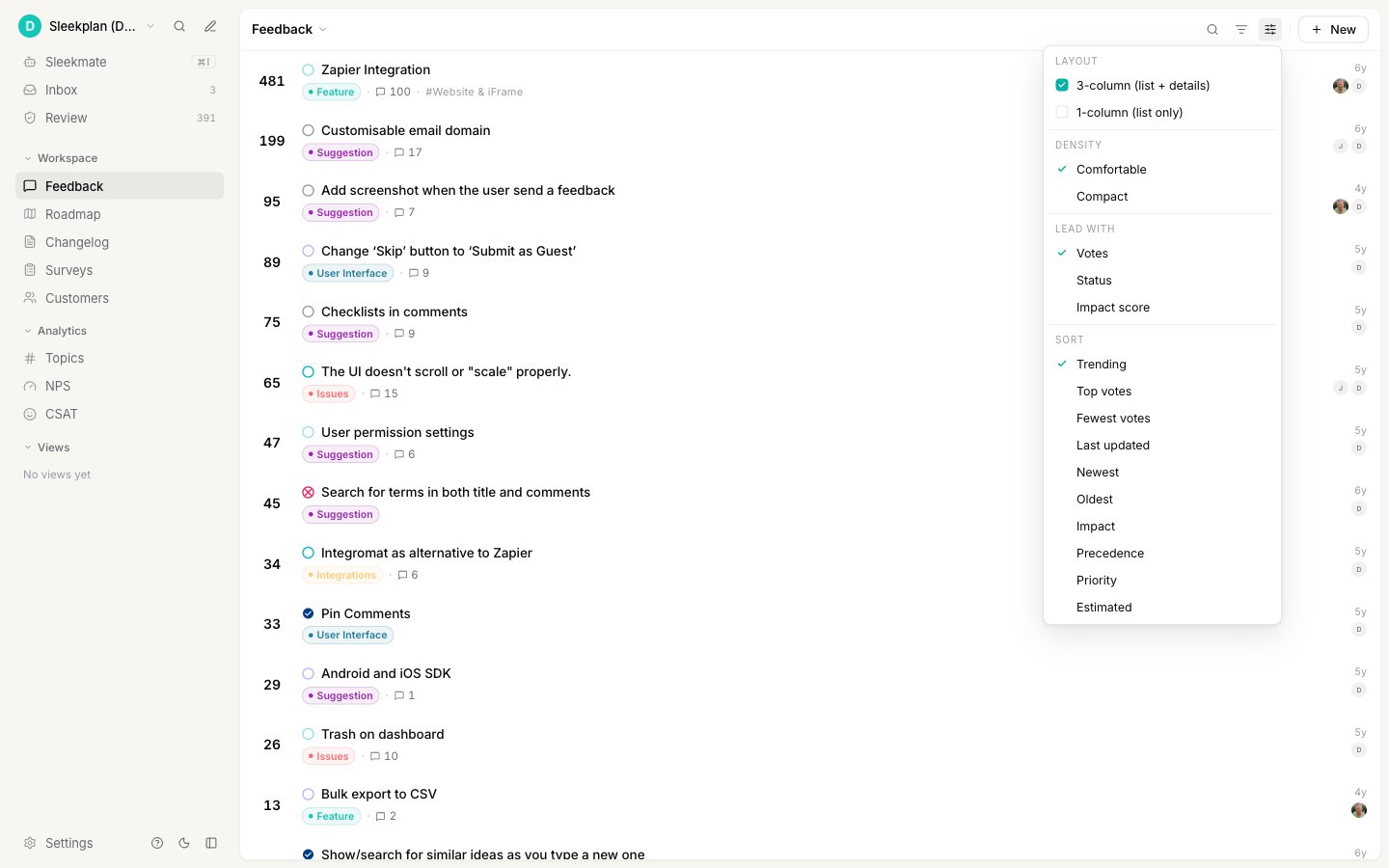
2
Sort by Impact
Under Sort, choose Impact. The highest-impact posts move to the top of the list.
3
Show the score on every row
Under Lead with, choose Impact score. Each row now leads with its score instead of its vote count, so you can compare posts at a glance. The score also appears in the details pane of any post you open.
Weight your most valuable customers
Vote weighting is the single highest-leverage setting, because it is what separates the Impact Score from a headcount. A customer with a weighting of 10 contributes ten times the customer weight of a default customer.1
Open the customer
Go to Customers and click the person you want to weight.
2
Set the vote weighting
Click Edit, then set Vote weighting in the record panel. The scale runs from 1 to 10, and every customer starts at 1. Click Save.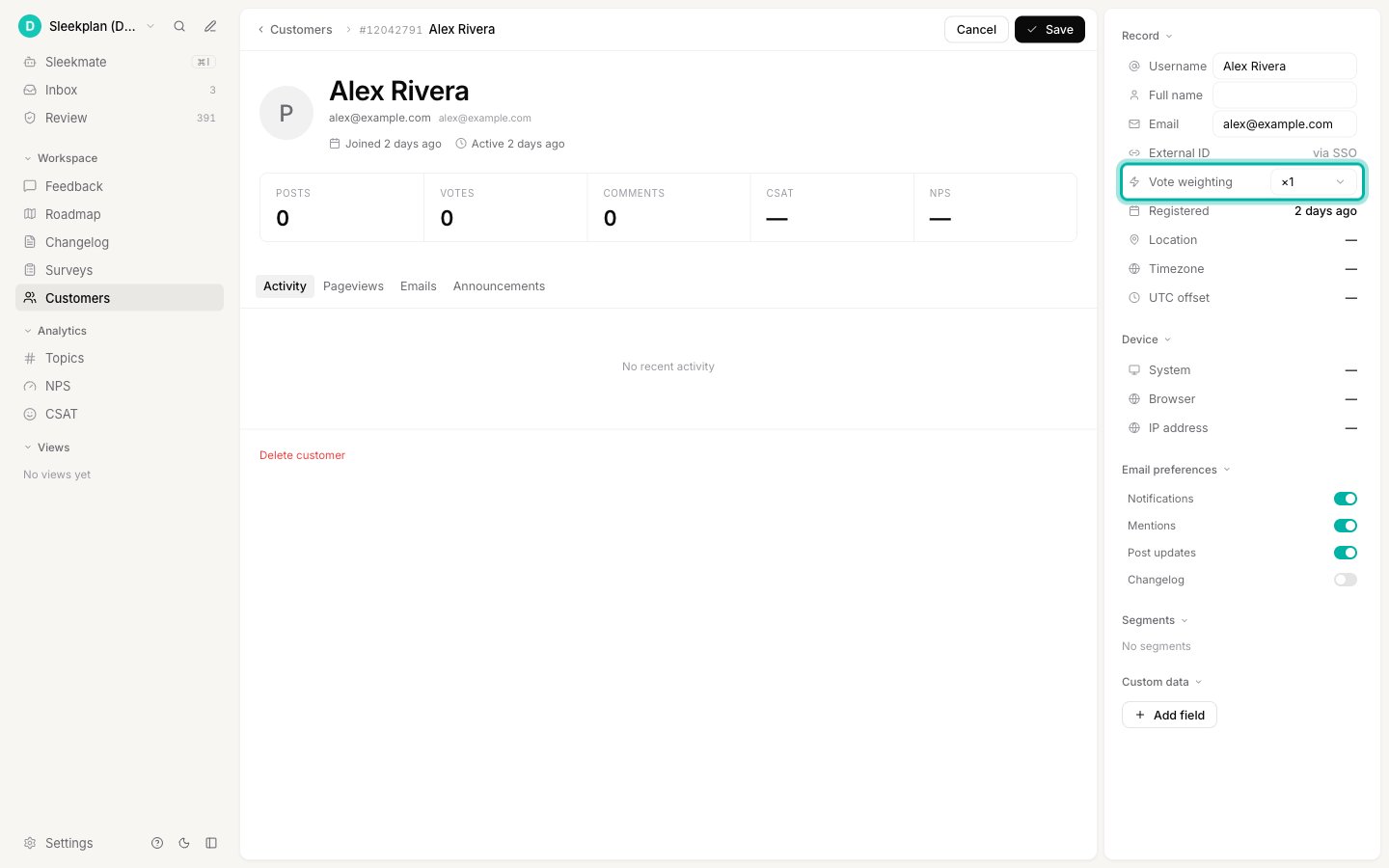
Tune the weights
The defaults are a sensible general-purpose mix, but they encode a generic product team’s priorities, not yours. Tuning takes a minute and changes every ranking on the board.1
Open the Impact Score settings
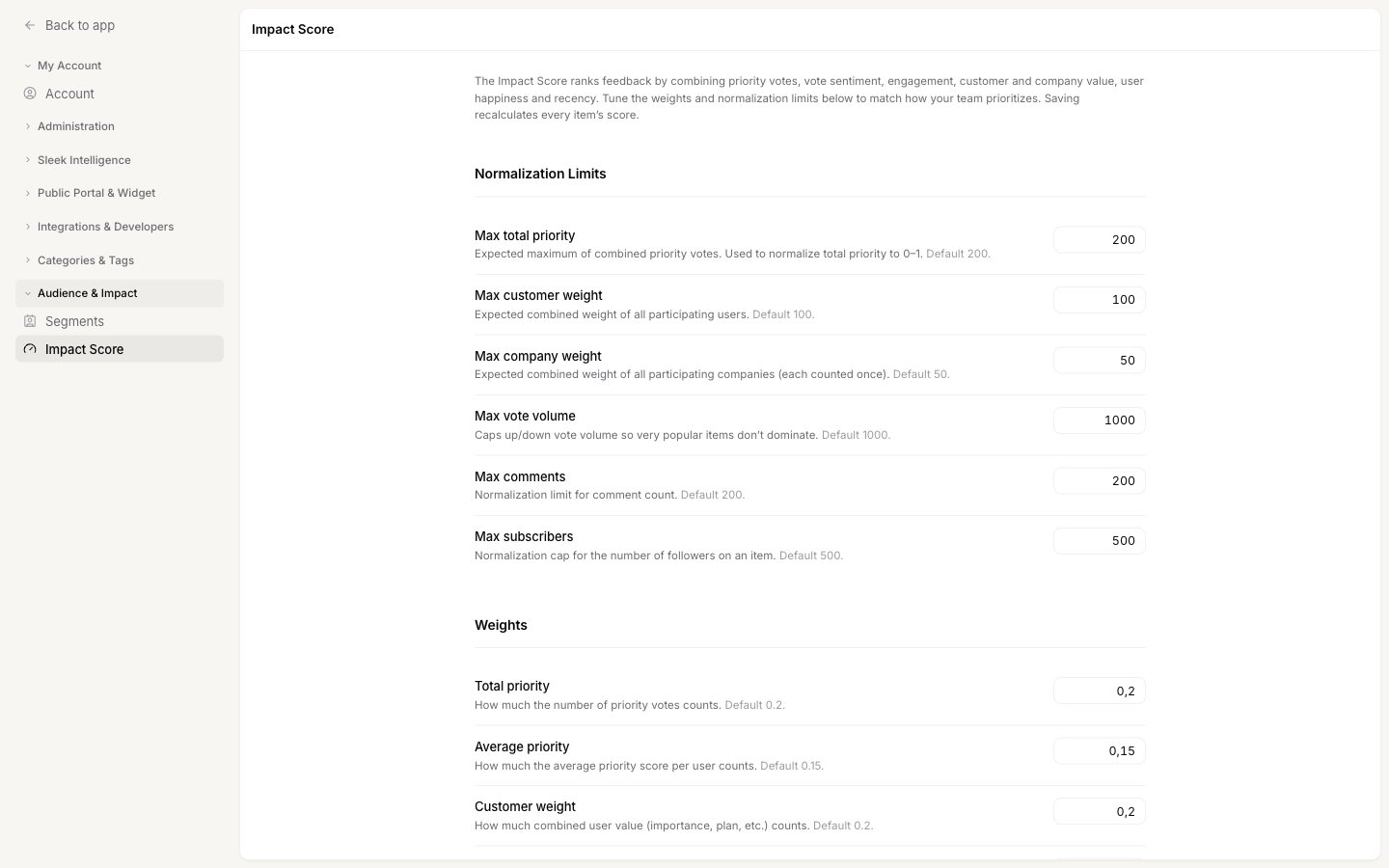
2
Set the normalization limits
Each limit tells Sleekplan what “a lot” looks like on your board, so a post that reaches the limit gets full credit for that signal and anything beyond it does not run away with the ranking. Set each one near the highest realistic figure you would expect on a busy post: Max total priority, Max customer weight, Max company weight, Max vote volume, Max comments, and Max subscribers.Limits set far too high flatten the score, because no post ever gets near them and every post looks similarly small. Limits set too low make many posts hit the ceiling, so the signal stops distinguishing them. Aim for a number your busiest posts approach but rarely exceed.
3
Set the weights
Each weight decides how much its signal counts. Values run from 0 to 1, where 0 switches the signal off entirely. They do not need to add up to 1, so raising one weight does not force you to lower another.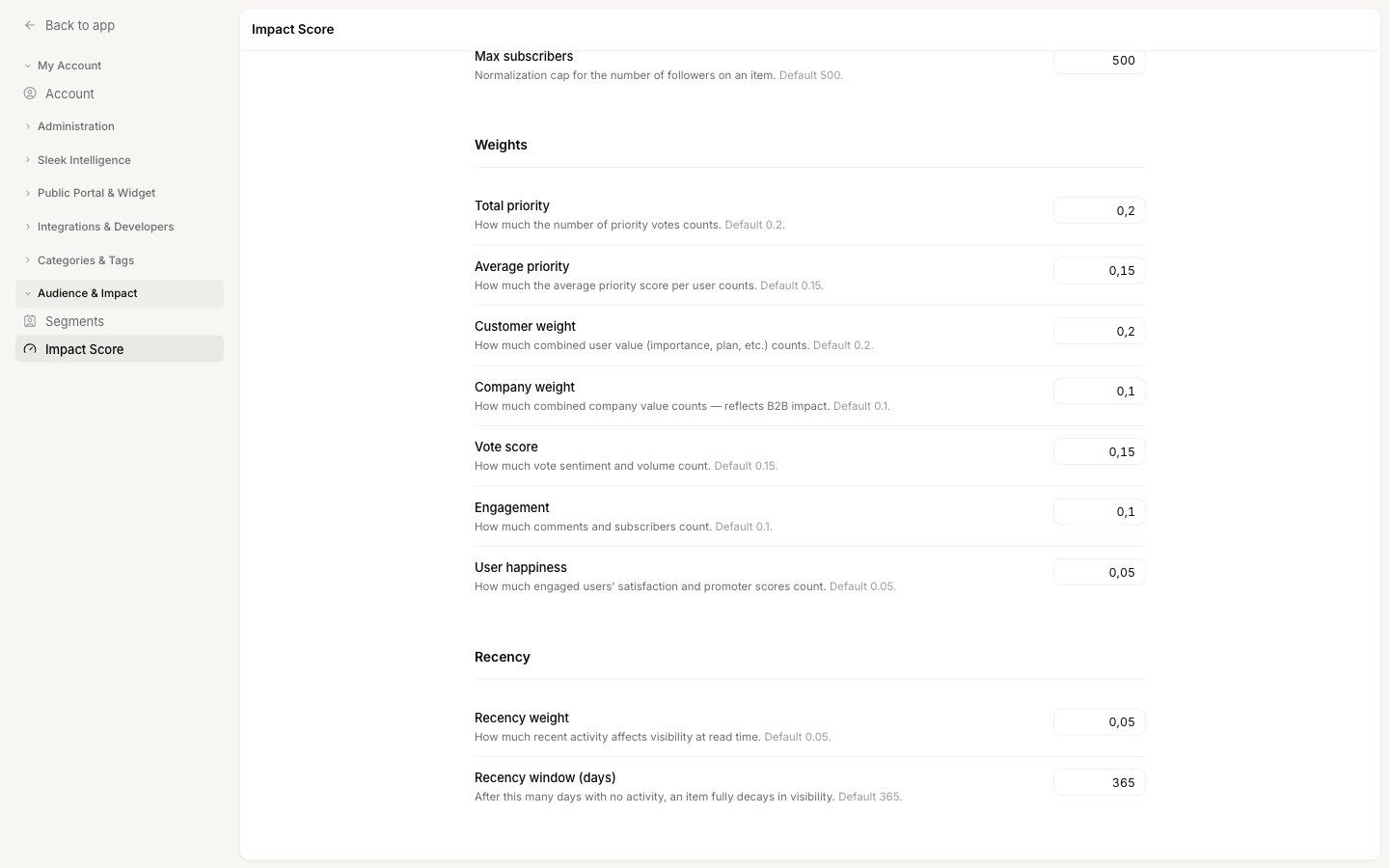
4
Set the recency behaviour
Recency weight decides how strongly freshness affects the ranking, and Recency window (days) sets how long a post takes to fully fade. A short window such as 90 days keeps the board firmly focused on the current quarter. A long window such as 730 days lets long-standing requests hold their place.
5
Save
Click Save. Every post on the board is recalculated in the background. While that runs, a banner appears and the fields are locked, so wait for it to finish before making another change.
Starting points
Rather than adjusting every field, pick the profile closest to your business and change only the two or three weights it names.
Change one thing at a time, sort by Impact, and look at the top twenty posts. If the order matches the conversation your team would have had in a prioritization meeting, the settings are right. If a post you know is important sits too low, look at which signal it is missing rather than raising every weight.
Good to know
When does the score update?
When does the score update?
Scores recalculate in the background shortly after activity on a post: a vote, a priority vote, a comment, a new follower, or an edit by your team. Saving new settings recalculates every post at once, which takes longer on a large board. Recency is applied live every time the board loads, so freshness never waits for a recalculation.
Why are some posts missing when I sort by Impact?
Why are some posts missing when I sort by Impact?
Sorting by Impact hides posts whose score is exactly zero, which is normally a post that has had no votes, priorities, comments, or followers at all. Switch to another sort, or use filters, to see the full board including untouched posts.
Can my users see the Impact Score?
Can my users see the Impact Score?
No. The score is stripped from every response the widget and the public portal receive, so there is no way for a visitor to see it or infer it. It is returned by the REST API, which only your team can call with your API key.
I am on Starter and cannot save my changes
I am on Starter and cannot save my changes
Starter calculates the Impact Score with the default weights, but changing them requires Business or above. When you save on Starter, an upgrade prompt appears instead. See Plans and billing.
How is this different from Precedence?
How is this different from Precedence?
Precedence is a manual label your team sets on a single post, so it records a decision you have already made. The Impact Score is calculated from what your customers actually did, so it helps you make that decision in the first place. Most teams sort by Impact to decide, then set Precedence to record the outcome.
Why is company weight not changing my ranking?
Why is company weight not changing my ranking?
Two things have to be true before it counts. Your workspace needs companies and teams, which arrive with your customers on the Business plan, and Max company weight has to reflect how many companies a popular post really attracts. It ships at
50, so with the default group weight of 1 almost every post scores near nothing on this signal until you lower that limit or weight your important accounts.How do I get the priority signal working?
How do I get the priority signal working?
Priority is off by default. Turn on Priority in your board settings so users pick a level when they vote. Until it is on, the two priority signals contribute nothing, and you should move their weight to customer weight and vote score.
Related
Filters, sorting, and views
Every sort and display option on the feedback board, including where Impact fits.
Submission and voting
Turn on priority and downvotes, and rename the priority levels.
Organizing feedback
Categories, tags, and statuses to structure the board the score ranks.
End-user accounts
How your customers exist in your workspace, and where to find them.