
In Review, your customers see In Progress.
That gives you room to be precise internally without turning every internal step into a public promise.
Creating statuses requires the Starter plan or above. See Plans and billing. Only workspace owners and admins can change status settings. See Roles and permissions.
When to use one
A public status is a promise to the person who asked. Every extra one you add is another state your customers have to interpret, so the public list works best kept short and moving in one direction. Internal statuses let you keep that list short while tracking what actually happens. Good candidates are stages that all mean the same thing to a customer:- In Review, Needs Investigation, Waiting on Design, Ready for QA. All of these say “we are working on it” to the person who submitted the request.
- Stages that only make sense to your team, like a handoff between two groups.
How the public status works
Every internal status nominates exactly one public status to stand in for it. Sleekplan then substitutes that reference on every surface your customers can reach:
The substitution is worked out fresh every time, so there is nothing to keep in sync and no way for the public view to drift from what you configured.
An internal status never becomes a public roadmap column, whatever its Show on roadmap setting says. That toggle still controls your team’s roadmap in the dashboard, where you see the real statuses.
Make a status internal
1
Open the status
Go to Settings → Statuses and click the status you want to make internal, or click New status to create one. See Add, remove, and reorder statuses for the rest of the form.
2
Turn on Internal only
Switch on Internal only. A Shown publicly as picker appears underneath.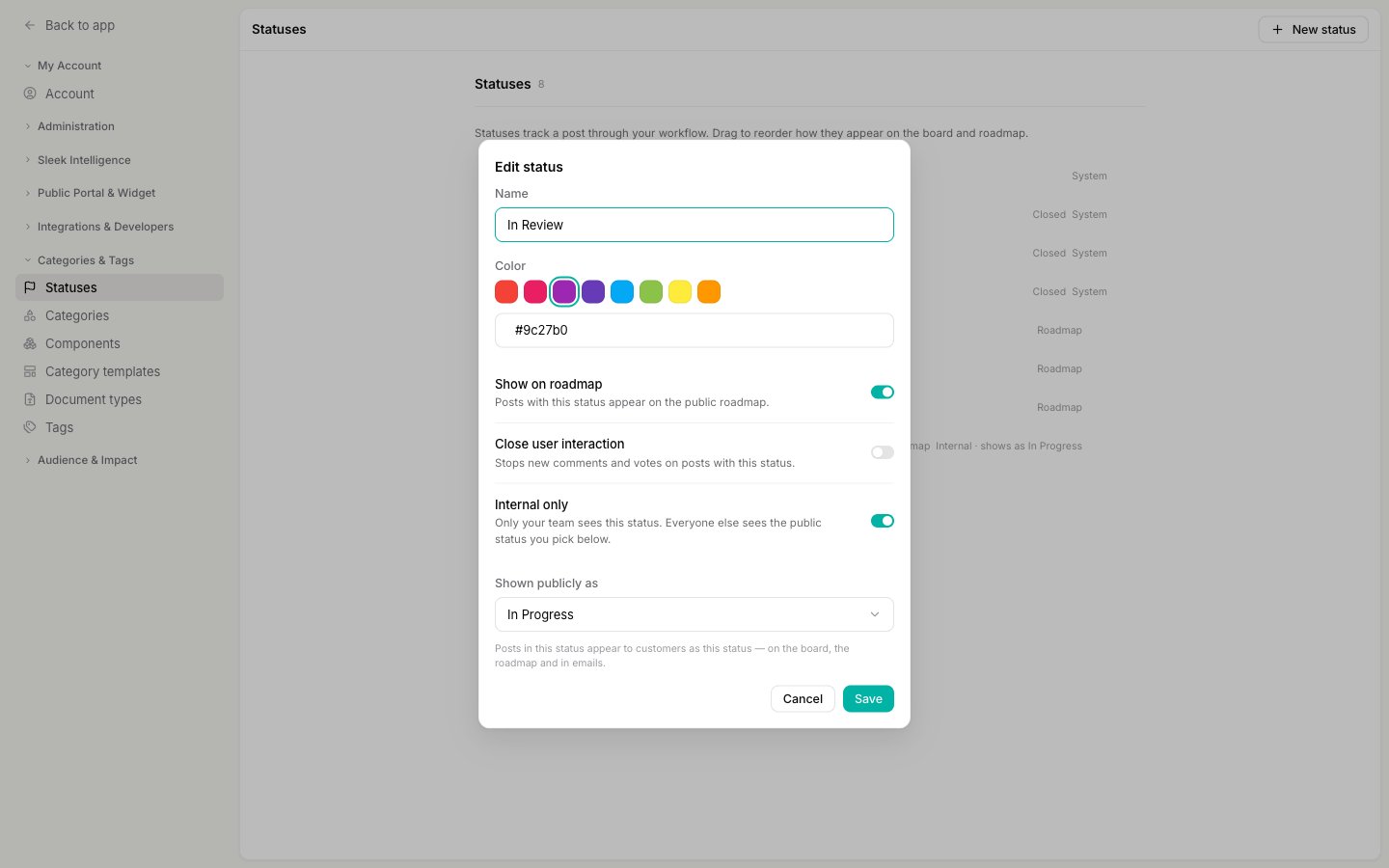
3
Pick the public status
Choose the status your customers should see in its place. The picker only offers public statuses, and never the status you are editing, so you cannot accidentally point one internal status at another.This field is required. You cannot save an internal status without it, because there would be nothing to show your customers.
4
Save
Click Save. The change applies immediately to every post already in that status, on the board, the roadmap, and in emails from that moment on.Back in the list, the status is labelled with what your customers will see instead.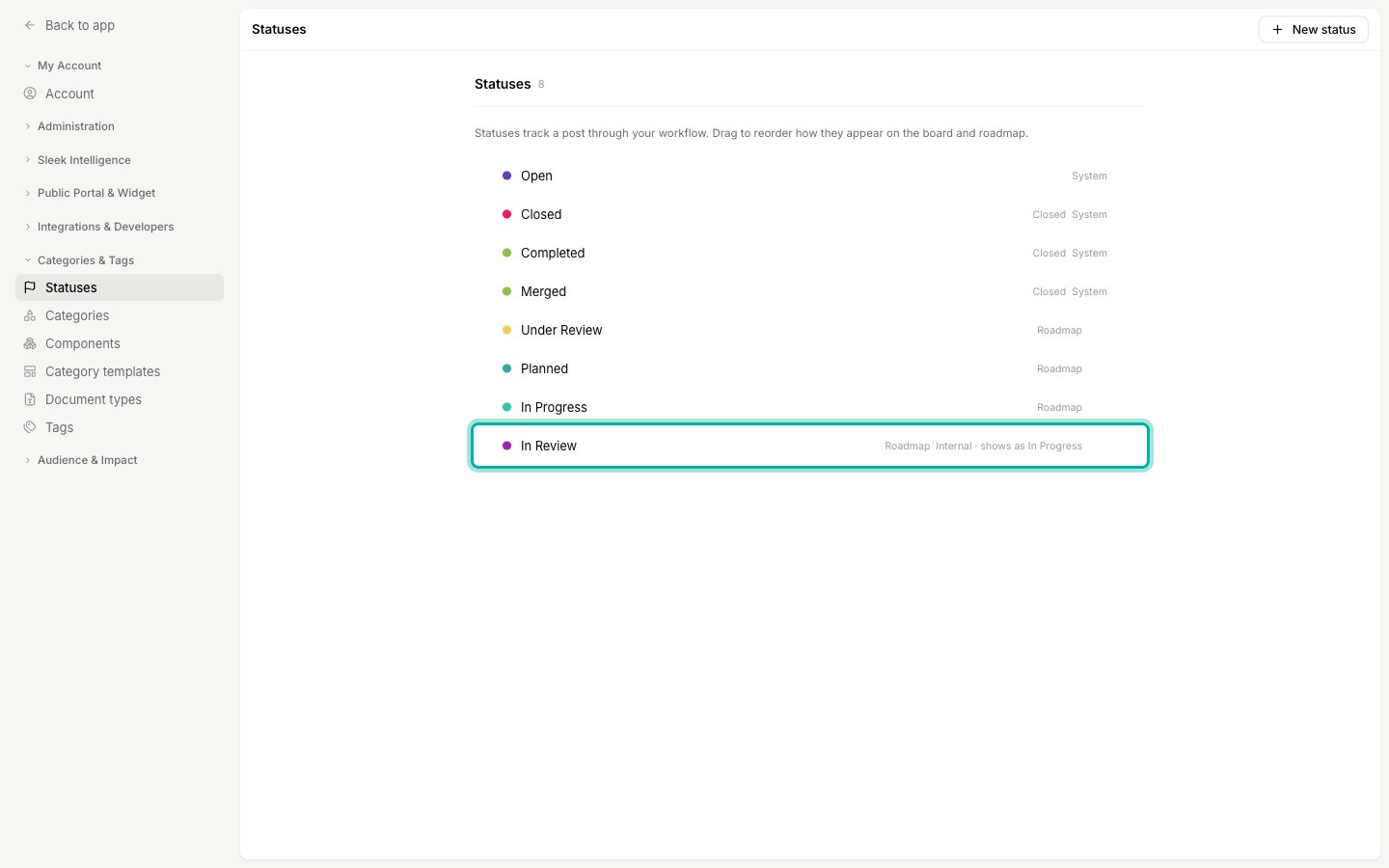
What your team sees
Inside the dashboard nothing is hidden. Your team sees and sets the real status everywhere: on the board, in the feedback filters, on your roadmap, and in the post’s own history. Two places give you a reminder that a status is internal:- Opening a post shows Publicly shown as under its status, so you always know what the person who submitted it is looking at.
- The status filter marks internal statuses with Internal, so you can tell them apart when slicing the board.
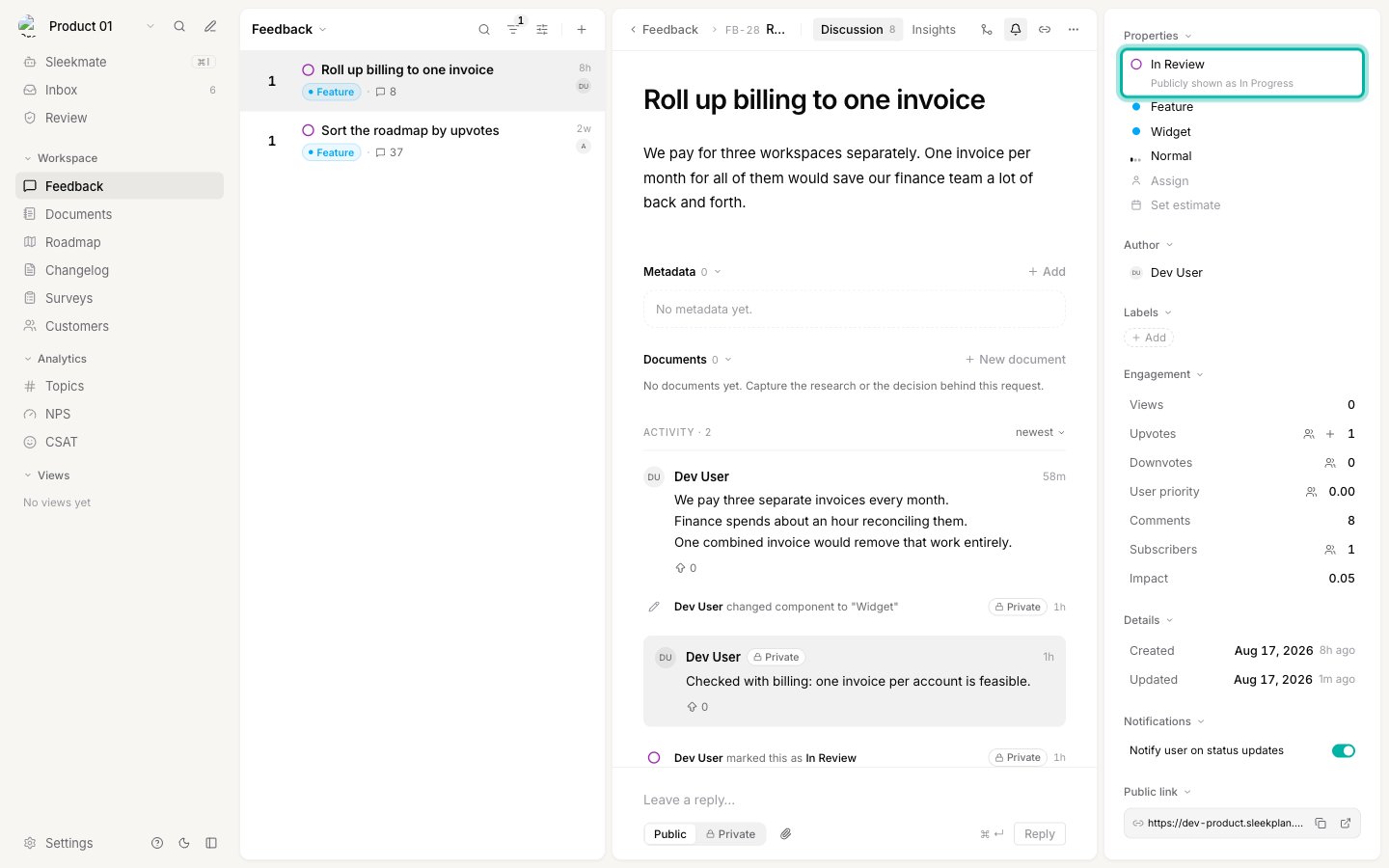
Private timeline entries need the Starter plan or above, the same requirement as private notes. On the free plan a move into an internal status is applied but not recorded on the timeline, because recording it publicly is exactly what must not happen.
Notifications
This is the part that matters most for trust: moving a post between internal stages never emails your customers.- Moving a post from one status to another that resolves to the same public status, for example
In ReviewtoNeeds Investigation, sends no notification to subscribed customers. Nothing changed for them, so nothing is announced. - Moving a post so that the public status does change, for example from
In ReviewtoCompleted, sends the normal status update email, naming the public status. - Teammates subscribed to the post are notified either way, with the real status, so your own people keep full visibility.
Rules that keep it safe
A few constraints are enforced for you, so a misconfiguration can never leak an internal name to your customers. The four system statuses can never be internal. Open, Closed, Completed, and Merged are tied to built-in operations, and Open is the last-resort status every public surface falls back to. The Internal only toggle is simply not offered on them. A public reference must itself be public. You cannot point one internal status at another, so there are no chains to follow and no way to end up with a public view that is still internal. You cannot delete a status another status points at. Sleekplan tells you which ones depend on it so you can repoint them first.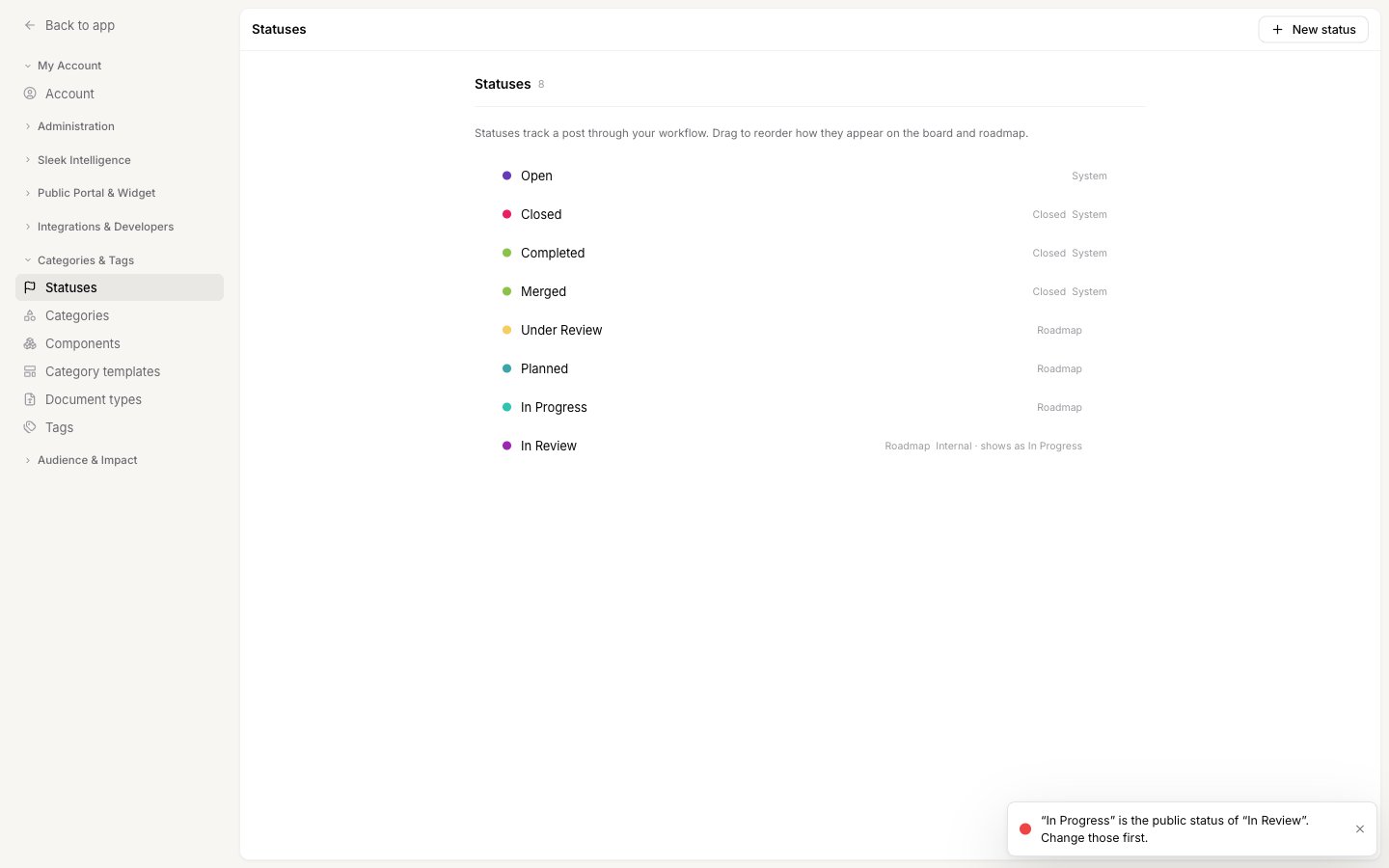
Turn it off again
Edit the status and switch Internal only off. The status keeps its name, color, and every post in it, and becomes visible to your customers straight away, including on posts that were already in it. The Shown publicly as setting is dropped, since it no longer applies. Private timeline entries recorded while the status was internal stay private. Turning the toggle off changes what your customers see from that point on, it does not republish your team’s past internal notes.Related
Add, remove, and reorder statuses
Create the statuses this setting applies to.
Categories, components, tags, and statuses
Which axis belongs where, and why status should stay a short line of progress.
Comments and private notes
The private track your internal status moves are recorded on.
Emails Sleekplan sends to your users
Exactly who is notified when a status changes.