
Tags are internal by default: your team uses them to triage, and the people who submit feedback don’t see them. Adding a tag doesn’t change where a post appears. On a post, your tags show up in the Labels section, so “tag” and “label” refer to the same thing. You can optionally make tags public, see Show tags on your public board.
Create a tag
1
Open the tag form
Go to Settings → Tags and click New tag in the top right. Your existing tags are shown as chips on this page.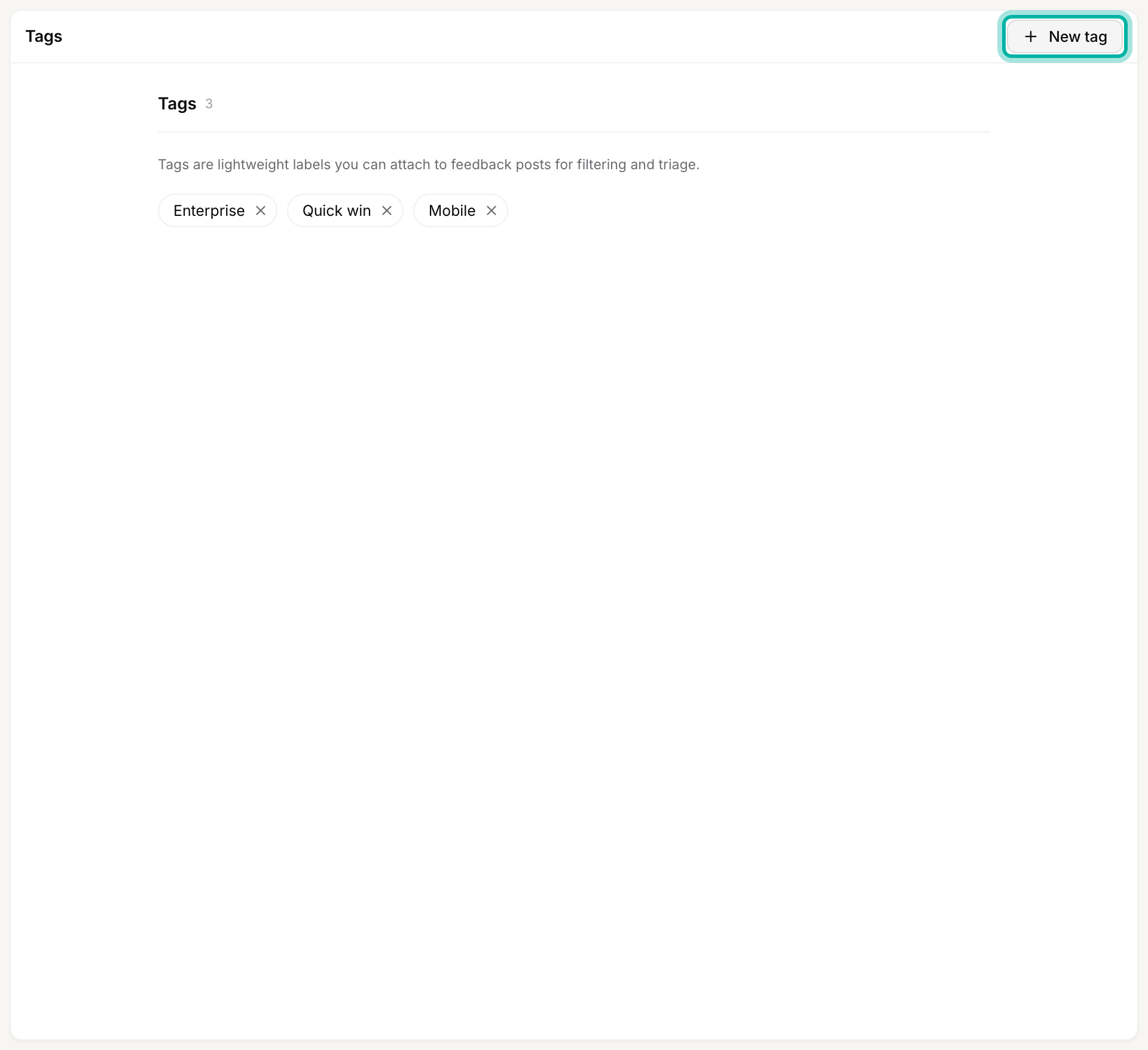
2
Name it
Type a short, clear name for the tag.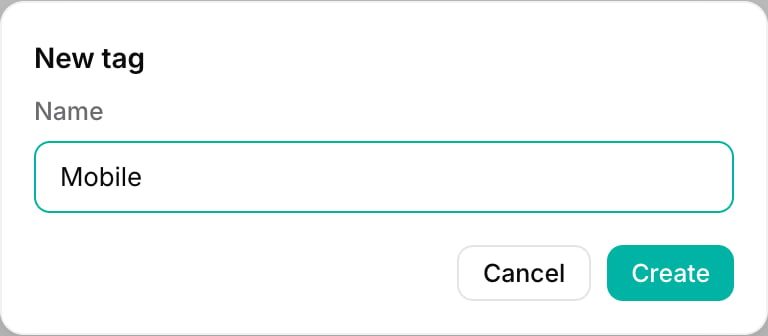
3
Create it
Click Create. The tag is available immediately as a Label you can add to any post.
Attach tags to posts
Creating a tag here only adds it to the list of options. To put it to use, open any post and add it from the Labels section of the properties panel, the same place you set a post’s status, category, and owner. See Set the post properties. A post can carry as many tags as you need. Once your posts are tagged, you can narrow the feedback list to a specific tag using the label filter described in Filter, sort, and search feedback.Delete a tag
There is no rename for tags. To change a tag’s wording, create the new one and delete the old. Tags also cannot be reordered, since they have no fixed order.1
Open the delete confirmation
On the Tags page, click the ✕ on the tag chip you want to remove.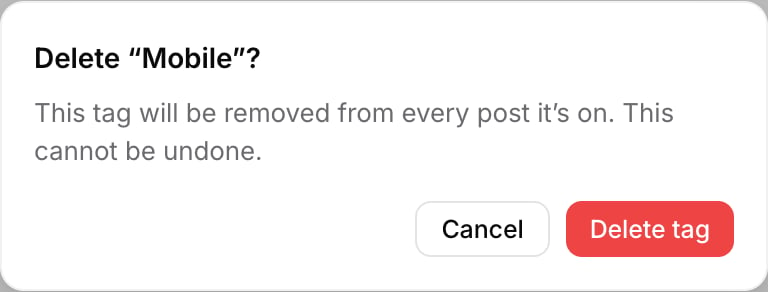
2
Confirm
Click Delete tag. The tag is removed from every post that had it. The posts themselves are not affected. This cannot be undone.
Related
Show tags on your public board
Let users apply tags when posting and filter the public board by tag.
Add, remove, and reorder categories
Categories are the type of a post that users always see and pick.
Filter, sort, and search feedback
Narrow the feedback list by tag, status, category, and more.
Categories, components, tags, and statuses
See how tags pick up whatever axis your categories don’t.