
Creating your own categories requires the Starter plan or above. See Plans and billing. Only workspace owners and admins can open the category settings. See Roles and permissions.
Hide a category and its posts
1
Open your categories
Go to Settings → Categories. Pick the category you want to hide, or click New category to make one just for internal work.
2
Turn on Hidden category
In the category form, open the Advanced section and turn on Hidden category. It hides the category and all of its posts from the public board and roadmap.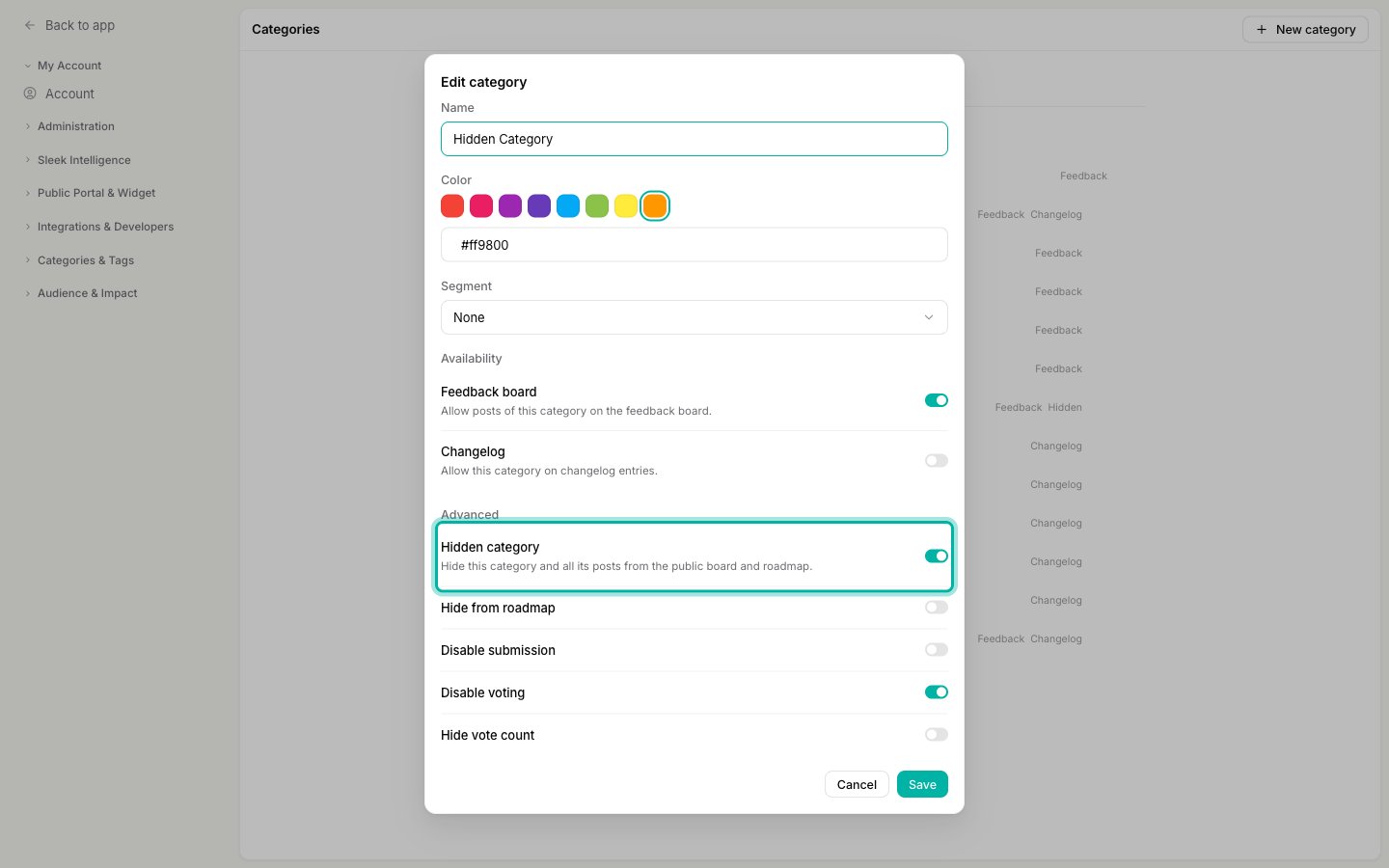
3
Save
Click Save. The change applies right away to every post already in that category, not only to new ones.Hidden categories are marked with a Hidden label in your category list, so you can tell at a glance which ones are internal.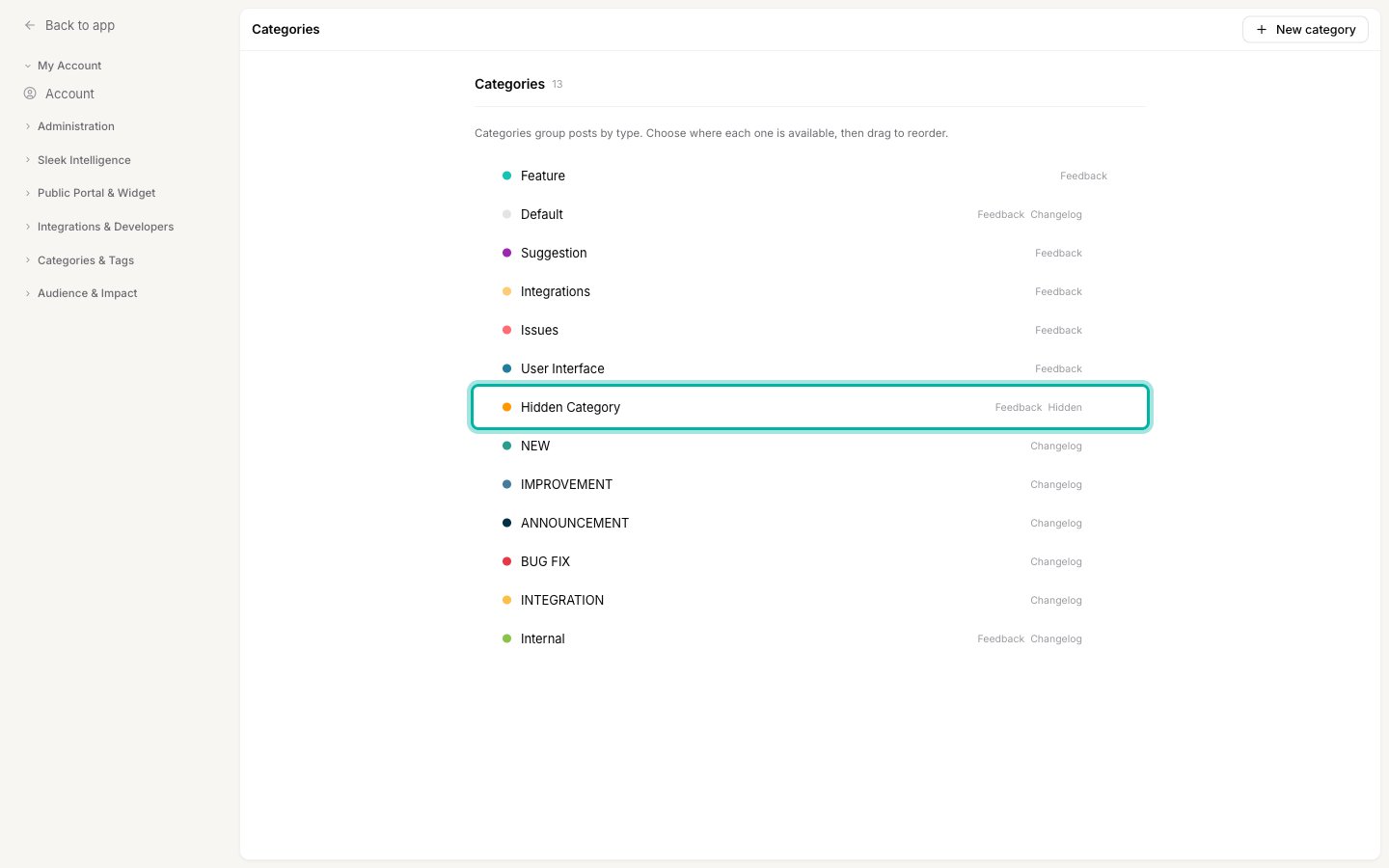
4
Move the posts you want to hide
Any post you move into this category is hidden from that moment on. To move several at once, select them on the Feedback list and use the bulk category action.
What your users see
Once a category is hidden:- Your board and roadmap skip its posts. They do not appear in the feedback list, in search, or on the roadmap, for signed-in and signed-out visitors alike.
- Direct links stop working. Someone who already has the URL of a hidden post gets “Access to this post is restricted” instead of the post.
- People already connected to a post keep it. The person who submitted the post, anyone who voted on it, and anyone subscribed to it can still open it and still see it in their own activity lists. Hiding a category does not take away a post from the user who wrote it.
- Your team sees everything. Hidden posts stay fully visible in the admin dashboard, so you can triage, comment, and change status as usual.
Because the person who submitted a post keeps access to it, a hidden category is the right tool for keeping work off your public board, not for hiding a post from the customer who reported it. If you need a post nobody outside your team can reach, create it yourself in a hidden category rather than moving a user’s post into one.
The other Advanced options
Hidden category is the strongest of the visibility toggles. The others in the same section each solve a narrower problem, and you can combine them:
If your workspace uses segments, the category form also has a Segment field. Tying a category to a segment shows its posts only to signed-in customers in that segment, which is the middle ground between fully public and fully hidden. See Show a category to only some of your customers.
Hidden posts, private boards, and internal comments
Three different features sound similar. Pick by what you actually want to keep private:
These combine freely. A private board can still have hidden categories inside it, and any post, hidden or not, can carry internal comments.
Related
Add, remove, and reorder categories
Everything else the category form does, from colors to availability.
Control who can access your board
Password, email domains, and single sign-on for the whole portal.
Comments and internal discussions
Keep a conversation between team members on a public post.
Bulk edit feedback
Move a group of posts into a hidden category in one action.
Show a category to only some customers
Scope a category to a segment instead of hiding it from everyone.