
Categories are workspace-wide. Adding, renaming, reordering, or deleting one affects every post and, depending on its settings, what your users see on the public board, roadmap, and changelog.
The default category
One category is your default (named Feature to start). New posts land in it when no other category is chosen, and posts from a deleted category fall back to it. You can rename and recolor the default, but you cannot delete it, so there is always somewhere for posts to go.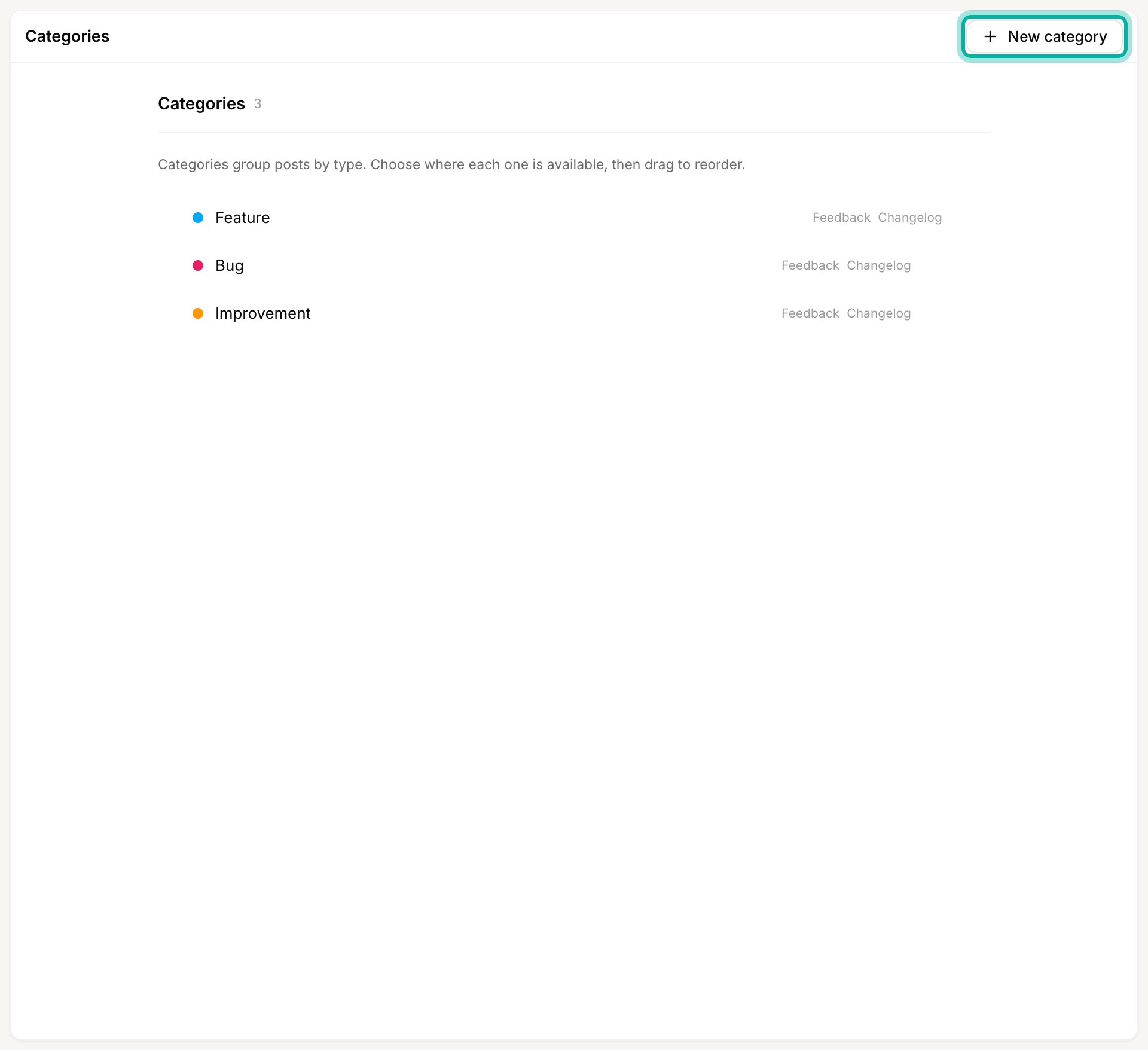
Add a category
1
Open the category form
Go to Settings → Categories and click New category in the top right.
2
Name it and pick a color
Give the category a short name and choose a color. The color is the dot shown next to the category everywhere it appears.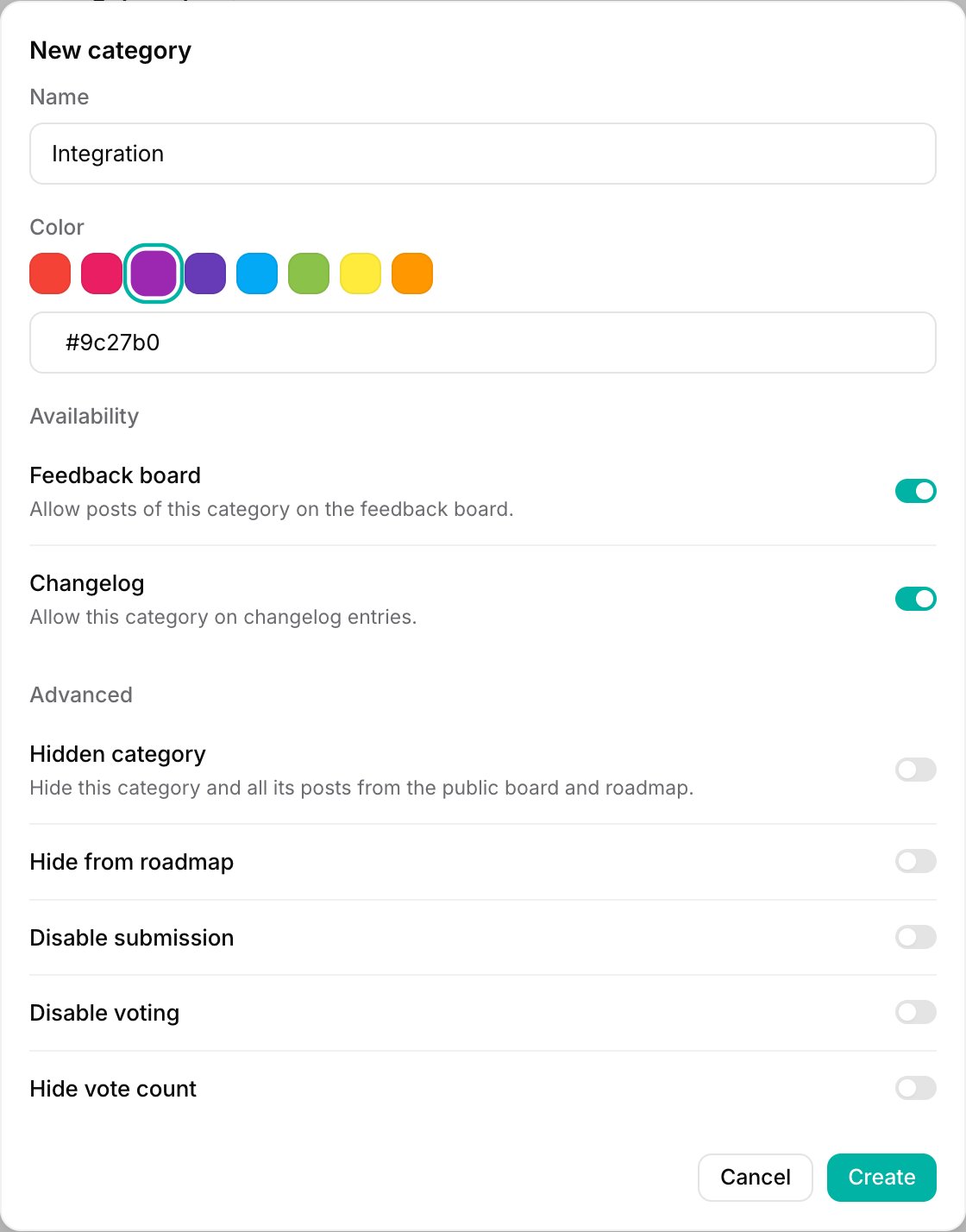
3
Choose where it is available
Under Availability, decide which surfaces the category can be used on:
- Feedback board lets users file posts of this category on your feedback board.
- Changelog lets you tag changelog entries with this category.
4
Set advanced options (optional)
The Advanced toggles fine-tune how the category behaves. Leave them off unless you need one:
- Hidden category hides the category and all of its posts from the public board and roadmap. Use it for internal-only work, and see Hide posts from your public board for what your users can and cannot still reach.
- Hide from roadmap keeps the category on the board but off the roadmap.
- Disable submission stops users from creating new posts in this category (existing posts stay).
- Disable voting turns off voting on posts in this category.
- Hide vote count keeps voting on but hides the number from users.
5
Create it
Click Create. The category is available right away wherever you enabled it.
If your workspace uses segments, the dialog also shows a Segment field that ties the category to a user segment, so only matching customers see its posts. It only appears when you have segments set up. See Show a category to only some of your customers.
Reorder categories
The order here sets the order categories appear in the category picker and on your board. Put the ones users reach for most at the top.1
Grab the drag handle
Hover a category row to reveal the drag handle on its left.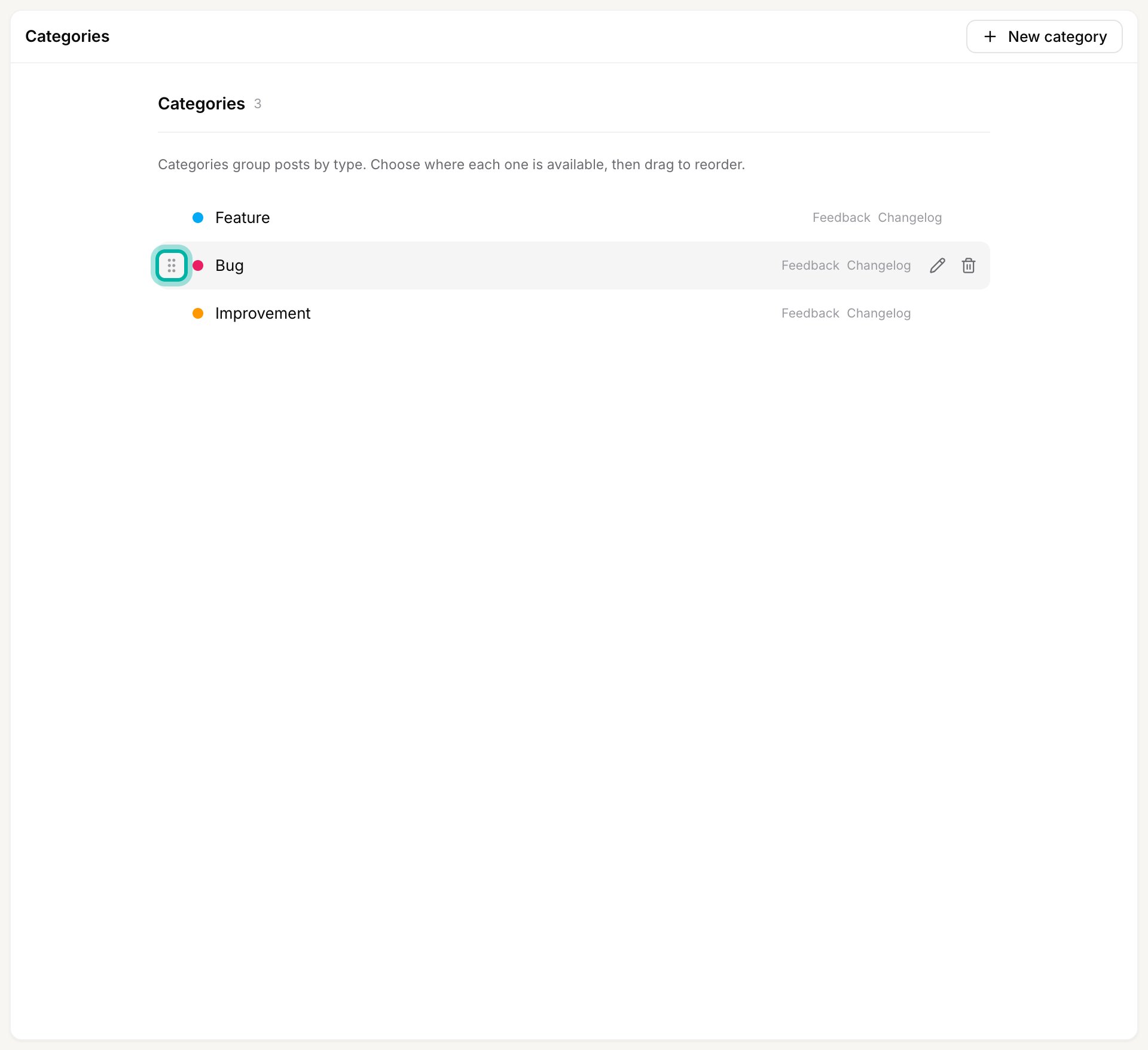
2
Drag it into place
Drag the row up or down and drop it where you want it. The new order saves on its own.
Edit a category
Click a category name, or the pencil icon that appears when you hover its row, to reopen the same form and change its name, color, availability, or advanced options. You can edit the default category too, you just cannot delete it.Delete a category
1
Open the delete confirmation
Hover the category you want to remove and click the trash icon on the right. The default category has no trash icon because it cannot be deleted.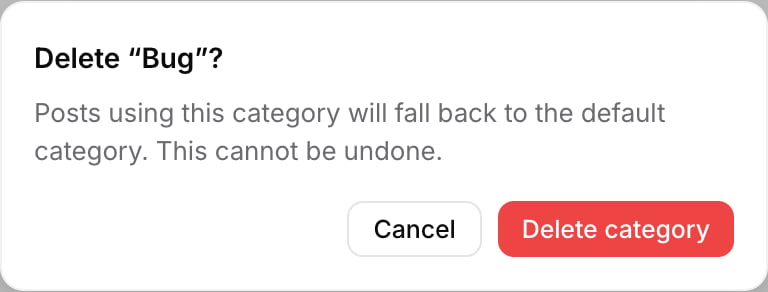
2
Confirm
Click Delete category. Any posts in it move to the default category (they are not deleted), and the category is removed everywhere. This cannot be undone.
Related
Category templates
Give each category a starting body that prefills the composer.
Add, remove, and reorder statuses
Manage the statuses that track a post through your workflow.
Create a post
Set a post’s category along with its status, owner, and estimate.
The roadmap
Hidden categories and Hide from roadmap control what shows there.
Categories, components, tags, and statuses
How the four ways of organizing feedback divide up the work.
Add, remove, and reorder components
The other axis: which part of your product a post is about.
Hide posts from your public board
Keep internal posts off the board with a hidden category.