
Replying to feedback is available to any team member with access to the workspace. Private notes require a paid plan (Starter and above). On the free plan you’ll be prompted to upgrade when you try to add one.
Where the discussion lives
Open any post from the Feedback list. The Discussion tab shows the full thread under an Activity list, with the reply box pinned at the bottom.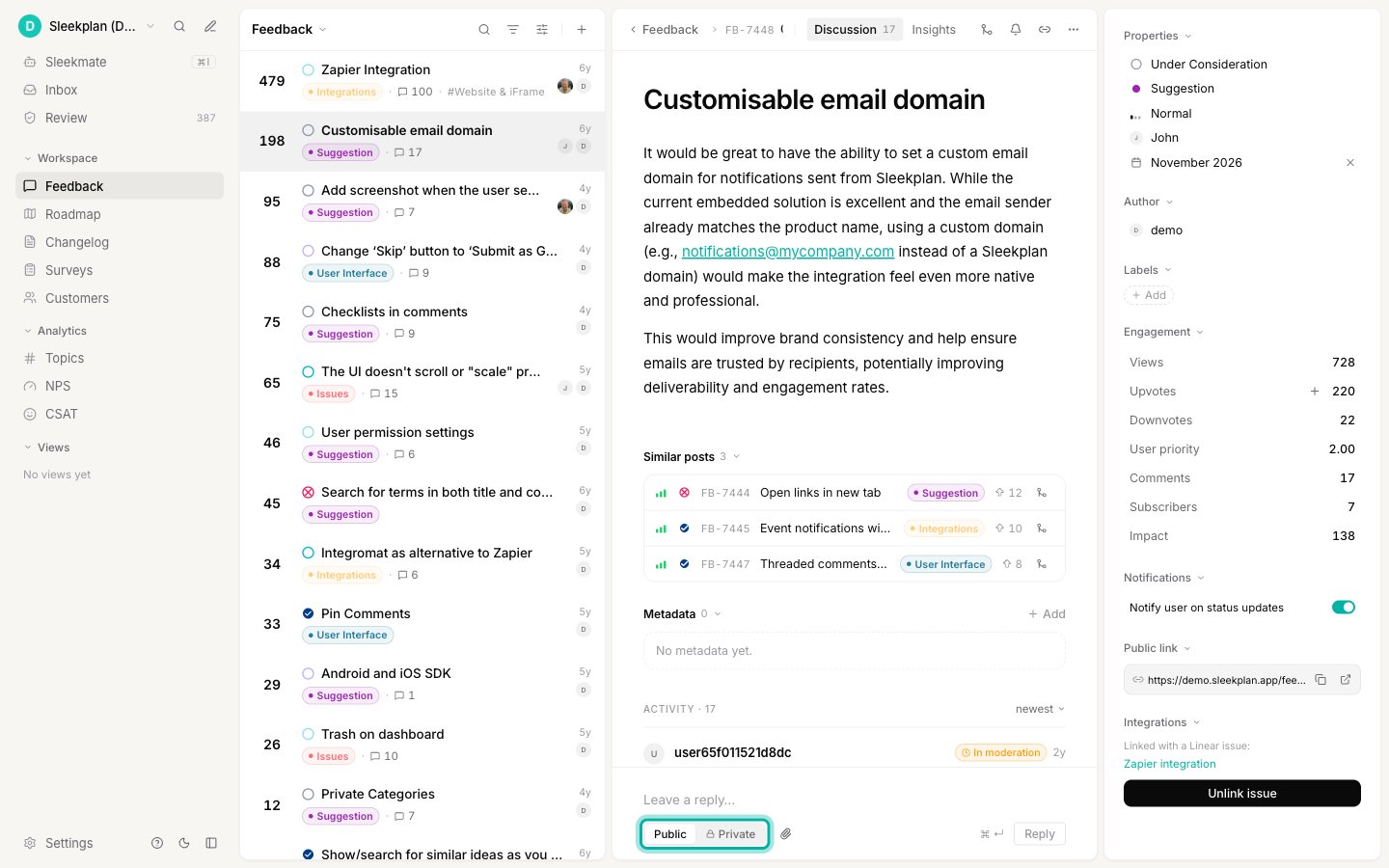
Reply to a user
A public reply is the normal way to respond to the person who submitted the post and everyone following it.1
Open the post and write your reply
In the reply box at the bottom of the Discussion tab, make sure Public is selected, then type your message. The editor supports rich formatting and file attachments (see Attach images and files and Format your comment below).
2
Send it
Select Reply, or press
Cmd/Ctrl + Enter. Your comment appears in the thread and is visible to your users on your feedback board and in the widget.Add a private internal note
Private notes are for your team only. Use them to triage a request, tag a colleague for input, or record context you don’t want customers to see, all attached to the post it’s about.1
Switch the reply box to Private
In the reply box, select Private (the lock icon). The placeholder changes to Write an internal note… and the button changes to Add note, so you always know which audience you’re writing for.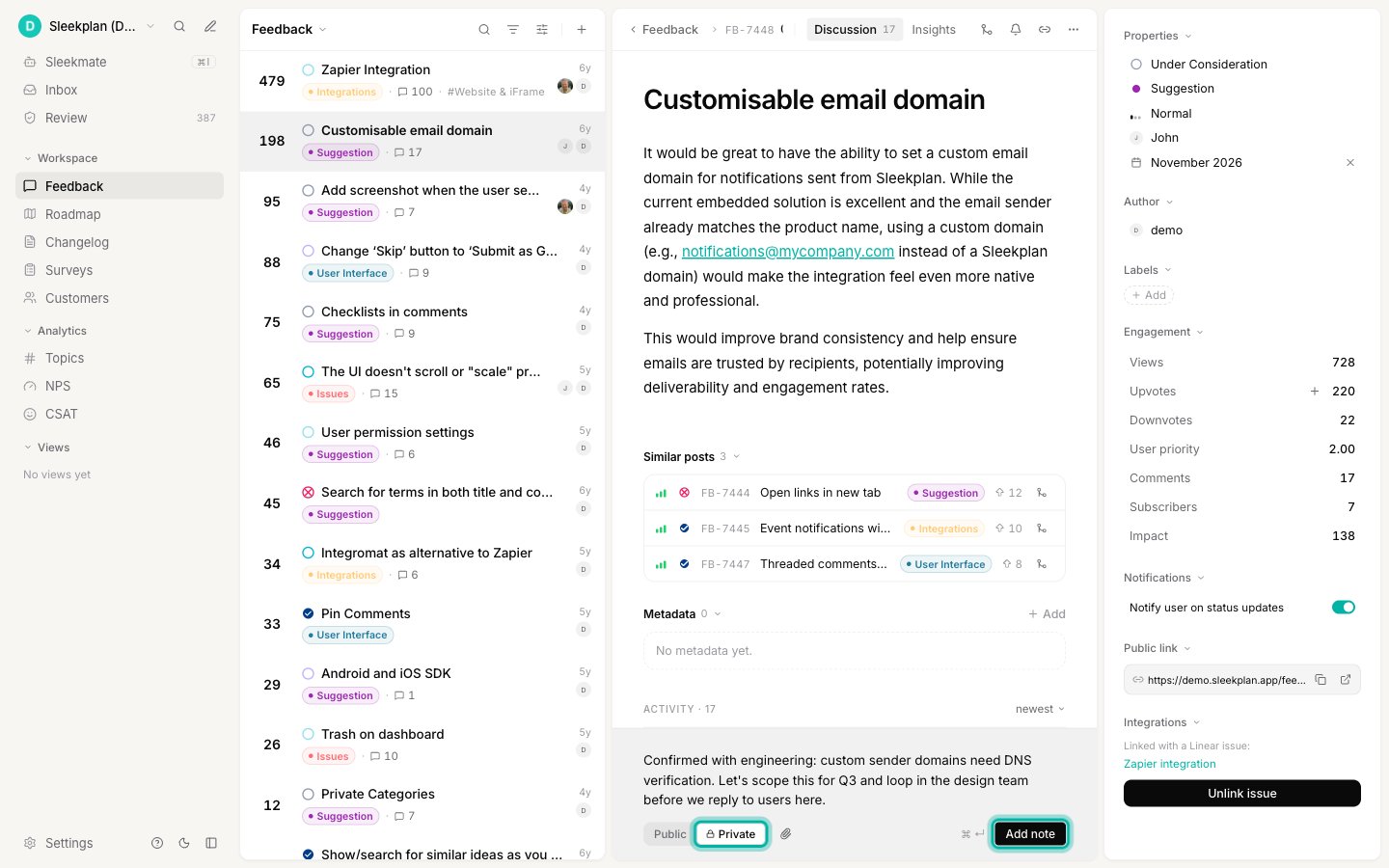
2
Write your note and add it
Type your note, then select Add note. It’s saved to the thread but hidden from your users.
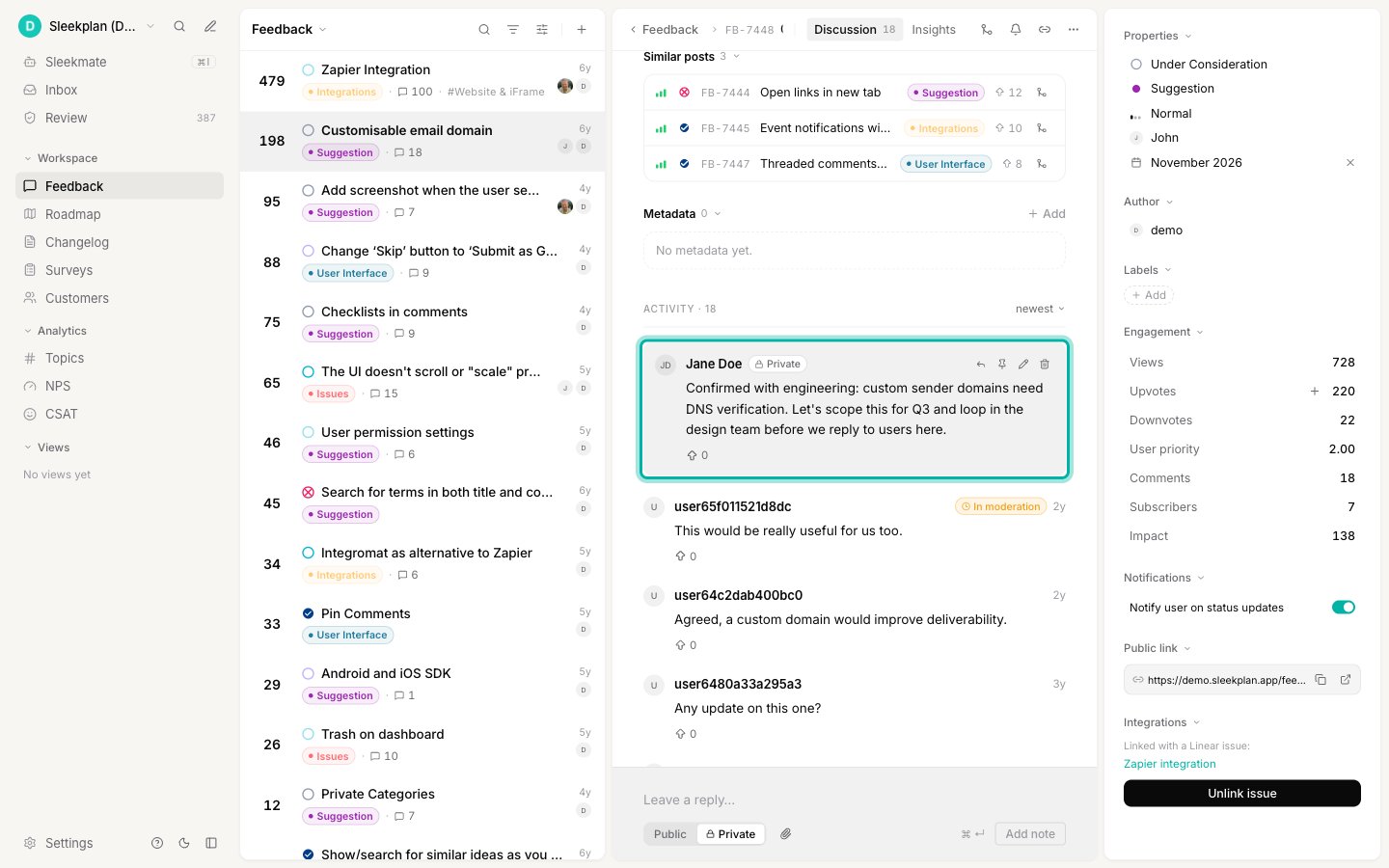
Replies stay private
When you reply to a private note, your reply is automatically kept private too, so a team-only side conversation can’t accidentally spill into the public thread. Replies to a public comment stay public.Mention teammates and link related items
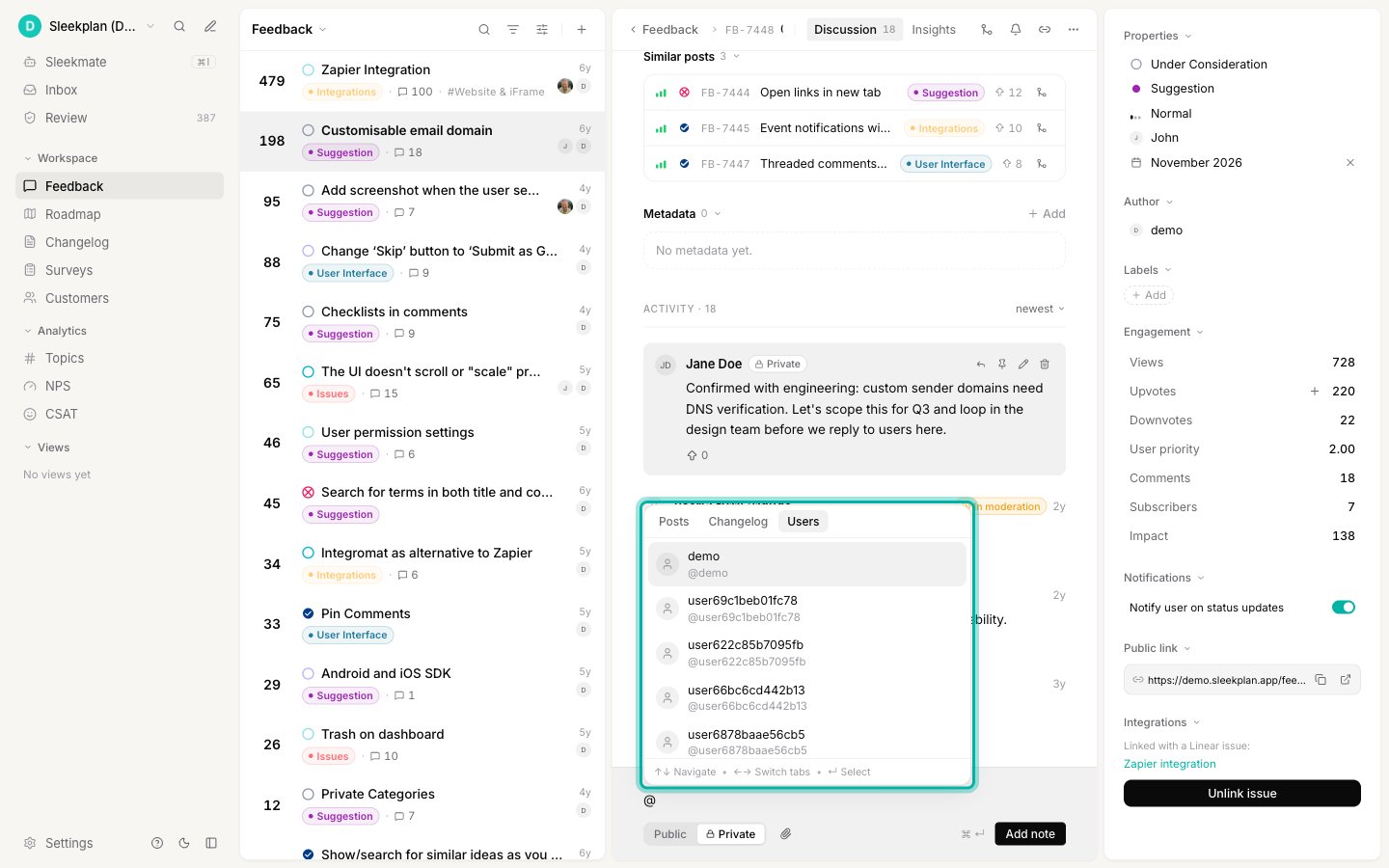
Type@ in any comment or note to open the mention menu. It has three tabs:
- Users to mention a teammate or a customer. The person you mention gets notified.
- Posts to link another feedback post.
- Changelog to link a changelog entry.
Attach images and files
You can attach images and files to any comment, public or private, using the paperclip button in the reply box.1
Select the paperclip
In the reply box, select the Attach files (paperclip) button and pick one or more files from your computer. You can attach up to 10 files per comment.
2
Send the comment
Add an optional message, then select Reply (or Add note for a private comment). A comment can be sent with attachments only, no text required.
Images are added through the paperclip, not by pasting or dragging them into the text box. Formatting shortcuts still work in the text itself (see below).
Format your comment
The comment editor is the same rich editor used for post descriptions, for both public replies and private notes. Format text with Markdown shortcuts, the/ menu, or the selection toolbar (bold, italic, lists, quotes, code, and links). See Write and format the description for the full set.
Like a comment
Every comment has a like control in its footer: an up-arrow with a count next to it. Select it to like the comment, and select it again to remove your like. The arrow turns teal while your like is active, and the number shows the total likes. Your users can like comments too, from your feedback portal and the widget.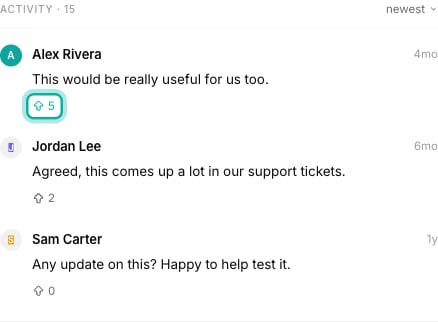
Pin a comment to the top
Pinning keeps an important comment, such as an official response or a summary, at the top of the thread so everyone sees it first.Pinning is available to your team. Only top-level comments can be pinned, not replies to a comment.
1
Hover the comment and select Pin
Hover over a top-level comment to reveal its action buttons, then select Pin comment (the pin icon).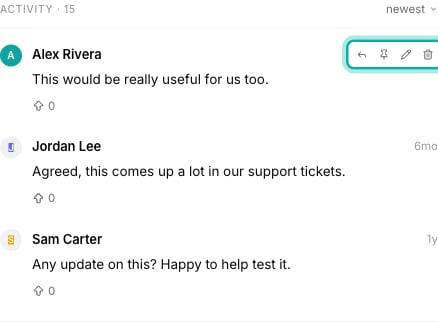
2
It moves to the top
The comment jumps to the top of the thread and shows a Pinned label, no matter which sort order the thread uses. To remove it, hover the comment again and select Unpin.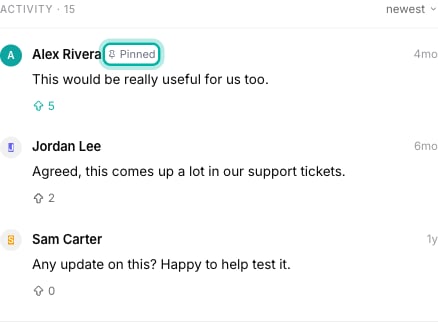
Edit or delete a comment
Hover over any comment to reveal its action buttons in the top-right corner.- Edit (the pencil icon) opens the comment inline in the editor. Change the text or attachments, then select Save. Both public replies and private notes can be edited.
- Delete (the trash icon) removes the comment. You’re asked to confirm first, since deleting a comment can’t be undone.
Related
Create a post
Add feedback from the dashboard, then open the discussion to reply or add notes.
Review incoming feedback
Approve, edit, or reject the posts and comments your users submit.
Emails to your users
See which comment and mention notifications reach your users, and when.
Team roles and permissions
Control who on your team can access the workspace and its discussions.