
Managing document types requires the Starter plan or above, and an Owner or Admin role. Members do not see this settings section. See Team roles and permissions.
Open the document types settings
Go to Settings → Categories & Tags → Document types.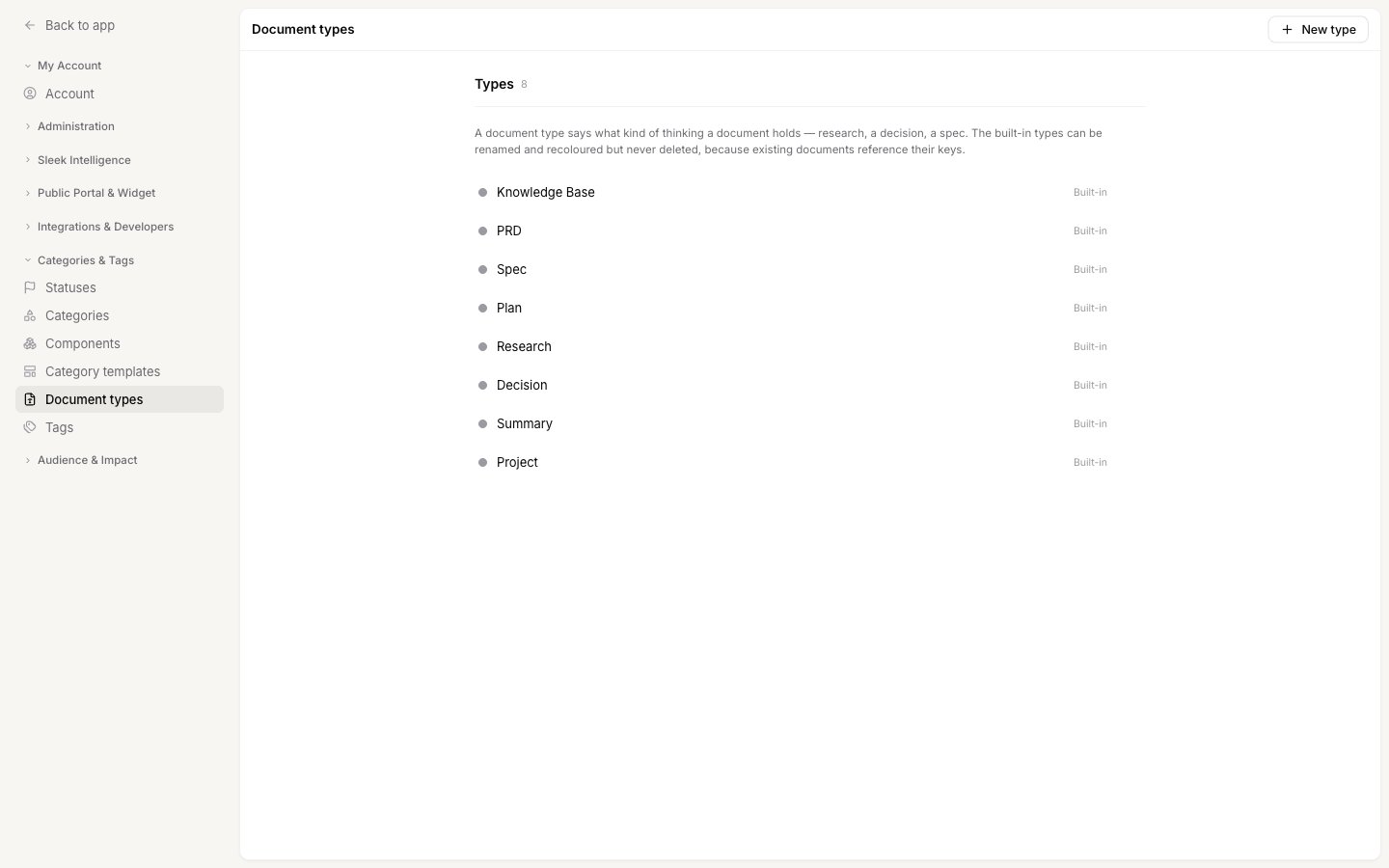
The built-in types
Every workspace starts with eight types, ready to use. They follow the shape of product thinking: what you learned, what you decided, what you are going to build, and how you will build it.
You can rename and recolour all eight to match your own vocabulary. If your team says “discovery” instead of “Research”, rename the type and every document keeps its type.
You cannot delete a built-in type. They are marked Built-in in the list, and existing documents refer to them, so removing one would leave those documents without a type. Rename it instead, or stop using it.
Rename or recolour a type
1
Select the type
Click the type’s name in the list to open it.
2
Change the name or colour
Edit the Name, and pick a Colour from the swatches or enter a hex value. A colour is optional. Types without one show a neutral dot.
3
Save
Click save. The change applies everywhere the type appears: the documents list, the type filter, the document panel, and the Documents block on a feedback post.
Add your own type
1
Click New type
On Settings → Document types, click New type in the top right.
2
Name it and pick a colour
Give it a name, for example “Postmortem”. Pick a colour if you want it to stand out in the list.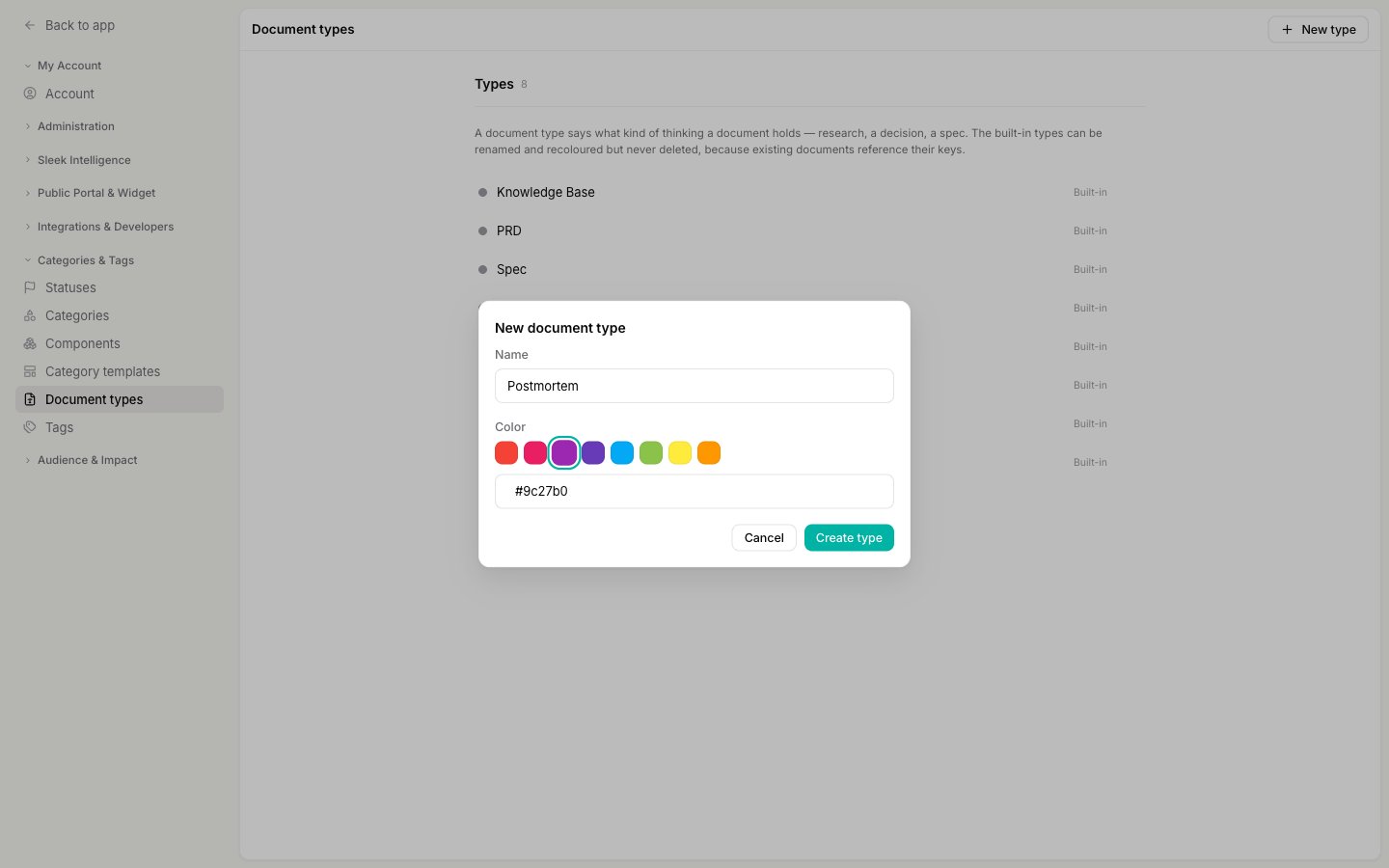
3
Create it
Click Create type. It appears at the end of the list and is immediately available on every document.
Delete a type you added
Types you created can be deleted. What happens depends on whether documents are still using it.1
Delete the type
Hover the type in the list, click the delete icon, and confirm.
2
Move its documents, if it has any
If no document uses the type, it is removed straight away.If documents still use it, Sleekplan will not orphan them. It asks which type they should move to instead. Pick the replacement, then click Move and delete. Those documents are reassigned and the old type is removed in one step.
This is why a type can never be deleted out from under a document. Either the type is unused, or you choose where its documents go. There is no state where a document has a type that no longer exists.
Types are not feedback categories
Document types and feedback categories look similar and do different jobs. A category describes the shape of a request your users submit. A document type describes the kind of thinking your team wrote down. They are separate lists on purpose, and nothing is shared between them.Next steps
Documents
What documents are for and how the Documents screen is organized.
Write a document
Create a document, format it, and set its type and status.
Categories, components, tags, and statuses
How the feedback side of your workspace is organized, and what each label is for.
Link documents to feedback
Connect a document to the posts it informs, from either side.