
Creating and editing documents requires the Starter plan or above, and an Owner or Admin role. Members can read documents but not change them. See Team roles and permissions.
Create a document
1
Open Documents and start a new one
Go to Documents and click New document in the top right.The document does not exist yet, so version history and linked posts stay empty until you save.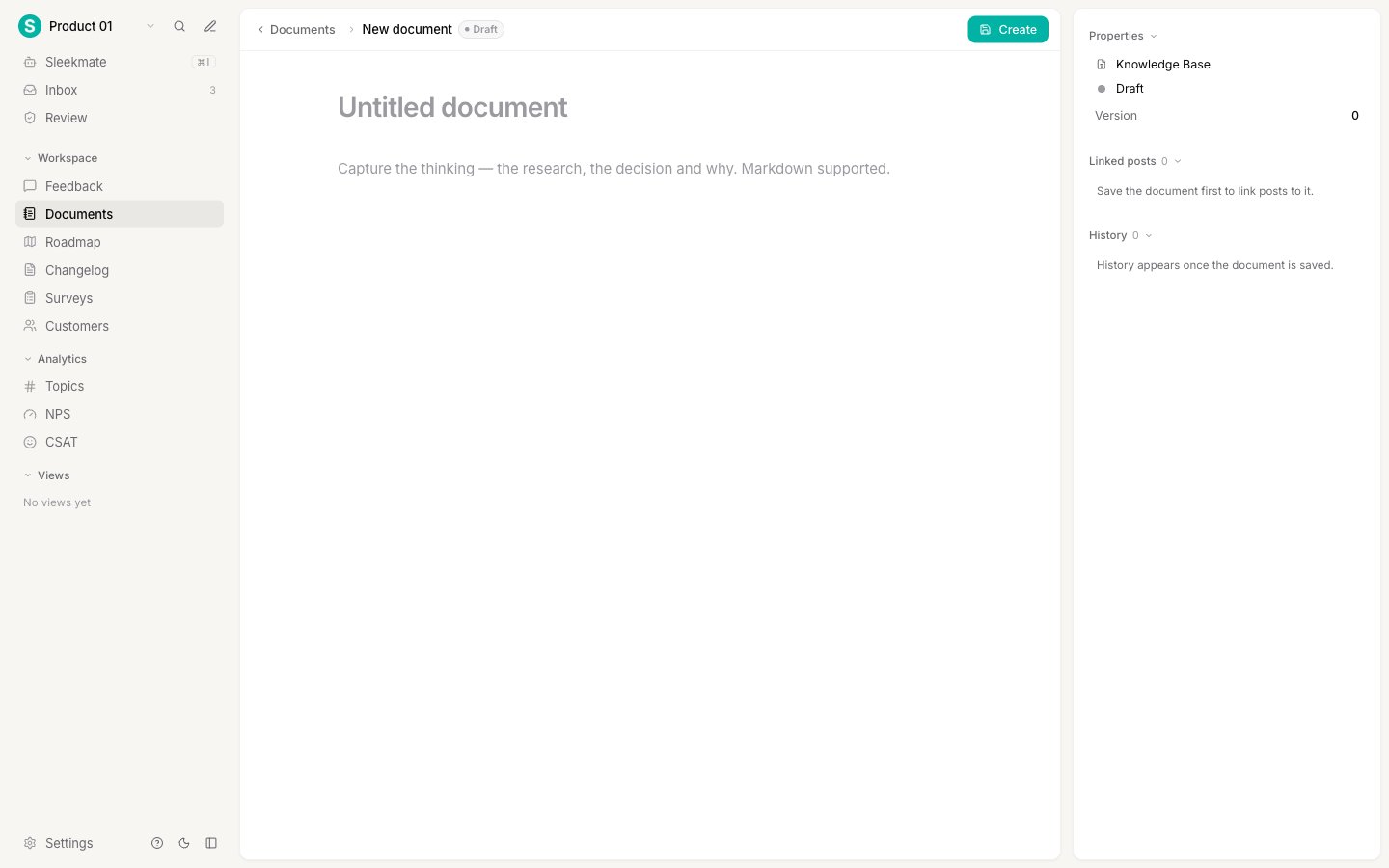
2
Give it a title
Type the title at the top. Write it as the conclusion, not the topic: “Why we keep one feedback queue” tells a reader what they will learn, while “Feedback queues” does not.A title needs at least three characters. Press Enter to jump from the title into the body.
3
Write the body
Write in the main area. Formatting works the way it does elsewhere in Sleekplan: type Markdown directly, or press / for the slash menu.The slash menu covers Heading 1, Heading 2, Heading 3, Bulleted list, Numbered list, Quote, Code block, and Divider. Select any text to get a small toolbar for bold, italic, strikethrough, inline code, and links.
4
Set the type and status
Open the right panel and pick a type for the document, then a status. Type says what kind of thinking this is, and comes from your document types. Status says how finished it is: draft, published, or archived.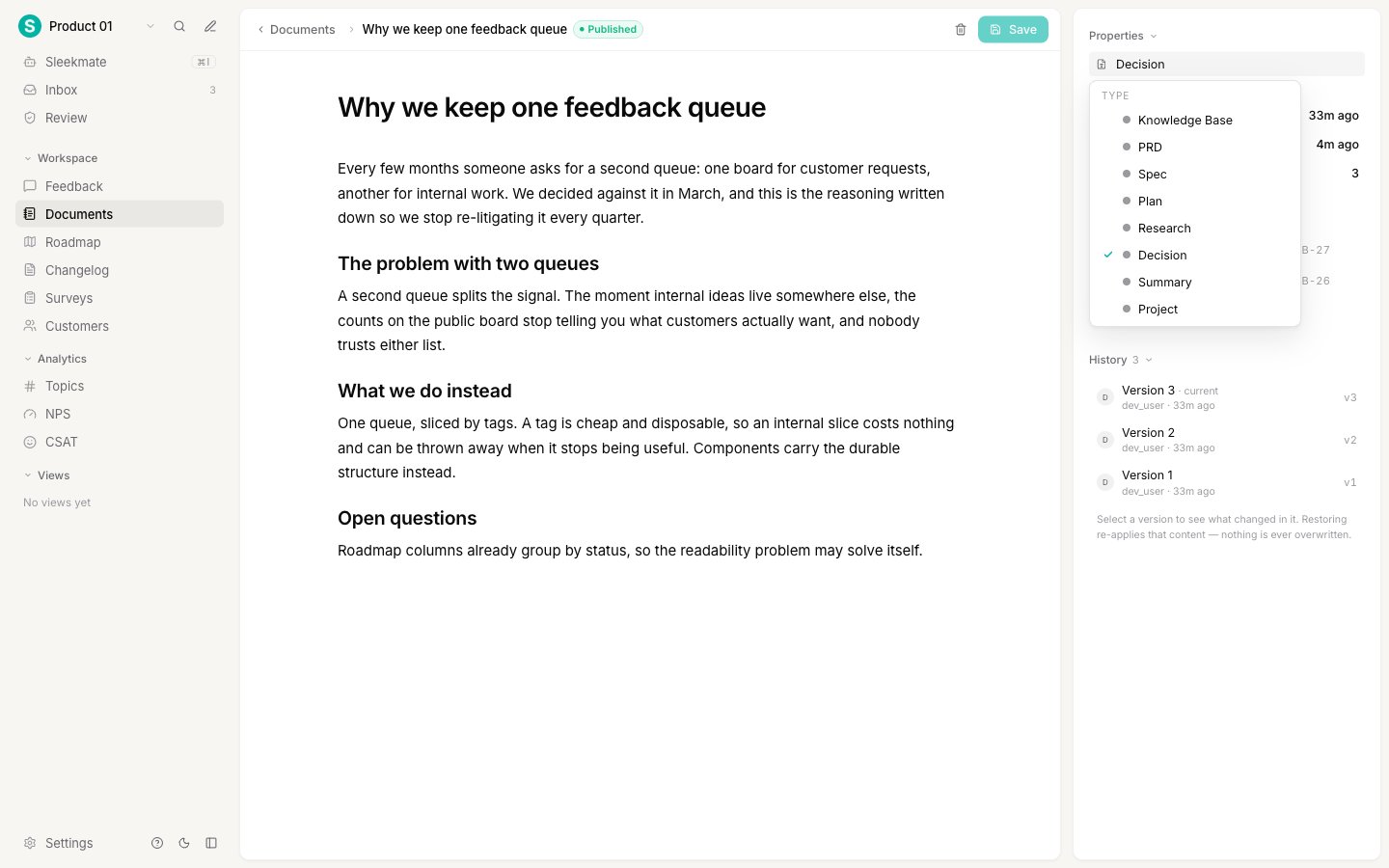
5
Save
Click Create. From then on the button reads Save, and it stays greyed out until you actually change something.Every save that changes the document adds a version, so you can see what changed later.
The editor and the panel
Once a document is saved, the screen has two parts.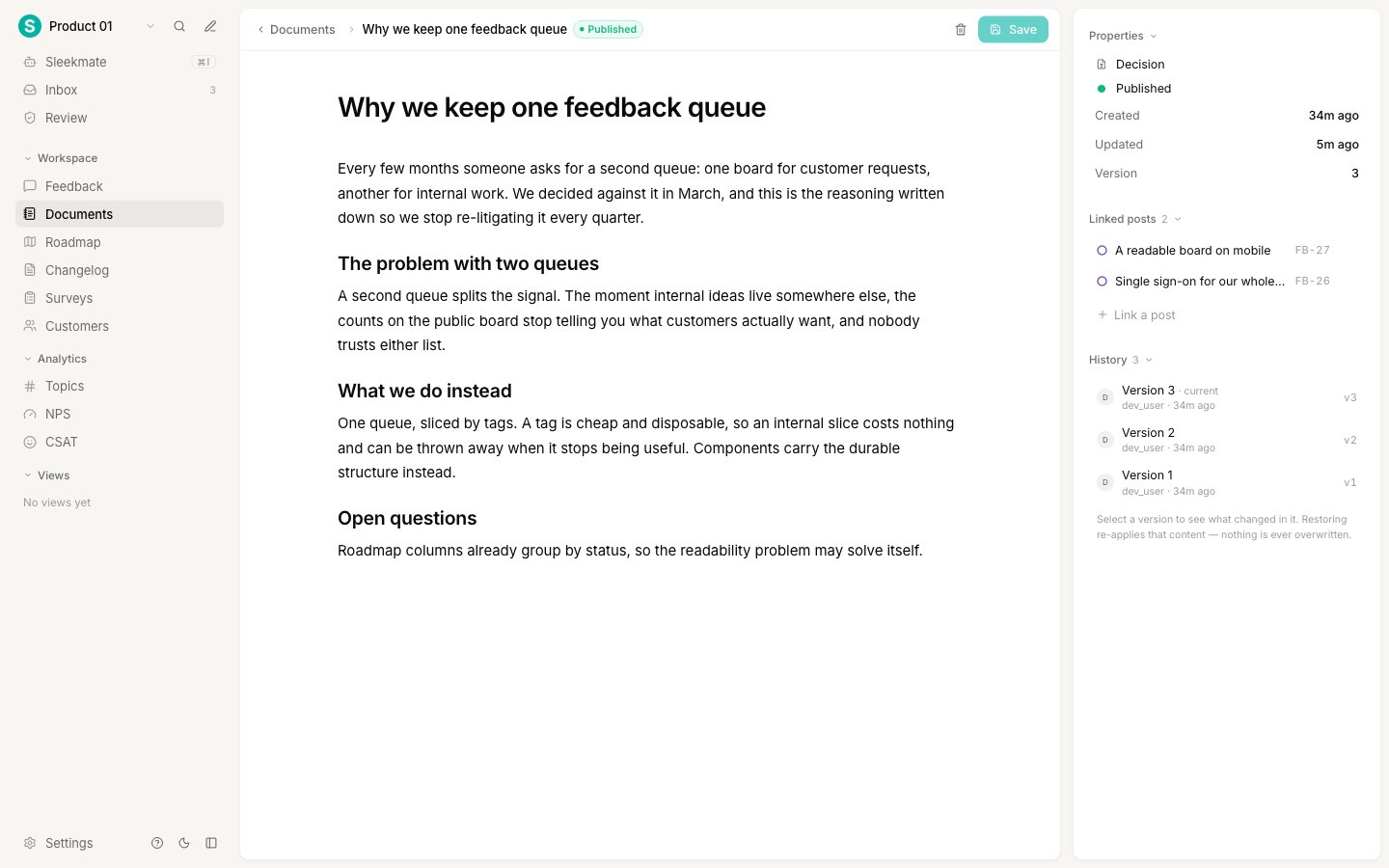
- Properties: its type, its status, when it was created, when it was last updated, and its current version number.
- Linked posts: the feedback posts this document informs. See Link documents to feedback.
- History: every saved version, newest first. See Version history and restore.
What to write
Documents work best when they answer questions a feedback post cannot:- Research. What you heard in customer calls, what people actually asked for, and what they did not.
- A decision and its reasoning. The option you picked, the ones you rejected, and why. This is the one that saves the most time later, because it stops the same debate coming back.
- A PRD, then a spec. The problem worth solving and who has it, then what you are going to build in enough detail that someone else could build it.
- Anything else worth keeping. Setup steps, payload shapes, or answers you give repeatedly. These sit on Knowledge Base, the general-purpose type.
Delete a document
Open the document and use the trash icon in the header. Deleting removes the document and its entire version history, permanently. There is no undo, so archive instead if you only want it out of the way.Next steps
Link documents to feedback
Connect a document to the posts it informs, from either side.
Version history and restore
See what changed in any version and go back to it.
Document types
Rename the built-in types or add your own.
Documents
What documents are for and how the Documents screen is organized.