
Surveys are available on the Business plan and above. You can read existing surveys and their responses on any plan, but creating or editing a survey requires a plan that includes the Surveys module. See Billing for what your plan includes.
Open the Surveys screen
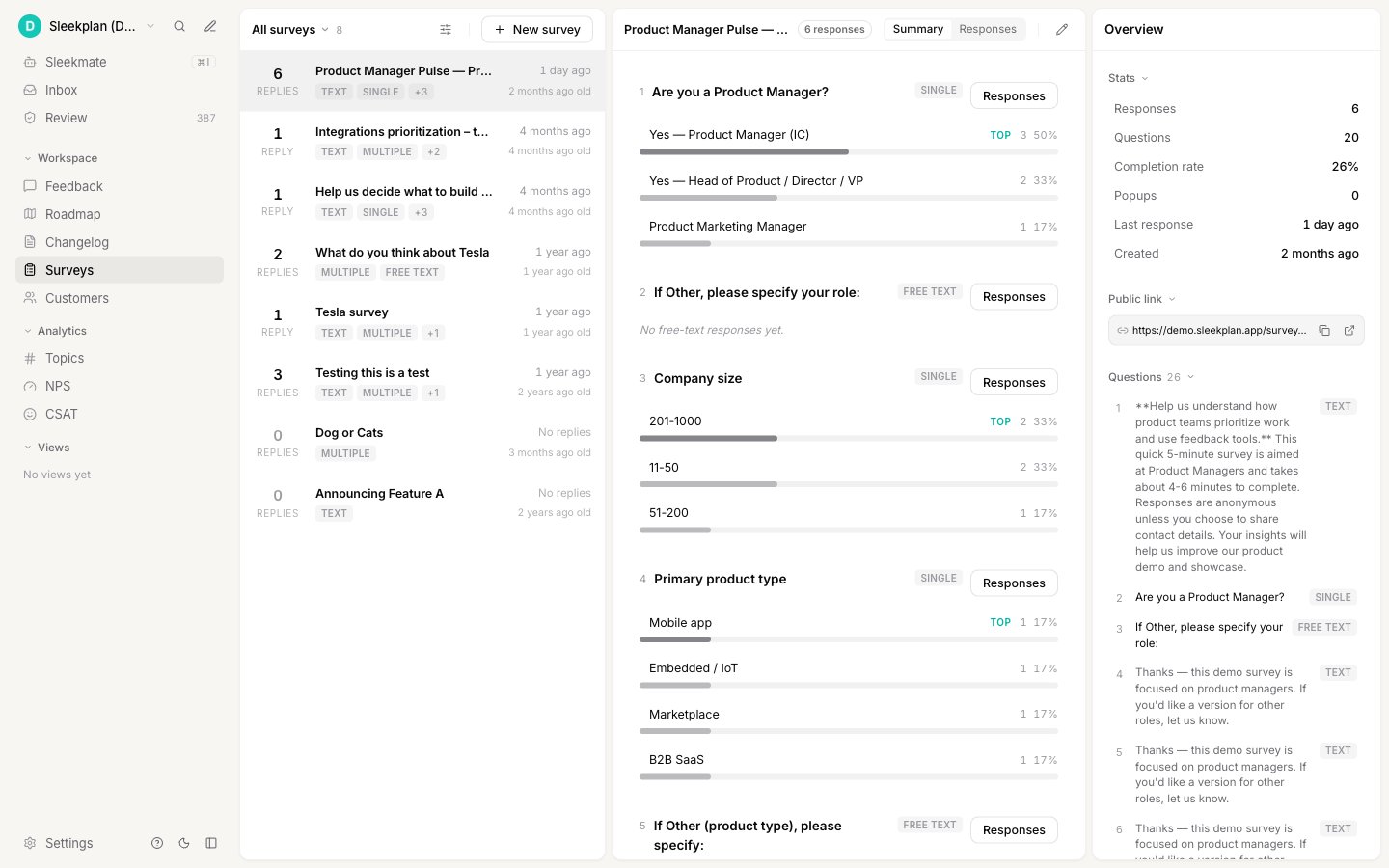
Surveys live at Surveys in the workspace sidebar. The screen has three panels side by side:
Select any survey in the list to load its results. To start a new one, use New survey in the list header. For the full walkthrough, see Create a survey.
Find a survey in the list
As you build up more surveys, the list header narrows the view. These controls only change what you see; they never change a survey or its responses.- Show switches the list between All surveys, With responses (surveys that have at least one answer), and Drafts (surveys that have no questions yet).
- Display options sets the row Density (Comfortable or Compact) and the Sort by order: Recent activity, Most responses, Newest, or Name (A–Z).
Where surveys appear to your users
A survey on its own is just a definition. To collect answers, you show it in one of two ways:- A public link. Every survey has its own web address that opens the survey as a standalone page, with no widget or navigation around it. Share it in an email, a chat message, or anywhere you can paste a link.
- A widget popup. Attach the survey to an outbound popup so it appears inside your Sleekplan widget for the audience, timing, and pages you choose.
Next steps
Create a survey
Build a survey question by question and save it.
Question types
See every question type, from single choice to NPS and free text.
Share and target a survey
Publish a survey with a public link or a widget popup.
Read survey results
Read the answer summary and drill into individual responses.