
Where history lives
Open any document from Documents. The History section in the right panel lists every version, newest first, with who saved it and when. The current version is marked.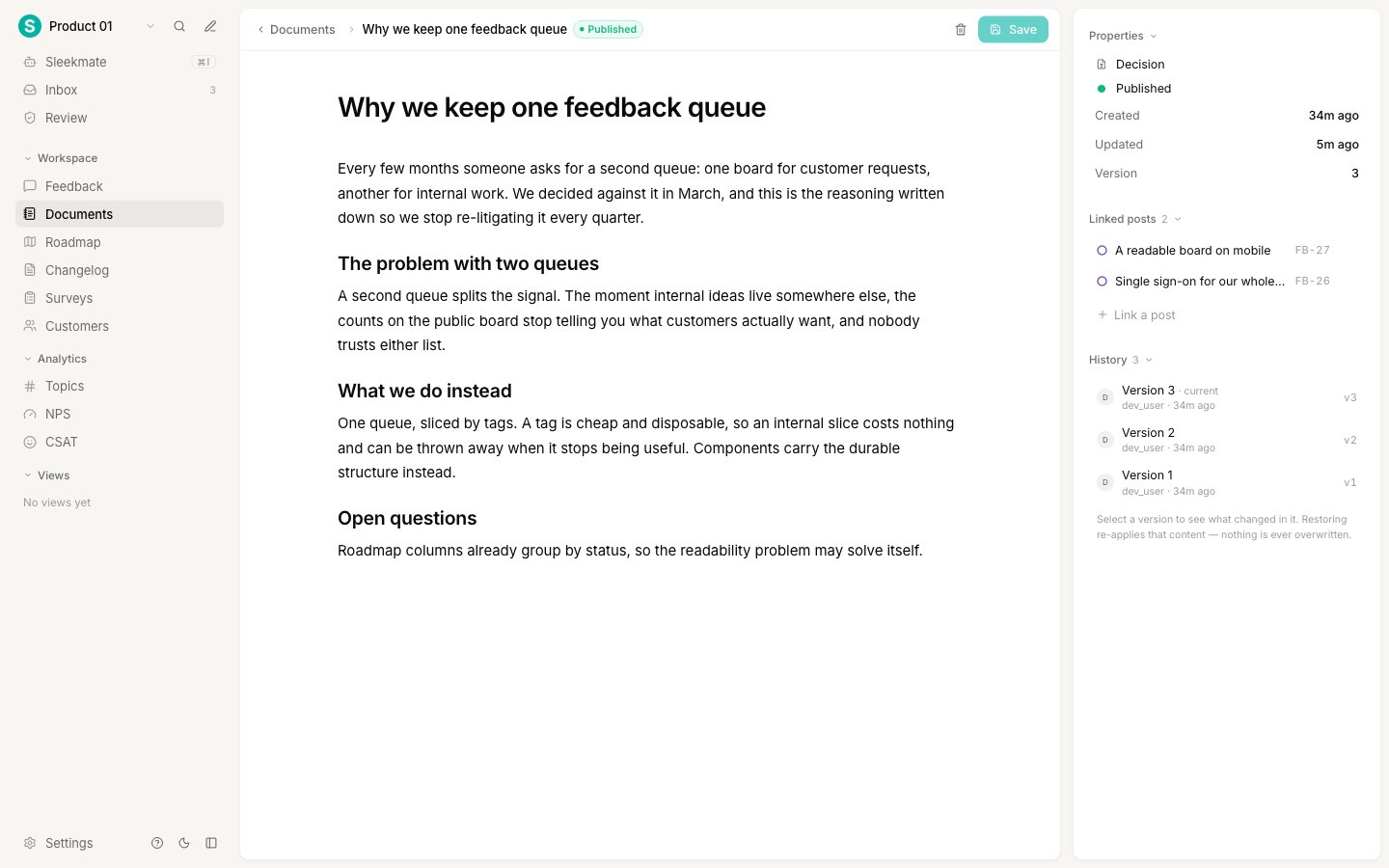
What counts as a new version
A version is recorded when a save actually changes something. Four things are watched:- the body
- the title
- the type
- the status
See what changed in a version
1
Select a version
Click any version in the History list. The editor switches to a read-only comparison showing what changed in that version, compared to the one before it.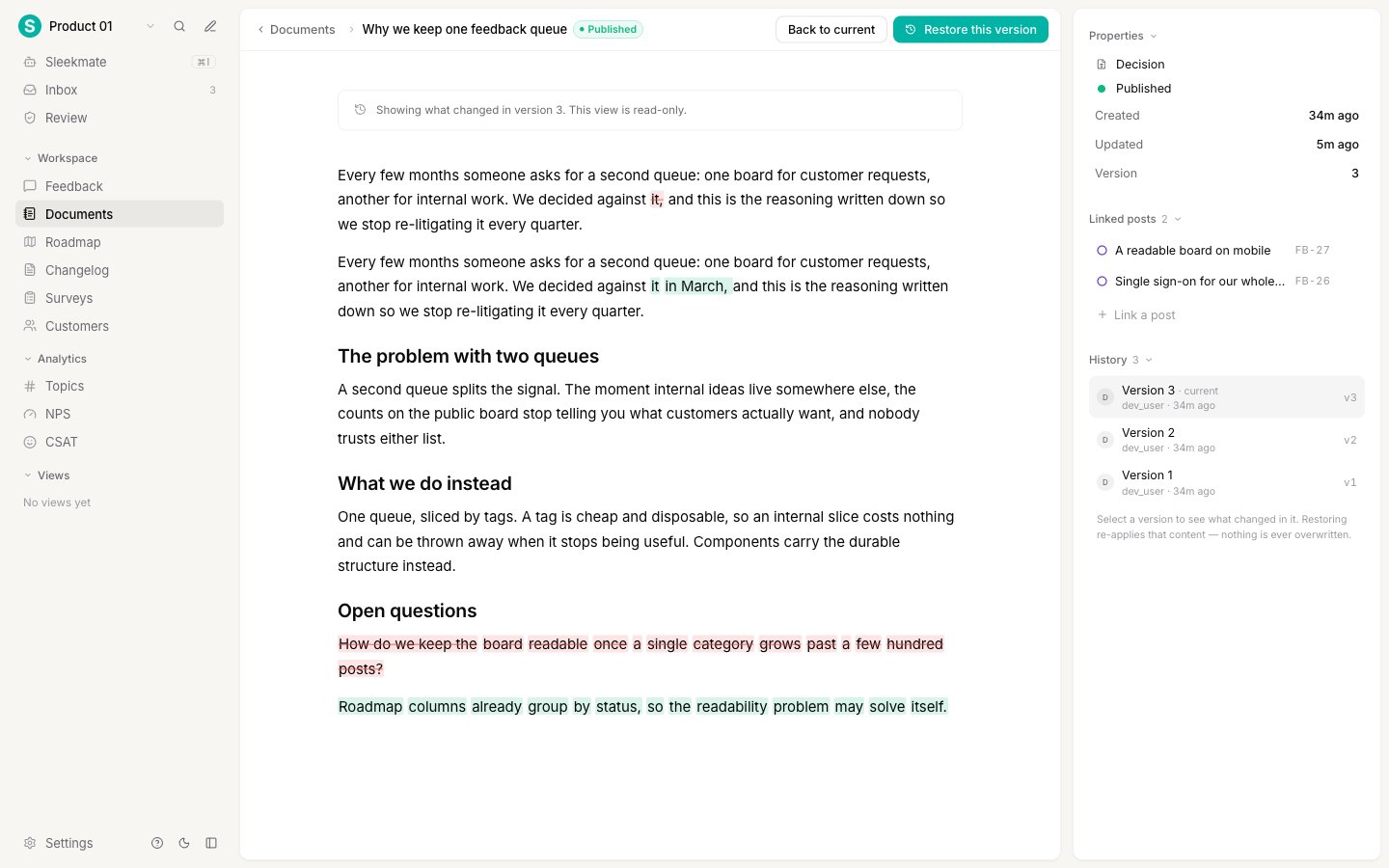
2
Read the highlights
Removed text is struck through and tinted red. Added text is tinted green. Where a paragraph was rewritten rather than replaced, you see both versions with only the words that actually changed highlighted, so a one-word edit does not read as a whole new paragraph.Version 1 shows the entire document as added, because there is nothing before it to compare against.
3
Go back to editing
Click Back to current in the header, or click the selected version again. Nothing you did in this view changed the document.
Restore an earlier version
Restoring re-applies an old version’s content on top of the document. It does not rewind or erase anything: the restore becomes a new version at the top of the history, and every version in between stays exactly where it was.1
Open the version you want back
Select it in the History list to check that it is the right one.
2
Restore it
Click Restore this version, then confirm. The document goes back to that content, and the history gains a new version that records where the content came from. Restored versions are marked in the list.
If the version you restore is identical to the document’s current content, nothing is added to the history and Sleekplan tells you there was nothing to restore. This keeps the history honest: it only records real changes.
Deleting a document deletes its history
There is no way to delete a single version, which is what makes the history trustworthy. Deleting the document does remove its entire history along with it, permanently. If you want a document out of the way but want to keep the record, set its status to archived instead of deleting it. See Write a document.Next steps
Write a document
Create a document, format it, and set its type and status.
Link documents to feedback
Connect a document to the posts it informs, from either side.
Document types
Rename the built-in types or add your own.
Documents
What documents are for and how the Documents screen is organized.