
Merging is available on every plan for team members with access to the workspace. Both posts must be live (already approved, not sitting in moderation) and in the same audience, so a public post and a segment-only post cannot be merged together.
What happens when you merge
When you merge post A into post B:- Votes move to B. Every voter on A who has not already voted on B is added as a voter on B, so B’s upvote count reflects the combined demand. Voters are never double counted.
- Subscribers move to B. People following A for updates start following B instead, so they still hear about the request as it progresses.
- Comments move to B. The discussion from A appears on B.
- Post A is set to the Merged status and keeps a link to B. A drops off your board (the built-in Merged status is hidden by default) but is not deleted, so you can still open it and trace where it went.
- No one is notified that the merge happened. Voters and subscribers you move onto B are not emailed about the merge itself, they simply start receiving B’s normal status and comment updates from then on.
Merge two posts
1
Open the post you want to fold in
From your Feedback board, open the duplicate post (the one you want to set aside), then click the merge icon in the post header.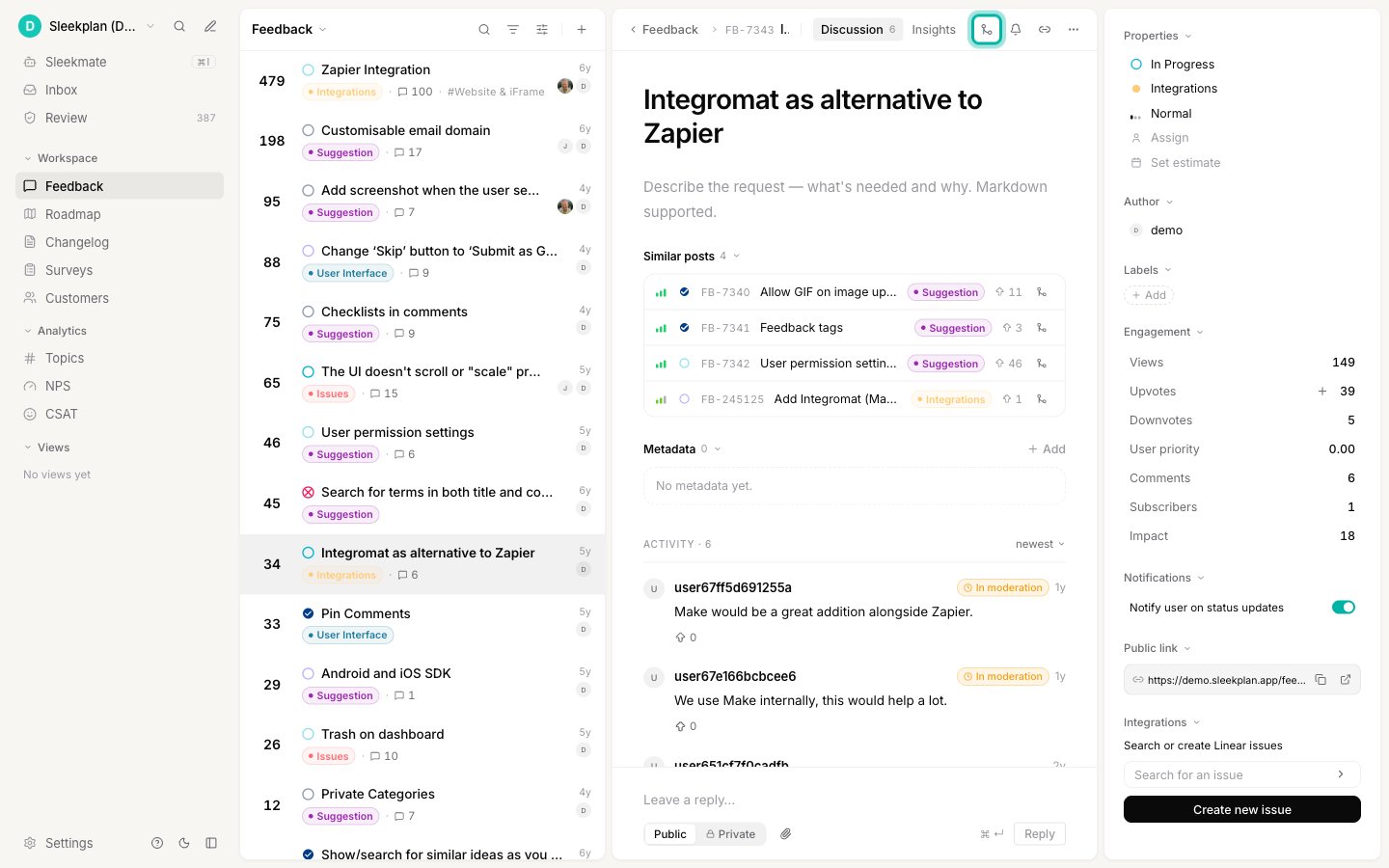
2
Search for the post to keep
Type a title or feedback ID to find the post you want to merge into. Each result shows its status and vote count so you can pick the right one. Posts that are already merged do not appear.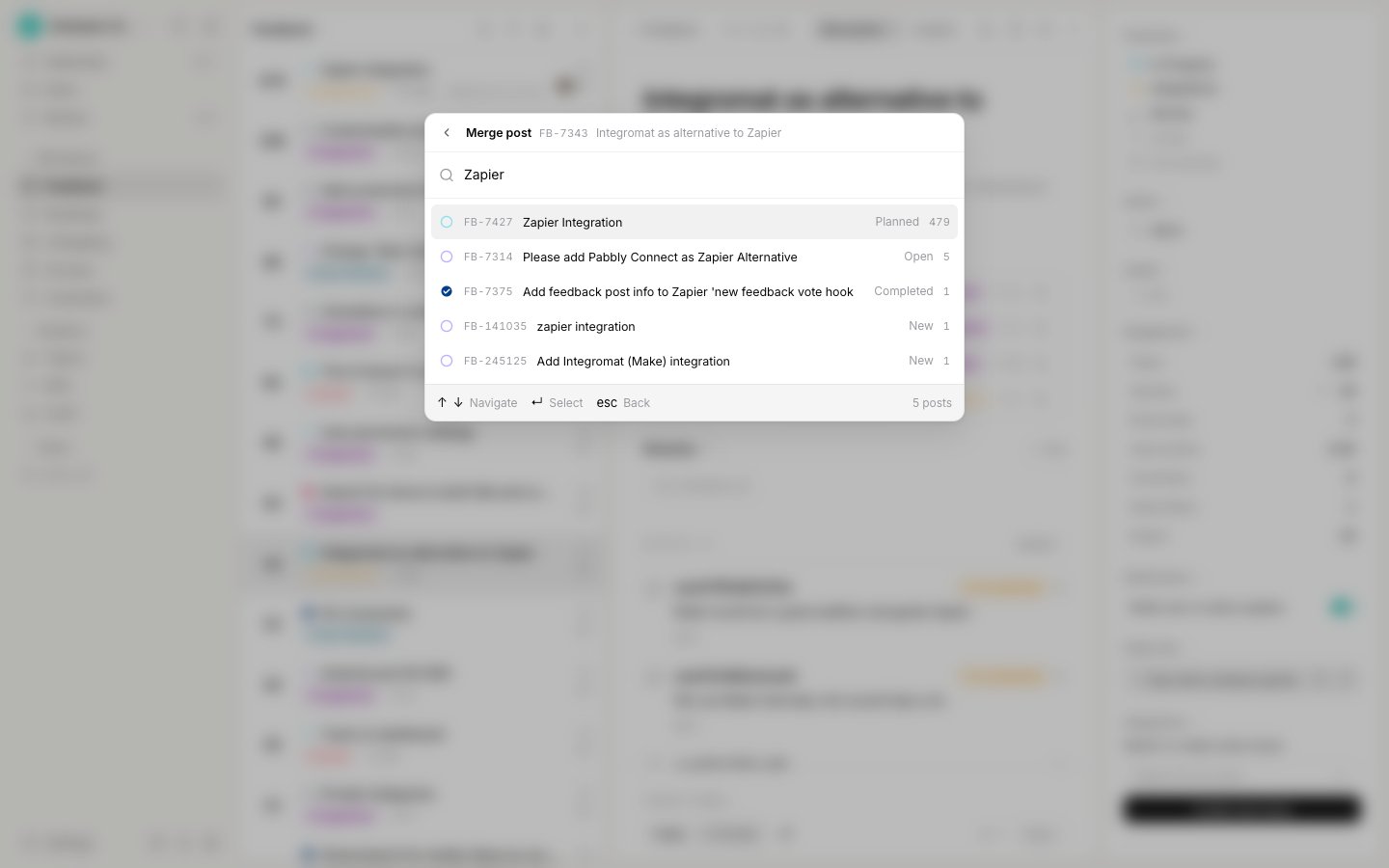
3
Check the direction, then confirm
Sleekplan shows which post is Merged away and which one Survives. By default the post you started on is merged away and the one you picked survives. If you want to keep the other post instead, click the swap button to flip the direction.When the boxes read the way you want, click Merge posts.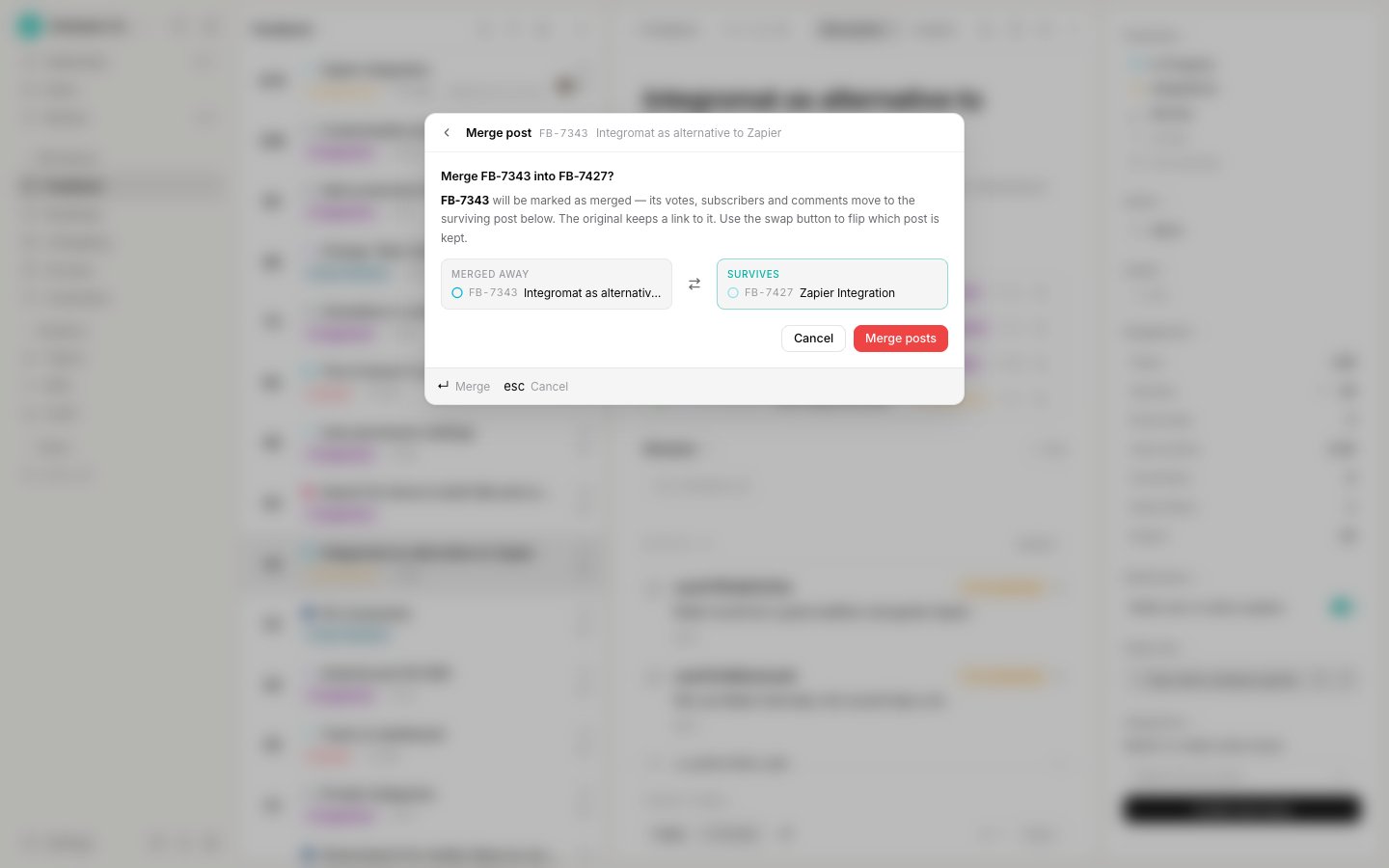
Find what was merged into a post
Open the surviving post to see everything that was folded into it. The Merged posts section lists each post that now points here. Click any row to open the original.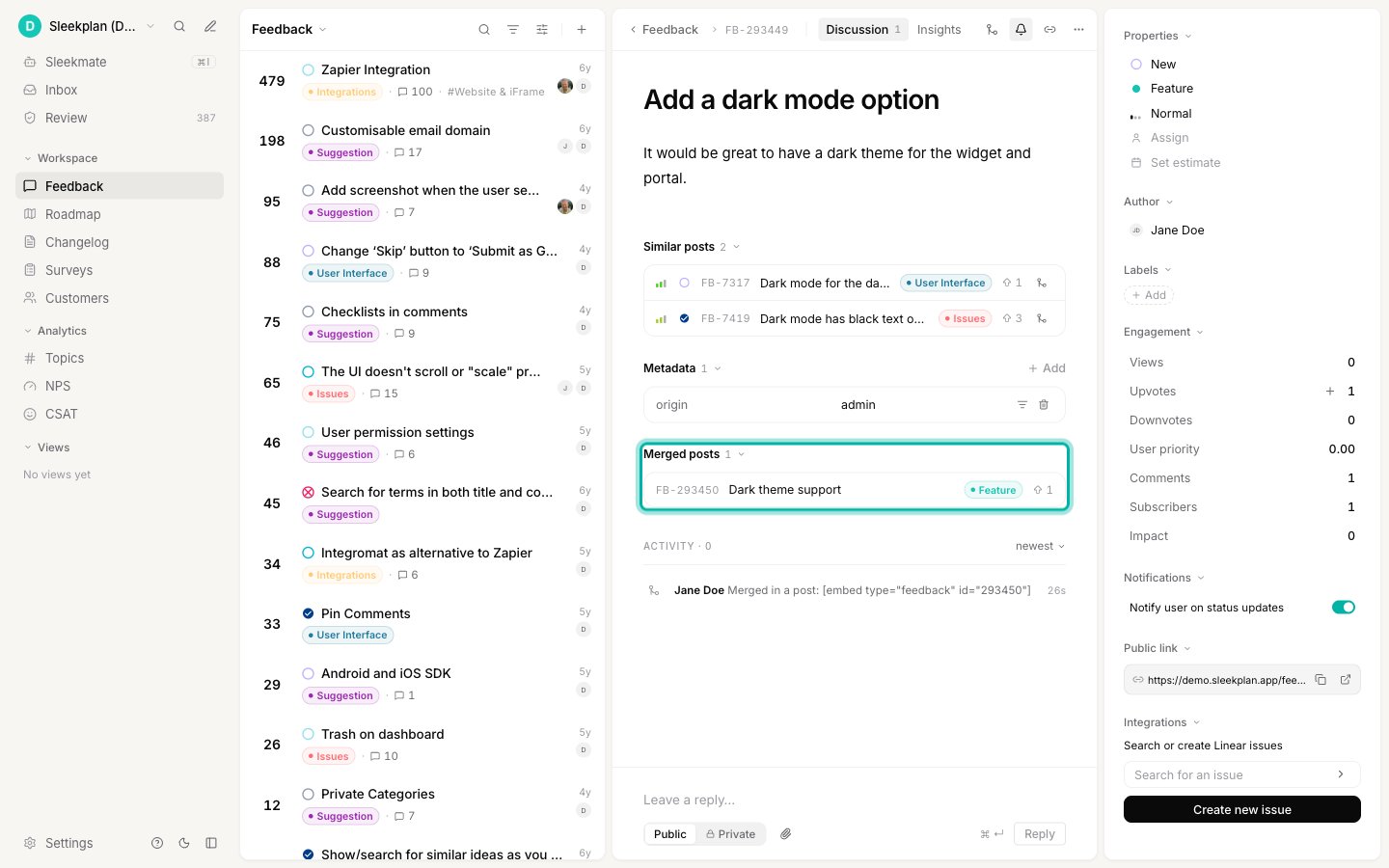
Unmerge a post
If you merged the wrong pair, you can break the connection and put the post back on your board. There is no separate “unmerge” button. Instead, open the merged post and change its status to any active status. Sleekplan asks you to confirm first, because unmerging is not a clean undo.1
Open the merged post
Open the post that was merged away. You can reach it from the surviving post’s Merged posts section, or by filtering your board to the Merged status.
2
Change its status
In the properties panel, click the Merged status and choose a normal status such as Open or Planned.
3
Confirm you understand what stays behind
A Break the merge connection? dialog explains exactly what happens. The post returns to your board with the new status, but the votes, subscribers, and comments that already moved to the other post stay there. They are not moved back. Click Unmerge & change status to continue.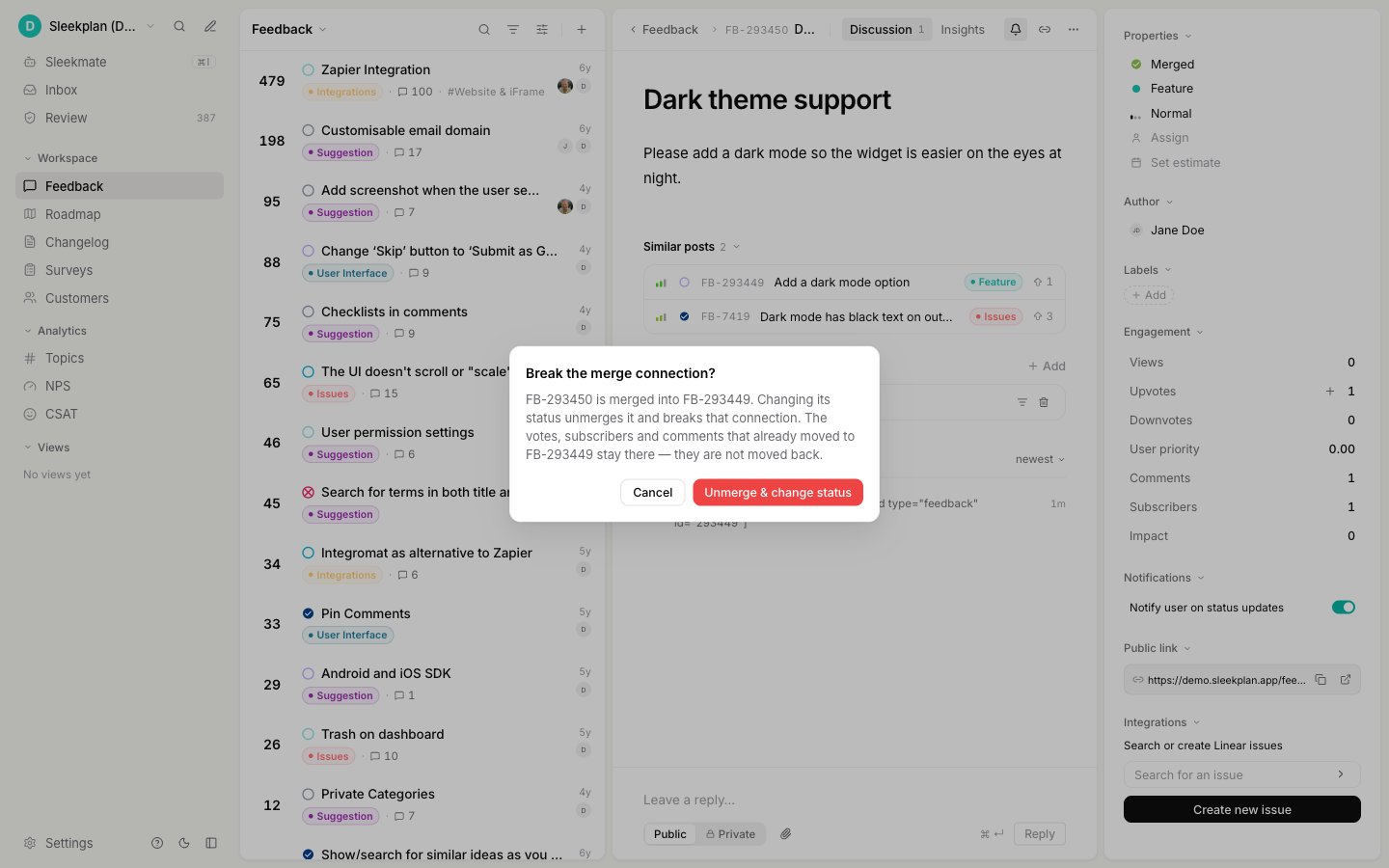
Related
AI merge suggestions
Let Sleek Intelligence detect likely duplicates and suggest merges for you to approve.
Filter, sort, and search feedback
Find duplicates before you merge, and filter your board to the Merged status.
Statuses
Understand the built-in Merged status and how statuses drive your workflow.
Vote on behalf of a user
Add a customer’s vote to the surviving post when they raised it another way.