
The Review queue is available to your team from the main sidebar. AI proposals only appear here when you have turned on the matching review gate in Sleek Intelligence settings, with one exception: a change to something that is still waiting for moderation always waits for you, even with that gate off. See When a submission and an AI change overlap.
Open the queue
Click Review in the left sidebar. The item shows a count badge when things are waiting for you.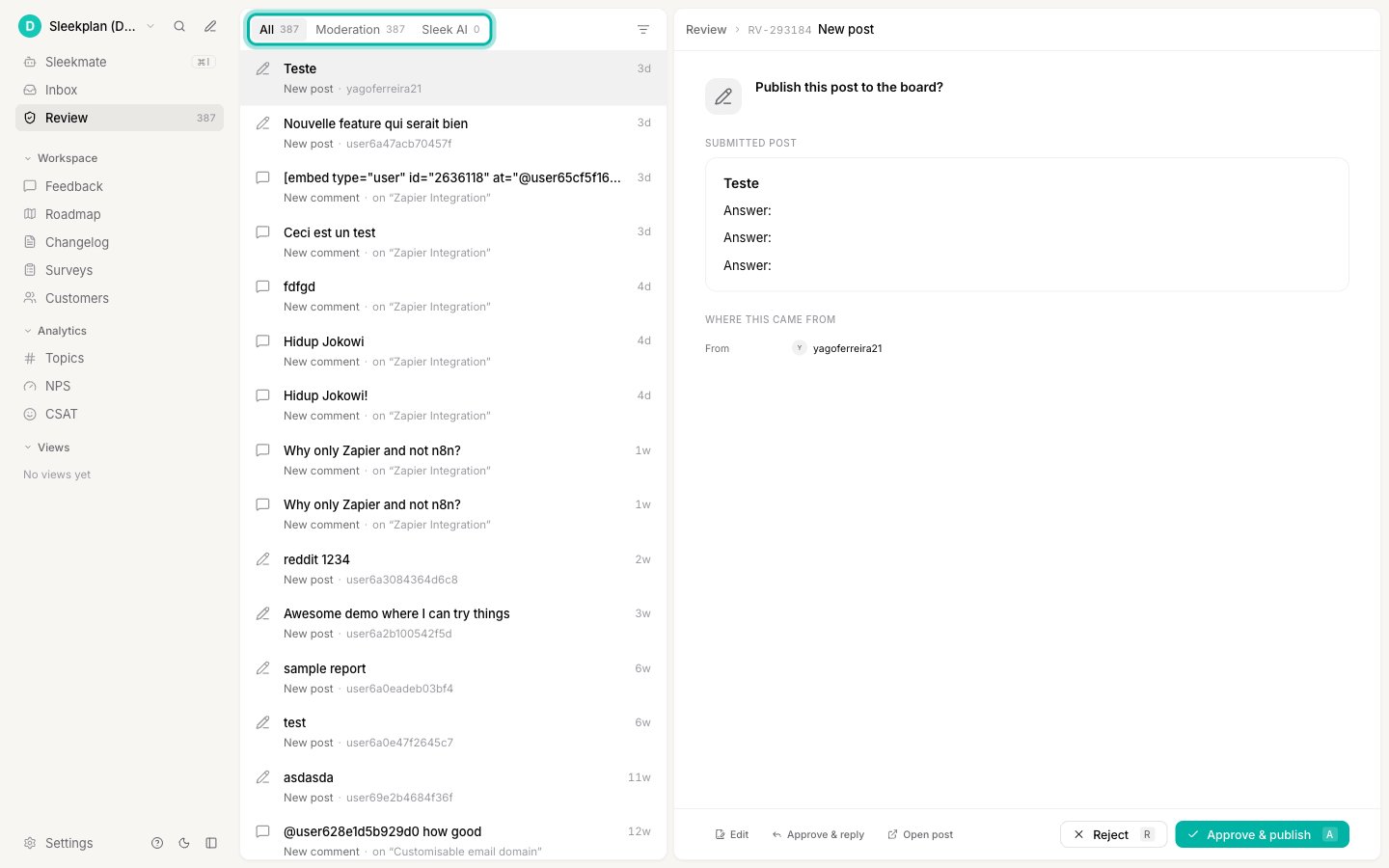
- All shows everything waiting.
- Moderation shows posts and comments your users submitted that need approval. Turn this on and tune it in Moderate posts and comments.
- Sleek AI shows the changes Sleek Intelligence wants to make.
Decide what happens to each item
For every item you can approve it (the action runs), reject it, or edit it first and then approve. The main Approve button also has a small caret next to it with extra options: for user submissions you can approve and reply to the user in one step, and you can approve and open the related post or comment in a new tab. What rejecting does depends on the tab:- Sleek AI items are dismissed. The proposed change simply never happens and nothing on your board is touched.
- Moderation items are deleted. The held post or comment is removed for good, and Sleekplan first asks for an optional message for the author.
A rejection message is emailed to the author only if they have Email notifications switched on in their account on your board, and only if they gave a real email address. Otherwise the submission is still deleted, but they are never told why. Moderate posts and comments covers this in full.
Each card explains what the AI wants to do and why, so you can decide at a glance.
See who is already handling something
When several people moderate together, the queue tells you what is already taken so two of you do not review the same thing. Each row shows the owner’s avatar next to its age. A row with no avatar is not assigned to anyone yet, so the gap is your cue that it is free to pick up.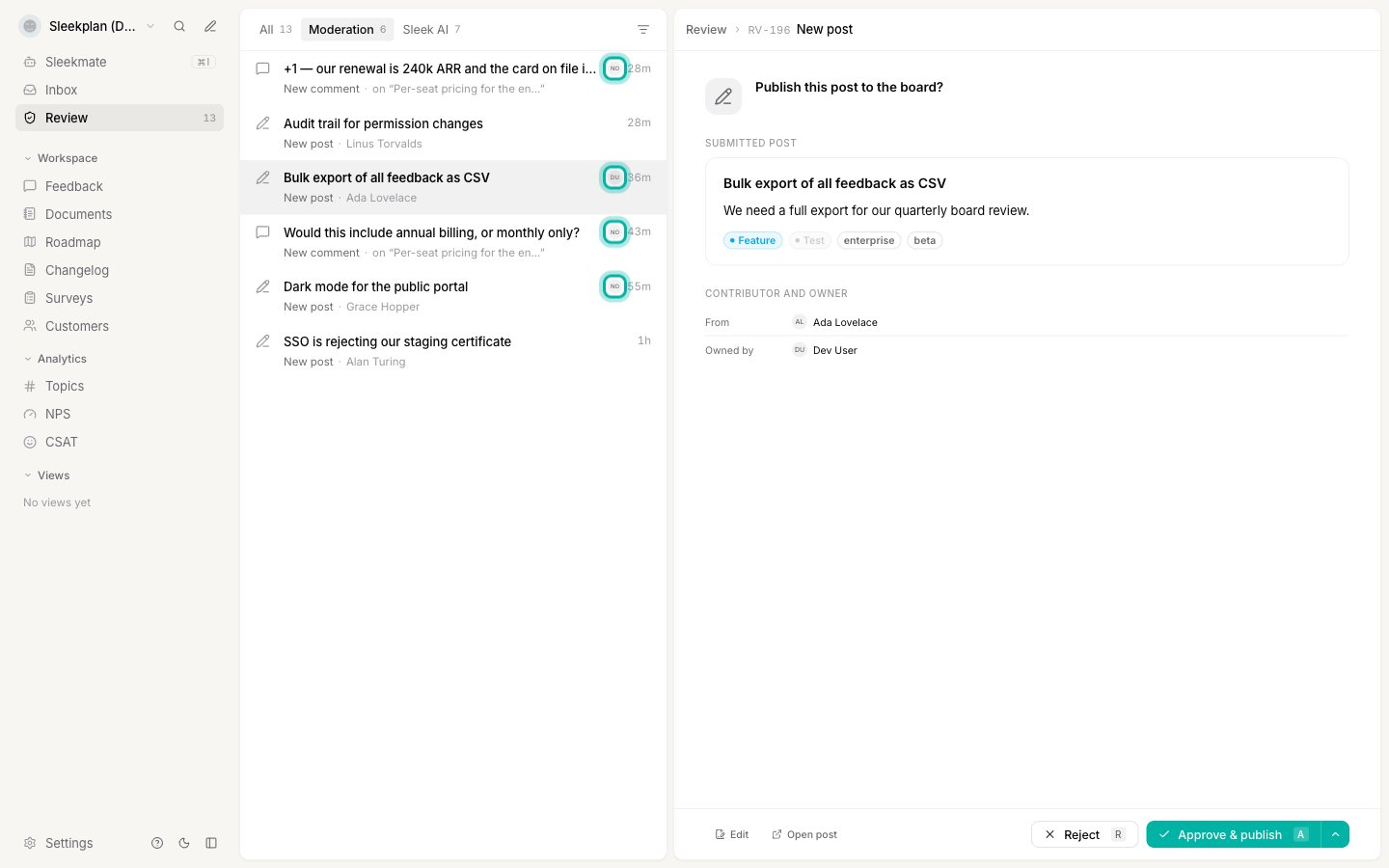
- Contributor and owner names who submitted it and who owns it, or Unassigned when nobody has taken it.
- Below the text you get the category, the component, and any labels, so you can sort a submission without opening the post itself. On a comment these describe the post it was left on.
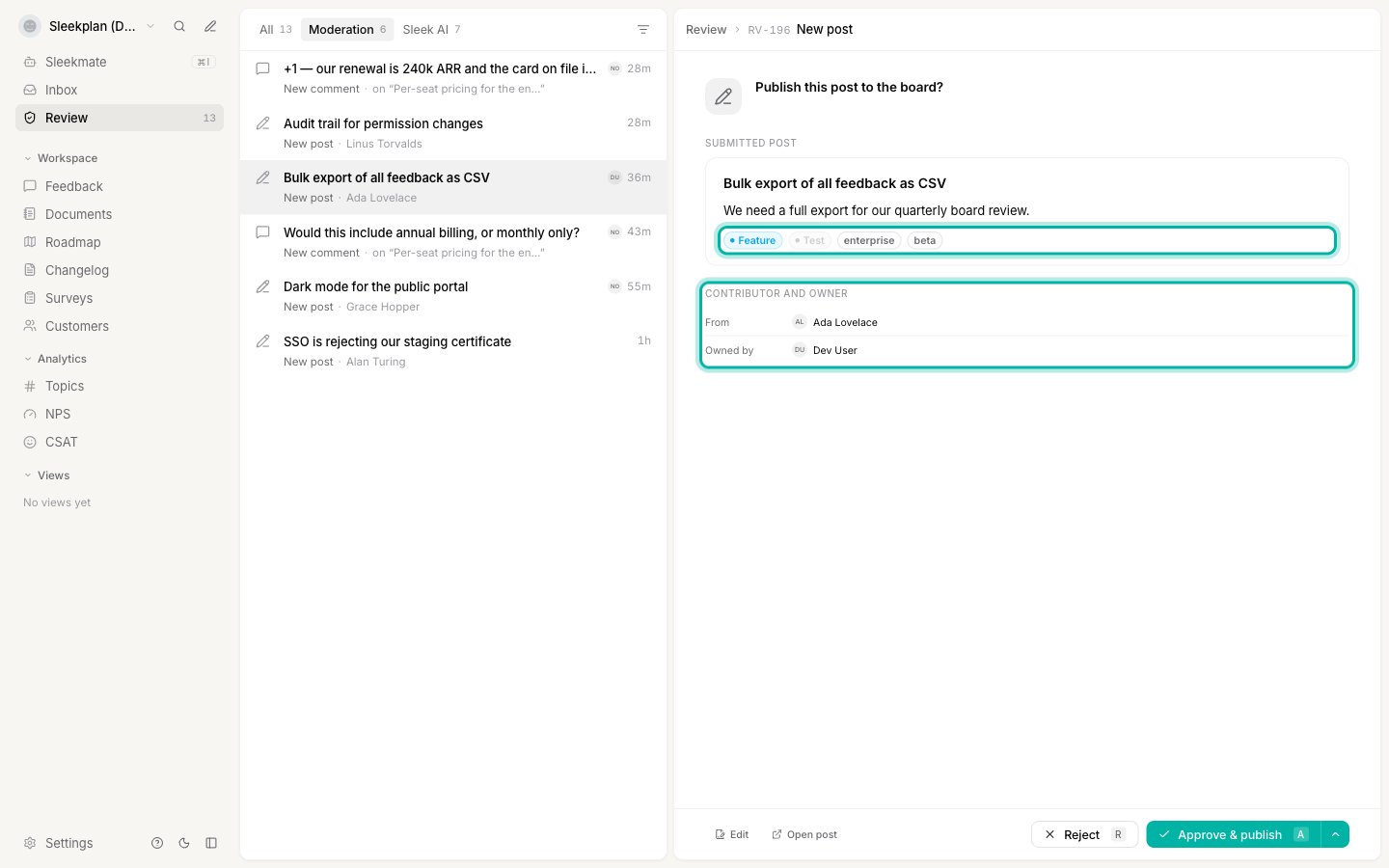
Owners are set on the post itself, not in this queue. To assign one, open the post from Feedback and pick an owner in the panel on the right.
Narrow the queue
Use the filter button in the top right of the list to work through a backlog in slices.1
Open the filter
Click the filter icon at the top right of the queue list.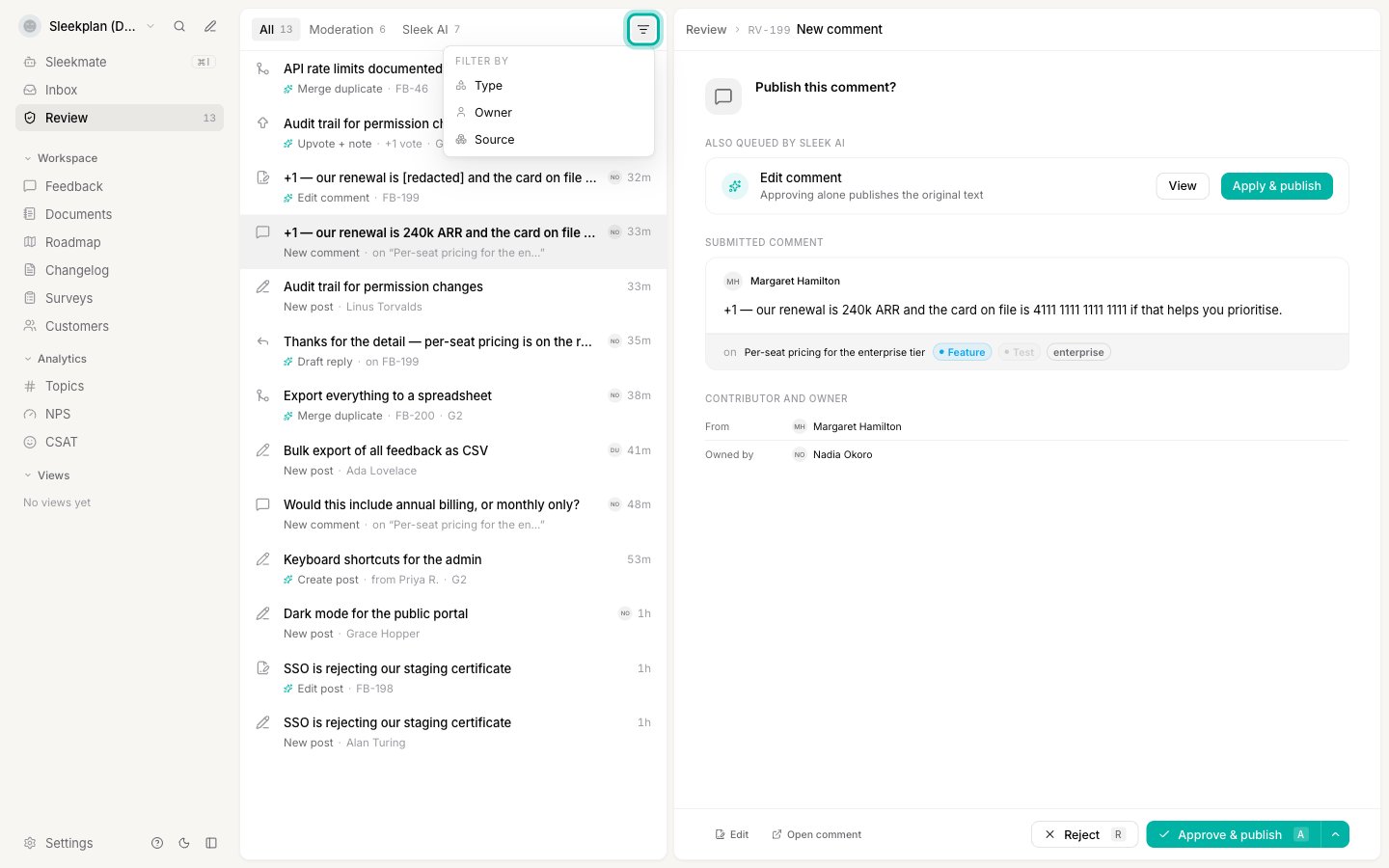
2
Pick what you want to see
- Type narrows user submissions to posts or comments.
- Owner narrows to one person, or to Unassigned to see only what nobody has picked up yet.
- Source narrows AI proposals to the integration they came from.
Filtering searches your whole queue, not just the part already on screen. Filtering by Owner finds everything assigned to that person even in a long backlog.
When a submission and an AI change overlap
If you moderate submissions and use Sleek Intelligence, the same comment can need two decisions: yours, to publish it, and the AI’s suggestion to change something in it first. A common case is a user pasting a card number or an internal figure into a comment, which Sleek Intelligence offers to remove. The order matters. Approving the submission on its own publishes exactly what the user wrote, because the AI’s change is still waiting. So the queue puts the two together. Open the held submission and any change the AI has queued for it appears above the text, under Also queued by Sleek AI.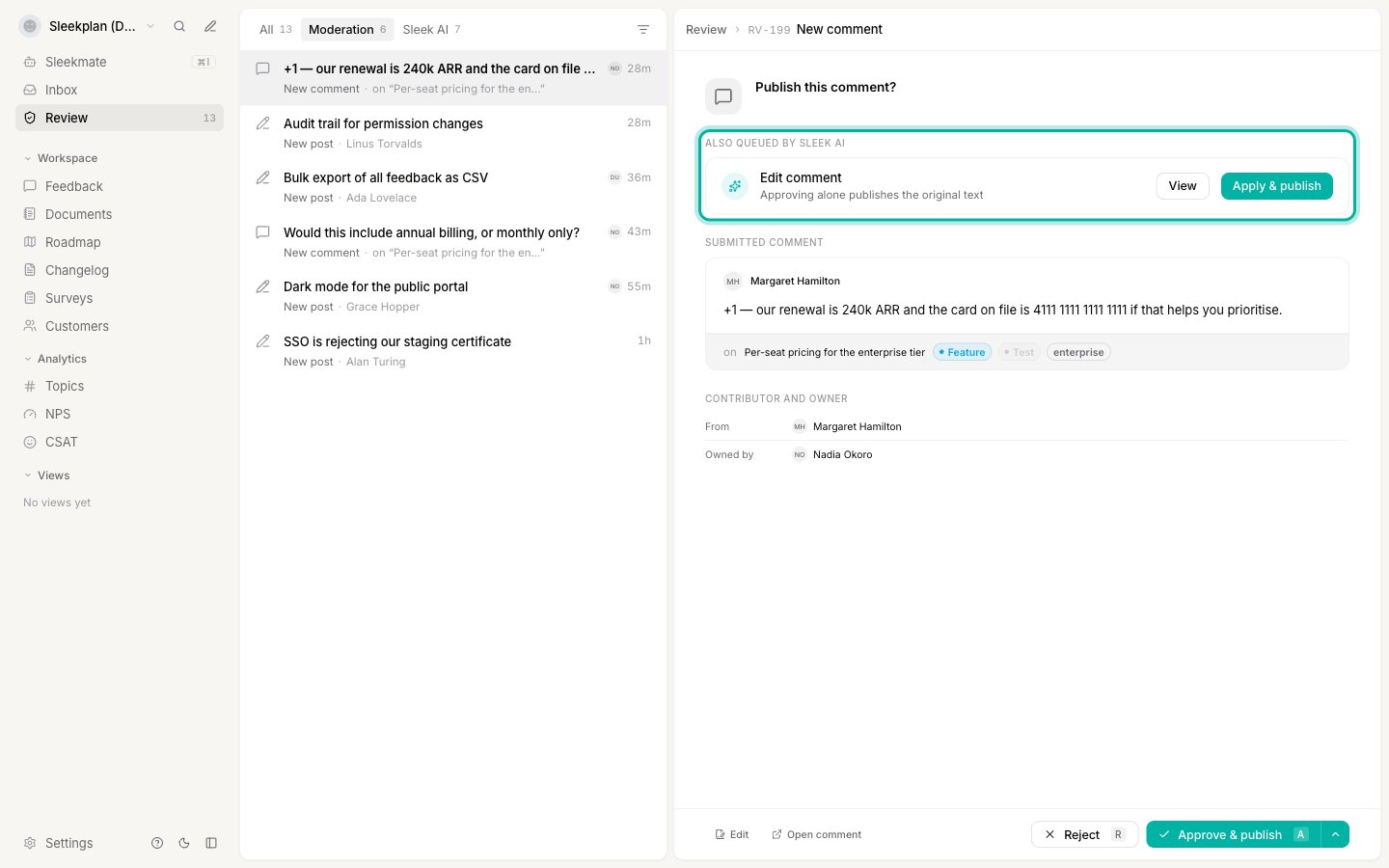
- Apply & publish runs the AI’s change first and then publishes. One click, right order.
- View opens the AI proposal so you can read exactly what it would change before deciding.
While a post or comment waits for moderation, Sleek Intelligence never edits it in the background. It queues the change for you instead, so what you read before publishing is always what your user actually wrote. This holds even when that action’s review gate is off.
Clear the queue faster with keyboard shortcuts
The Review queue is built to be worked from the keyboard, so you can move through a backlog without reaching for the mouse. Select an item, decide, and the queue jumps to the next one for you.
The
⇧A and ⌥A shortcuts are also shown next to their options in the Approve caret menu, so you can learn them as you go.
Shortcuts work when an item is selected and you are not typing in a field. The variant shortcuts appear only when they apply to the current item:
⇧A on user submissions, ⌥A when the item has a related post or comment to open.Choose which actions need review
Only workspace owners and admins can change these settings.
1
Open Sleek Intelligence settings
2
Require review for AI actions
Turn on Require review for AI actions, then choose which ones need sign-off. You can gate them individually: AI-generated posts, AI merging of duplicates, AI-added votes, AI-added comments, AI-added private comments, AI-edited posts and AI-edited comments.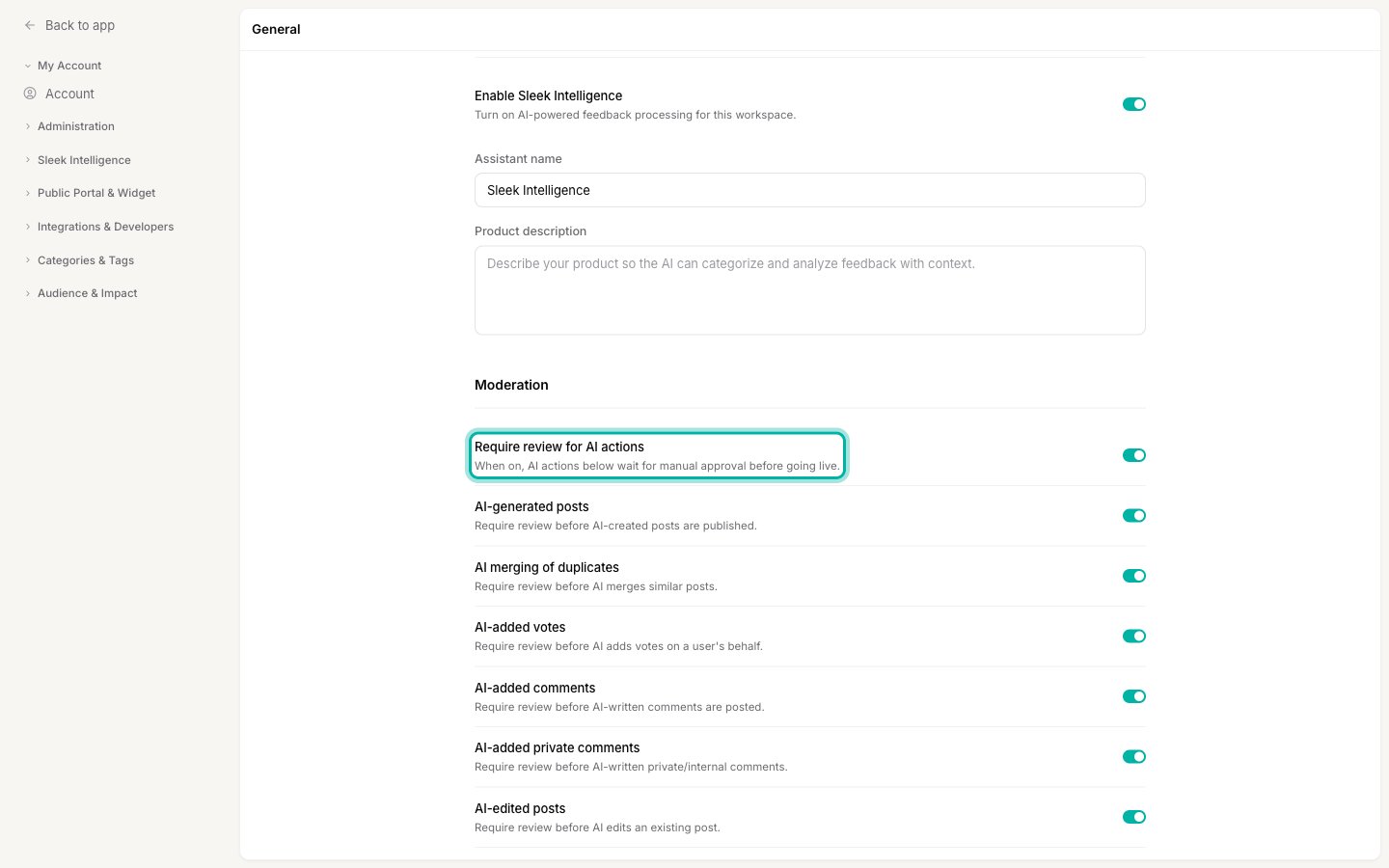
Sleekmate, the chat assistant, has its own approval step built into the conversation, so its actions are confirmed inline rather than in this queue.
Related
Feedback processing
The automations whose actions land in this queue.
Sleekmate
The assistant approves its own actions inline as you chat.
Feedback statuses
Move approved posts through your workflow.
Sources
Where AI-created posts often come from.