
Changing these settings requires an Owner or Admin role on the workspace.
Open the Feedback board settings
Go to Settings → Public Portal & Widget → Feedback and scroll to the Moderation section.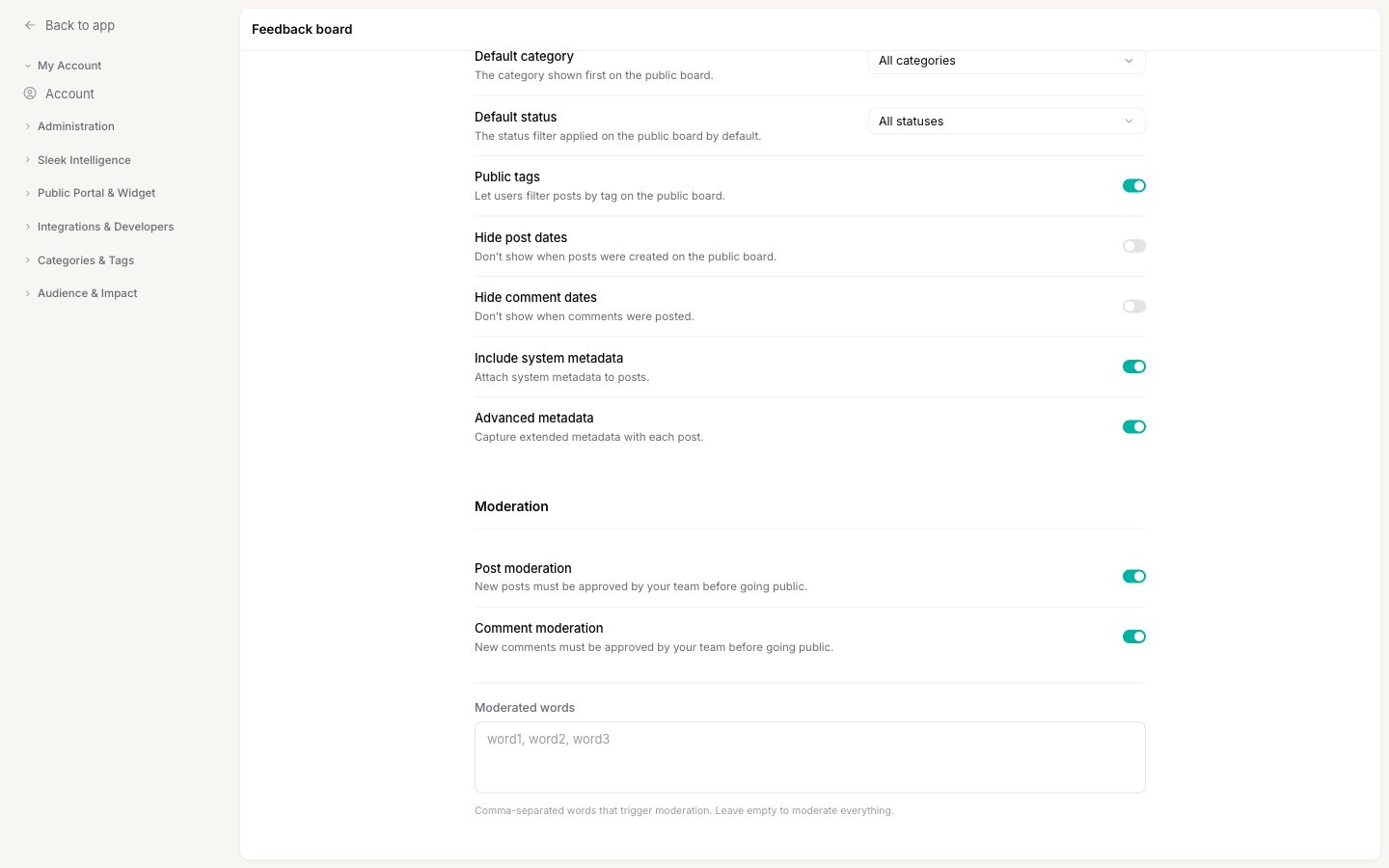
Post moderation
Turn on Post moderation to require that new posts are approved by your team before they go public. Held posts do not show on your board until someone approves them.Comment moderation
Turn on Comment moderation to require the same approval for new comments. Held comments stay hidden from the thread until approved.Moderation only applies to submissions from your users. Posts and comments your team creates, and posts you submit on behalf of a user, skip the queue and go live immediately.
Moderated words
By default, turning on moderation holds every new submission for approval. The Moderated words field lets you narrow that down so you only review the submissions that are likely to need it.- Leave it empty to moderate everything. Every new post or comment waits for approval.
- Add a comma-separated list of words to moderate selectively. Only submissions that contain one of those words are held; everything else goes live immediately. Matching is not case sensitive.
spam, refund, competitor.
Approve or reject held items
Everything moderation holds waits in the Review queue, which you open from Review in the main sidebar. Its Moderation tab lists the posts and comments awaiting your decision, where you can approve, reject, or edit each one before it goes live. For the full walkthrough, see Reviewing AI actions, which covers both moderation and Sleek Intelligence in the same queue. You can also decide without leaving the post. Wherever an admin sees a held post or comment, it carries an amber In moderation chip. Click it for Approve and Reject right there.If you also use Sleek Intelligence, a held submission can have an AI change waiting on it as well, for example removing a card number a user pasted into a comment. The Review queue shows that change above the submission so you can apply it and publish in one step, instead of publishing the original by mistake. While something waits for moderation the AI never edits it in the background. See When a submission and an AI change overlap.
Tell the author why you rejected
Rejecting deletes the held post or comment for good, so it never reaches your board. Before it goes, Sleekplan asks for an optional message:- Leave it blank to remove the submission silently. The author is not contacted.
- Write a reason and the author receives a “Your post has been removed” email (or “Your comment has been removed”) containing your reason and a copy of what they wrote. You can reword both in Settings → Email templates.
Related
Reviewing AI actions
Approve, edit, or reject held items in the Review queue.
Submission & voting
Control downvotes, priority, comment likes, and screen captures.
Public board display
Set the default sort, category, status, and metadata for your board.
Import feedback
Bring existing feedback in without tripping moderation.