
Legal lives under Public Portal & Widget and only workspace owners and admins can see it. There is no plan requirement, so this is available on every plan.
Where the links appear
The Terms and Privacy links show on the sign-up form, the step where a visitor enters their email to identify themselves on your board. They appear only when visitors sign in with their email through Sleekplan. If you force your own single sign-on, your login already owns identity, so the consent block is not shown. To control who reaches your board and how they sign in, see Control who can access your board.Open the Legal settings
Go to Settings → Public Portal & Widget → Legal.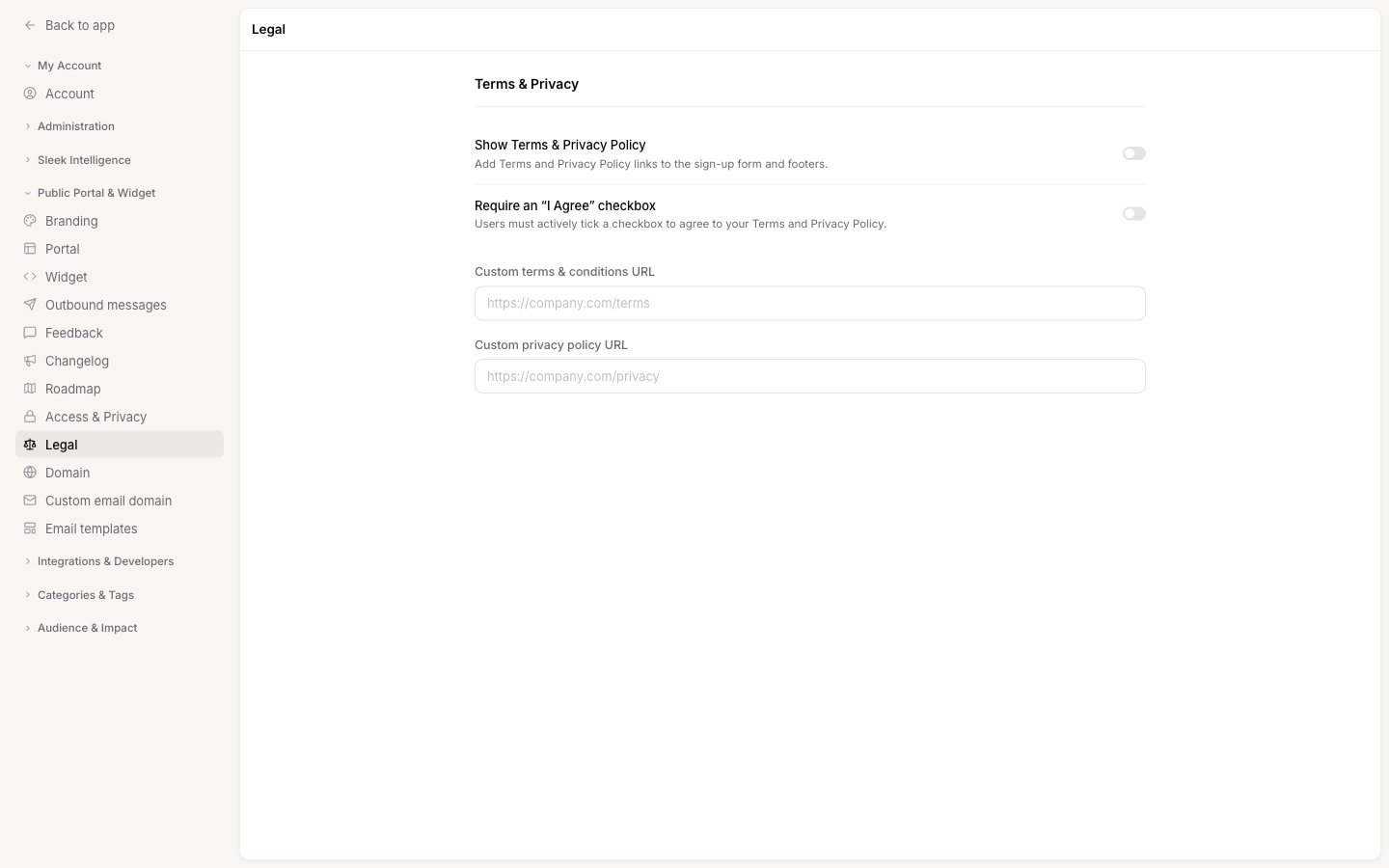
Turn on Terms and Privacy
1
Enable Show Terms & Privacy Policy
Turn on Show Terms & Privacy Policy. This adds the Terms and Conditions and Privacy Policy links to your sign-up form. The two custom URL fields below become editable once this is on.
2
Decide whether consent must be explicit
Leave Require an “I Agree” checkbox off for implied consent, or turn it on to make agreement an active, deliberate step. The next section explains the difference.
3
Save your changes
Click Save changes in the bar at the bottom of the page. Nothing is live until you save.
Choose how consent is given
The Require an “I Agree” checkbox toggle decides whether a visitor has to actively accept your terms, or accepts them simply by continuing.- Off (implied consent). No checkbox appears. Below the email field, the visitor sees: “By submitting your email, you agree to the Terms and Conditions and Privacy Policy.” Submitting their email counts as agreement. This keeps sign-up quick.
- On (explicit consent). A checkbox appears that the visitor must tick to continue, next to: “I have read and agree to the Terms and Conditions and Privacy Policy.” Use this when you need a clear, recorded action of agreement.
Link to your own legal pages
By default the links point to Sleekplan’s built-in Terms and Privacy pages hosted on your portal. If you have your own legal pages, point the links at them instead.1
Enter your Terms URL
In Custom terms & conditions URL, paste the full URL of your Terms and Conditions page, for example
https://company.com/terms.2
Enter your Privacy URL
In Custom privacy policy URL, paste the full URL of your Privacy Policy page.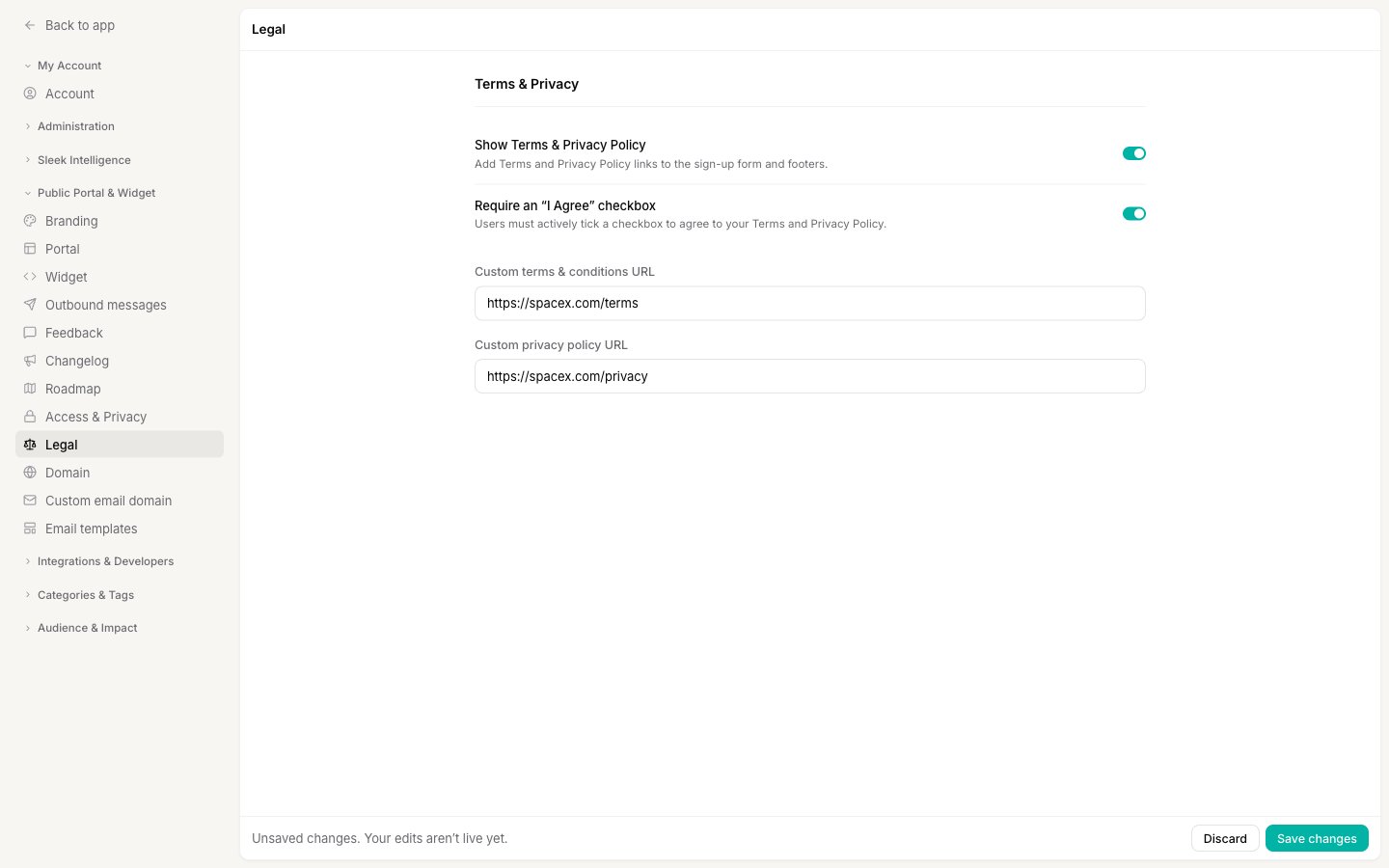
3
Save your changes
Click Save changes. The sign-up form now links to your own pages.
Leave a field blank to keep Sleekplan’s default page for that link. You can set one custom URL and leave the other on the default.
Save your changes
Every change on this page is a draft until you save it. Whenever you have unsaved edits, a bar appears at the bottom reading “Unsaved changes. Your edits aren’t live yet.” with Discard and Save changes buttons. Your sign-up form keeps its current behavior until you click Save changes.Next steps
Access & privacy
Set who can reach your board and how visitors sign in before they post.
End-user accounts
How customer accounts work and why your end users never create a Sleekplan login.
Emails to your users
Every message your users receive, including sign-in and verification codes.
Custom domain
Serve your portal from your own domain so legal links stay on-brand.