
The notification badge is available on the Starter plan and above, and during your trial. On the free Indie plan the count is always zero, so the badge never appears, even with the Notifications setting switched on and unread changelog entries published. See Plans and billing to upgrade.
What the badge counts
The number on the badge is the sum of two separate things:
Changelog updates are tracked per browser, so an anonymous visitor still gets a count. You do not need Single Sign-On for the changelog part of the badge. Personal notifications are tied to a user account, so they only appear once the visitor signs in or is identified through the SDK.
Set the badge up
1
Check your plan
Open Settings → Administration → Billing and confirm you are on Starter or above. On the free Indie plan the widget reports a count of zero and no badge is drawn, so everything below has no visible effect.
2
Publish something for people to read
The badge only counts changelog entries published in the last 14 days that are live. Drafts, scheduled entries, and archived entries are never counted. If your newest entry is older than two weeks, publish a fresh one and the counter comes back. See Create changelog entries.
3
Show the notifications inbox
Navigate to Settings → Public Portal & Widget → Widget and turn on Notifications in the Navigation section. This adds the bell icon that signed-in users open to read their personal notifications. Click Save changes.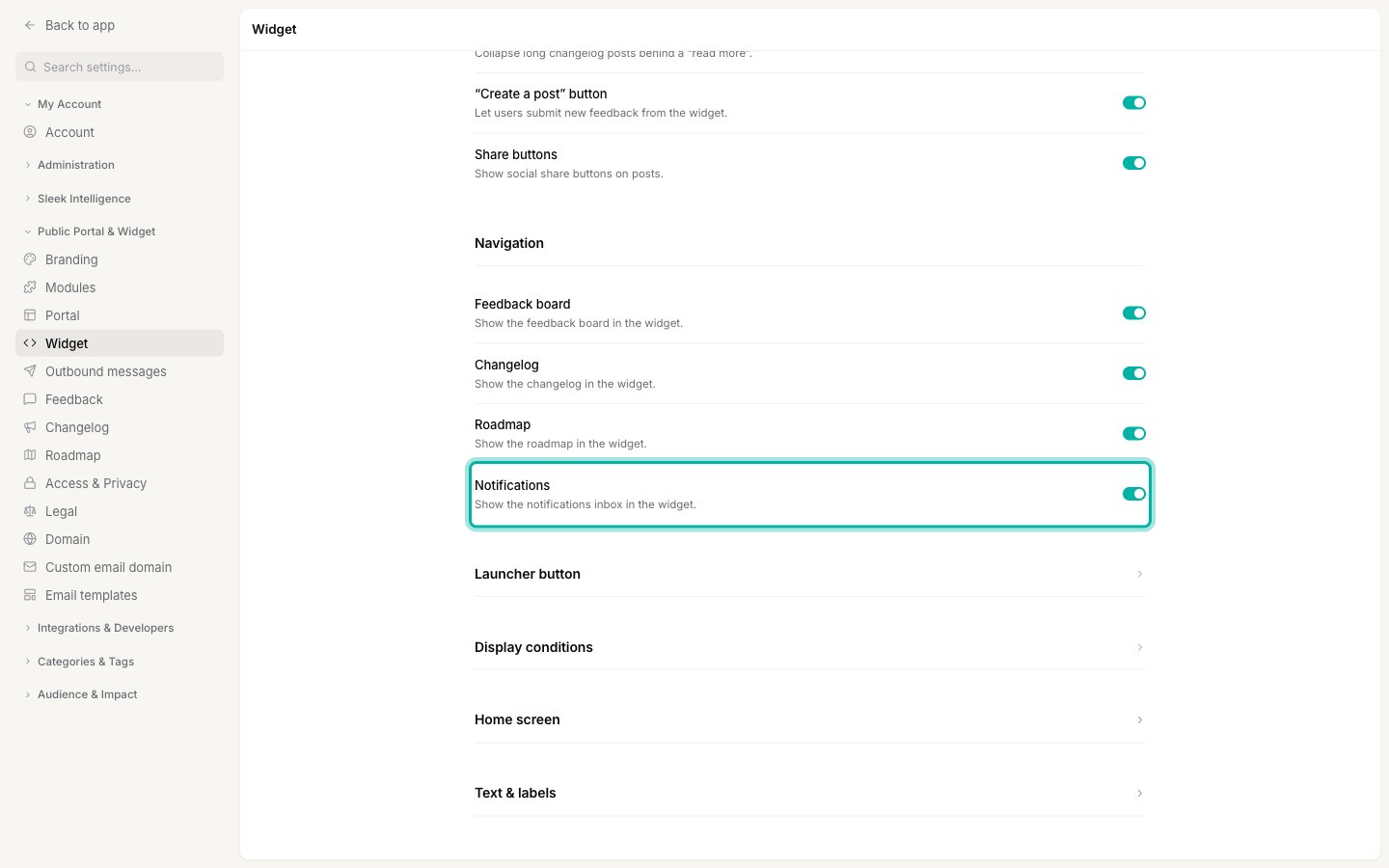
4
Check it on your site
Open your site in a private or incognito window so you get a fresh visitor session. The badge appears on the widget launcher with the number of unread updates.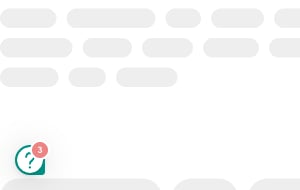
The Notifications toggle controls the notifications inbox (the bell) for signed-in users. The changelog part of the badge does not depend on it, so an anonymous visitor can see a count even when the inbox is off.
Put the badge on your own button
If you use your own trigger instead of the floating launcher, add a badge attribute to that element. Sleekplan writes the current count into it as adata-count value and draws the counter for you:
Two things to watch:
- Put the attribute on a visible element. The counter is positioned in the top-right corner of the element it is attached to. On an empty
<span>it has nothing to sit on, so attach it to your actual button or link. - Re-bind after your app renders. If your site is a single-page app that inserts the button after the page loads, call
$sleek.rebind()so Sleekplan finds it.
When the badge clears or stays hidden
The badge is designed to disappear as soon as it has done its job, which is often why it looks like it is missing:- Opening the changelog clears it. As soon as a visitor views the changelog, their changelog count resets to zero for every entry published so far.
- A changelog home screen clears it on every open. If your widget’s home screen is set to the changelog, simply opening the widget counts as reading it. Point the home screen elsewhere if you want the badge to survive the first click.
- Opening the notifications inbox clears it. Reading the inbox resets both counts.
- Only the last 14 days count. Older entries stay in your changelog but stop contributing to the badge.
- Targeted entries reach fewer people. A changelog entry limited to a user segment is only counted for signed-in users in that segment. Anonymous visitors never count a targeted entry.
- Private workspaces need a sign-in. If your board is set to private in Access and privacy, the badge stays hidden until the visitor signs in.
Hide the badge on specific pages
On a signup, login, or checkout page you may want the widget available but silent. Define a settings object before the Sleekplan embed script on that page:Troubleshooting
Related
In-app announcements
Push a new changelog entry as a New Updates pop-up instead of a quiet counter.
Choose the widget's home screen
The home screen decides whether opening the widget clears the changelog count.
Create changelog entries
Publish the updates the badge counts.
Install the widget
Add the widget to your site and swap in your own trigger button.