
Custom code is available on the Pro plan and above. If a field is locked when you try to save, check your plan and billing first.
Where to find it
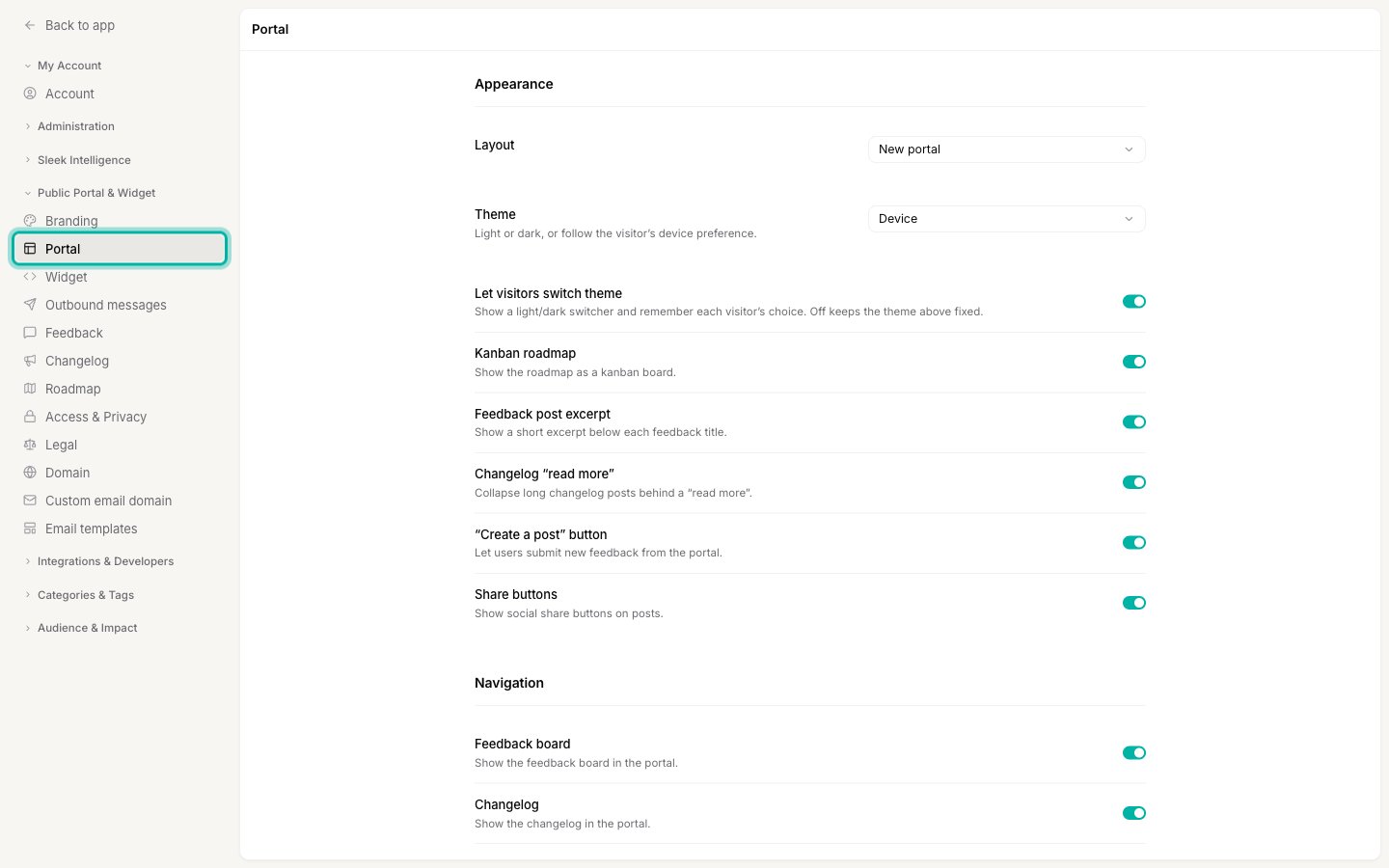
Everything on this page lives in Settings → Public Portal & Widget → Portal, in the Custom code section at the bottom of the page.1
Open the Portal settings
2
Open the Custom code section
Scroll to the bottom of the page and click Custom code to expand it. The section is collapsed by default because it is advanced, so leave it closed if you do not need it.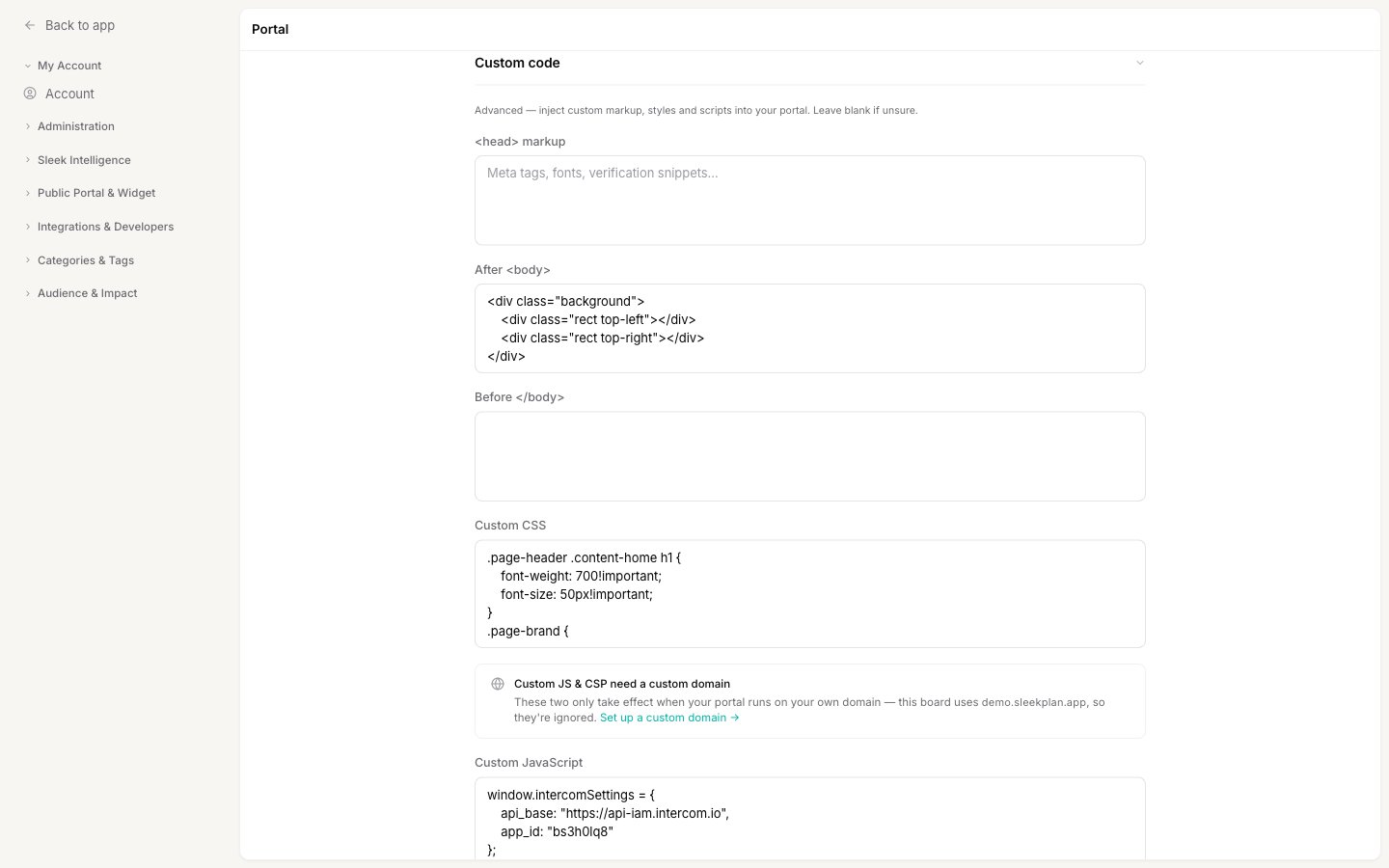
3
Paste your code into the right field
Add your markup, styles, or script to the matching field (see The fields below). Each field targets a specific part of the page.
4
Save your changes
A save bar appears at the bottom of the page once you edit a field. Click Save to publish your changes to the portal.
The fields
There are six fields, each targeting a different part of the portal page. Enter your code directly: do not wrap CSS in a<style> tag or JavaScript in a <script> tag, because Sleekplan adds those wrappers for you.
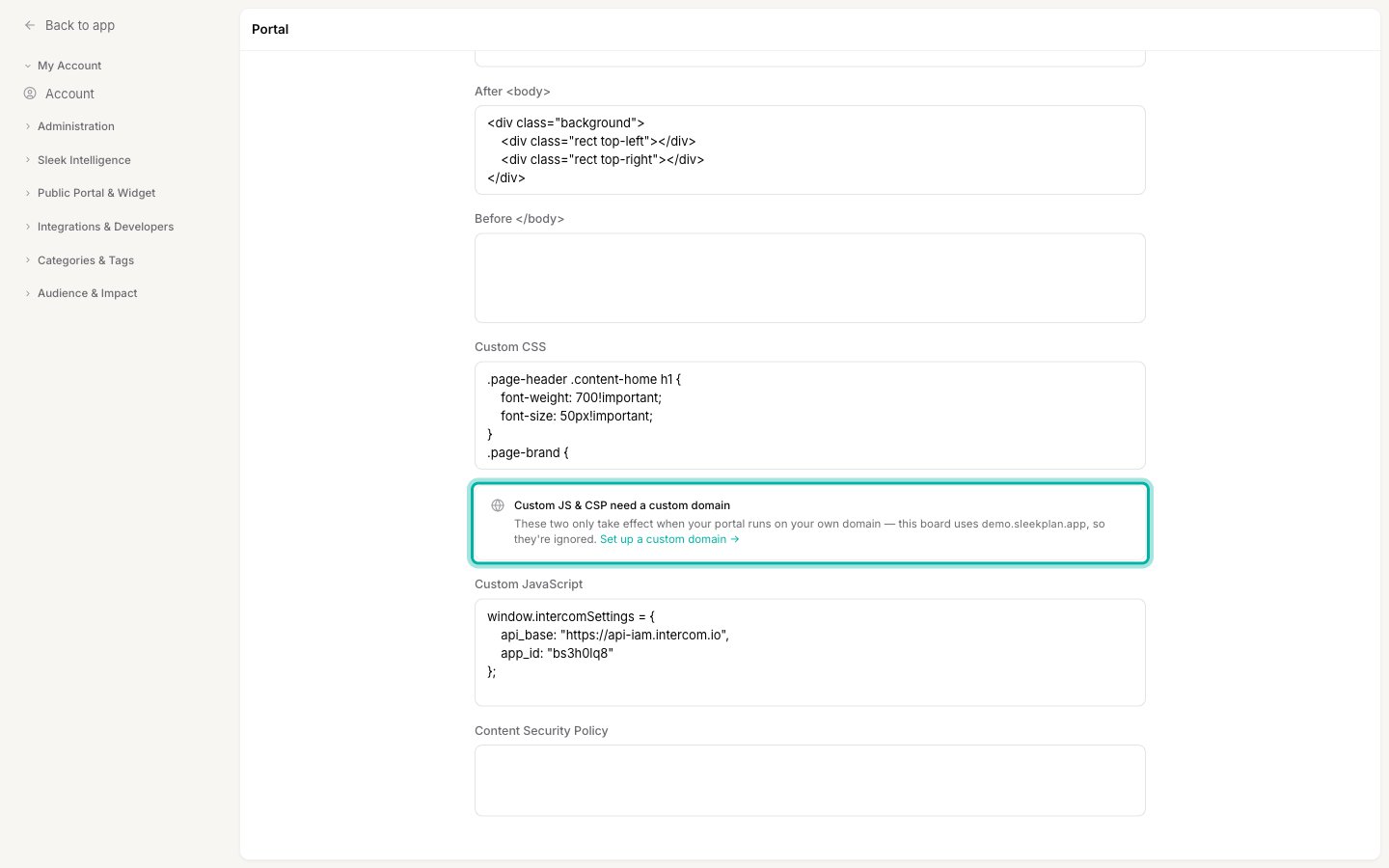
Custom JavaScript and CSP need a custom domain
The Custom JavaScript and Content Security Policy fields only take effect when your portal runs on your own domain, likefeedback.yourcompany.com. On a free .sleekplan.app address they are saved but ignored, and the section shows a reminder telling you which address the board is using.
Good to know
- Changes are validated when you save. If a field contains something that is not allowed, for example a
<script>tag inside Custom CSS or an inline script in head markup, saving is blocked and you are told which field to fix. This keeps a stray tag from breaking the portal. - The head markup runs before Custom JavaScript. Fields load in page order, so anything in
<head> markupruns before your Custom JavaScript. If a snippet must run before a loader (for example a consent default before Google Tag Manager), keep the whole thing in Custom JavaScript rather than splitting it. See Add analytics tracking for a worked example. - Your CSP can only add, never remove. Directives you enter are merged into Sleekplan’s built-in Content Security Policy. You can allow extra sources (a font host, an analytics domain), but you cannot strip out the entries Sleekplan needs to render the portal.
- Test after you save. Open your portal in a new tab and confirm your changes look right and nothing else broke. Custom code runs on the live portal for every visitor.
- Leave it blank if you are unsure. The portal works fully without any custom code. These fields are for advanced customization only.
Related
Add analytics tracking
A worked example: add Google Analytics or any third-party tracker to your board.
Custom domain
Host your portal on your own subdomain, and unlock Custom JavaScript and CSP.
Install the widget
Embed the feedback widget in your own product. Styling the widget is separate from portal custom code.
Widget and a Content Security Policy
The CSP directives to allowlist when your own site enforces a policy.
Connect a custom email domain
Send portal notification emails from your own domain.