
<script src="..."> that pulls in the library, and a short block of inline JavaScript that configures it. Sleekplan keeps those two parts in separate fields, so you paste each one where it belongs.
Custom code is available on the Pro plan and above. The inline Custom JavaScript field also requires a custom domain, so your board runs on an address like
feedback.yourcompany.com. On a free .sleekplan.app address the loader in the head still works, but the inline configuration is saved and ignored.Add Google Analytics
Google Analytics 4 gives you a two-line snippet. The first line is the loader, the second is the configuration. Split them across the two fields as shown below.1
Open the Portal settings
Go to Settings → Public Portal & Widget → Portal and scroll to the Custom code section at the bottom of the page. Click it to expand.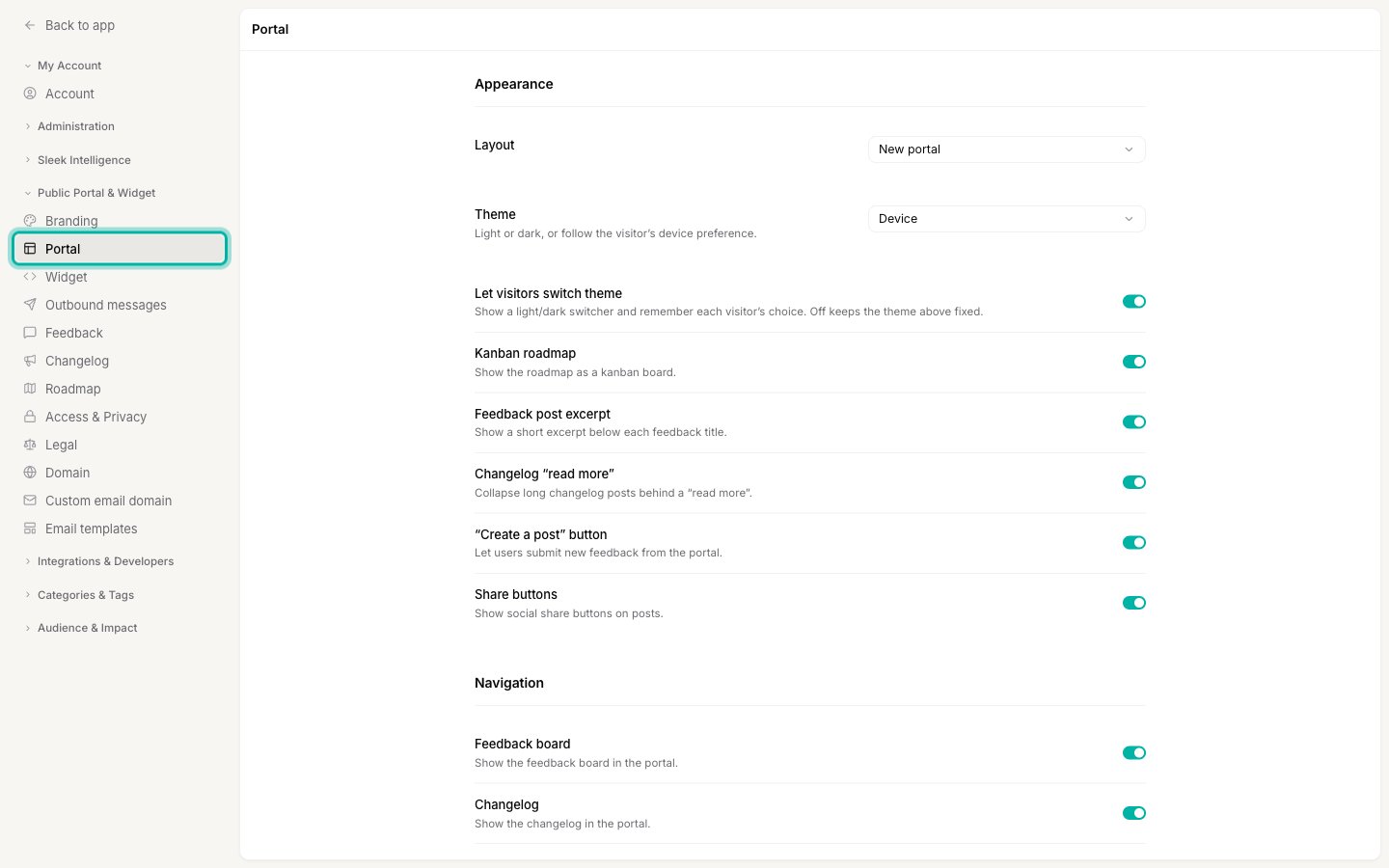
2
Paste the loader into the head markup
In the Replace 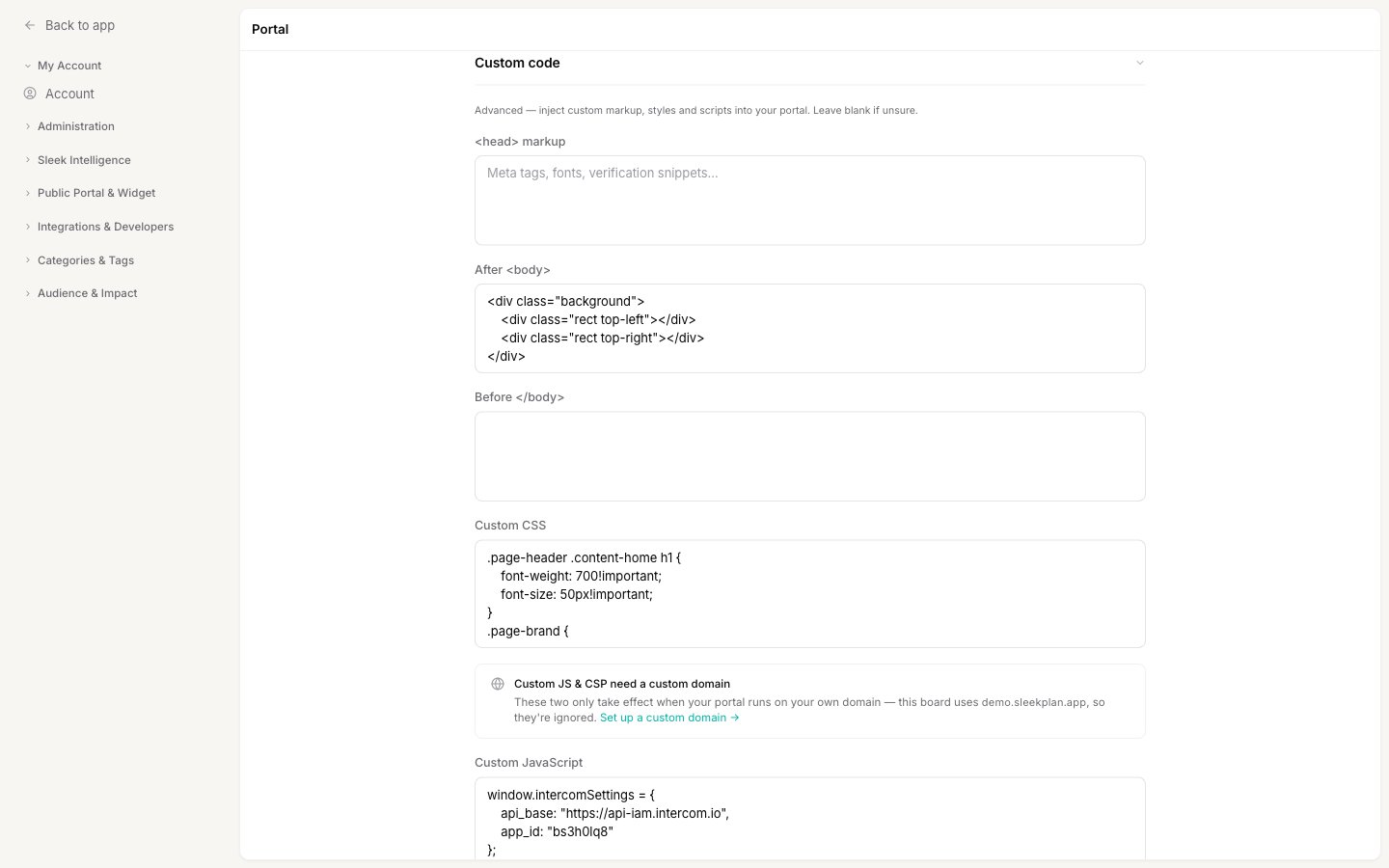
<head> markup field, add the Google tag loader. Keep the full <script> tag here, because this field accepts external script references.G-XXXXXXXXXX with your own Measurement ID.3
Paste the configuration into Custom JavaScript
In the Custom JavaScript field, add the inline setup. Do not wrap it in a
<script> tag: Sleekplan adds the wrapper for you, so pasting your own would break the code.4
Save your changes
A save bar appears at the bottom of the page once you edit a field. Click Save to publish the tracker to your board. Open your board and confirm that events start arriving in your Google Analytics dashboard.
Adding other trackers
The same split works for any third-party snippet that arrives as a loader plus an inline block, such as a product-analytics or chat tool. Put anything that looks like<script src="..."> in the <head> markup field with its tag intact, and put the inline configuration (the code that would normally sit between <script> and </script>) in the Custom JavaScript field without the tags.
If the tracker loads from a host Sleekplan does not allow by default, its script will be blocked by the portal’s Content Security Policy. Add the loader’s host to script-src-elem and its data endpoint to connect-src in the Content Security Policy field. See Add custom CSP rules for how, and why script-src-elem is the directive that matters for loaded scripts.
Google Tag Manager and Consent Mode
Some setups need code to run before the tag loads. Google Consent Mode is the common one: thegtag('consent', 'default', ...) call has to run before Google Tag Manager, or consent defaults are applied too late.
The loader-in-head, config-in-Custom-JavaScript split cannot do this, because the <head> markup field runs before the Custom JavaScript field. Anything you put in Custom JavaScript runs after a loader in the head, never before it.
The fix is to keep everything in one place. Put your whole snippet, in the order it needs to run, into the Custom JavaScript field, and leave the loader out of the head. Set the consent default first, then load Google Tag Manager with its standard inline installer (the one that injects the tag itself). Remember to remove the surrounding <script> tags, since Custom JavaScript adds them for you.
GTM-XXXXXXX with your container ID. Keep the matching <noscript> iframe from your GTM install in the Before </body> field. If your consent tool or its tags load from other hosts, allow those hosts in your custom CSP rules.
For a full reference on every field, what each one accepts, and the custom-domain requirement, see Add custom code to your portal.
Related
Add custom code to your portal
The complete reference for the head markup, CSS, and JavaScript fields.
Set up a custom domain
Required before inline Custom JavaScript runs on your board.