
yourproduct.sleekplan.app. When you want the portal to live on your own brand instead, you can point a subdomain of your domain (for example feedback.yourcompany.com) at Sleekplan. You add a single DNS record, and we handle hosting and HTTPS for you.
A custom domain is available on paid plans. If the option is greyed out, check your plan and billing first.
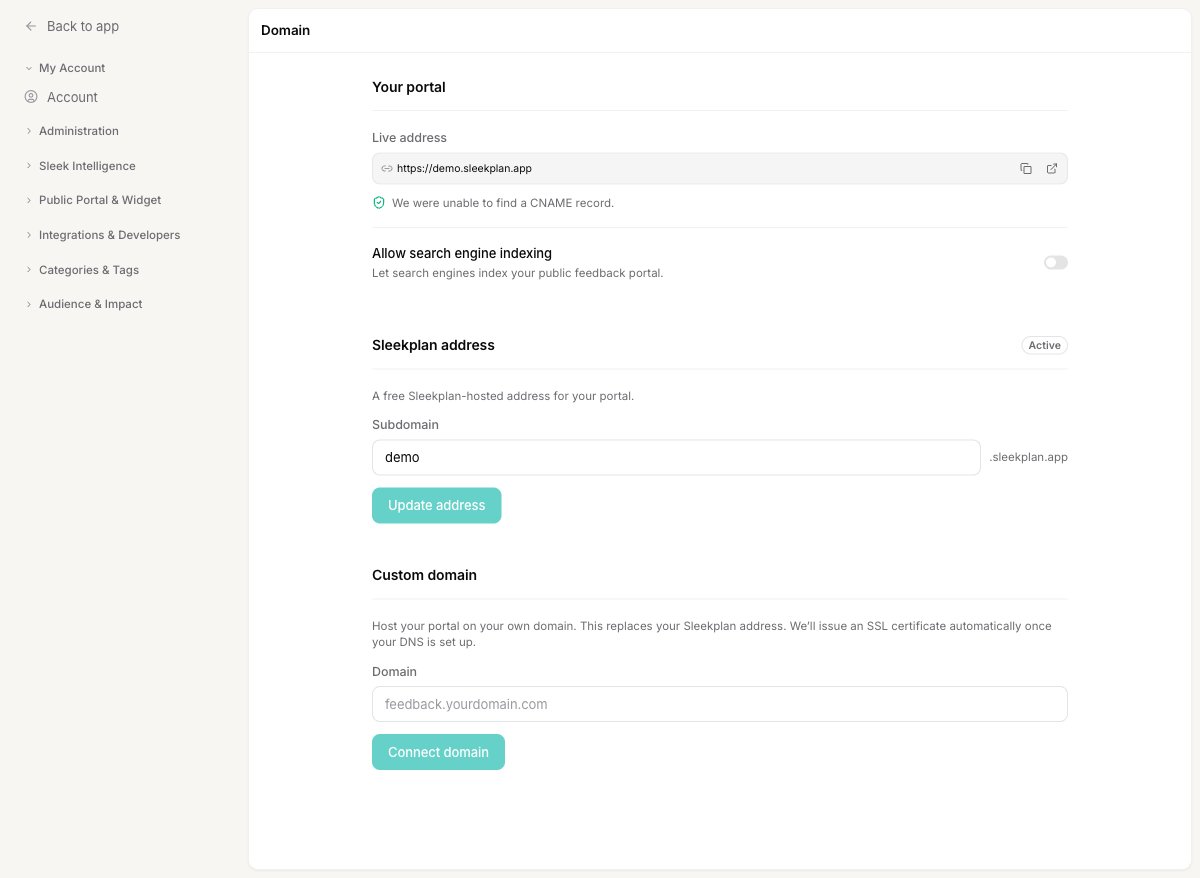
Your Sleekplan address
The Sleekplan address section holds your free.sleekplan.app subdomain. Change the label in the Subdomain field and click Update address to move your portal to a new Sleekplan address. This is the default, and it stays active until you connect a custom domain.
Connect your own domain
A custom domain replaces your Sleekplan address: your portal answers on your domain instead of the.sleekplan.app one. The connection has two parts, entering the domain in Sleekplan and adding a matching DNS record at your provider.
1
Enter your domain
In the Custom domain section, type the full subdomain you want to use, for example 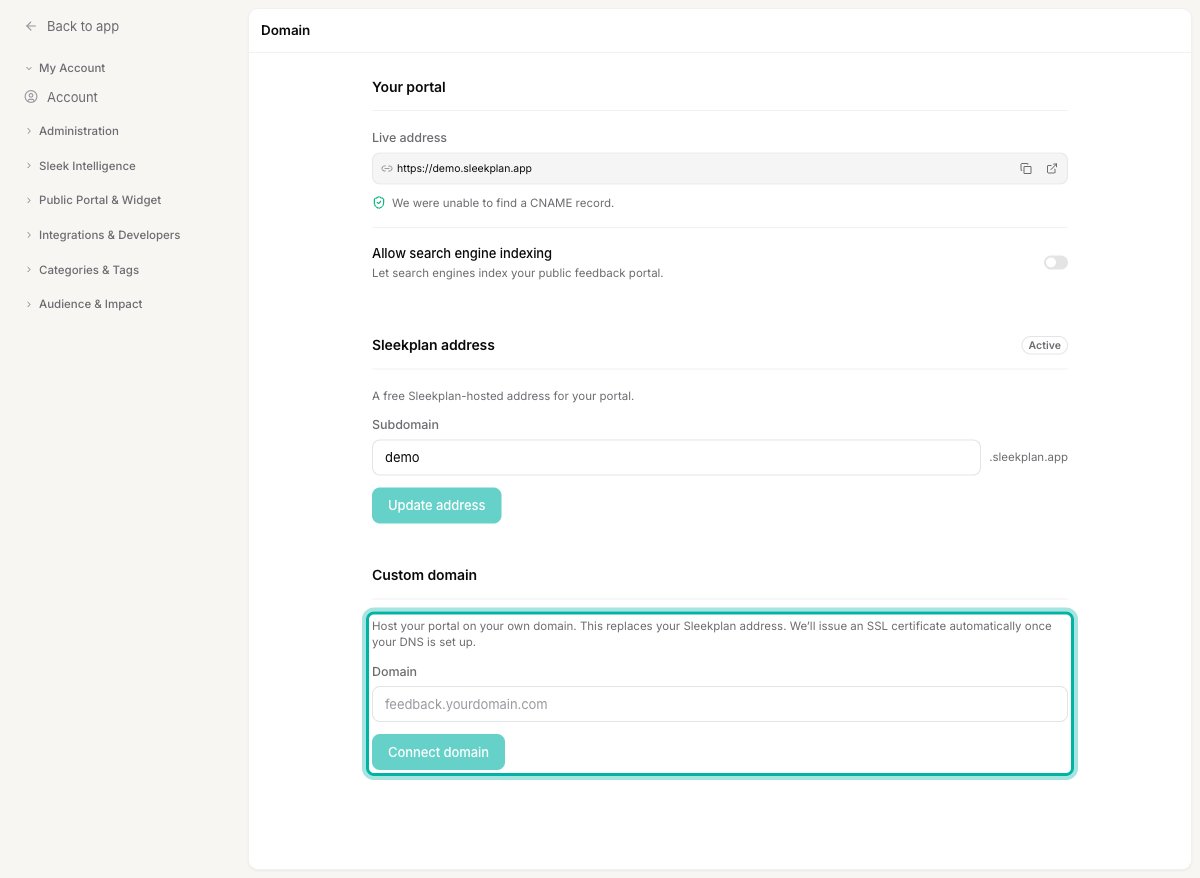
feedback.yourcompany.com, then click Connect domain.feedback. or roadmap.), not your root domain. Your root domain usually points at your main website, and a portal needs its own subdomain.2
Add the CNAME record at your DNS provider
Once you connect the domain, Sleekplan shows the DNS record you need to add. Sign in to your domain provider (GoDaddy, Namecheap, Cloudflare, and so on) and create a CNAME record:
Many providers only ask for the subdomain prefix (
feedback) in the host field, not the full feedback.yourcompany.com. When in doubt, copy the host value straight from the Domain settings page.3
Wait for verification and SSL
Sleekplan checks for your CNAME record automatically and issues an SSL certificate through Let’s Encrypt, so your portal is served over HTTPS. This usually takes a few minutes but can take up to an hour once your DNS is set up correctly.Use Refresh status on the Domain page to re-check at any time. When the certificate is issued, the portal shows as connected and secured.
Cloudflare users
If your DNS is managed by Cloudflare, two extra settings matter:- Turn the proxy off for this record. The CNAME should be grey-clouded (DNS only), not orange-clouded (proxied). Sleekplan needs to serve the portal and its certificate directly.
- Check CNAME Flattening. On paid Cloudflare plans, aggressive flattening can stop our servers from resolving the record correctly. Set flattening to Flatten CNAME at apex rather than flattening all CNAMEs.
Allow search engines to index your portal
Once your portal is secured, the Allow search engine indexing toggle on the Domain page controls whether search engines can list your public feedback. See Show or hide your portal in search engines for how it works and what to check if your portal is not showing up in search.Related
Custom email domain
Send notification emails from your own domain to match your portal.
Install the widget
Embed the feedback widget directly in your product.