
Customer identity lives under Administration, and only workspace owners and admins see it. Both settings require a Business plan or higher: if your plan does not include them, you will be prompted to upgrade when you save.
Open the Customer identity settings
Go to Settings → Public Portal & Widget → Access & Privacy and scroll to the Customer identity section at the bottom of the page.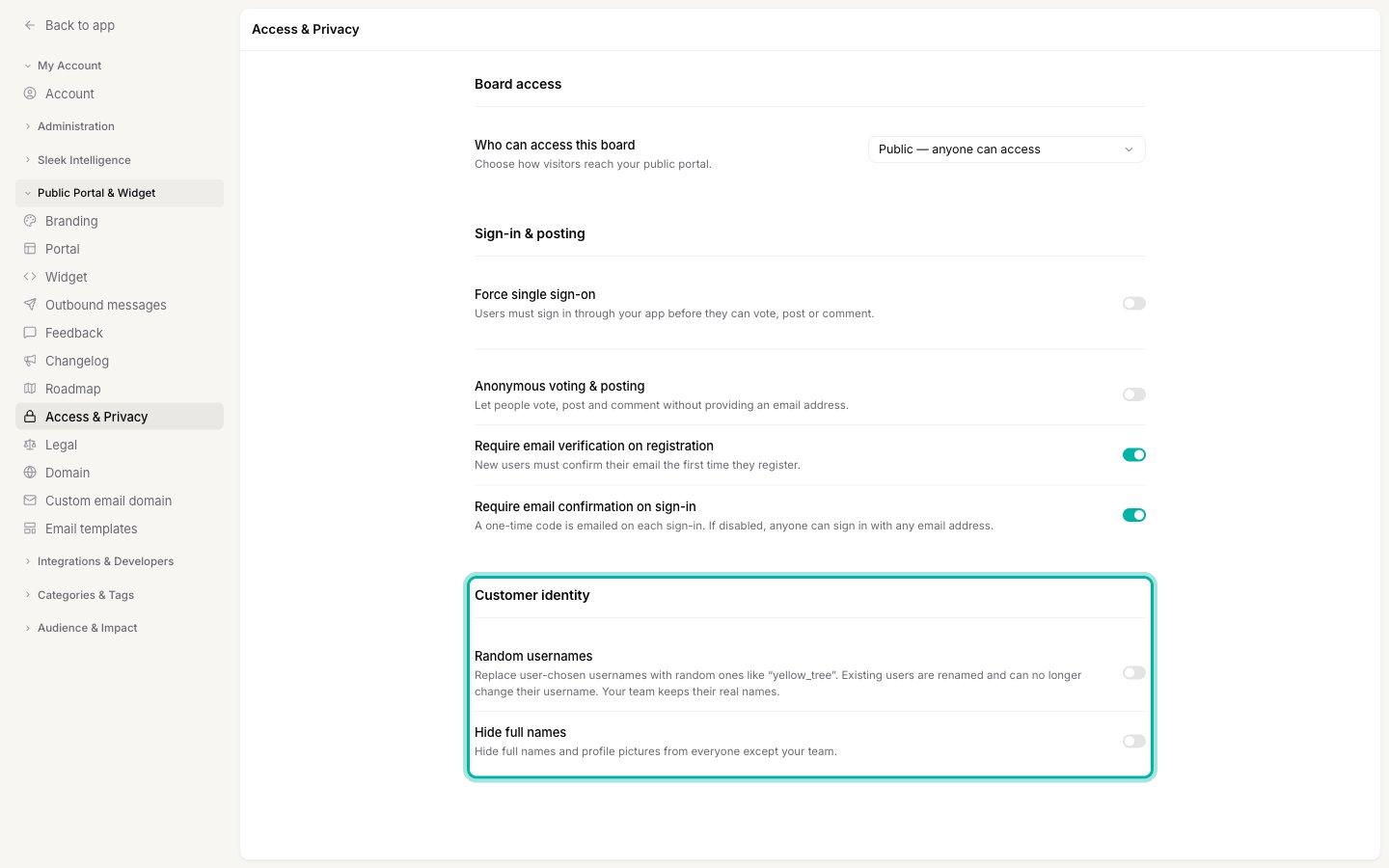
Random usernames
Every user on your board has a username. Unless someone picked their own, Sleekplan creates it from their email address, sosebastian.may@acme.com becomes sebastianmay. That means the username alone can reveal a person and the company they work for.
Turn on Random usernames and Sleekplan replaces every customer username with a neutral, randomly generated one, such as yellow_tree or quiet_harbor. Once it is on:
- Every existing customer is renamed.
- New customers get a random username when they sign up, whether they register on the board, arrive through single sign-on, or are created by an integration.
- Customers can no longer change their own username.
- New @mentions use the new username, so mentioning someone still works and still notifies them.
yellow_tree replied to quiet_harbor.
If your board already has comments, @mentions written before you turned the setting on still show the username that person had at the time, because the mention is part of the comment text. New mentions use the new username. If that matters for a compliance review, turn the setting on before you open the board rather than after.
1
Turn on Random usernames
A confirmation appears explaining what will change. Read it, then choose Randomize usernames to continue, or Cancel to leave everything as it is.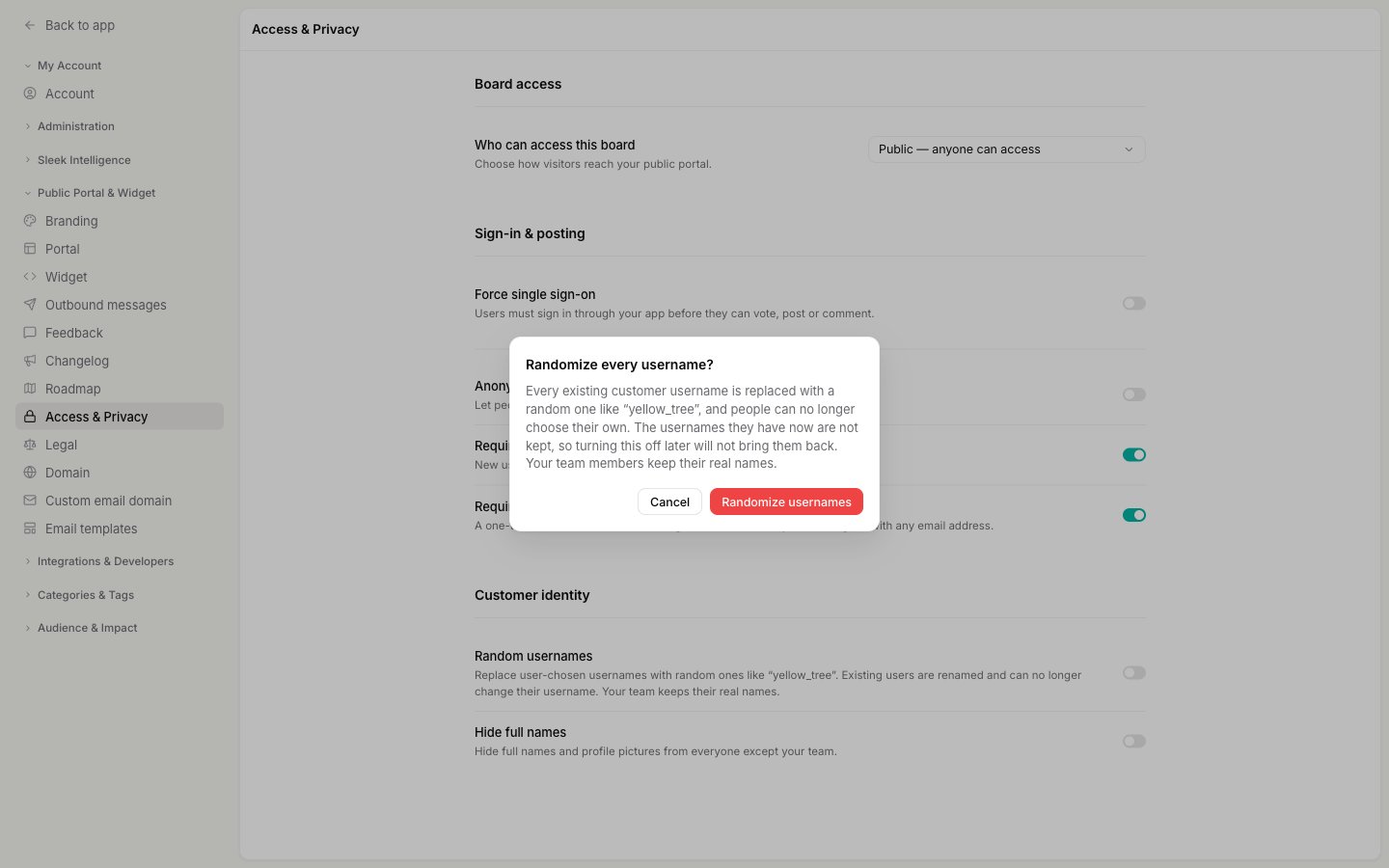
2
Save your changes
The setting is still a draft until you save. Click Save changes in the bar at the bottom of the page. Renaming starts as soon as you save and runs in the background, so a board with a lot of customers takes a short while to finish.
Hide full names
Turn on Hide full names and Sleekplan stops showing customers’ real names and profile pictures to anyone but your team. On the board a post then shows only the username, with a plain default avatar. This setting is reversible. Turn it off and the names and pictures appear again, because nothing is deleted: they are simply not sent to the public board while the setting is on. It also closes a quieter gap. With Hide full names on, the @mention autocomplete no longer finds customers by their real name, so nobody can type a colleague’s or competitor’s name into the composer to check whether they use your product.Turning this on hides profile pictures as well as names. Hiding the name while still showing someone’s photo would not really make them anonymous.
Which one do you need?
- Anonymity on the public board, permanently. Turn on both. This is the usual choice when a compliance or security review has asked you to remove customer identity from public pages.
- Softer privacy, keeping the option to change your mind. Turn on Hide full names only. Names and pictures are hidden, usernames stay as they are, and you can reverse it at any time.
- Only usernames are the problem (for example, they were generated from work email addresses). Turn on Random usernames only.
What your team still sees
Neither setting changes what your own team can see. In the admin dashboard, an admin still sees every customer’s real name, email address, and profile picture on posts, comments, and in Customers, so you can still follow up with the person behind a request. The Sleekplan API also keeps returning full names, because it authenticates with your workspace API key rather than as a visitor. Usernames there are the new random ones, since those are the customer’s real username once the setting is on.Related
Access & privacy
Control who can reach your board and how visitors sign in before they post.
End-user accounts
How customer accounts work and why they live only in your workspace.
GDPR compliance
How Sleekplan handles personal data, and your options for removing it.
User segments
Group your customers so you can see which audience a request came from.