
Sleekmate is part of Sleek Intelligence, so Sleek Intelligence must be enabled first, and your plan must include AI (Starter and above). Each message uses Intelligence credits.
Open Sleekmate
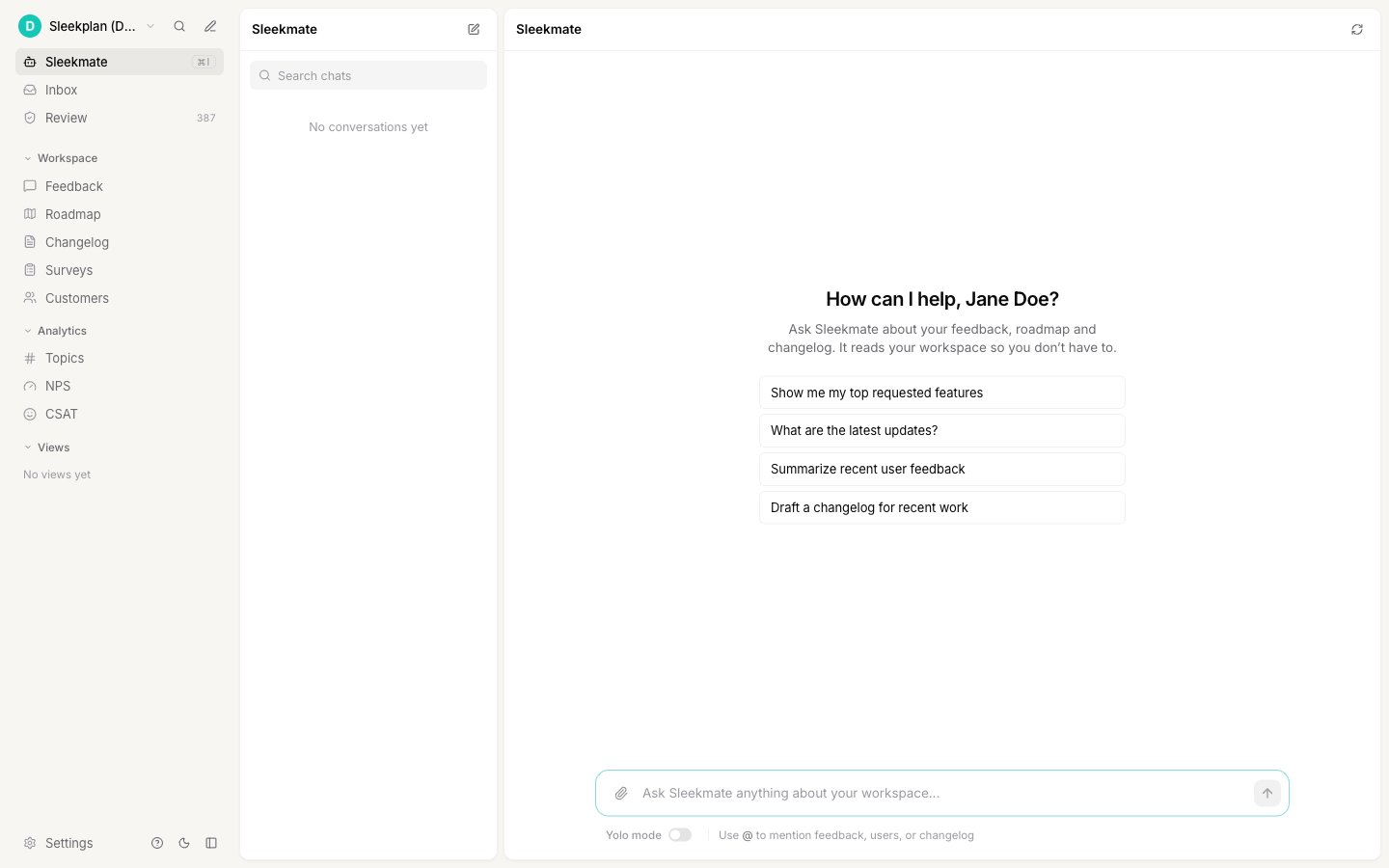
There are two ways to reach it, and both share the same conversation history:- Full page. Click Sleekmate near the top of the left sidebar to open the dedicated view, with your past conversations along the side.
- Quick popup. Press ⌘I (or Ctrl+I on Windows) from anywhere in the dashboard to slide Sleekmate in from the right without leaving the page you are on. Press Esc to close it.
What you can ask it
Type your question in the composer, or click one of the suggested prompts to get started. Sleekmate handles three kinds of request. Find and understand things- “Show me my top requested features”
- “Summarize recent user feedback”
- “Which posts have the most votes this month?”
- “Which roadmap items are overdue?”
- Ask for a weekly product review and it will digest recent feedback into themes and suggested next steps.
- Ask it to find duplicate or near-identical posts so you can clean them up.
- Ask it to outline a feature from the feedback behind it.
- “Create a changelog from posts completed in the last 30 days”
- Update a post’s status, tags, owner or estimated date.
- Merge duplicate posts together.
- Draft survey questions.
Approving its actions
Sleekmate never changes your board without asking. When it wants to create, edit, merge or delete something, it pauses and shows an approval card describing exactly what it will do.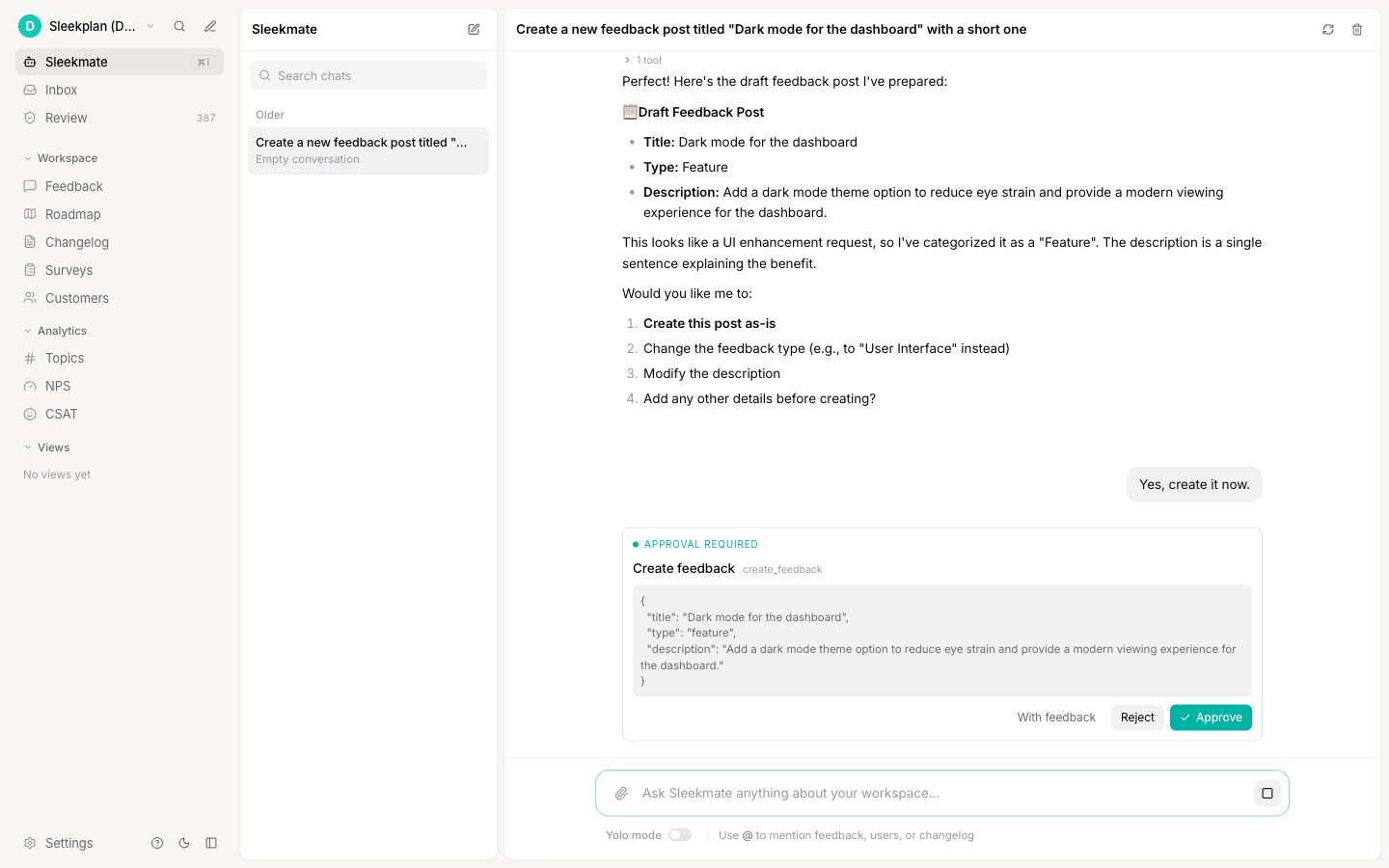
- Approve runs the action as shown.
- Reject cancels it.
- With feedback rejects it but lets you add a note telling Sleekmate what to do instead, so it can try again.
Yolo mode
If you would rather not approve every step, turn on Yolo mode with the toggle under the composer. While it is on, Sleekmate runs its write actions immediately without waiting for approval. Turn it off any time to go back to approving each action. The setting sticks per person, so it is your choice, not a workspace-wide one.Turn Sleekmate on or off
Only workspace owners and admins can change this setting.
1
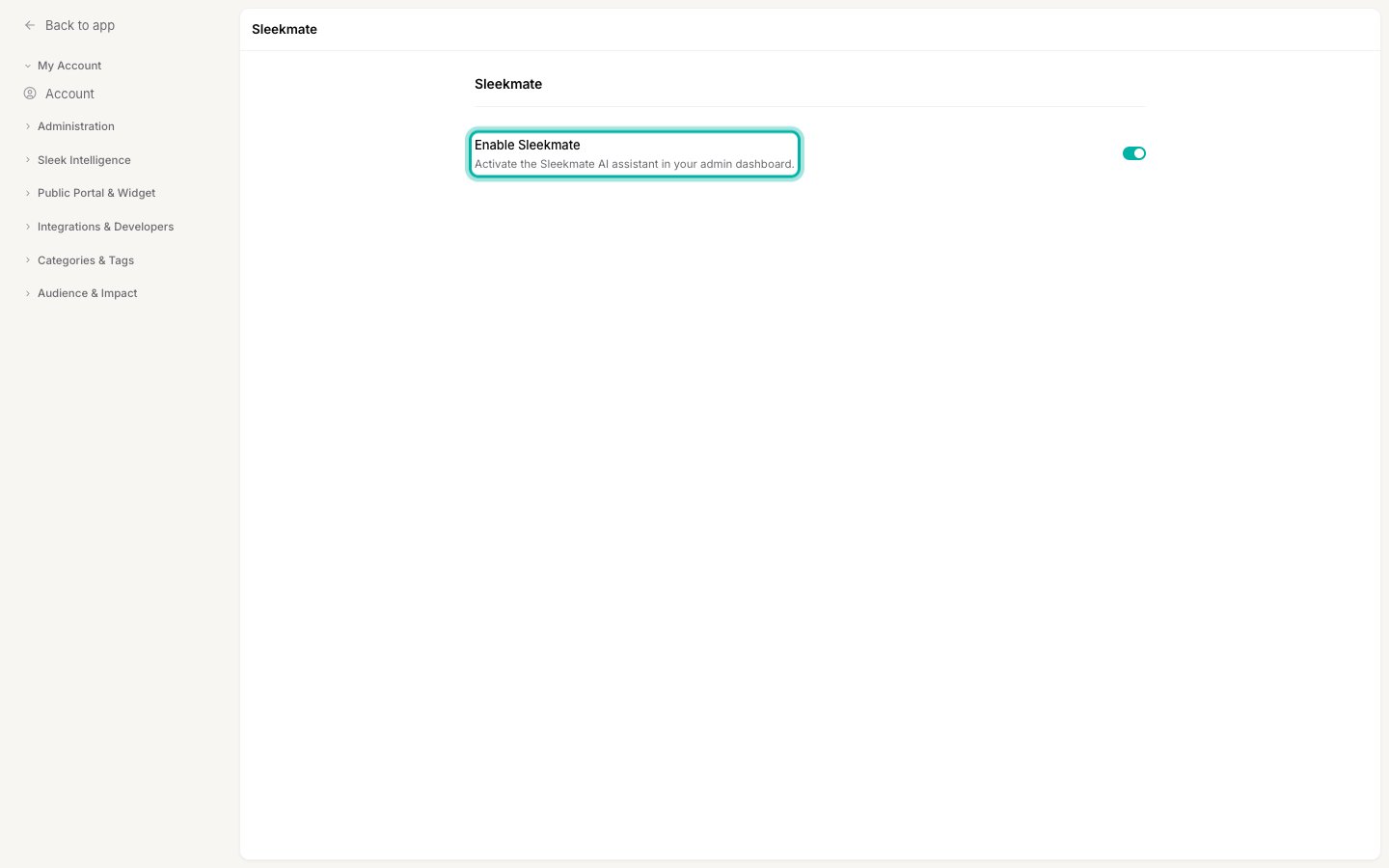
Open Sleekmate settings
2
Toggle it
Switch Enable Sleekmate on to make the assistant available to your team, or off to hide it. Sleek Intelligence must be enabled in General for Sleekmate to work.
What it costs
Unlike the automated features, Sleekmate does not cost a fixed number of credits per message. Its cost is variable and tracks how much work each request takes: a quick question costs very little, while a deep, multi-step task that reads a lot of feedback and drafts long output costs more. Watch your total available balance on the Billing screen before and after a heavy session to gauge it. If your workspace runs out of credits, Sleekmate stops accepting new messages and shows “Insufficient intelligence credits to send message” until you top up or your monthly quota resets. See Sleek Intelligence credits for the full picture.Related
Schedules
Let Sleekmate run your instructions on a schedule or when something happens.
Connectors
Connect Linear, Jira, Notion and more, so Sleekmate can work there too.
Sleek Intelligence credits
How Sleekmate’s variable cost works and how to top up.
Reviewing AI actions
Approve or reject the changes automated processing proposes.
Topics
See the AI-clustered themes Sleekmate can read and reason about.
Create a changelog entry
Publish the drafts Sleekmate writes for you.