
Create a skill
1
Open Skills and start a new one
Go to Settings → My Account → Skills and click New skill.
2
Name it
Give it a short, descriptive name, for example “Triage new bug reports”.
3
Describe what it does and when to use it
This description is what Sleekmate and your MCP clients read to decide whether the skill applies to a request, so be specific about the trigger, not just the topic.
4
Write the instructions
Add the steps, rules, or examples to follow. Markdown works.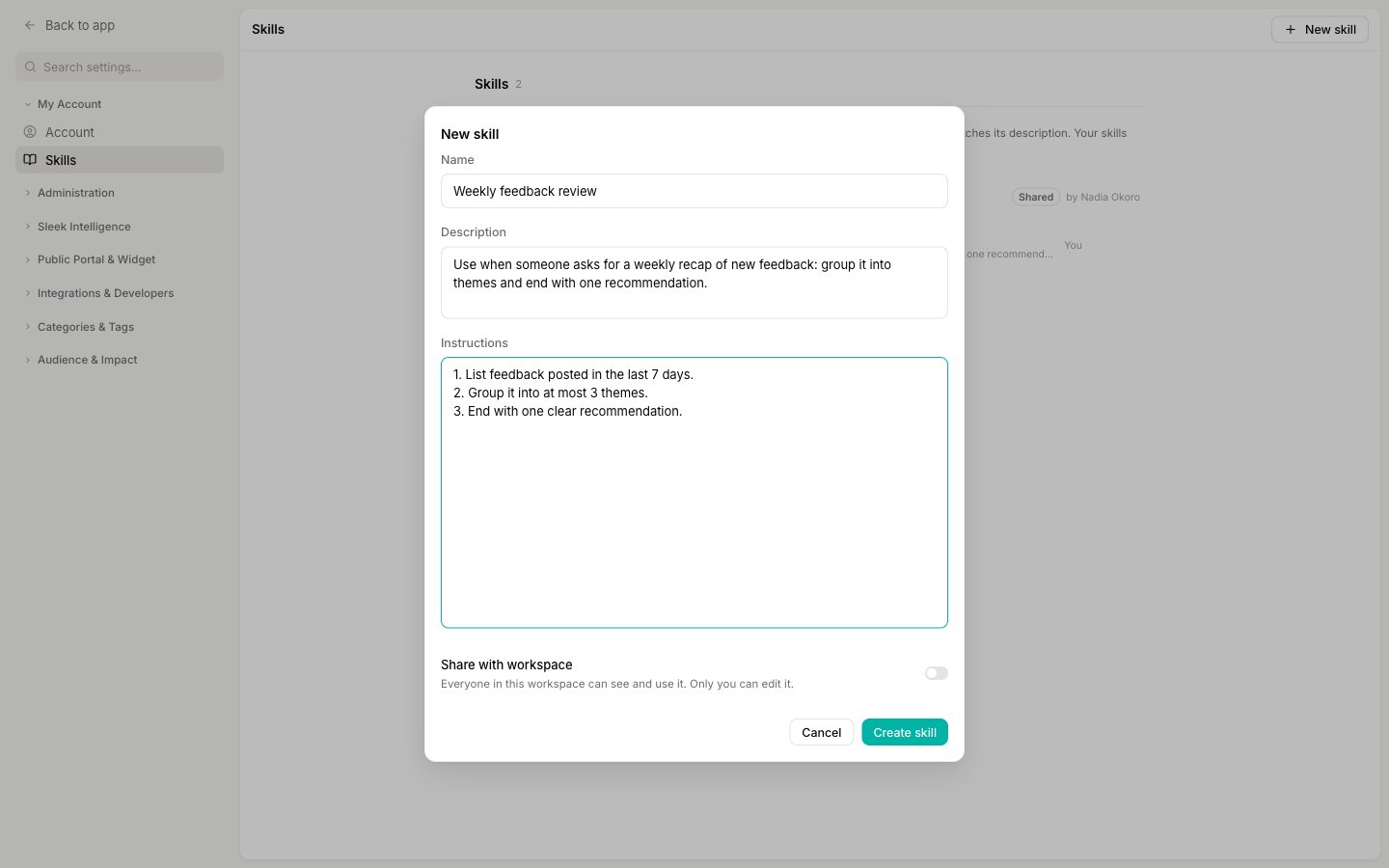
5
Share it with your team (optional)
Owners and admins can turn on Share with workspace to make the skill visible to everyone. Leave it off to keep it private to you.
6
Save it
Click Create skill. It’s ready right away, including in a Sleekmate conversation you already have open.
Limits
A skill has a name (up to 100 characters), a description (up to 1,024 characters), and instructions (up to 50,000 characters). Each person can save up to 50 skills per workspace.Sharing skills with your team
Skills are private by default. Owners and admins can turn on Share with workspace for any skill they wrote. A shared skill appears in everyone’s list, marked Shared and labeled with who wrote it. Everyone can read and use it, but only the author can edit or delete it.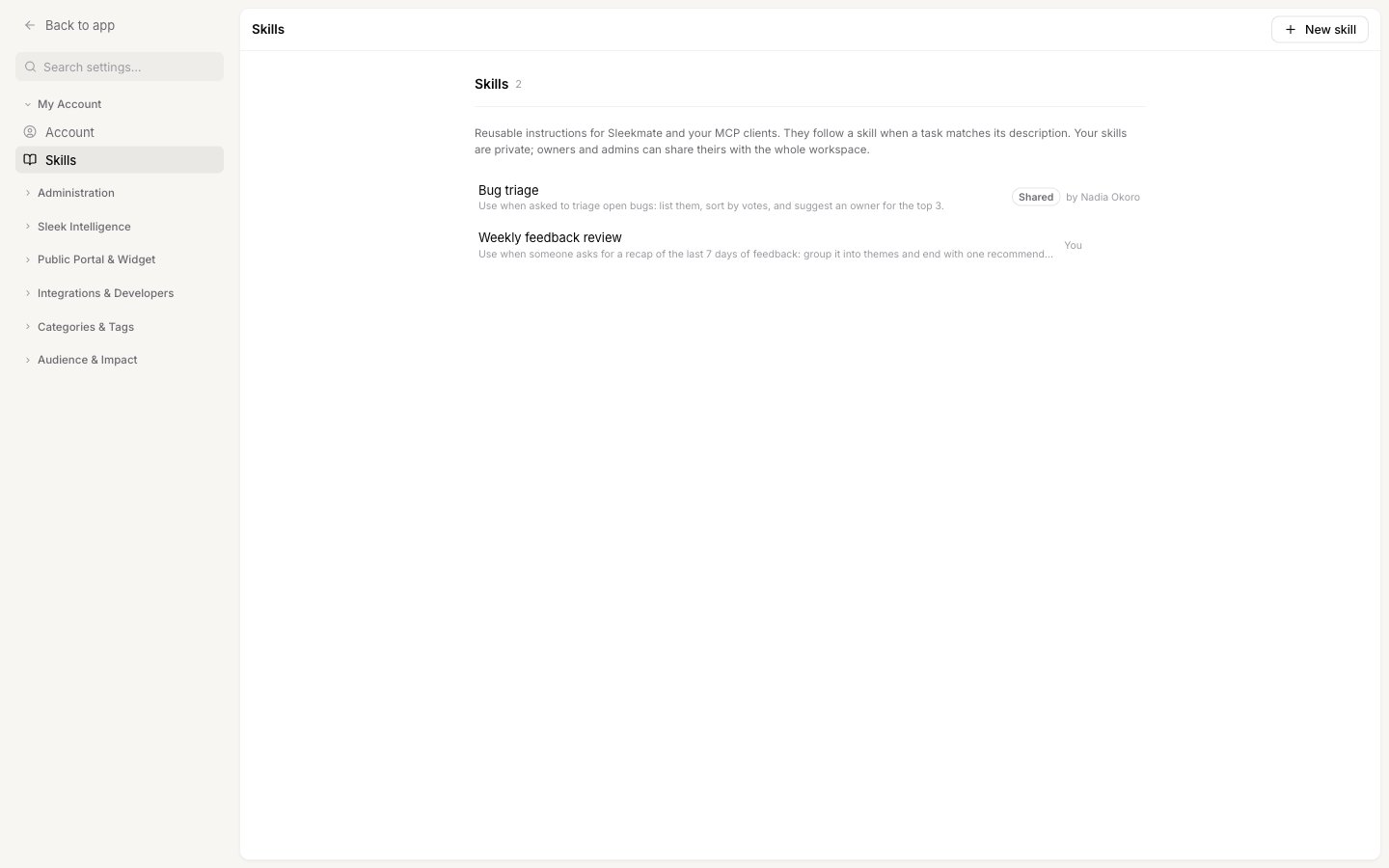
If the author of a shared skill leaves the workspace, or their seat is deactivated, the skill stays on this page, but Sleekmate and your MCP clients stop using it.
How Sleekmate and your MCP clients use skills
Sleekmate reads the name and description of every skill you can see on each message you send, and loads the full instructions for the one that matches what you’re asking. A new skill, or a change to one, applies from your very next message, even in a conversation you already have open. MCP clients you’ve connected, like Claude or Cursor, get the same skills over the Sleekplan MCP server: the client lists what’s available and reads the one it needs, the same way it reads your feedback or changelog. When you ask, they can save or update your skills too. See the MCP server’s developer page for the technical details.Let Sleekmate write a skill for you
When you have worked through a task with Sleekmate, ask it to keep the approach, for example “Save how we did this as a skill.” Sleekmate writes a name, a description and step-by-step instructions from your conversation, then shows them on an approval card before saving. With Yolo mode on, it saves right away. After a longer task, Sleekmate may offer to save it as a skill. It never saves or changes one without you asking or agreeing. You can ask it to change one of your own skills the same way: it reads the current version first and keeps what you didn’t ask to change. A skill Sleekmate saves is private to you; deleting and sharing it stay on the Skills page.Related
Sleekmate
Your in-app copilot, and the main place skills are put to work.
Team roles and permissions
What owners, admins, and members can each do.
MCP server
Connect Claude, Cursor, and other AI clients to your workspace.