
Account
Shows the name you signed in with and the workspace this device works for. Sign out disconnects the device. Work items it’s running or waiting on go back to Ready, so another device can take them, and Sleekcode asks before it does that.This device
- Device name. Sleekplan shows it on the work items this device takes, for example Claude Code · Alex’s MacBook. Sleekcode starts with your computer’s name. It can have up to 100 characters.
- Send error reports. Off until you turn it on. Sends crash and error details to Sleekplan, without your code, prompts or file paths. Turn it on when Sleekplan support asks you to. Error reports lists exactly what’s sent.
- Sleekcode and its version. Sleekcode looks for updates 30 seconds after it starts and then every 4 hours, and downloads them in the background. Check now looks right away.
- On macOS and Windows, it installs when you quit Sleekcode. Restart to update installs it right away.
- On Linux, click Restart to update. The
.debpackage asks for your password first.
Runner
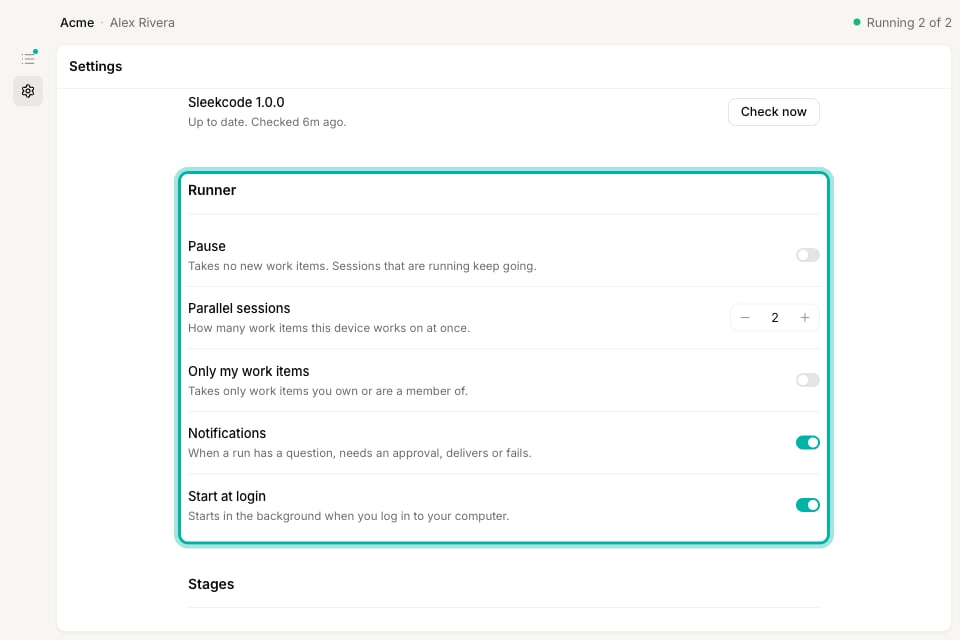
Pause and Resume are also in the menu of Sleekcode’s icon in the menu bar or system tray.
Stages
Each stage has a switch, an agent and an optional model.- The switch. Turn a stage off to leave it to other devices. This device then skips work items at that stage. For example, a laptop could write only specs and plans while a desktop does the builds.
- The agent. Which agent does the stage. At first, every stage uses the first agent Sleekcode found, in the order Claude Code, Codex, OpenCode.
- The model. Leave Default model empty to use the agent’s own default, or enter the name of a model your agent accepts. A model name has letters, digits and
. _ : / @ + -only, and starts with a letter or digit.
Agents
Each agent has a row with what Sleekcode found: Not installed, or the version with Signed in, Not signed in or Sign-in unknown. Sleekcode takes work only for stages whose agent is installed and not known to be signed out. Check again looks again, for example after you installed or signed in to an agent. OpenCode can show Sign-in unknown even when it’s ready, because its providers can come from environment variables. Sleekcode still uses it.Permissions
Choose how much the agent may do without asking. Sleekcode offers only the modes the agent supports.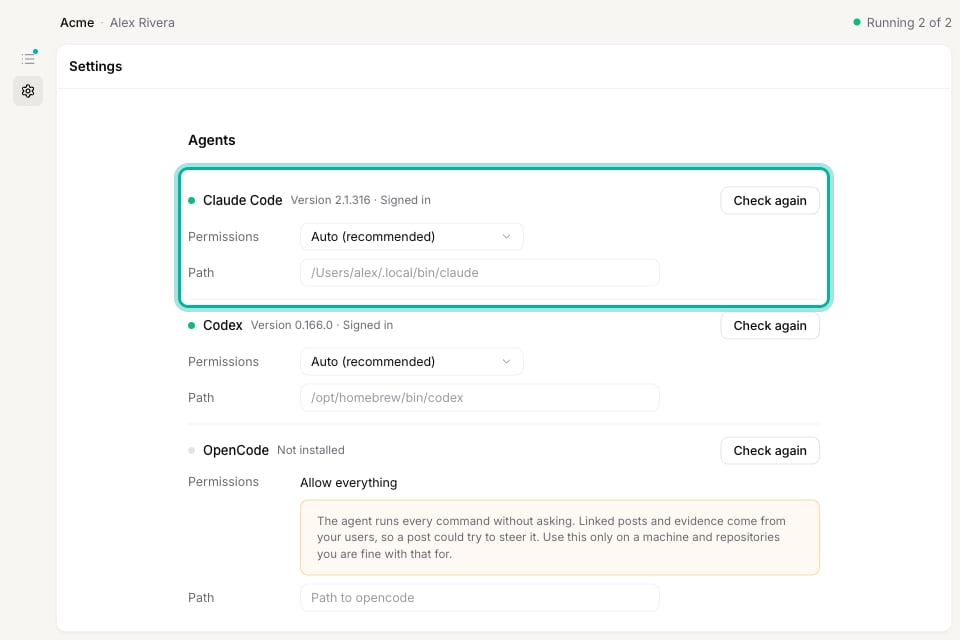
Auto is the default for Claude Code and Codex. When a request waits for you, the run shows Needs approval, and you answer it in the run with Allow or Deny. See Approve or deny an action.
Path
Sleekcode finds an agent through the samePATH your terminal uses and in the usual install folders. If it still shows Not installed, enter the full path to the agent’s program, for example /Users/alex/.local/bin/claude, and Sleekcode checks again.
Repositories
The repositories the agent may work on. Click Choose folder to add a folder that holds a git repository.- Name. The agent asks for a repository by this name. It uses letters, numbers, dots, dashes and underscores, and each repository needs its own.
- Description. What the repository is for, in a sentence of up to 200 characters. The agent reads it to pick the right repository.
- Remove. The trash icon takes the repository off the list. The folder itself stays as it is.
Pull requests
Shows whether Sleekcode found the GitHub CLI (gh) and the GitLab CLI (glab). With one of them, Sleekcode tells Sleekplan when a pull request is merged. Without them, a person completes the work item after the merge. The agent uses the same tool to open pull requests. After you install one, click Check again.Related
Runs
Follow a run, answer the agent’s questions and approve its actions.
Security and privacy
What each permission mode allows, and what stays on your computer.