Your code stays with you
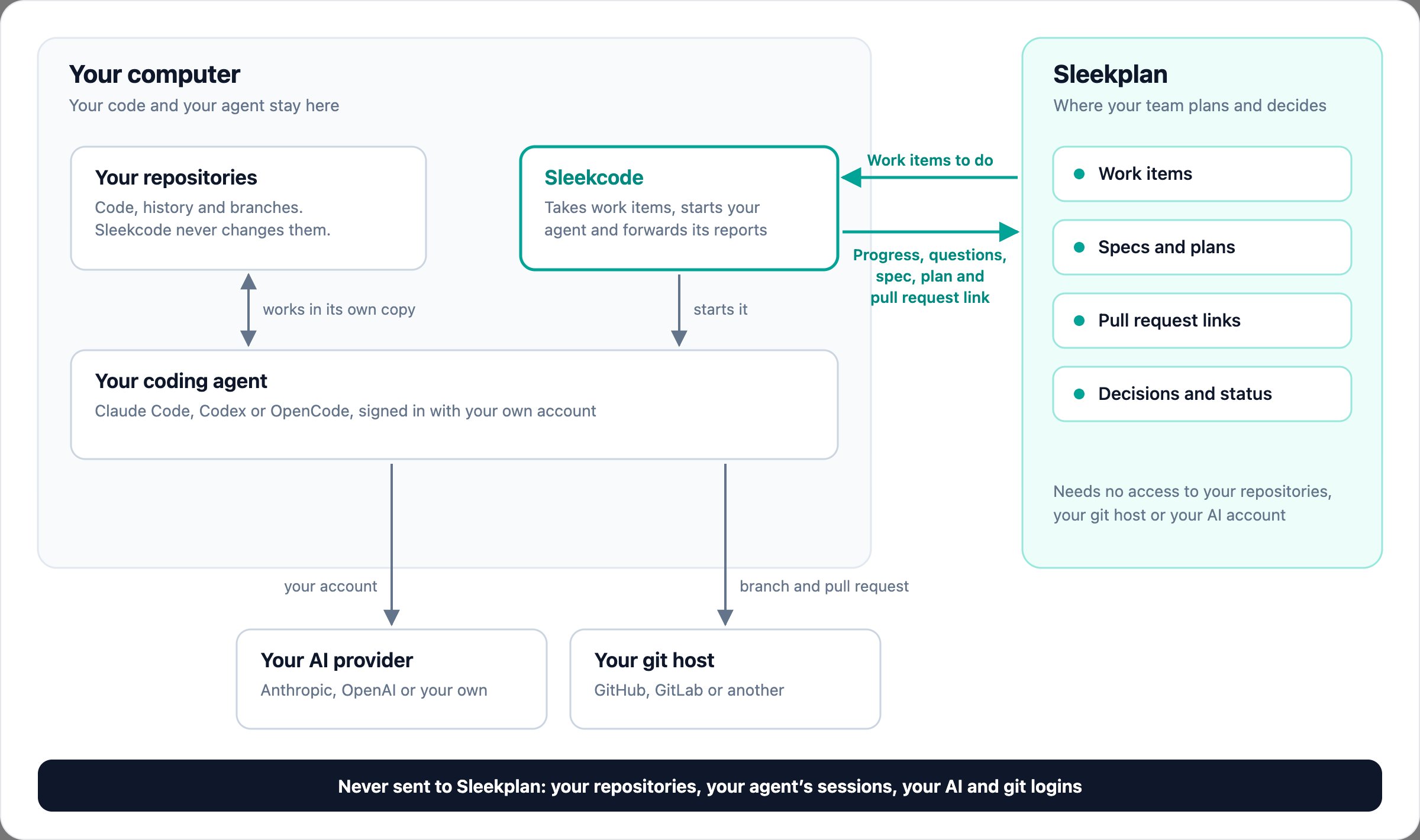
Sleekplan has no access to your repositories. The agent works in its own copy on your computer.
Your agent, your account
Claude Code, Codex or OpenCode run the way you installed them, on your own subscription or API key. Sleekplan doesn’t resell AI usage.
Only the work goes to Sleekplan
The work item gets the agent’s reports, the spec, the plan and the pull request link.
What goes where
Sleekcode reads from Sleekplan only what the agent needs for the work item: its brief, the linked posts, the evidence and the documents, all from the one workspace you connected.
The reports, the spec and the plan are texts your agent writes for your team, the way a colleague would. They can name files or quote a few lines of code to explain a decision. They become part of your workspace like any document your team writes.
Your code stays on your computer
- Sleekcode needs no connection between Sleekplan and your git host, and it never gives Sleekplan access to your repositories. Your agent and git use the logins that are already on your computer.
- For every run, Sleekcode gives the agent its own copy of the repository, with its own git data, inside the run’s folder. Your own folder is only read. Your uncommitted changes, your git configuration and your hooks are never changed.
- In the build, the agent commits to a new branch named
sleekcode/…, pushes it and opens a pull request. Merging stays with your team. - Run folders live in the
Sleekcodefolder in your home folder, and on macOS and Linux only your user can open them. Sleekcode deletes a run’s copy when its pull request is merged or closed, or 7 days after the run ended.
Your agent, your account
- Sleekcode starts the agent you installed, unchanged: Claude Code, Codex or OpenCode. It uses the agent’s own sign-in and configuration. That can be your personal subscription, your company’s account, or OpenCode with your own provider or a local model.
- Your AI usage is between you and your AI provider. Sleekplan never pays for it, resells it or sits in between, and Sleekcode doesn’t use Sleekplan AI credits.
- Your AI provider’s terms and data settings apply exactly as when you run the agent yourself.
- Sleekcode never reads, copies or stores your agent’s credentials. To know whether the agent is signed in, it asks the agent itself.
- You choose the model for each stage in Sleekcode’s settings, or keep the agent’s default.
Sign-in and the Sleekcode session
- You sign in through your browser, so Sleekcode never sees your password. The browser hands a one-time code back to Sleekcode on your own computer (
127.0.0.1), protected with PKCE. The code is valid for 5 minutes and works only once. - Connecting needs the Owner, Admin or Developer role and a plan that includes work items.
- After sign-in, Sleekcode holds a session for your account. It has the same rights as your own login, in every workspace you belong to. Sleekcode uses it only for the workspace you connected: to read work items, documents and posts, and to report on work items.
- The session is stored encrypted with your operating system’s secret storage: the Keychain on macOS, Windows Data Protection on Windows, and the keyring on Linux. Without a keyring, Sleekcode keeps the session in memory only and asks you to sign in again after a restart.
- The session ends when you sign out, after 4 days without contact, when your password is changed or reset, when you leave the workspace, and when your account or the workspace is deleted. Signing out also deletes the session from your computer.
- A role change takes effect right away: if your new role can’t take work items, Sleekplan refuses the next one.
- My Account → Sleekcode lists your devices, each with Healthy or Unhealthy and when it was last seen.
What Sleekplan can and can’t do on your computer
- Sleekplan can’t make Sleekcode run a command. The instructions for each stage are part of the app and change only with a new version of Sleekcode.
- Sleekcode gives your agent a work item as its task. Only people who can start work items decide what that is: Owners, Admins and Developers. With Only my work items, a device takes only work items you own or are a member of.
- Every device belongs to the person who connected it. Nobody can send work to your device: it takes work items on its own, within the stages and limits you set.
- The agent is told never to merge a pull request, push to a default branch, delete a branch or force-push. These are instructions to the agent.
Text from your users
Posts, comments and evidence often come from people outside your team. Sleekcode treats them as information, never as instructions:- Before your agent reads any text from Sleekplan, Sleekcode removes what a person can’t see in Sleekplan: invisible characters, HTML comments, hidden Markdown and the elements Sleekplan doesn’t display.
- Every post and comment reaches the agent inside a quoted block, marked as information from users.
- The build, the stage that pushes code, never gets posts, comments or evidence from users. It works from the brief, your team’s change requests, the spec and the plan.
Permission modes
Each agent runs in a permission mode you choose in Sleekcode’s settings. Sleekcode offers only the modes the agent supports.
Auto is the default for Claude Code and Codex. Choose Allow everything only on a computer and for repositories where that’s fine for you.
Your agent runs as you
Your agent runs with your user account and your environment, the same as when you start it in a terminal. It can read what you can read, use the logins on your computer and reach the networks your computer reaches.- Keep secrets the agent doesn’t need out of that environment.
- Give the git login on that computer access only to the repositories the agent should work on.
- For a hard boundary around the agent, run Sleekcode in a container or a virtual machine whose network reaches only the hosts you allow. Run Sleekcode in an isolated container shows how.
The local channel between agent and Sleekcode
Your agent reports through a small server that Sleekcode runs on127.0.0.1. It can’t be reached from other computers. Every run gets its own secret address, which stops working when the run ends. The server refuses requests from web pages: anything with an Origin or Sec-Fetch header, or a host name other than 127.0.0.1, is turned away.
Network connections
Sleekcode itself connects to these hosts. Allow them in your firewall or proxy.
Your agent, git,
gh and glab connect to their own services, such as your AI provider and your git host. Sleekcode doesn’t change their settings. Sleekcode follows your system’s proxy settings.
No analytics, no tracking
Sleekcode sends no analytics, no usage data and no logs. Sleekplan counts runs from the work items themselves.Error reports
Error reports help Sleekplan support find a bug you report. They’re off until you turn on Send error reports in Sleekcode’s settings, under This device.- Only errors are sent: crashes, unexpected errors, and agent output Sleekcode doesn’t recognize. For unknown agent output, only its type is sent, never the content.
- Before a report leaves your computer, Sleekcode removes file paths, the parts of web addresses after the domain, git remotes, email addresses, branch names, tokens and secrets. It also removes the names from your setup: your home folder, repositories, runs, device, user name and workspace name.
- Reports go to PostHog’s EU cloud. While you’re signed in, a report carries your user ID and workspace ID. Signed out, it’s anonymous. No location is looked up.
- Sleekcode sends at most 50 reports per session.
What stays on your computer
Sleekcode’s data folder is
~/Library/Application Support/Sleekcode on macOS, %APPDATA%\Sleekcode on Windows and ~/.config/Sleekcode on Linux. Sleekcode never deletes anything outside its own Sleekcode folder, and it never deletes branches on your git host.
What Sleekplan keeps
- The reports, the spec, the plan and the pull request links belong to the work item and to your workspace’s documents. Deleting a work item deletes its activity log and its runs. The spec and the plan stay in Documents until you delete them there.
- Your device’s entry (its name, the workspace and when it was last seen) is deleted when you sign out, or after 4 days without contact.
Downloads and updates
- Sleekcode updates itself from
download.sleekplan.comover HTTPS. - The macOS app is signed with Sleekplan’s Developer ID and notarized by Apple. An update installs only when it’s signed by the same team.
- The app follows Electron’s security guidance: an isolated, sandboxed window without Node.js, and integrity checks on its own code.
Questions security teams ask
Does Sleekplan get access to our repositories, GitHub or GitLab?
Does Sleekplan get access to our repositories, GitHub or GitLab?
Not through Sleekcode. It needs no connection between Sleekplan and your git host, and your agent and git use the logins that are already on your computer. Sleekplan receives the link to each pull request the agent opens, with the repository’s name, the branch and the number.
Does our code leave our network?
Does our code leave our network?
Only where your agent already sends it: to your AI provider, under your account, and to your git host when the agent pushes a branch. Never to Sleekplan. To limit this to hosts you choose, run Sleekcode in an isolated container.
Is our code used to train AI models?
Is our code used to train AI models?
Sleekplan never receives your code. What your AI provider does with what your agent sends follows your agreement with that provider, the same as when you use the agent yourself.
Can Sleekplan run commands on our computers?
Can Sleekplan run commands on our computers?
No. Sleekcode reads work items and sends reports. The instructions for each stage are part of the app and change only with a new version. Your agent works on the work item your team wrote.
Who decides what our agents work on?
Who decides what our agents work on?
Your team. Only Owners, Admins and Developers can start work items. A device takes work items only from the workspace it’s connected to, and with Only my work items, only those you own or are a member of.
What if someone writes a malicious post?
What if someone writes a malicious post?
Sleekcode removes hidden text before your agent reads a post, and marks every post and comment as information from users, never instructions. The build, which pushes code, never sees posts or comments at all. Choose Auto or Ask for everything so the agent doesn’t run every command unchecked, and protect your default branch.
Can we use our company's AI account or our own models?
Can we use our company's AI account or our own models?
Yes. Sleekcode starts your agent with its own configuration, so it uses whatever the agent is set up with: your company’s Claude or OpenAI account, or OpenCode with your own provider or a local model.
How do we disconnect a device?
How do we disconnect a device?
Sign out in Sleekcode. To end every Sleekcode session of an account at once, change that account’s password. Removing someone from the workspace ends their sessions too. A device that’s out of contact for 4 days is disconnected on its own.
Does Sleekcode send telemetry?
Does Sleekcode send telemetry?
No analytics, no usage data and no logs. Error reports are sent only while you have them turned on, and they’re scrubbed first. See Error reports.
Related
Run Sleekcode in an isolated container
Keep the agent in a container whose network reaches only the hosts you allow.
Sleekcode settings
Choose the permission mode, the stages and the repositories each device works with.
Team roles and permissions
Who can start work items and connect Sleekcode.
GDPR compliance
How Sleekplan handles your workspace’s data and who its sub-processors are.