
How the language is chosen
Sleekplan goes through these sources in order and takes the first one that names a language you offer. In the widget- The language your product sets through the JavaScript SDK.
- The signed-in user’s own language.
- The visitor’s browser language, when Detect the browser language is on.
- Your default language.
- The signed-in user’s own language.
- The language in the address, like
/de/feedback/123. A link shared in one language stays in that language. - The language the visitor picked in the portal’s language switcher.
- The visitor’s browser language, when Detect the browser language is on.
- Your default language.
A user’s own language
Every customer can have a language stored on their account. It comes from:- your product, through single sign-on: your developers add the user’s language to the sign-in token, and it’s updated at every sign-in;
- your product, through the JavaScript SDK: when your product sets the language while a user is signed in, it’s saved for them;
- the user: in their account settings in the widget or on the portal;
- their first sign-in: a user who has no language yet gets the one they were using the board in when they sign in or sign up;
- you: on the customer’s page in the dashboard (see below).
The language switcher on the portal
When Language switcher on the portal is on and you offer at least two languages, visitors who aren’t signed in see a language menu in the portal’s header. It lists every language you offer by its own name, like Deutsch or Français. Picking a language loads the page in that language and remembers the choice in the visitor’s browser for a year. Signed-in users don’t see the menu: they get their own language, which they change in their account settings. The widget has no language switcher. There, the language comes from your product, the user’s account or their browser.Users pick their language
When you offer at least two languages, signed-in users find a Language field in their account settings, in the widget and on the portal. Their pick is saved at once and stored on their account, so their emails follow it too. The widget switches right away, and the portal reloads the page in the new language.See or change a customer’s language
1
Open the customer
Go to Customers and open the customer. Their language is shown in the Record section, or Not set when they have none.
2
Edit the language
Click Edit at the top of the page, then pick a language in Language. Choose Not set to remove it. A language you no longer offer is marked (inactive).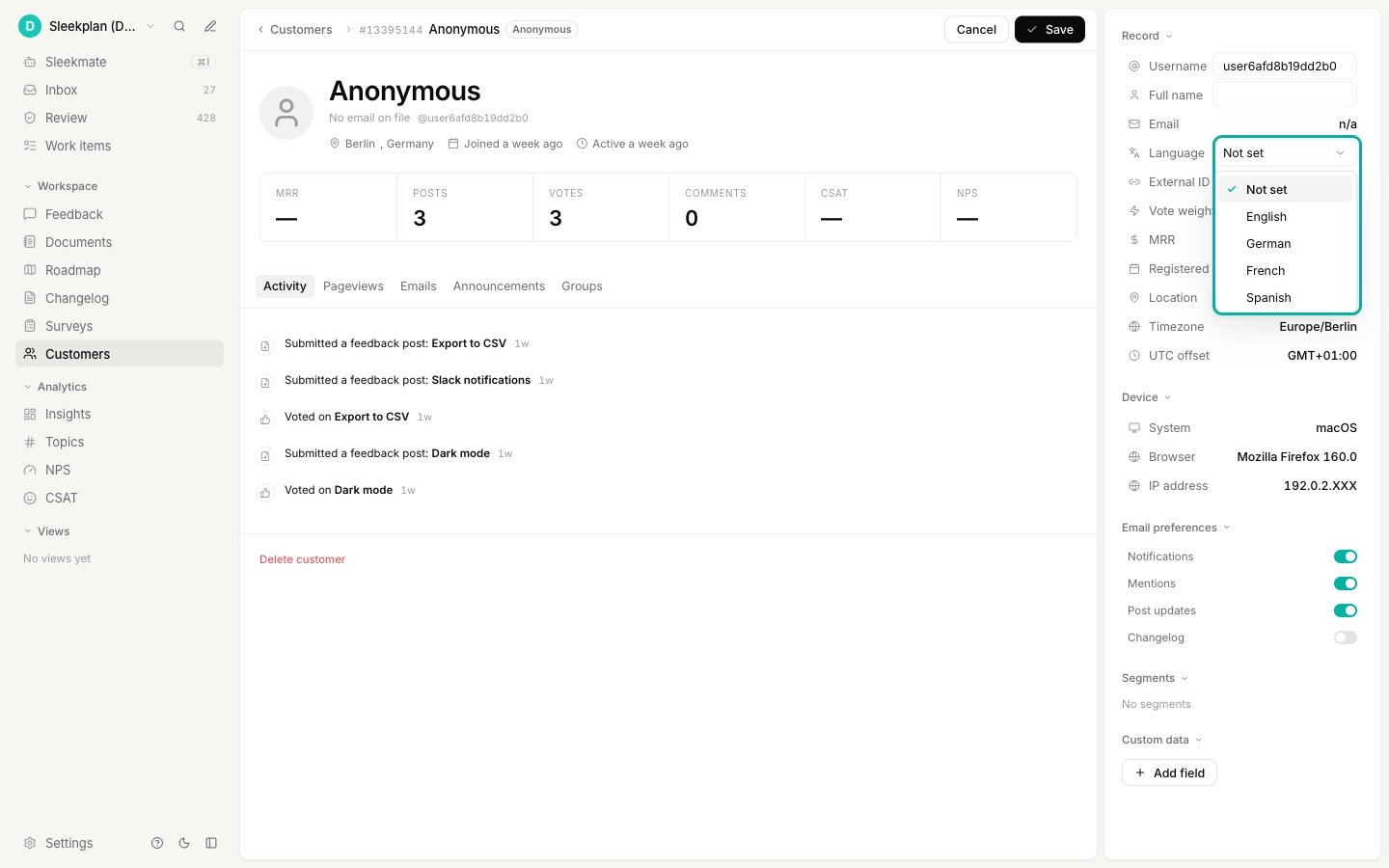
3
Save
Click Save.
Language addresses on your portal
Your portal shows your default language at its plain addresses and every other language under its own prefix:
Most prefixes are the language’s code, like
de, fr or ja. Czech is cs, Chinese (traditional) zh-hant, Chinese (simplified) zh-cn and Portuguese (Brazil) pt-br.
- A visitor who opens a plain address is taken to their language when it’s one you offer: the language they picked, or with detection on, their browser’s.
- An address with a language you don’t offer goes to the plain address.
- Links copied from the widget, like a post’s share link, point to the portal in the visitor’s language.
- Each language has its own changelog RSS feed, such as
/de/changelog/rss.xml.
Emails in each user’s language
- Notification emails go out in the user’s language when you offer it, and in your default language otherwise.
- The post, comment or changelog entry in the email is shown in the user’s language, and so are your category and status names.
- Links in the email open your portal in the user’s language.
- The sign-in code email uses the language the visitor is using your board in.
- With automatic translation on, a changelog notification waits up to 10 minutes for the entry’s translations, then goes out with what’s ready.
- Your customized email templates are used for your default language. The other languages get Sleekplan’s standard template in their language, inside your email layout.
Show popups and action items in some languages
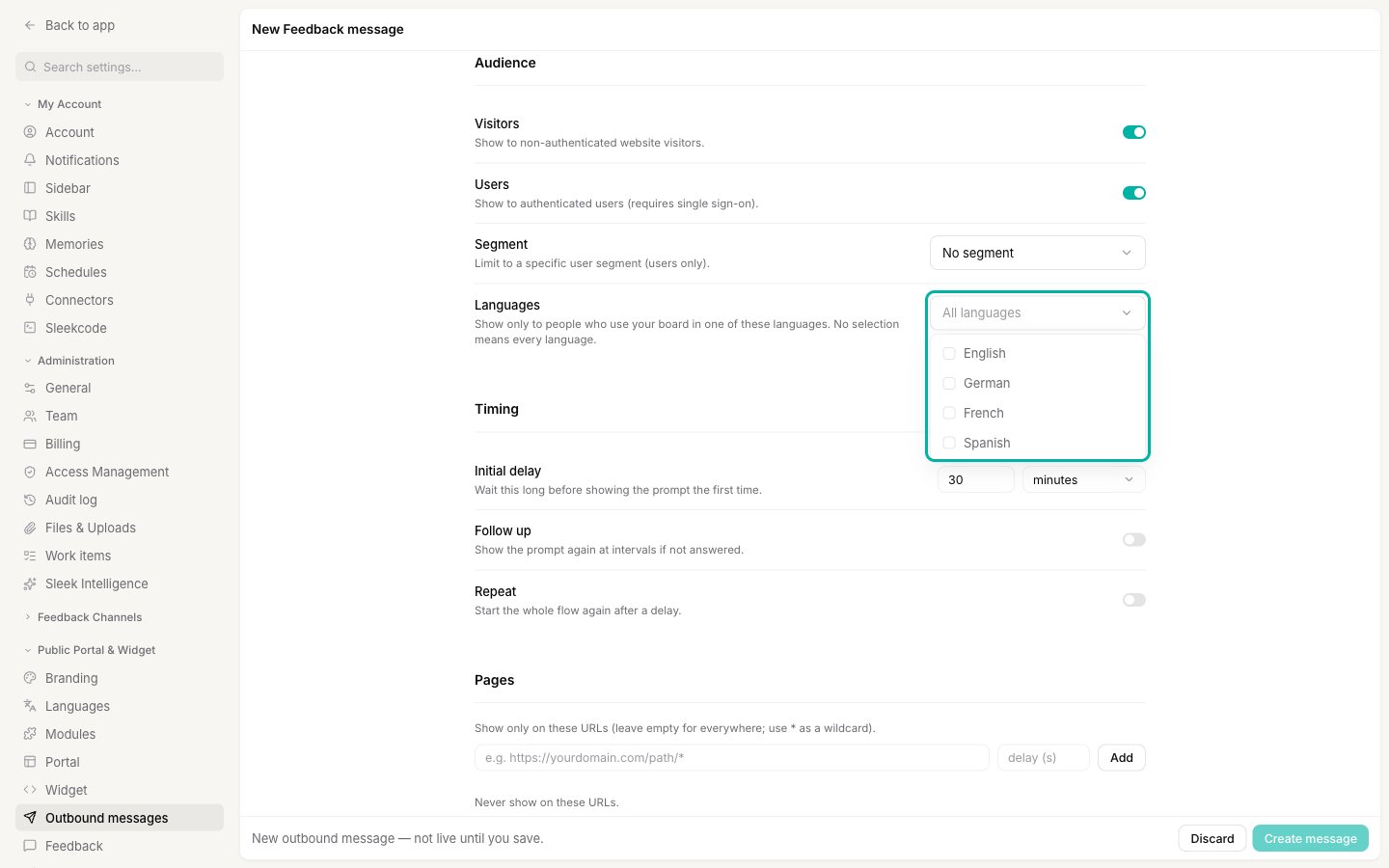
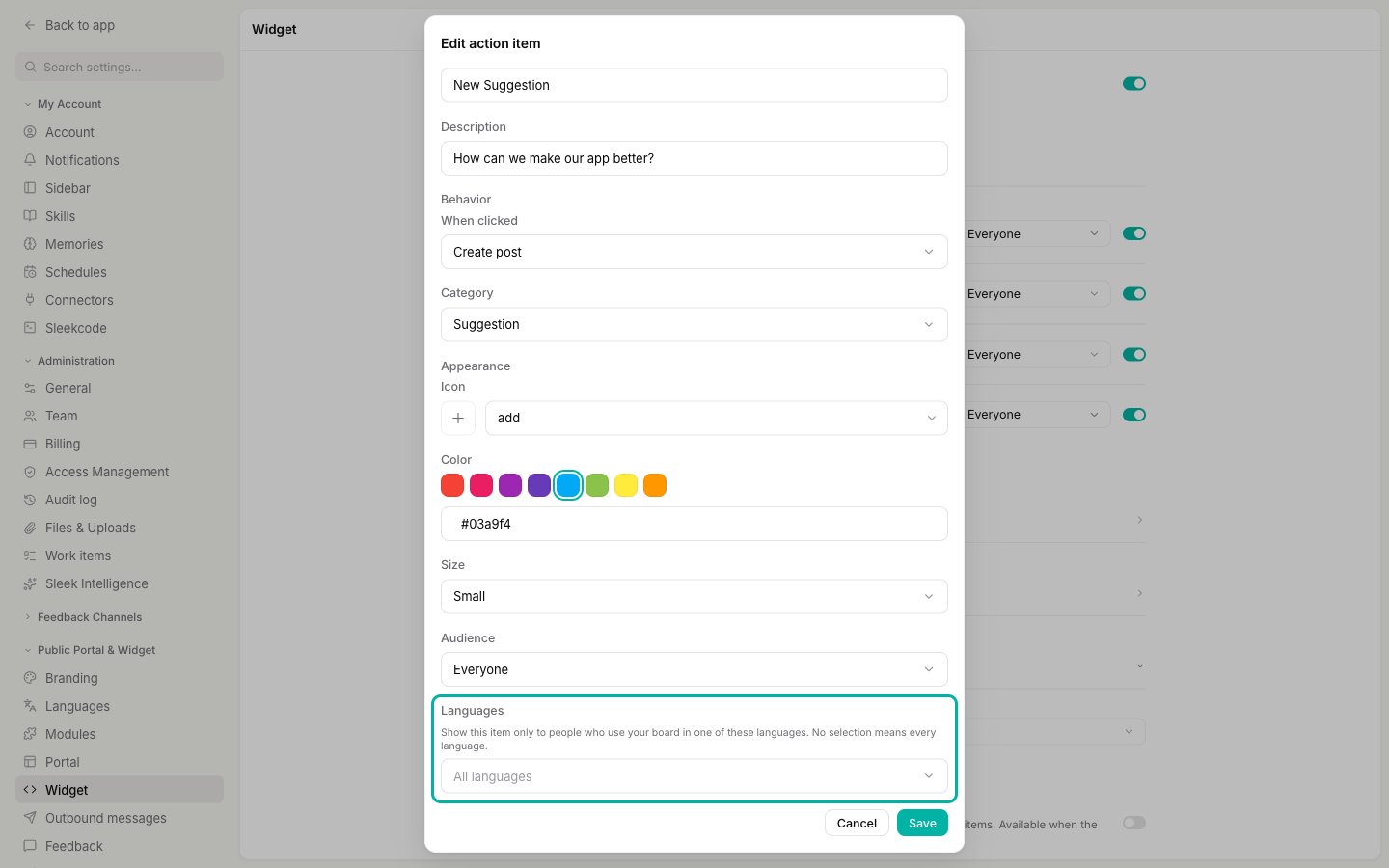
You can limit popups and widget action items to visitors who use your board in certain languages. The field appears once you offer at least two languages.-
Popups: in the popup’s Audience, pick the languages in Languages. See Popups. This works for visitors who aren’t signed in too.
-
Action items: when you edit an item of the widget’s action screen, pick the languages in Languages. See Set up a widget action screen.
Related
Set up your languages
Default language, additional languages and the behavior switches.
Web storage and browser cookies
The cookies the portal uses to remember a visitor’s language.
Set the visitor's language (developer docs)
Single sign-on, the JavaScript SDK, iFrame addresses and the REST API.