
The iFrame settings live under Public Portal & Widget in your workspace settings, and only workspace owners and admins can change them. How to add the iFrame to a page is described in the developer guide Embed in an iFrame or webview.
Change the iFrame settings
1
Open the iFrame settings
Navigate to Settings → Public Portal & Widget → iFrame. You can also get there from Settings → Feedback Channels → Channels: click Settings on the iFrame row.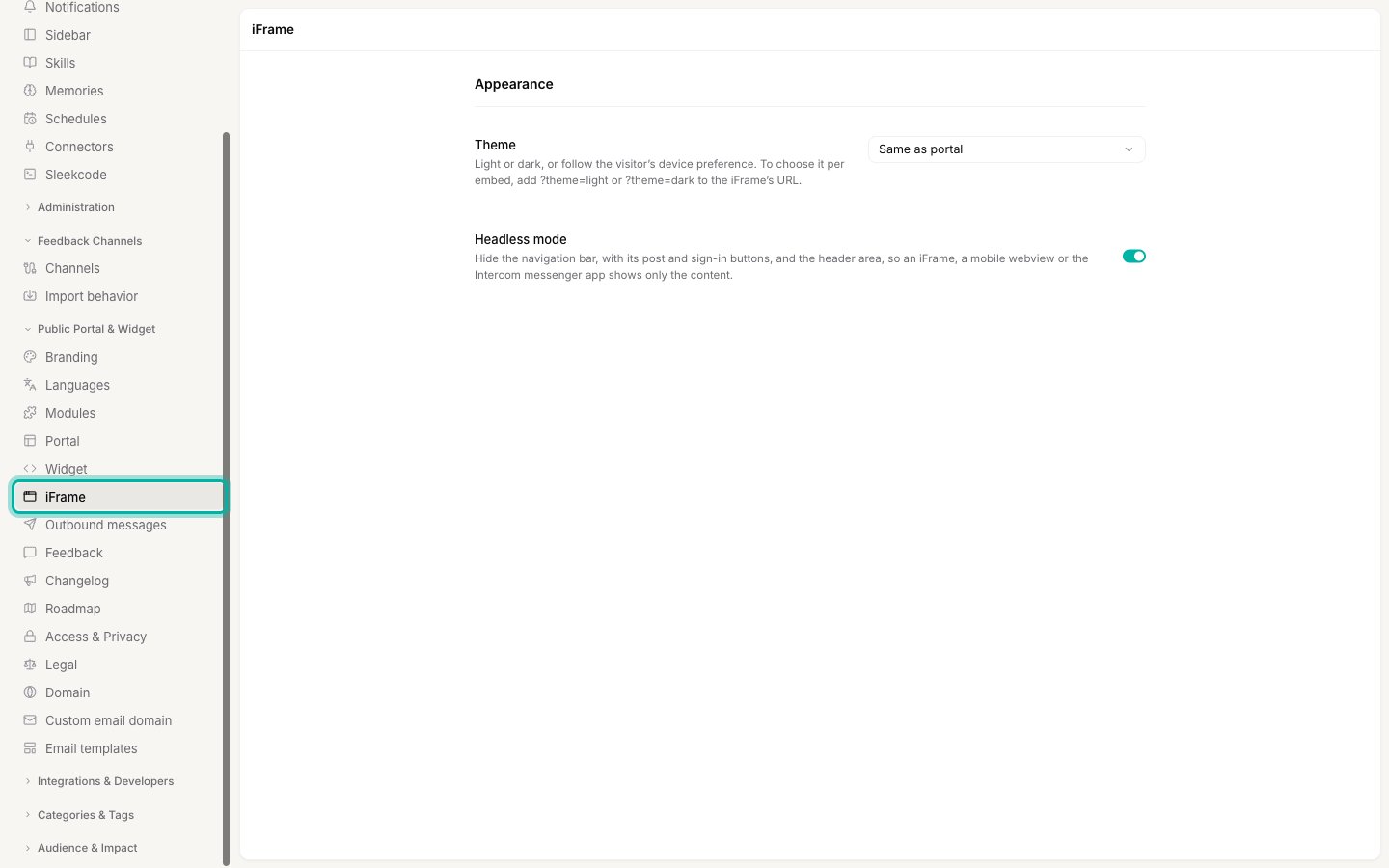
2
Choose a theme
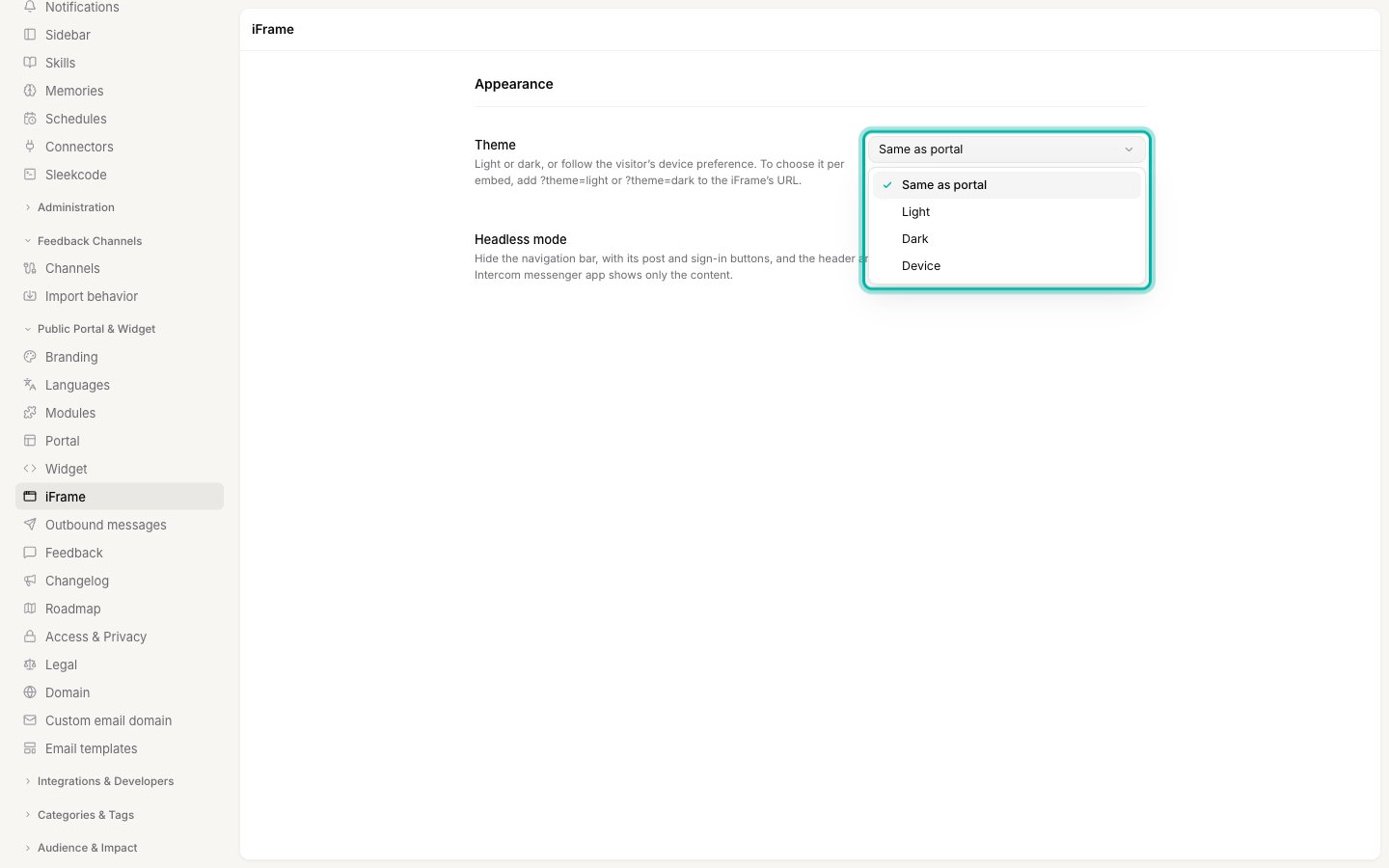
Open the Theme dropdown and pick how the embedded board looks:
- Same as portal (the default): the iFrame uses the theme of your portal.
- Light or Dark: always that theme.
-
Device: follows the light or dark setting of each visitor’s device.
3
Turn on Headless mode
Switch on Headless mode if the page around your iFrame already has its own navigation. The embedded board then shows only its content.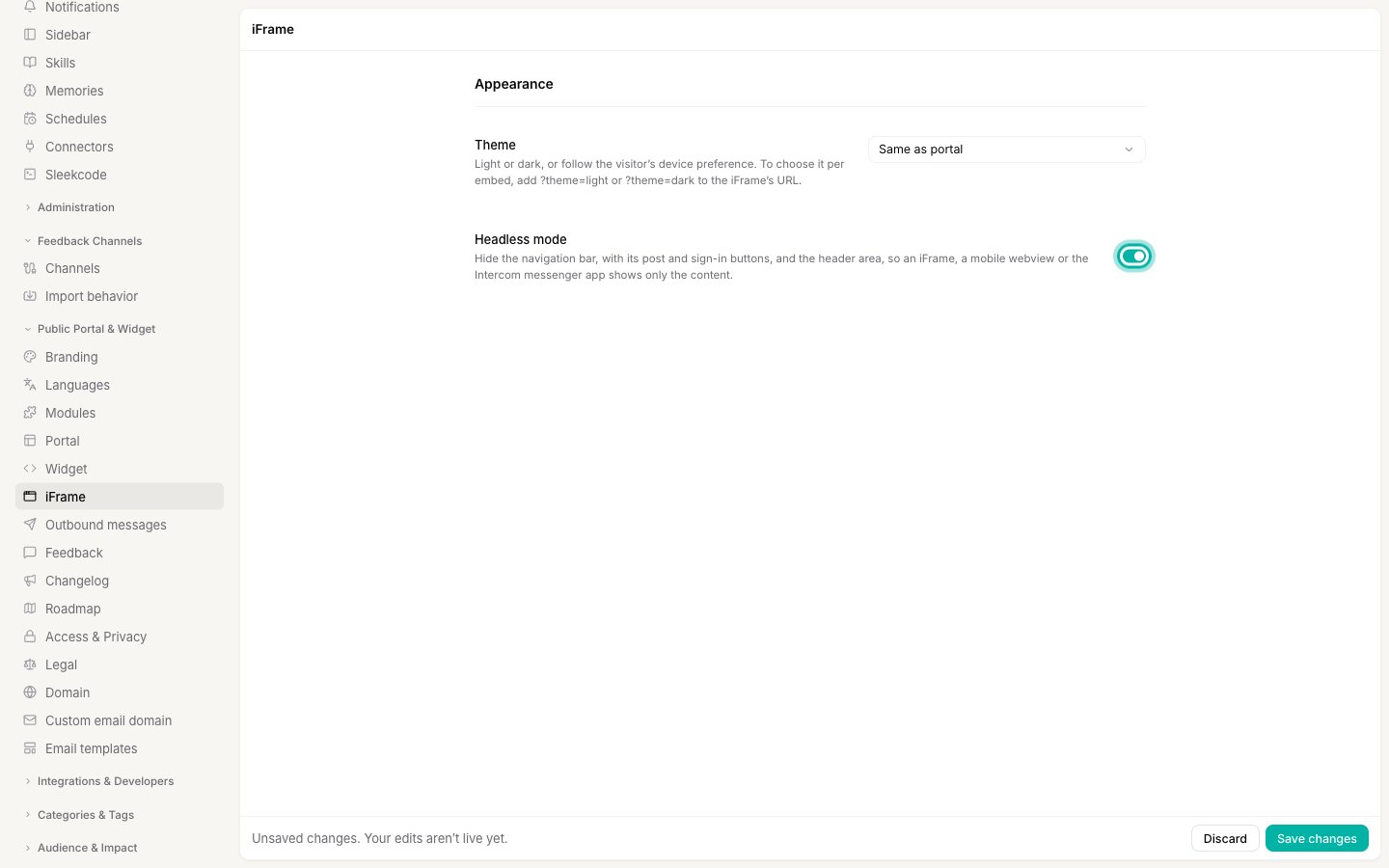
4
Save your changes
Click Save changes in the bar at the bottom of the page, or Discard to keep the previous settings.
What headless mode hides
With Headless mode on, the embedded board starts with its content: the filters and the list of posts, the roadmap columns, or the changelog.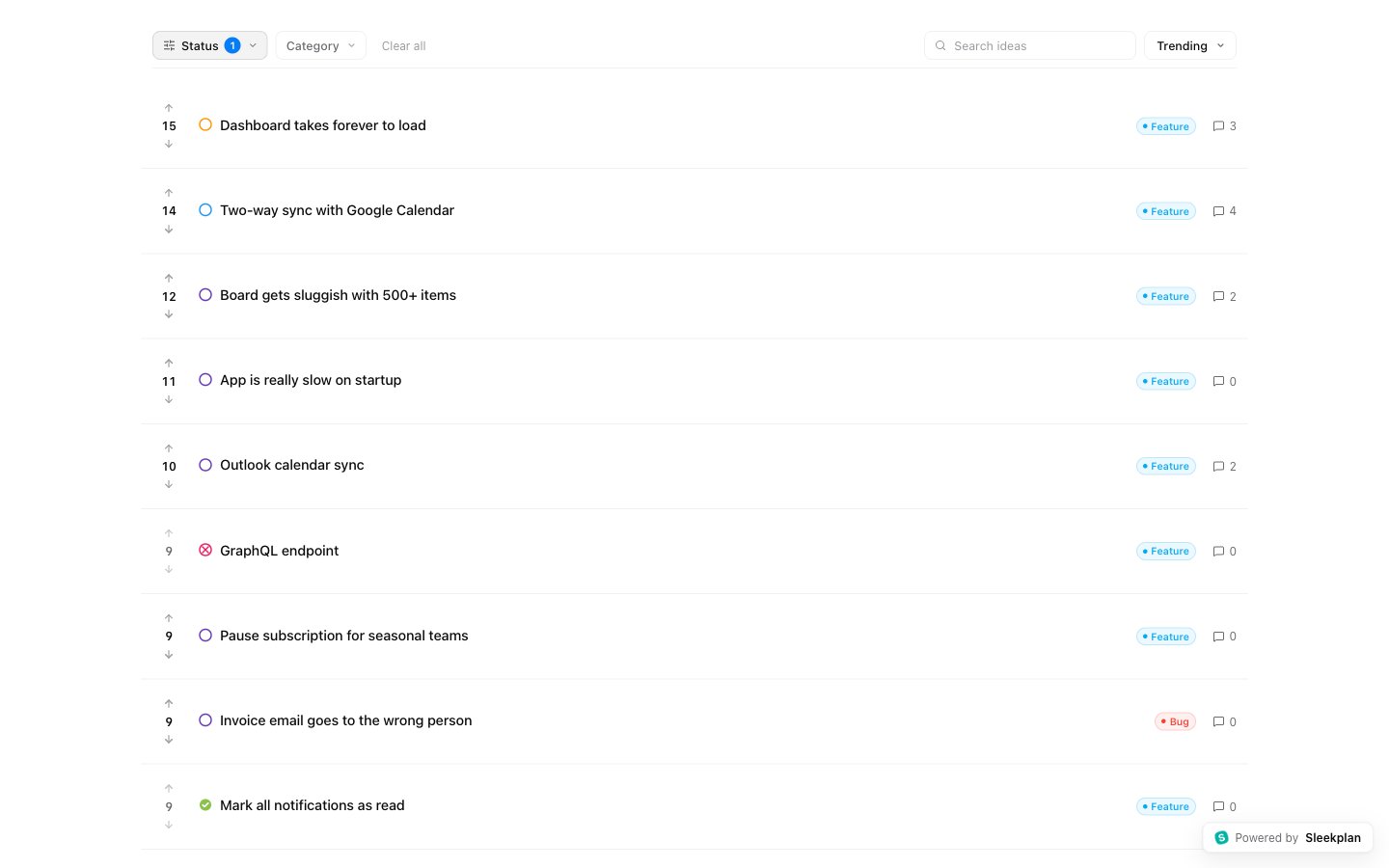
- Hidden: the navigation bar and the header area, that is the large title and description on the start page and the title above the other boards. Everything the navigation bar holds goes with it: the button to share an idea, Sign in, the notification bell, the theme and language switchers and the link back to your website.
- Still there: the footer, with the “Powered by Sleekplan” badge unless you turned on Remove Sleekplan branding in Settings → Branding. Visitors still get a sign-in window when they vote, comment or subscribe, and every post keeps its back link to the list.
Set the theme per embed
To match the iFrame to your own app, for example when your app switches between light and dark, add?theme=light or ?theme=dark to the iFrame’s address:
Related
Turn the iFrame off
Stop embedded boards from loading, also in mobile webviews and the Intercom messenger app.
Embed in an iFrame or webview
The developer guide: the embed address, the pages you can open, languages and single sign-on.