
Anyone on your team who can edit a post can edit its versions, and anyone who can edit a changelog entry can edit the entry’s versions. The panel shows once your workspace offers at least one additional language. See Set up your languages.
Open the Languages panel
-
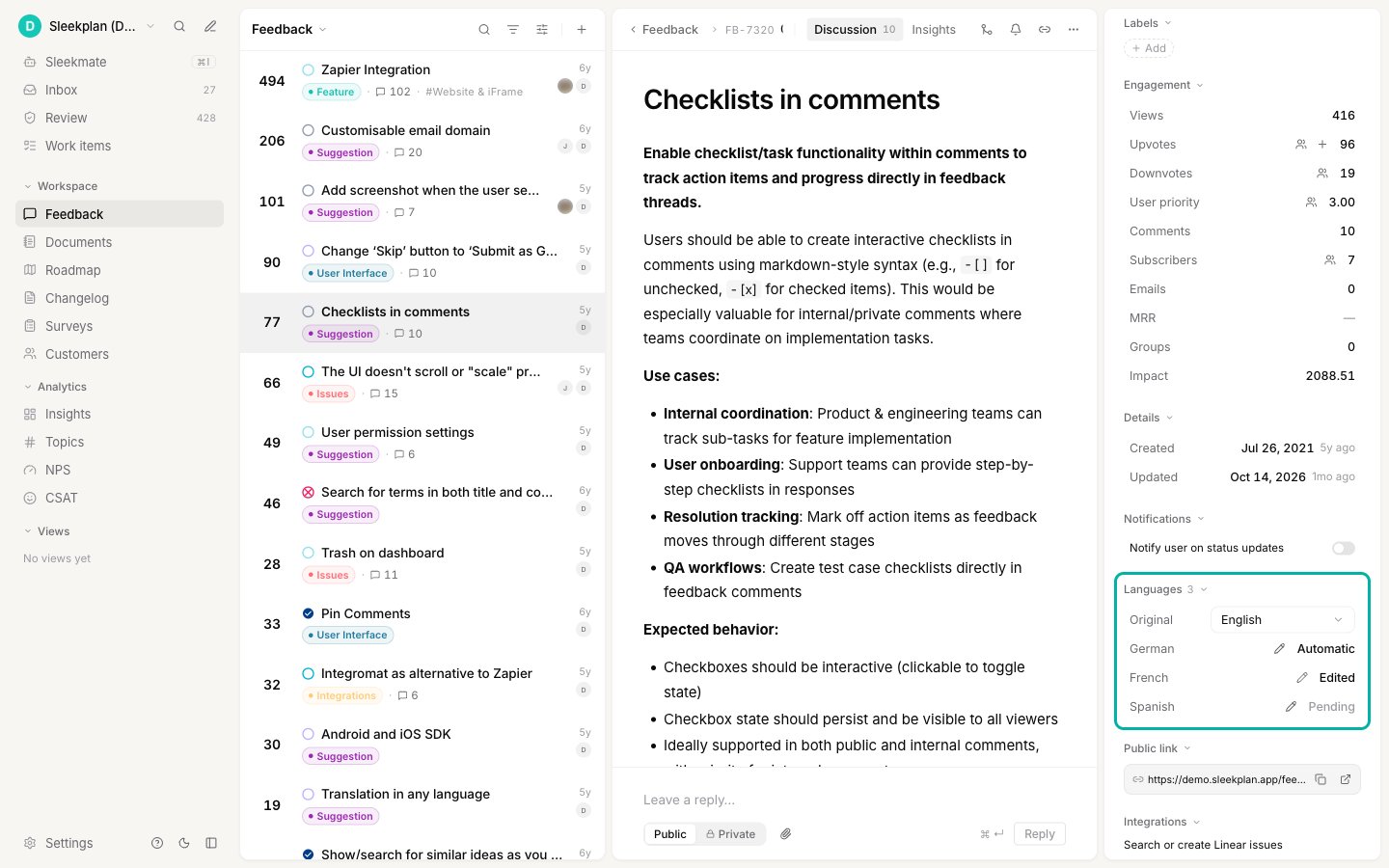
For a post, open the post. Languages is a section of the properties panel on the right.
-
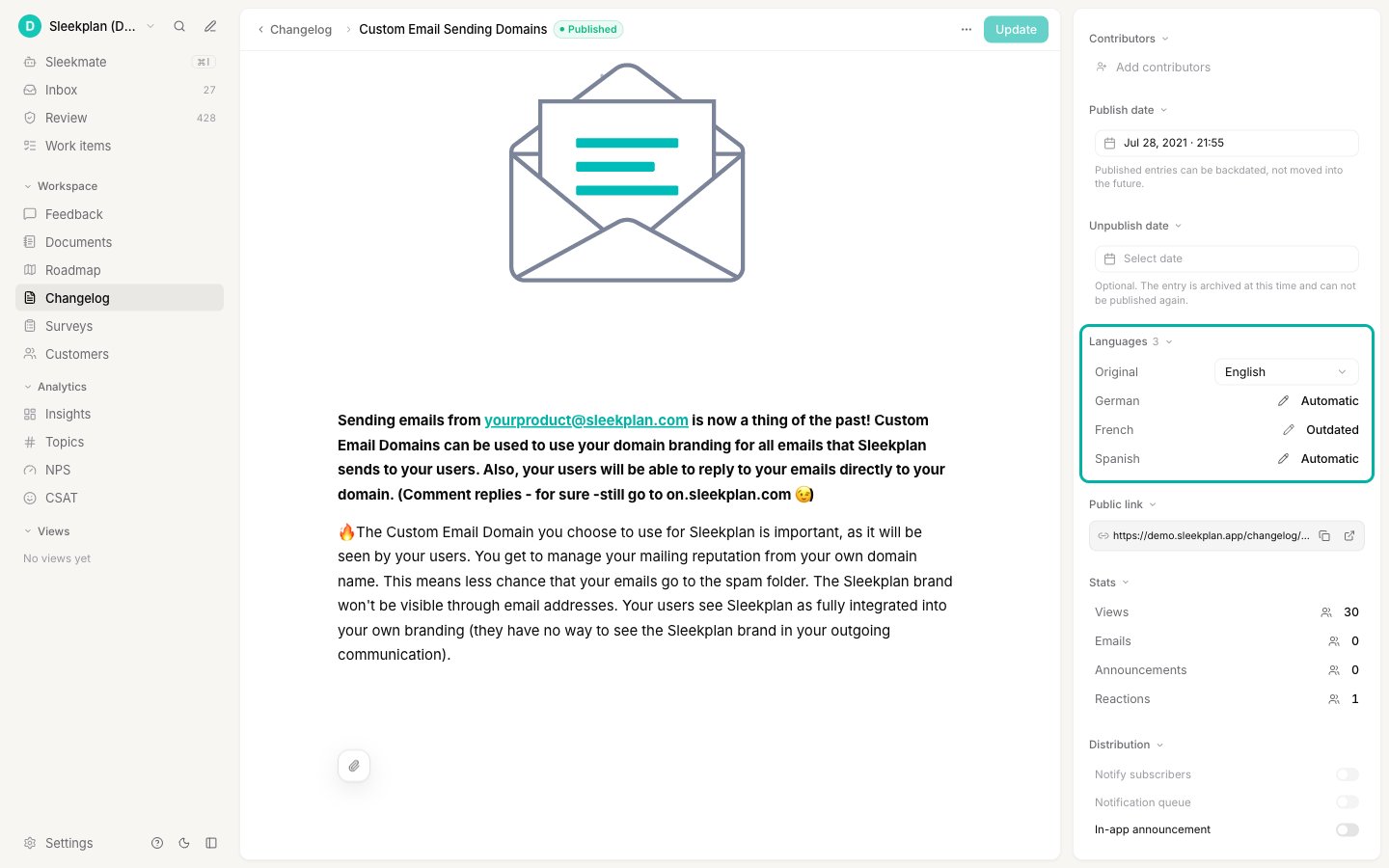
For a changelog entry, open the entry in the changelog editor. Languages is a section of the panel on the right. It appears once the entry has been saved, and not for archived entries.
Comments are translated automatically too, but they have no Languages panel and can’t be edited per language.
Write or correct a version
1
Open the version
In the Languages panel, click the pencil icon on the language’s row. The version opens in a dialog with its Title and Text.
2
Write the version
Correct the automatic translation, or write the version from scratch. The text supports Markdown, links and @mentions.
3
Save
Click Save. The row now shows Edited.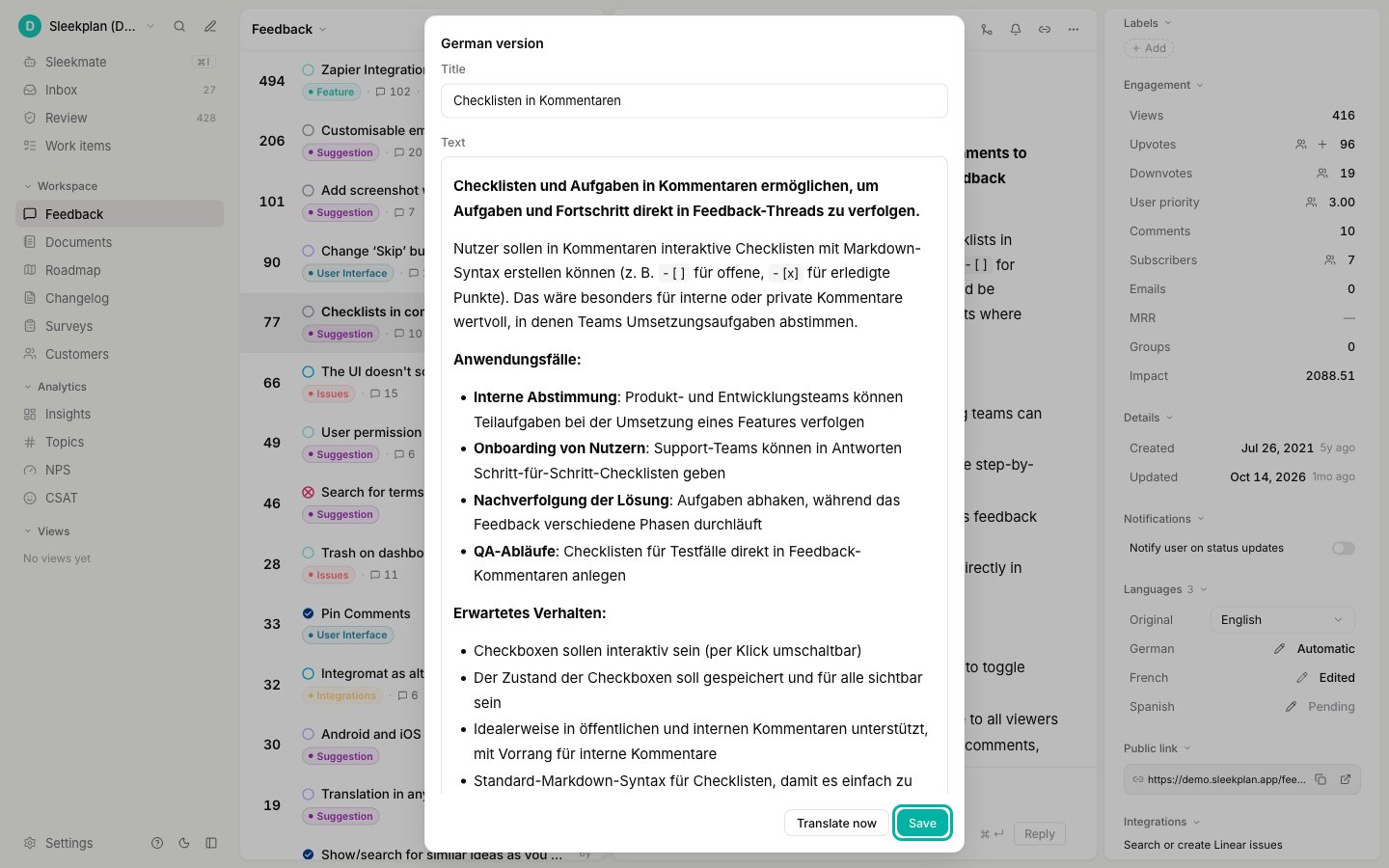
You can’t add new images to a version. Images that are already in the text stay where they are.
Translate a version now
Use Translate now to make an automatic translation of one language right away: after a failed translation, after an edit when you don’t want to wait, or when automatic translation is off.1
Open the version
In the Languages panel, click the pencil icon on the language’s row.
2
Click Translate now
The row shows Pending while the translation runs, and the new version shows up in the panel when it’s ready. This can take a few minutes.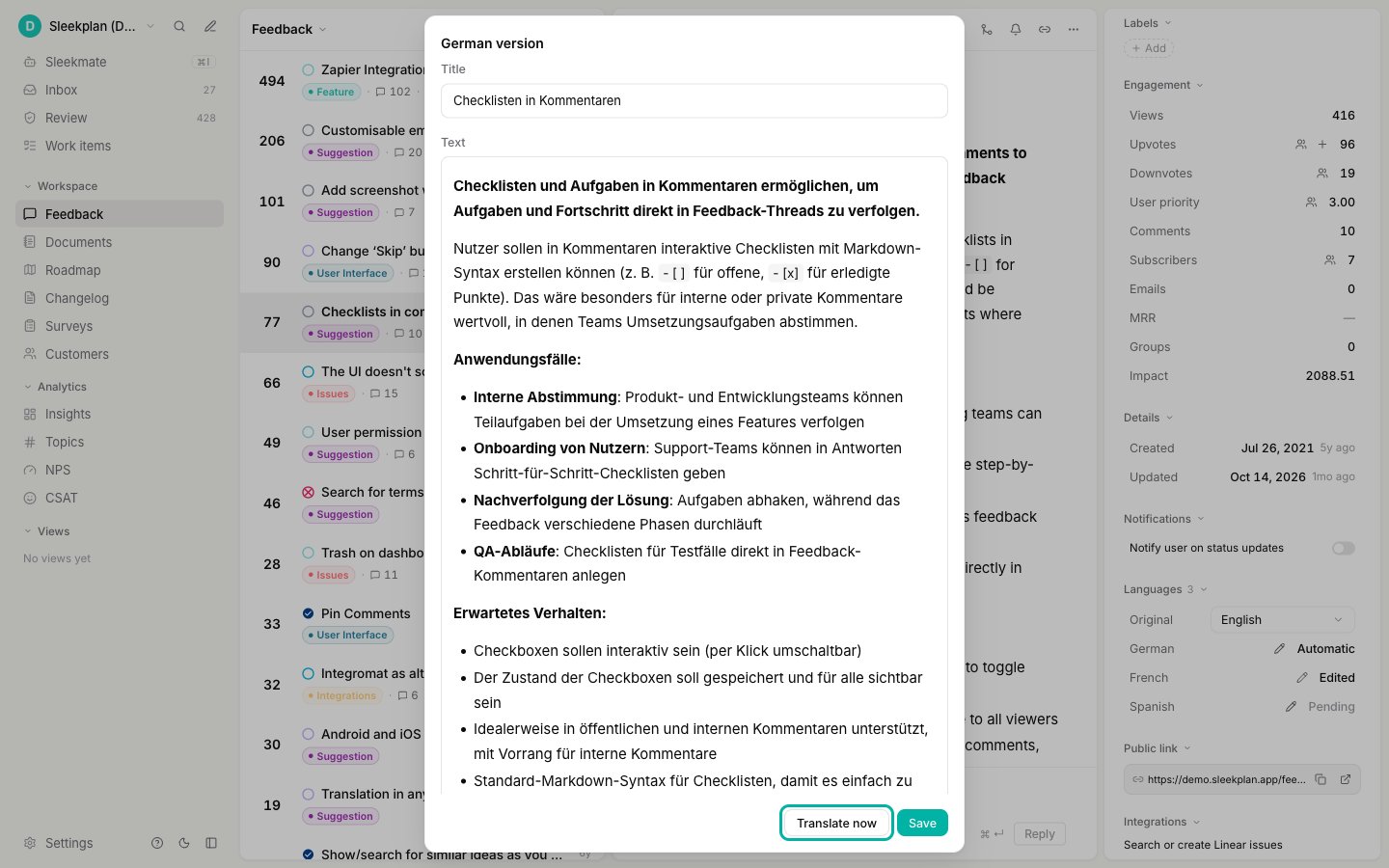
Go back to the automatic translation
1
Open the version you wrote
In the Languages panel, click the pencil icon on the language’s row.
2
Revert it
Click Revert to automatic, then Revert to confirm. Your version is deleted.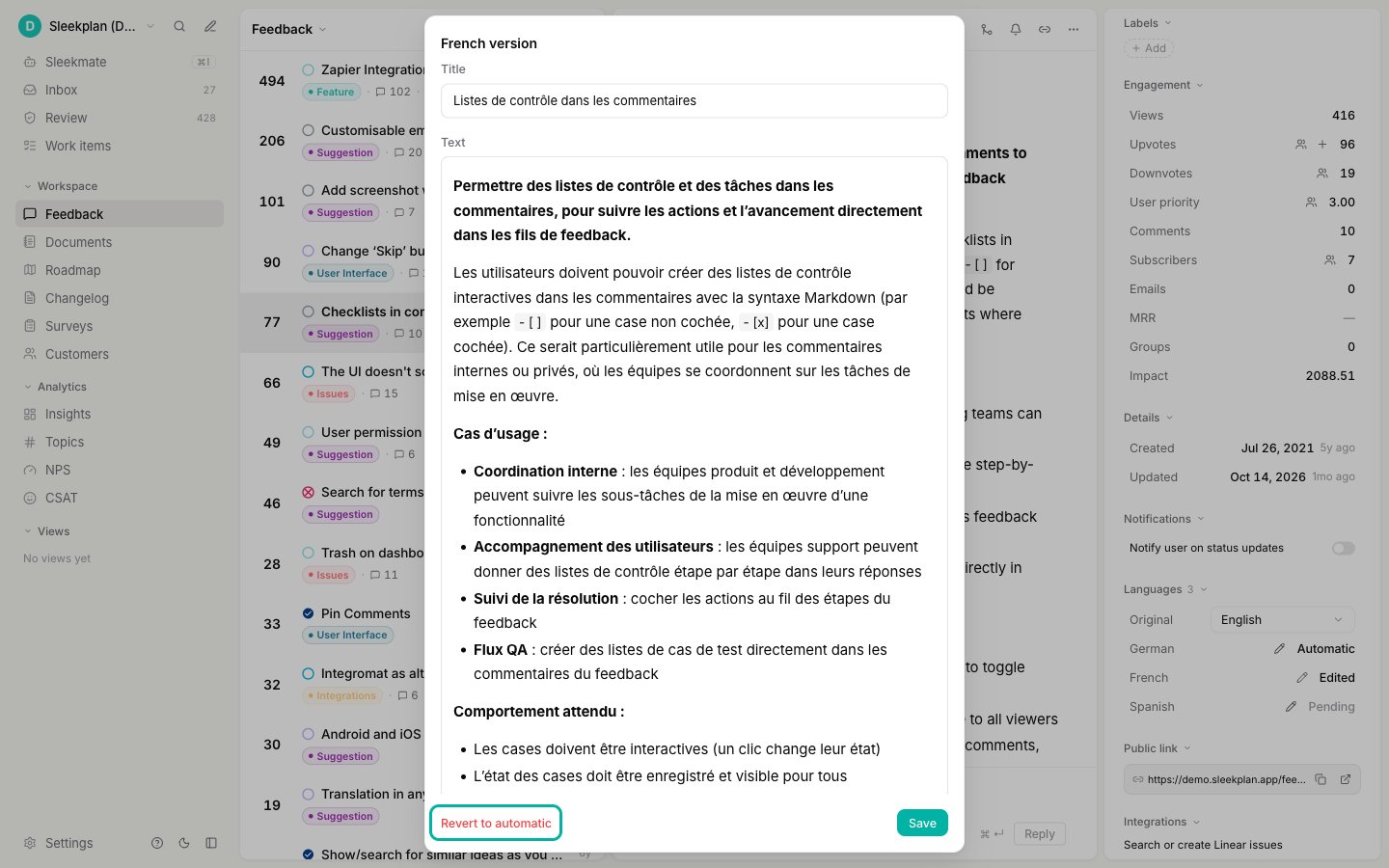
Set the original language
If the original language is wrong, correct it. This happens mostly with automatic translation off, for example when a customer writes in Spanish while using your board in English:1
Pick the original language
In the Languages panel, open the select on the Original row and choose the language the original is written in.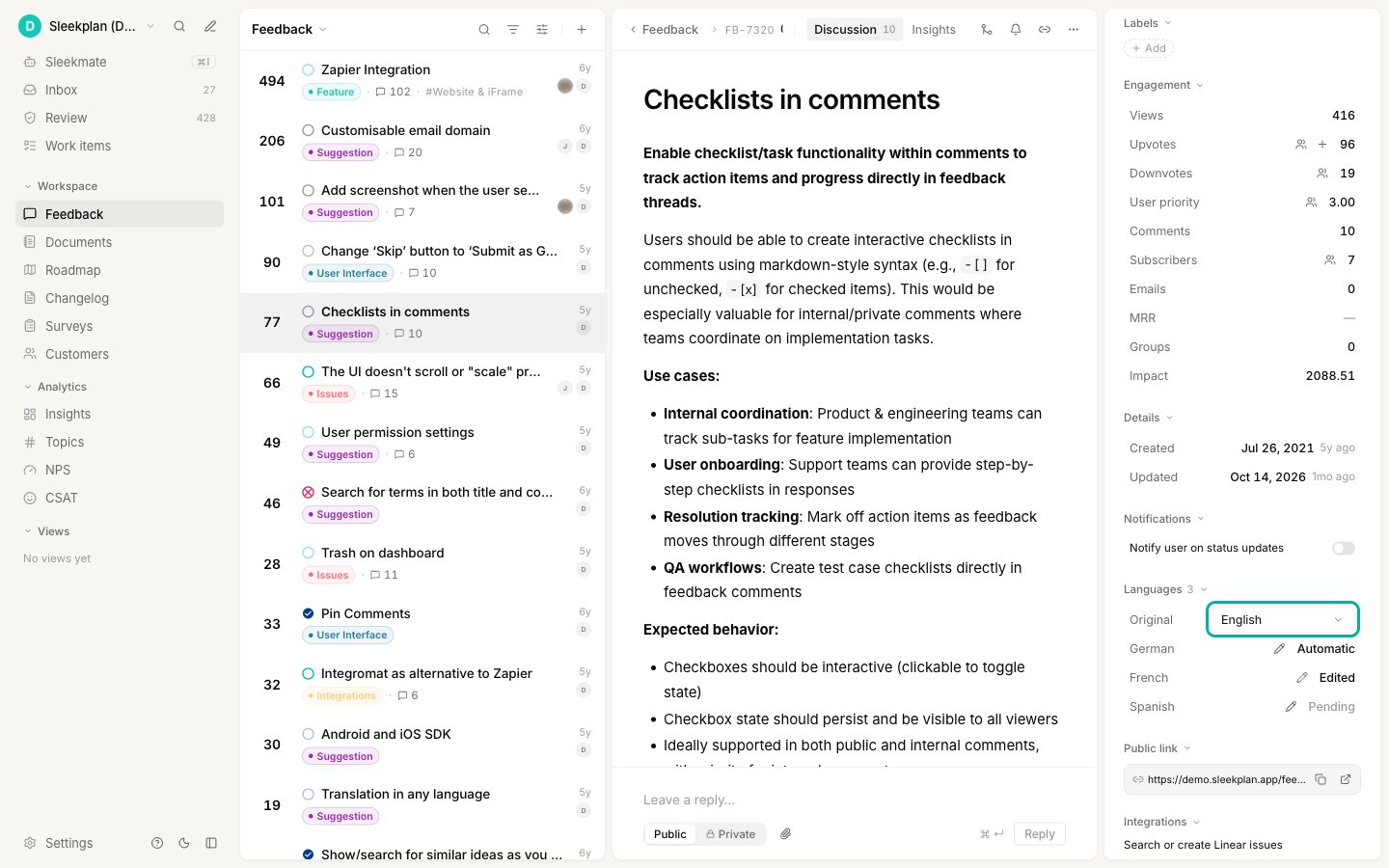
2
Confirm if asked
If someone on your team wrote a version in that language, it’s deleted, because the original is the text in that language now. Click Set as original to confirm.
Related
Automatic translation
What gets translated, when, and how to turn it off.
Create a post
Write a post and set its properties.
Create changelog entries
Write, schedule and publish changelog updates.