
2FA applies to your personal login, not to the whole workspace. Each teammate turns it on for their own account. You can enable it on any plan and with any role.
Before you start, install an authenticator app on your phone if you don’t already have one.
Enable two-factor authentication
1
Open your account security settings
Go to Settings → Account and scroll to the Security section. Next to Two-factor authentication, click Enable.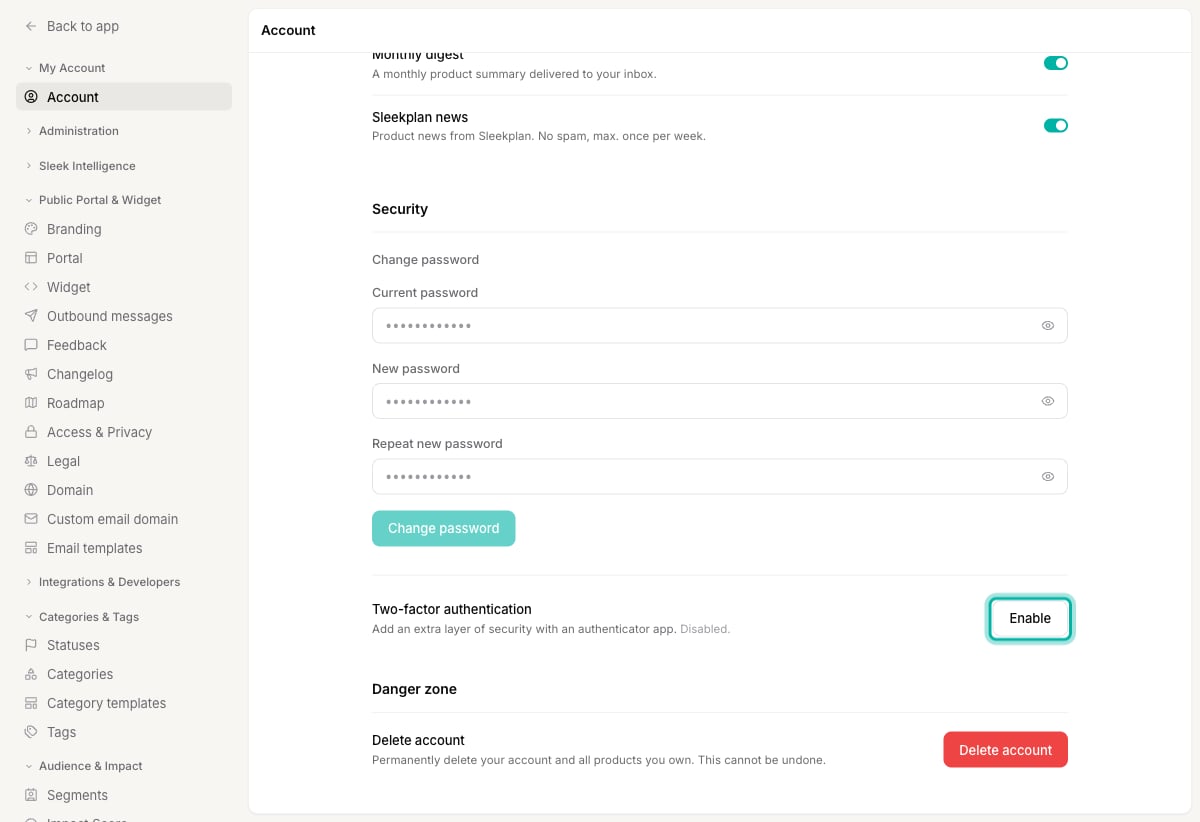
2
Scan the QR code
Open your authenticator app, add a new account, and scan the QR code shown in the dialog. Your app will start generating a fresh 6-digit code every 30 seconds.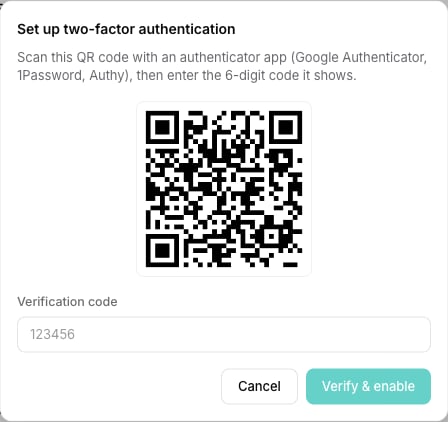
3
Enter the code to verify
Type the current 6-digit code from your app into the Verification code field, then click Verify & enable. This confirms your app and Sleekplan are in sync.
4
Save your recovery key
Sleekplan shows a one-time recovery key. Copy it and store it somewhere safe, such as a password manager. It’s the only way back into your account if you lose your phone. When it’s saved, click Done.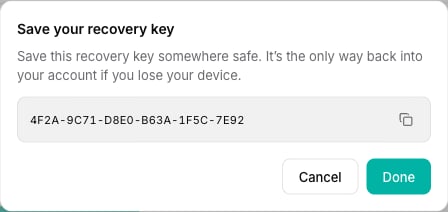
Sign in with 2FA on
After 2FA is enabled, signing in has one extra step. Enter your email and password as usual, then enter the current 6-digit code from your authenticator app when prompted. If you don’t have your phone, use your recovery key in place of the code to get back into your account.Turn off two-factor authentication
You can disable 2FA at any time. You’ll need a current code from your authenticator app to do it.1
Open your account security settings
Go to Settings → Account and scroll to the Security section. Next to Two-factor authentication, click Disable.
2
Confirm with a code
Enter a current 6-digit code from your authenticator app, then click Turn off. Two-factor authentication is removed from your account, and future logins only need your password.
Related
Team roles and permissions
Control what each teammate can see and change in your workspace.
Account & security
Manage your account, security, and workspace settings.