
Why there’s a limit
All workspaces send through Sleekplan’s shared email infrastructure. Gmail, Outlook and other mailbox providers judge that infrastructure by the bounces and spam reports of everything it sends. One workspace mailing a list of addresses that don’t exist can push everyone’s emails into spam, or get sending paused for every workspace at once. A limit that grows with each workspace’s track record prevents that. A workspace without a track record sends a little, and the more of its emails arrive safely, the more it can send.Which emails count
The limit covers the emails your workspace sends to your users: new comments, mentions, status updates, changelog updates, and removal notices. Two kinds of email never count:- Sign-in codes. They go out instantly and don’t count toward your limit, so a busy day never locks your users out.
- Emails to your team, such as the alerts your admins get about new posts.
Sign-in codes have their own protection against abuse. If most of the codes your board sent today were never used, it stops sending new ones until more of them are used or the next day starts at midnight UTC. Your users then see a message asking them to try again later. Codes that were already sent keep working, and people who sign in through single sign-on aren’t affected. Real sign-ins keep this from happening: it only kicks in when a large number of codes go unused.
How much you can send
Each day, your limit is twice your busiest day of the last 90 days, within the range above. Only emails that actually left Sleekplan count, and a day runs from midnight to midnight UTC.
For example, a paid workspace starts at 200. Send 200 emails on Monday and you can send 400 on Tuesday, then 800 on Wednesday, and so on up to the limit of your plan. Your busiest day stays in the calculation for 90 days, so a quiet week doesn’t shrink your limit.
The quarter rule means a bigger monthly limit gives you room to grow. With a monthly email limit of 1,000,000, for example through the Email notifications add-on, your daily limit can grow to 250,000. An upgrade or add-on raises how far your limit can grow right away. Your daily limit then grows into the new range day by day as you send.
Paid workspaces that were at least 30 days old when daily limits were introduced on October 23, 2026 got a fixed limit of 10,000 emails a day, so nothing changed for them. A fixed limit doesn’t grow on its own, and an upgrade doesn’t raise it. If you need more, contact support.
See where you stand
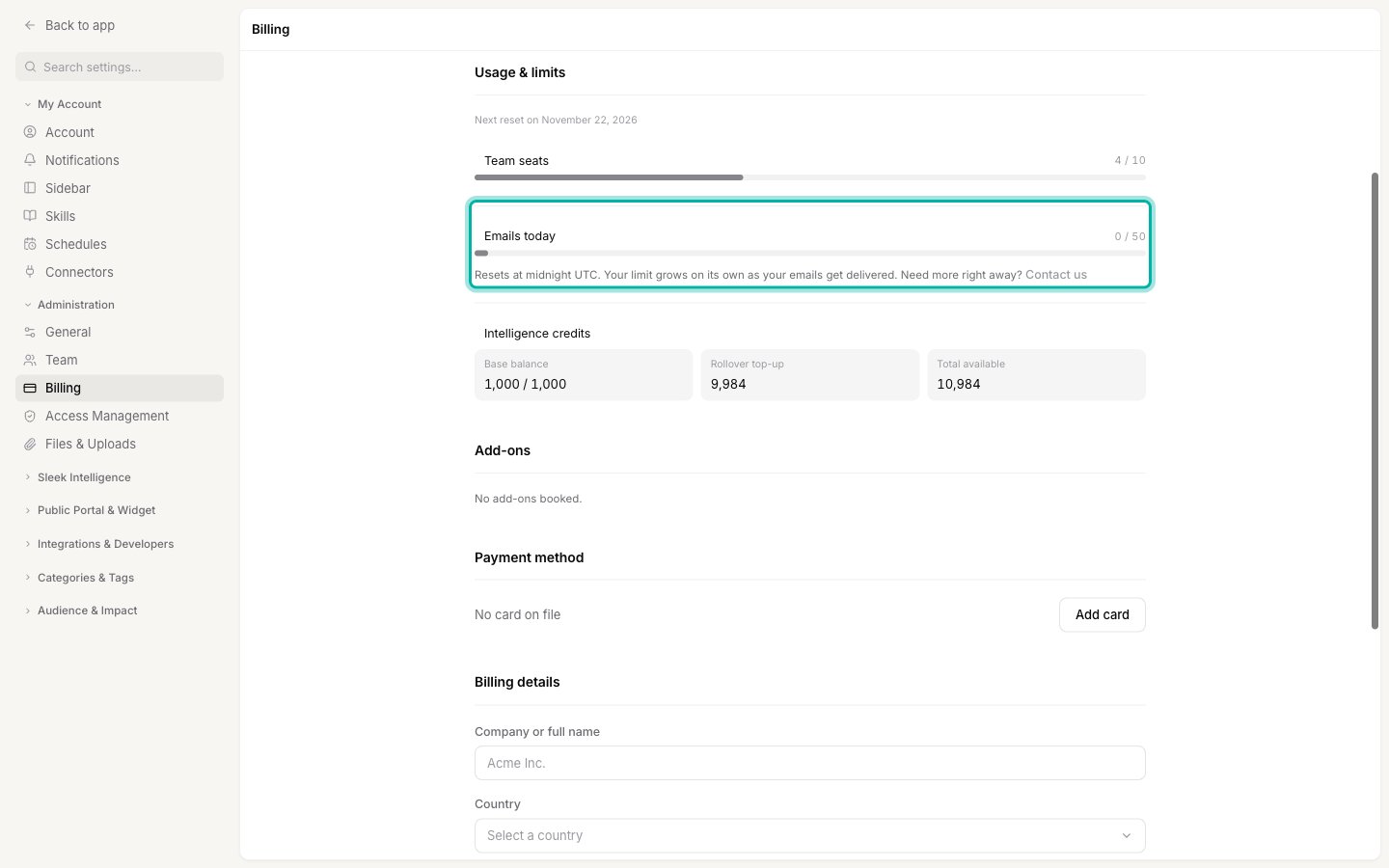
Go to Settings → Administration → Billing. Under Usage & limits, the Emails today bar shows how many emails your workspace sent today and its limit for the day, for example37 / 200. It resets at midnight UTC.
What happens above the limit
When your workspace reaches its limit for the day, the remaining emails wait in the queue. We check them again every hour, and they go out as soon as your workspace has room again:- within the hour after your limit is raised, or
- shortly after midnight UTC, when a new day starts.
Keep your sending healthy
Your limit only grows while your emails reach real people. We look at your last 7 days of sending:
Once the bad days are more than 7 days behind you, your limit goes back to what you had earned.
There’s also a faster safety net. If more than 25 of your emails bounce within one hour, we pause all emails from your workspace for 24 hours and our team is notified. Paused emails wait in the queue and go out once the pause ends.
A few habits keep you well clear of these lines:
- Only email real addresses. When you sign users in with single sign-on, pass each user’s real email address. A made-up placeholder like
user-123@yourcompany.combounces on every email. - Remove addresses that bounce. A customer’s sending health shows whether their address still works.
- Only add people who expect to hear from you. Importing a list of addresses that never asked for your emails leads to spam reports.
Get a higher limit
If your workspace needs more than its current limit, for example for a launch announcement, contact support or use Contact us next to the Emails today bar. Tell us what you’re sending and to roughly how many people. When we raise your limit, emails that are already waiting go out within the hour.Related
Emails Sleekplan sends
Every email your users can receive, and who gets each one.
What happened to each email
See whether a customer’s email was sent, is still queued, or bounced.
Sending health
Check whether a customer’s address still works, and why it stopped.
Add-ons
Raise your monthly email limit with the Email notifications add-on.