
Only Owners and Admins can invite people. If you open the Team page and don’t see an Invite member button, you’re a Member. Ask an Owner or Admin to send the invite or promote you. See Team roles and permissions for what each role can do.
Send an invitation
Pick Member or Admin when you invite. You can change it later.1
Open the Team page
Go to Settings → Team. You’ll see everyone who currently has access, along with their role and when they joined. Click Invite member in the top right.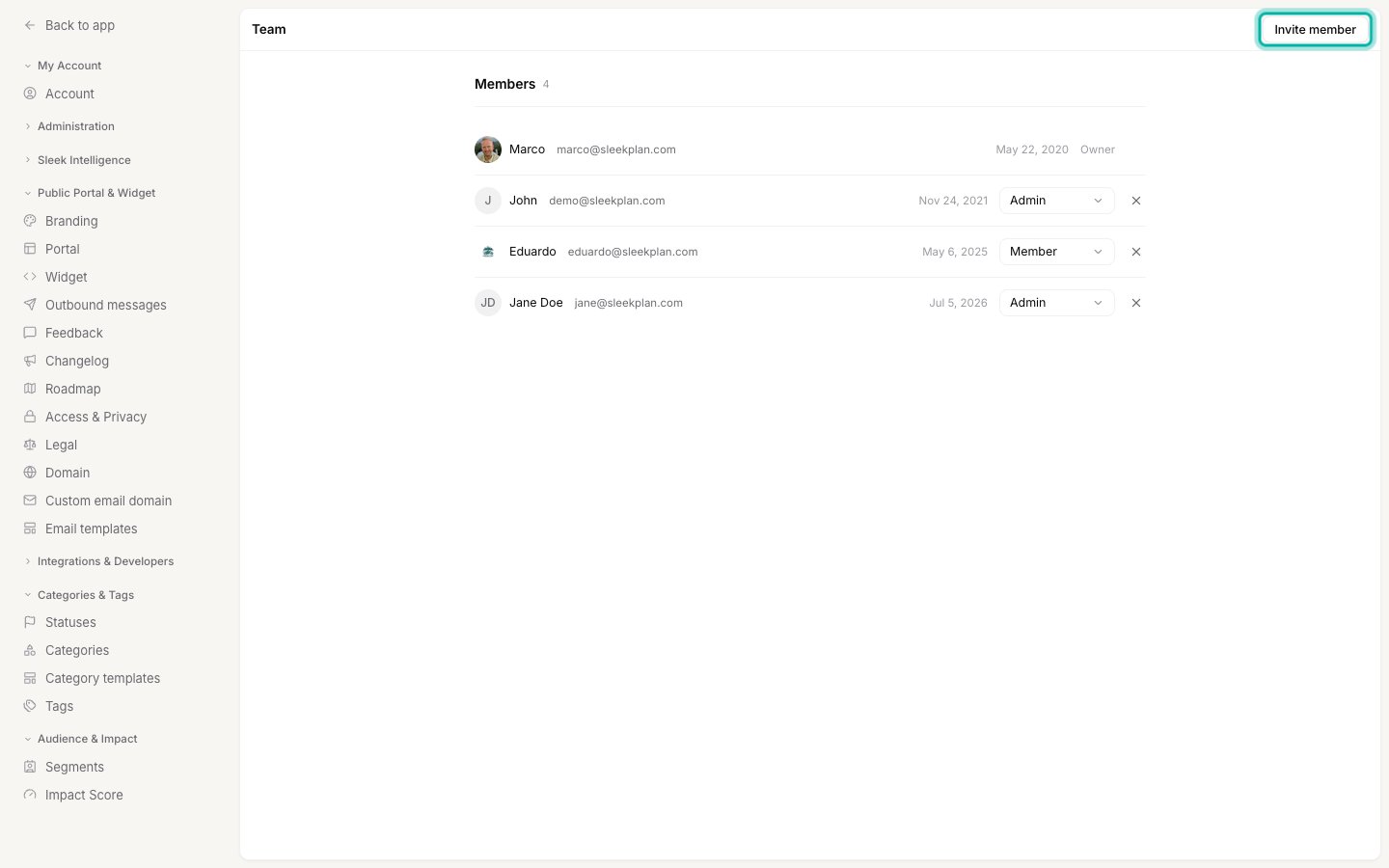
2
Enter their email, a role and an optional note
Type the teammate’s email address and pick their role, Member or Admin. You can add a short message that’s included in the invitation email, which is a nice way to give them context on why they’re being added.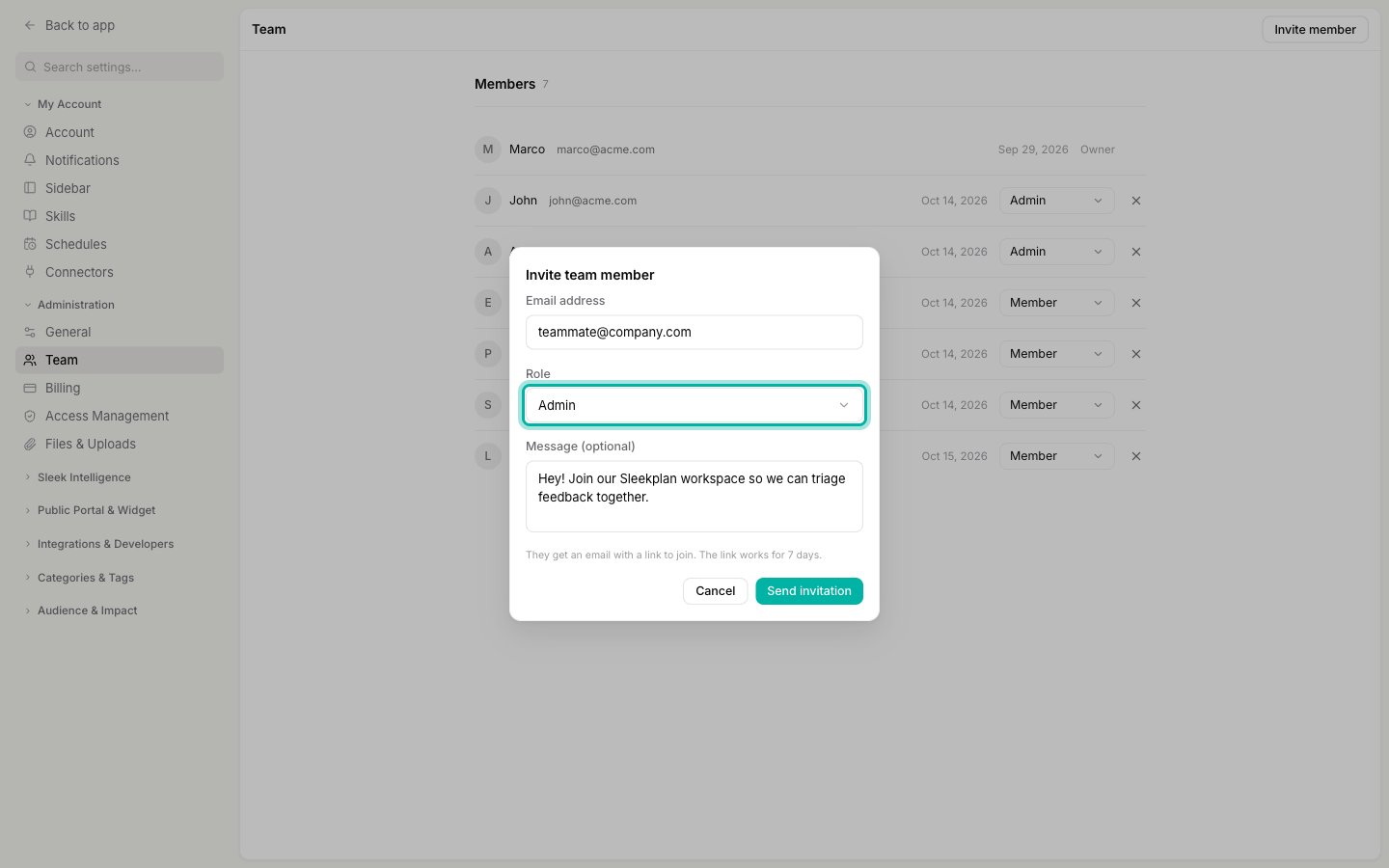
3
Send it
Click Send invitation. Everyone gets an email with a link, and they show up under Pending invitations until they accept.
- If the person already has a Sleekplan account, they join when they click the link while signed in.
- If they’re new, they create an account from the link, with any email address.
Track and revoke pending invitations
Anyone who hasn’t accepted yet is listed under Pending invitations on the Team page. To cancel an invitation before it’s accepted, find it in that list and remove it using the ✕ control on its row. The link in the invitation email stops working once it’s revoked. If a teammate says they never received the email, ask them to check their spam folder. Click the circular arrow (Resend invitation) on their row to send a new link with 7 more days. An invitation that wasn’t accepted in time shows an Expired tag, and the same button brings it back.After someone joins
New members land in the workspace with the role you picked. A Member works the feedback board and changelog without touching settings or billing. When their responsibilities change, an Owner or Admin can promote them to Admin or move them back down from the same Team page. For the full breakdown of what each role can and can’t do, see Team roles and permissions. To revoke someone’s access entirely, remove them from the members list. The feedback, comments, and changelog entries they created stay in place.Related
Team roles and permissions
Understand the Owner, Admin, and Member roles and change who can do what.
Account & security
Manage your own account, security, and workspace settings.