Most support conversations contain valuable product insight, but that insight rarely reaches the roadmap in a structured way. An Intercom user feedback tool closes that gap by turning conversations into feedback your product team can organize, prioritize, and act on.
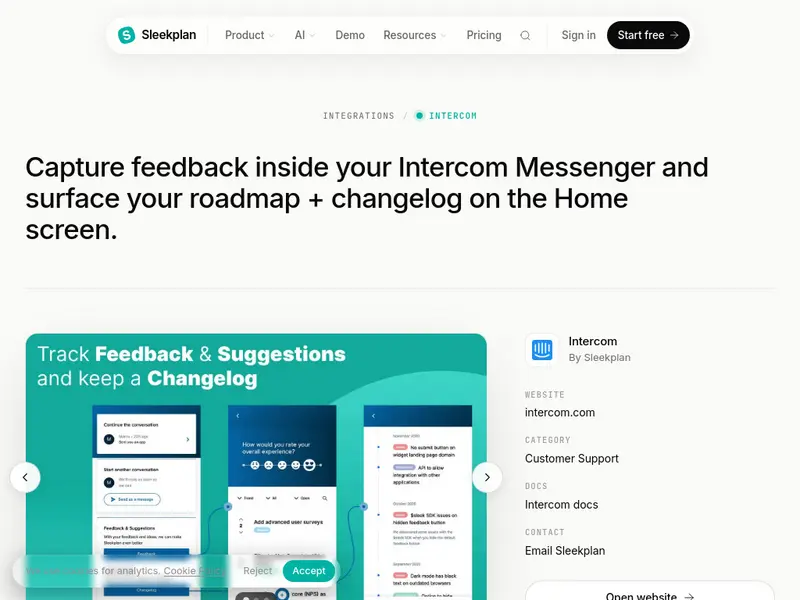
Short answer: Sleekplan’s Intercom integration lets customers submit feedback, vote on requests, view your roadmap, and read your changelog inside Intercom, while agents get customer context such as votes, CSAT, and NPS.
What is an Intercom user feedback tool?
An Intercom user feedback tool brings feedback capture and discovery into the Intercom messenger. Instead of leaving chat to file a request or check a roadmap, customers can submit ideas, search existing items, vote, and follow updates in the same place where they already talk to support.
Sleekplan’s Intercom integration adds that workflow directly to Intercom. Customers can browse the feedback board, vote on requests, view the roadmap, and read the changelog. Agents see useful context in the sidebar, including prior votes, CSAT, and NPS.
If you want implementation details, see the Canvas examples in our docs.
Why use an Intercom user feedback tool inside support conversations?
Support is often where product demand shows up first. If teams collect requests in ad hoc notes or scattered conversations, they lose detail, create duplicates, and make prioritization harder.
Keeping feedback inside Intercom helps teams:
- capture feedback when the need is fresh
- reduce duplicate requests through search and voting
- give support and product teams shared context
- prioritize with visible demand, not isolated anecdotes
- close the loop through roadmap and changelog updates
This matters most for SaaS teams that want support, product, and customer success working from the same signal instead of separate systems.
What customers and agents can do inside Intercom
Sleekplan supports several views that can be shown in Intercom:
- Feedback board for browsing, searching, voting, and creating items
- Roadmap for planned, in progress, and shipped work
- Changelog for release notes and updates
- Home screen that links customers to the views you want to expose
Customers can search before submitting a request, which helps them find related items and vote instead of creating another duplicate. If no relevant item exists, they can create feedback directly from the conversation.
Agents can use the sidebar to understand the customer behind the message. Useful context includes:
- total upvotes by that customer
- recent CSAT score
- current NPS
- items the customer has already voted on
That context makes it easier to route requests, explain current plans, and spot accounts that need careful follow-up.
How feedback submission works
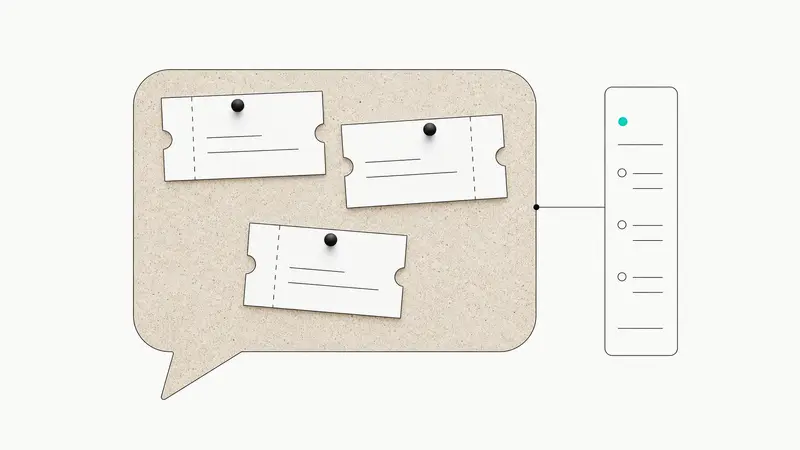
Customers can create feedback from inside Intercom using a simple form with a title and description. Depending on your product setup, submissions can be categorized as feature requests, bug reports, or improvements.
The integration also preserves useful context. Metadata can include:
- Intercom user ID
- name and email
- conversation ID
- vote history tied to the user
That makes product triage more useful because the team can review the request together with the conversation that triggered it.
How the Intercom integration works behind the scenes
Sleekplan uses OAuth to connect the Intercom workspace to the correct product. Once installed, the integration renders views for the home experience, conversation workflows, and sidebar context.
At a high level, the setup includes:
- Admin starts installation in Sleekplan.
- Intercom OAuth permissions are approved.
- The workspace is linked to the right Sleekplan product.
- Home, conversation, and sidebar views become available.
- Customer data and vote activity sync to the feedback system.
The integration also keeps data scoped correctly. Workspace linking, user authentication, permission checks, and duplicate prevention help ensure one Intercom workspace maps to one Sleekplan product.
For API-level work, the API overview is the best starting point.
How to set up Sleekplan’s Intercom integration
Before installation, make sure you have:
- admin access in Sleekplan
- admin permissions in Intercom
- an active Intercom subscription
Then follow these steps:
- In Sleekplan, go to Settings and open Integrations.
- Select Intercom and start the installation.
- Approve the OAuth connection in Intercom.
- Choose which modules to display: feedback board, roadmap, and changelog.
- Customize labels and descriptions.
- Save the configuration and enable the integration.
You can also review the Intercom integration page before installing.
A practical workflow for support and product teams
The integration works best when teams agree on a simple operating model.
During the conversation
- Search the feedback board from the conversation view.
- If a relevant item exists, ask the customer to vote on it.
- If nothing relevant exists, create a new item using the customer’s wording.
After the conversation
- Keep the Intercom conversation linked to the feedback item.
- Review CSAT or NPS context if urgency or risk seems high.
- Add any details that make the request easier to evaluate later.
During product triage
- Review new items and requests gaining votes quickly.
- Merge duplicates.
- Update statuses such as planned, in progress, or completed.
- Keep the original customer problem visible, not just the proposed feature.
When you ship
- Update the item status.
- Publish a changelog entry.
- notify voters or relevant customers so the loop is actually closed.
If you want a broader system for that process, see Build a customer feedback loop that actually closes.
Best practices for Intercom feedback management
A few habits make the integration more useful over time:
- Set expectations clearly. Tell customers what belongs in the feedback board and what should stay in support.
- Encourage search before submission. This improves discoverability and keeps demand consolidated.
- Use votes as one signal, not the only signal. High vote count matters, but so do revenue impact, urgency, and strategic fit.
- Keep statuses current. A stale board reduces trust quickly.
- Use roadmap and changelog updates to explain decisions, not only shipped work.
This is where many teams improve. The goal is not just collecting more feedback. It is creating a reliable path from conversation to decision to communication.
Common use cases
This workflow is useful in several product environments:
- SaaS support teams that need a structured way to turn chat requests into roadmap input
- startups that want to reduce duplicate requests while showing a public roadmap
- larger product teams that need account-level context, shared demand signals, and clearer communication back to customers
Troubleshooting checklist
If the integration is not working as expected, check the basics first:
- OAuth completed successfully
- the Intercom workspace is not already linked elsewhere
- the customer record includes the required fields, such as email when needed
- feedback types are enabled in your configuration
- the item is open for voting
- matching user data exists across both systems when search or voting appears inconsistent
Definitions that help teams stay aligned
- Customer feedback loop: collecting feedback, deciding what to do with it, acting on it, and communicating back to customers
- Feedback board: a searchable place where users can submit, discuss, and vote on requests
- Roadmap: a high-level view of planned, active, and completed work
- Changelog: a record of shipped updates and release notes
Next step
Start with one product and one support team. Enable feedback, roadmap, and changelog views in Intercom, train agents to search before creating new items, and review new requests in a weekly product triage. If you want to connect this workflow with the rest of your stack, visit the integrations page.