> ## Documentation Index
> Fetch the complete documentation index at: https://sleekplan.com/llms.txt
> Use this file to discover all available pages before exploring further.
# Read survey results
> Read your Sleekplan survey results: the Summary tab breaks down every question, the Responses tab lists individual answers, and the Overview panel shows stats like completion rate. Learn how each is read.
Every survey collects its answers in one place. Open a survey from [**Surveys**](https://app.sleekplan.com/surveys) and the center panel shows its results in two tabs, **Summary** and **Responses**, while the right panel shows a stats **Overview**. Reading results does not require a paid plan, so anyone on your team can review what people said.
## Summary: how everyone answered
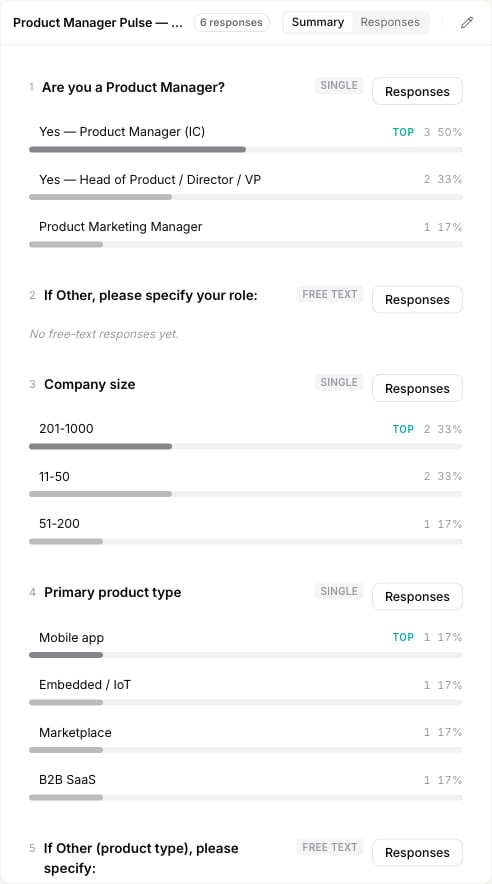
The **Summary** tab breaks down each question across all responses, so you can read the survey at a glance. How a question is summarized depends on its [type](/help/surveys/question-types):
* **Single and multiple choice** show a bar per option with its count and share of responses. The most-picked option is flagged **TOP**.
* **Scale, NPS, and CSAT** show the spread of ratings across the scale, with the average.
* **Free text** shows the first few written answers, with **View all responses** to read the rest.
Text blocks are left out, since they collect no answer. Each question has a **Responses** button that jumps to the Responses tab filtered to that one question, so you can read every answer to it in context.
 ## Responses: individual answers
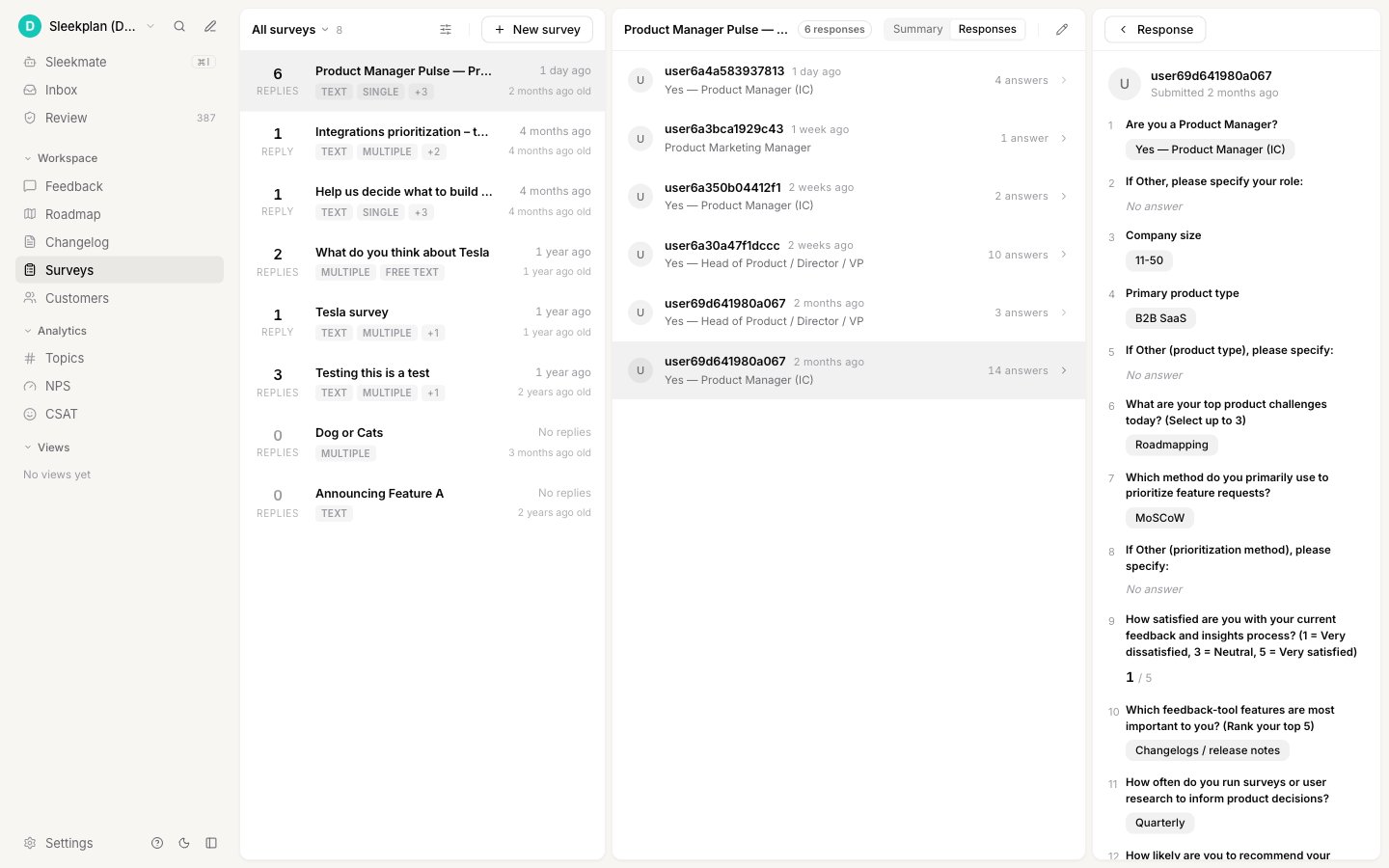
The **Responses** tab lists each response as its own row, showing who answered and how many questions they completed. Responses load in pages; use **Load more** at the bottom to pull in older ones.
Select a response to open its full breakdown in the Overview panel, question by question, exactly as that person answered. From there you can **delete** a single response if you need to remove it.
## Responses: individual answers
The **Responses** tab lists each response as its own row, showing who answered and how many questions they completed. Responses load in pages; use **Load more** at the bottom to pull in older ones.
Select a response to open its full breakdown in the Overview panel, question by question, exactly as that person answered. From there you can **delete** a single response if you need to remove it.
 When you arrive from a question's **Responses** button in the Summary tab, the feed is filtered to that question, shown by a "Showing answers to…" banner at the top. Select **Clear** to return to all responses.
## Overview: survey stats
The **Overview** panel on the right summarizes the survey:
| Stat | Meaning |
| ------------------- | --------------------------------------------------------------------------------------- |
| **Responses** | Total number of responses collected. |
| **Questions** | Number of answerable questions in the survey. |
| **Completion rate** | How completely people answered, on average. Shows a dash when there is not enough data. |
| **Popups** | How many [widget popups](/help/surveys/share-and-target) point at this survey. |
| **Last response** | When the most recent response came in. |
| **Created** | When the survey was created. |
Below the stats, the Overview also holds the survey's **Public link**, the **Popups** attached to it, and its full list of **Questions**.
## Exporting responses
There is no built-in export for survey responses today; you read and manage them inside the Surveys screen. If you need the underlying data elsewhere, the NPS and CSAT answers collected by [NPS](/help/surveys/question-types#nps) and [CSAT](/help/surveys/question-types#csat) questions also flow into your [**NPS**](https://app.sleekplan.com/nps) and [**CSAT**](https://app.sleekplan.com/csat) dashboards.
## Related
See how each question type is summarized in the results.
Collect more responses with a public link or a popup.
Adjust questions based on what your results show.
Return to the Surveys overview.
When you arrive from a question's **Responses** button in the Summary tab, the feed is filtered to that question, shown by a "Showing answers to…" banner at the top. Select **Clear** to return to all responses.
## Overview: survey stats
The **Overview** panel on the right summarizes the survey:
| Stat | Meaning |
| ------------------- | --------------------------------------------------------------------------------------- |
| **Responses** | Total number of responses collected. |
| **Questions** | Number of answerable questions in the survey. |
| **Completion rate** | How completely people answered, on average. Shows a dash when there is not enough data. |
| **Popups** | How many [widget popups](/help/surveys/share-and-target) point at this survey. |
| **Last response** | When the most recent response came in. |
| **Created** | When the survey was created. |
Below the stats, the Overview also holds the survey's **Public link**, the **Popups** attached to it, and its full list of **Questions**.
## Exporting responses
There is no built-in export for survey responses today; you read and manage them inside the Surveys screen. If you need the underlying data elsewhere, the NPS and CSAT answers collected by [NPS](/help/surveys/question-types#nps) and [CSAT](/help/surveys/question-types#csat) questions also flow into your [**NPS**](https://app.sleekplan.com/nps) and [**CSAT**](https://app.sleekplan.com/csat) dashboards.
## Related
See how each question type is summarized in the results.
Collect more responses with a public link or a popup.
Adjust questions based on what your results show.
Return to the Surveys overview.