> ## Documentation Index
> Fetch the complete documentation index at: https://sleekplan.com/llms.txt
> Use this file to discover all available pages before exploring further.
# Create a survey
> Build a survey in the Sleekplan survey editor. Learn how to name a survey, add and edit questions, mark questions as required, reorder them, and save. Editing a survey keeps its past responses intact.
You build a survey in the survey editor: give it a name, add the [questions](/help/surveys/question-types) you want to ask, and save. A survey needs a name and at least one question before you can save it.
 Creating and editing surveys requires a plan that includes the Surveys module (**Business plan and above**). If your plan does not include it, saving prompts you to upgrade. See [Billing](/help/account-security/billing).
## Build a survey
Go to [**Surveys**](https://app.sleekplan.com/surveys) and select **New survey** in the list header. The editor opens with an empty survey and the add-question bar ready.
Type a name at the top. This is an **internal name that only your team sees**, so use something you will recognize later, like "Post-onboarding NPS" or "Churn reasons." Respondents never see it.
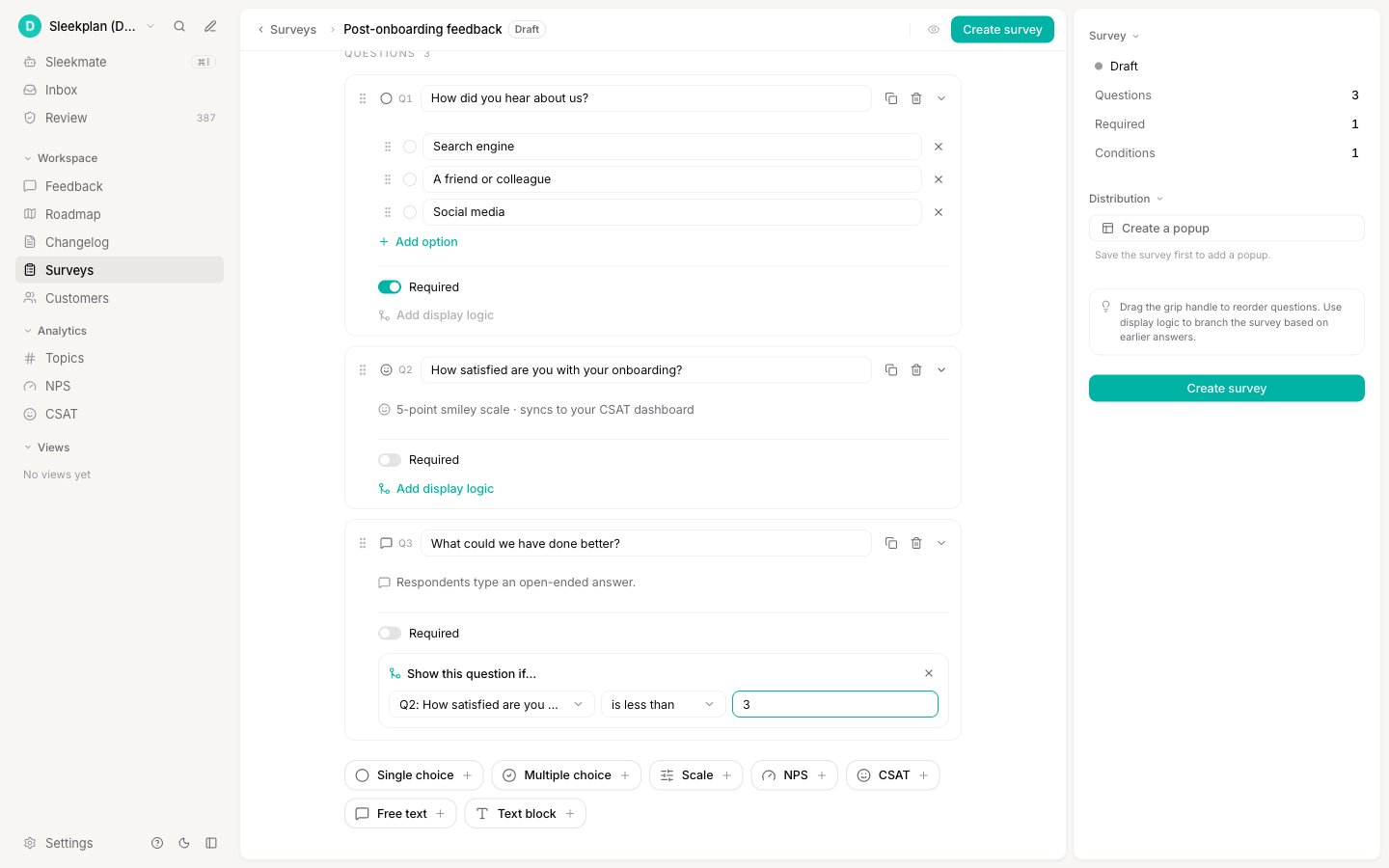
Use the **add-question bar** to add a question. Each button adds a question of that type: **Single choice**, **Multiple choice**, **Scale**, **NPS**, **CSAT**, **Free text**, or **Text block**. For what each one does, see [Question types](/help/surveys/question-types).
A new question opens expanded. Type the question text, then fill in the parts specific to its type:
* **Single and multiple choice** let you add and remove the answer options.
* **Scale** lets you set the number range and the labels for the low and high ends.
* **NPS**, **CSAT**, and **Free text** have no extra settings; their format is fixed.
* **Text block** shows a message with no answer, for a heading or a note between questions.
Creating and editing surveys requires a plan that includes the Surveys module (**Business plan and above**). If your plan does not include it, saving prompts you to upgrade. See [Billing](/help/account-security/billing).
## Build a survey
Go to [**Surveys**](https://app.sleekplan.com/surveys) and select **New survey** in the list header. The editor opens with an empty survey and the add-question bar ready.
Type a name at the top. This is an **internal name that only your team sees**, so use something you will recognize later, like "Post-onboarding NPS" or "Churn reasons." Respondents never see it.
Use the **add-question bar** to add a question. Each button adds a question of that type: **Single choice**, **Multiple choice**, **Scale**, **NPS**, **CSAT**, **Free text**, or **Text block**. For what each one does, see [Question types](/help/surveys/question-types).
A new question opens expanded. Type the question text, then fill in the parts specific to its type:
* **Single and multiple choice** let you add and remove the answer options.
* **Scale** lets you set the number range and the labels for the low and high ends.
* **NPS**, **CSAT**, and **Free text** have no extra settings; their format is fixed.
* **Text block** shows a message with no answer, for a heading or a note between questions.
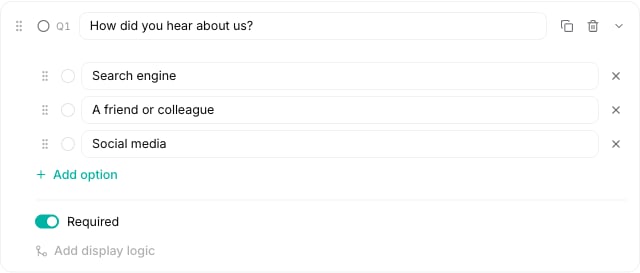 Turn on **Required** to make a respondent answer that question before moving on. Text blocks have no Required toggle, since they collect no answer.
Add as many questions as you need. Drag the grip handle on the left of a question to reorder it. Each question also has a **Duplicate** and a **Remove** action, and a chevron to collapse or expand it.
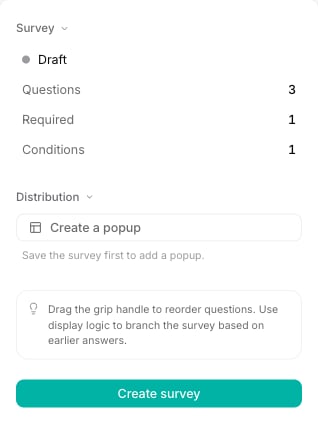
Select **Create survey** in the inspector on the right. The button stays disabled until the survey has a name and at least one question. After saving, the survey opens to its results.
Turn on **Required** to make a respondent answer that question before moving on. Text blocks have no Required toggle, since they collect no answer.
Add as many questions as you need. Drag the grip handle on the left of a question to reorder it. Each question also has a **Duplicate** and a **Remove** action, and a chevron to collapse or expand it.
Select **Create survey** in the inspector on the right. The button stays disabled until the survey has a name and at least one question. After saving, the survey opens to its results.
 ## Edit a survey later
To change a survey, open it from the [Surveys](https://app.sleekplan.com/surveys) list and select the **Edit** (pencil) action, or **Edit** from its row menu. You can rename it, add or remove questions, change options, and reorder freely.
Editing a survey keeps its existing responses. Answers stay linked to the questions people already answered, so past results are never lost when you change a survey. Removing a question hides it from new responses but does not erase answers already collected for it.
## Show a question only sometimes
Any question can be shown based on an earlier answer, so a respondent only sees the questions relevant to them. For example, ask "What went wrong?" only when someone rates you poorly. This is set per question with display logic and is covered in [Conditional display logic](/help/surveys/conditional-logic).
## Next steps
Understand each question type before you add it.
Branch a survey by showing questions based on earlier answers.
Publish your survey with a public link or a widget popup.
See how responses are summarized and how to read individual answers.
## Edit a survey later
To change a survey, open it from the [Surveys](https://app.sleekplan.com/surveys) list and select the **Edit** (pencil) action, or **Edit** from its row menu. You can rename it, add or remove questions, change options, and reorder freely.
Editing a survey keeps its existing responses. Answers stay linked to the questions people already answered, so past results are never lost when you change a survey. Removing a question hides it from new responses but does not erase answers already collected for it.
## Show a question only sometimes
Any question can be shown based on an earlier answer, so a respondent only sees the questions relevant to them. For example, ask "What went wrong?" only when someone rates you poorly. This is set per question with display logic and is covered in [Conditional display logic](/help/surveys/conditional-logic).
## Next steps
Understand each question type before you add it.
Branch a survey by showing questions based on earlier answers.
Publish your survey with a public link or a widget popup.
See how responses are summarized and how to read individual answers.