> ## Documentation Index
> Fetch the complete documentation index at: https://sleekplan.com/llms.txt
> Use this file to discover all available pages before exploring further.
# Conditional display logic
> Display logic shows a survey question only when an earlier answer matches a condition, so respondents see just the questions relevant to them. Learn how to add a rule, the four conditions available, and how the rules behave.
Display logic shows a question **only when an earlier answer matches a condition**. It lets one survey branch: a respondent who rates you poorly can be asked what went wrong, while a happy respondent skips straight past that question. Everyone answers the same first questions, then sees only the follow-ups that apply to them.
Each rule points at an **earlier** question in the survey. A question can only depend on answers given before it, so you build the survey top to bottom and add logic as you go.
 ## Add display logic to a question
In the [survey editor](/help/surveys/create-survey), expand the question you want to show conditionally. Make sure it comes **after** the question its rule depends on; reorder it with the grip handle if needed.
At the bottom of the question, select **Add display logic**. If the question is the first one, this is unavailable, because there is no earlier answer to base a rule on.
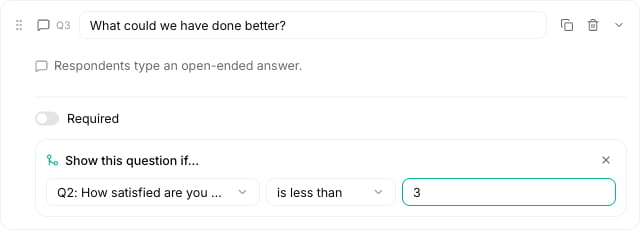
Under **Show this question if…**, choose one of the earlier questions. Only answerable questions appear here; text blocks are not options, since they collect no answer.
Pick how to compare the earlier answer, then type the value to compare against:
| Condition | Shows the question when the earlier answer… |
| ------------------- | ------------------------------------------- |
| **contains** | includes the value you type |
| **is exactly** | matches the value exactly |
| **is greater than** | is a number larger than the value |
| **is less than** | is a number smaller than the value |
Use **is greater than** and **is less than** with number-based answers like a [scale](/help/surveys/question-types#scale), [NPS](/help/surveys/question-types#nps), or [CSAT](/help/surveys/question-types#csat) question. Use **contains** or **is exactly** for choice and text answers.
Save the survey. The inspector's **Conditions** count reflects how many questions now have display logic.
## How the rules behave
* **Earlier questions only.** A rule can reference any answerable question above the current one, never one below it. If you move a question above its dependency, review its rule.
* **One rule per question.** Each question has a single show-if rule. To require several conditions, split the flow across more questions.
* **Hidden means skipped.** When the condition is not met, the question does not appear for that respondent, and no answer is recorded for it. Hidden questions are simply left out of that person's response.
* **Remove a rule anytime.** Open the rule and select the remove (×) control to make the question show for everyone again.
## An example
To ask for a reason only from unhappy respondents:
1. Add a [CSAT](/help/surveys/question-types#csat) question: "How satisfied are you?"
2. Add a [free text](/help/surveys/question-types#free-text) question: "What could we do better?"
3. On the free-text question, add display logic: show it if the CSAT answer **is less than** `3`.
Now only respondents who rate 1 or 2 are asked to explain, and everyone else finishes sooner.
## Next steps
Pick the answer format each condition works best with.
Build the questions your display logic branches between.
See how conditional answers appear in the response feed.
Publish the survey once its logic is set up.
## Add display logic to a question
In the [survey editor](/help/surveys/create-survey), expand the question you want to show conditionally. Make sure it comes **after** the question its rule depends on; reorder it with the grip handle if needed.
At the bottom of the question, select **Add display logic**. If the question is the first one, this is unavailable, because there is no earlier answer to base a rule on.
Under **Show this question if…**, choose one of the earlier questions. Only answerable questions appear here; text blocks are not options, since they collect no answer.
Pick how to compare the earlier answer, then type the value to compare against:
| Condition | Shows the question when the earlier answer… |
| ------------------- | ------------------------------------------- |
| **contains** | includes the value you type |
| **is exactly** | matches the value exactly |
| **is greater than** | is a number larger than the value |
| **is less than** | is a number smaller than the value |
Use **is greater than** and **is less than** with number-based answers like a [scale](/help/surveys/question-types#scale), [NPS](/help/surveys/question-types#nps), or [CSAT](/help/surveys/question-types#csat) question. Use **contains** or **is exactly** for choice and text answers.
Save the survey. The inspector's **Conditions** count reflects how many questions now have display logic.
## How the rules behave
* **Earlier questions only.** A rule can reference any answerable question above the current one, never one below it. If you move a question above its dependency, review its rule.
* **One rule per question.** Each question has a single show-if rule. To require several conditions, split the flow across more questions.
* **Hidden means skipped.** When the condition is not met, the question does not appear for that respondent, and no answer is recorded for it. Hidden questions are simply left out of that person's response.
* **Remove a rule anytime.** Open the rule and select the remove (×) control to make the question show for everyone again.
## An example
To ask for a reason only from unhappy respondents:
1. Add a [CSAT](/help/surveys/question-types#csat) question: "How satisfied are you?"
2. Add a [free text](/help/surveys/question-types#free-text) question: "What could we do better?"
3. On the free-text question, add display logic: show it if the CSAT answer **is less than** `3`.
Now only respondents who rate 1 or 2 are asked to explain, and everyone else finishes sooner.
## Next steps
Pick the answer format each condition works best with.
Build the questions your display logic branches between.
See how conditional answers appear in the response feed.
Publish the survey once its logic is set up.