> ## Documentation Index
> Fetch the complete documentation index at: https://sleekplan.com/llms.txt
> Use this file to discover all available pages before exploring further.
# Surveys
> Surveys let you ask your users a set of questions and collect their answers, from a one-question NPS check to a multi-step questionnaire. Learn what a survey is in Sleekplan, how the Surveys screen is organized, and where surveys appear to your users.
A survey is a set of questions you ask your users and collect answers to. It can be a single question, like an [NPS](/help/surveys/question-types#nps) or [CSAT](/help/surveys/question-types#csat) rating, or a multi-step questionnaire with choices, scales, and open text. You build a survey once, then share it with a public link or show it inside your widget as a popup.
In Sleekplan there is no separate "survey type" to pick. A survey is simply an ordered list of [questions](/help/surveys/question-types), and its character comes from the questions you add: a survey with one NPS question is an NPS survey, a survey with five mixed questions is a questionnaire. This keeps everything in one place, so you can start simple and add questions later.
 Surveys are available on the **Business plan and above**. You can read existing surveys and their responses on any plan, but creating or editing a survey requires a plan that includes the Surveys module. See [Billing](/help/account-security/billing) for what your plan includes.
## Open the Surveys screen
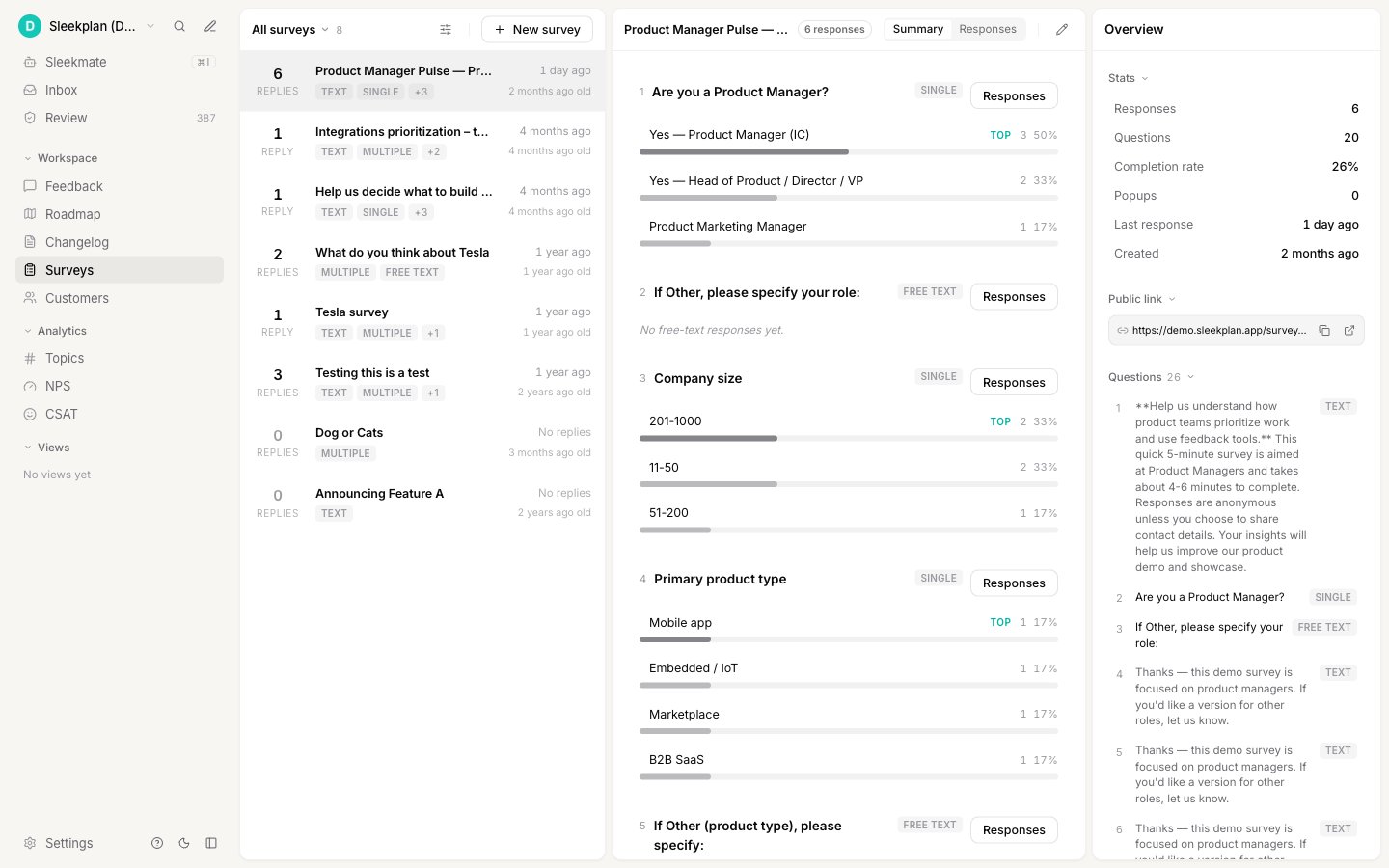
Surveys live at [**Surveys**](https://app.sleekplan.com/surveys) in the workspace sidebar. The screen has three panels side by side:
| Panel | What it shows |
| -------------------- | --------------------------------------------------------------------------------------------------------------------------------------------------------------------- |
| **List** (left) | Every survey in your workspace, with its name and response count. Use the controls at the top to change which surveys show, how they are sorted, and the row density. |
| **Detail** (center) | The selected survey's results, split into a **Summary** tab (answer breakdown) and a **Responses** tab (individual answers). |
| **Overview** (right) | Stats for the selected survey, its public link, attached popups, and its list of questions. |
Select any survey in the list to load its results. To start a new one, use **New survey** in the list header. For the full walkthrough, see [Create a survey](/help/surveys/create-survey).
## Find a survey in the list
As you build up more surveys, the list header narrows the view. These controls only change what you see; they never change a survey or its responses.
* **Show** switches the list between **All surveys**, **With responses** (surveys that have at least one answer), and **Drafts** (surveys that have no questions yet).
* **Display options** sets the row **Density** (Comfortable or Compact) and the **Sort by** order: **Recent activity**, **Most responses**, **Newest**, or **Name (A–Z)**.
Each row also has a menu to edit, duplicate, copy the survey's public link, or delete it.
## Where surveys appear to your users
A survey on its own is just a definition. To collect answers, you show it in one of two ways:
* **A public link.** Every survey has its own web address that opens the survey as a standalone page, with no widget or navigation around it. Share it in an email, a chat message, or anywhere you can paste a link.
* **A widget popup.** Attach the survey to an outbound popup so it appears inside your Sleekplan widget for the audience, timing, and pages you choose.
Both are covered in [Share and target a survey](/help/surveys/share-and-target).
## Next steps
Build a survey question by question and save it.
See every question type, from single choice to NPS and free text.
Publish a survey with a public link or a widget popup.
Read the answer summary and drill into individual responses.
Surveys are available on the **Business plan and above**. You can read existing surveys and their responses on any plan, but creating or editing a survey requires a plan that includes the Surveys module. See [Billing](/help/account-security/billing) for what your plan includes.
## Open the Surveys screen
Surveys live at [**Surveys**](https://app.sleekplan.com/surveys) in the workspace sidebar. The screen has three panels side by side:
| Panel | What it shows |
| -------------------- | --------------------------------------------------------------------------------------------------------------------------------------------------------------------- |
| **List** (left) | Every survey in your workspace, with its name and response count. Use the controls at the top to change which surveys show, how they are sorted, and the row density. |
| **Detail** (center) | The selected survey's results, split into a **Summary** tab (answer breakdown) and a **Responses** tab (individual answers). |
| **Overview** (right) | Stats for the selected survey, its public link, attached popups, and its list of questions. |
Select any survey in the list to load its results. To start a new one, use **New survey** in the list header. For the full walkthrough, see [Create a survey](/help/surveys/create-survey).
## Find a survey in the list
As you build up more surveys, the list header narrows the view. These controls only change what you see; they never change a survey or its responses.
* **Show** switches the list between **All surveys**, **With responses** (surveys that have at least one answer), and **Drafts** (surveys that have no questions yet).
* **Display options** sets the row **Density** (Comfortable or Compact) and the **Sort by** order: **Recent activity**, **Most responses**, **Newest**, or **Name (A–Z)**.
Each row also has a menu to edit, duplicate, copy the survey's public link, or delete it.
## Where surveys appear to your users
A survey on its own is just a definition. To collect answers, you show it in one of two ways:
* **A public link.** Every survey has its own web address that opens the survey as a standalone page, with no widget or navigation around it. Share it in an email, a chat message, or anywhere you can paste a link.
* **A widget popup.** Attach the survey to an outbound popup so it appears inside your Sleekplan widget for the audience, timing, and pages you choose.
Both are covered in [Share and target a survey](/help/surveys/share-and-target).
## Next steps
Build a survey question by question and save it.
See every question type, from single choice to NPS and free text.
Publish a survey with a public link or a widget popup.
Read the answer summary and drill into individual responses.