> ## Documentation Index
> Fetch the complete documentation index at: https://sleekplan.com/llms.txt
> Use this file to discover all available pages before exploring further.
# Topics
> Topics groups related feedback into AI-clustered themes and sub-topics, so you can see what people are really asking for and how each theme trends.
Hundreds of individual posts are hard to reason about. **Topics** groups related feedback into themes automatically, so instead of reading every post you can see the handful of things your users actually keep asking for, and how each one is trending. It is the fastest way to answer "what do people want most right now?".
Topics is part of [Sleek Intelligence](/help/sleek-intelligence). Topic analytics need the **Business** plan or higher. (Sleek Intelligence itself unlocks earlier, on Starter.)
## What a topic is
A **topic** is a cluster of related feedback that Sleek Intelligence has grouped together, for example "Billing" or "Mobile app". Each topic has a name, a short description, and a set of typical requests that represent it. Topics can break down further into **sub-topics**, a more detailed split of the feedback inside a topic.
You do not create topics by hand. As feedback comes in, Sleek Intelligence reads it and sorts related posts into topics and sub-topics for you, and keeps them up to date as more arrives.
Topics build up over time. If the view is empty, it means Sleek Intelligence has not classified enough feedback yet. Give it more feedback, or a little time, and themes will appear.
## Explore your topics
In the left sidebar, under **Analytics**, click [**Topics**](https://app.sleekplan.com/topics).
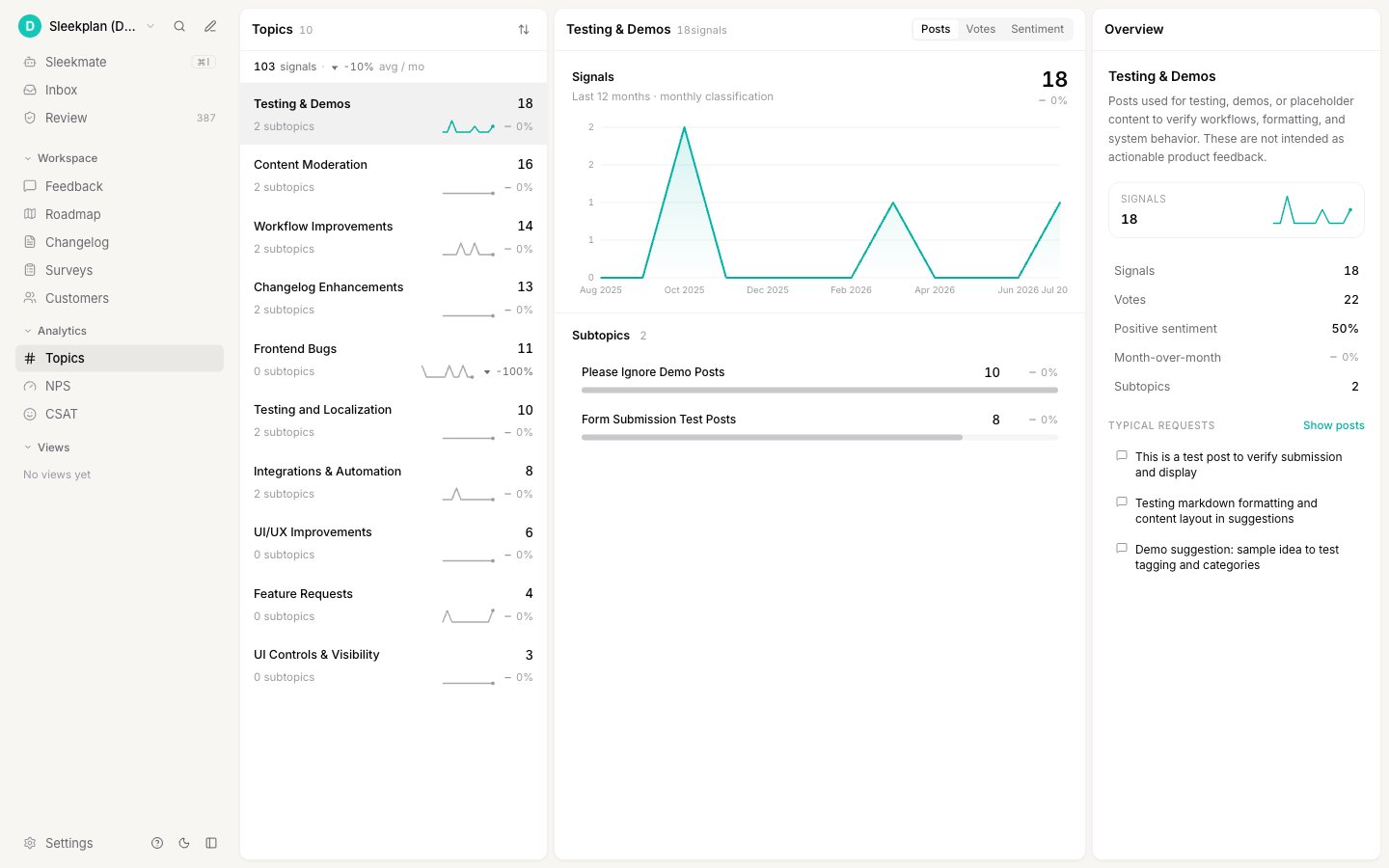 The list shows your topics ranked by how much feedback each holds, with a small trend line and a month-over-month change so you can spot what is rising or fading. Select one to dig in.
The detail view shows the topic's trend over time and its sub-topics. Switch the breakdown between three measures to see the theme from different angles:
* **Posts** — how much feedback the topic and its sub-topics hold.
* **Votes** — how much demand sits behind it.
* **Sentiment** — whether users feel positive or negative about it.
The list shows your topics ranked by how much feedback each holds, with a small trend line and a month-over-month change so you can spot what is rising or fading. Select one to dig in.
The detail view shows the topic's trend over time and its sub-topics. Switch the breakdown between three measures to see the theme from different angles:
* **Posts** — how much feedback the topic and its sub-topics hold.
* **Votes** — how much demand sits behind it.
* **Sentiment** — whether users feel positive or negative about it.
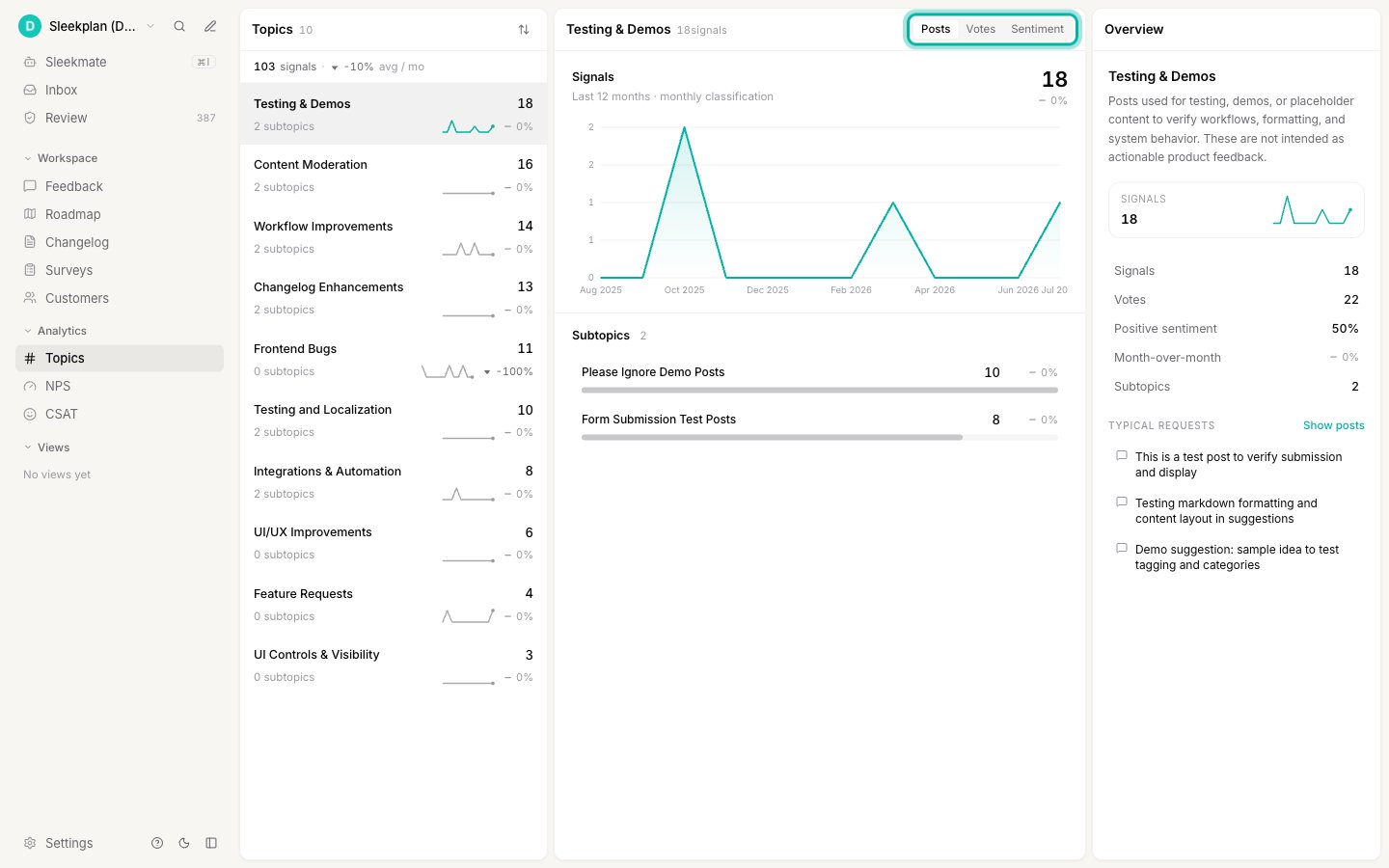 Each topic also shows its **typical requests**, real examples that capture what the theme is about, so you can tell at a glance what people mean by it.
## Using topics in your work
* **Prioritize by real demand.** A topic that is climbing in votes and negative in sentiment is a strong signal for what to fix next.
* **Brief your team.** Topics turn a noisy board into a short list of themes you can talk about in a planning meeting.
* **Ask Sleekmate about them.** [Sleekmate](/help/sleek-intelligence/sleekmate) can read your topics too, so you can ask it things like "what's my fastest-growing topic this month?" in plain language.
## Related
Ask the assistant about your topics in plain language.
Sentiment analysis feeds the sentiment you see per topic.
Narrow the board down to the posts behind a theme.
Group your users to read demand by audience.
Each topic also shows its **typical requests**, real examples that capture what the theme is about, so you can tell at a glance what people mean by it.
## Using topics in your work
* **Prioritize by real demand.** A topic that is climbing in votes and negative in sentiment is a strong signal for what to fix next.
* **Brief your team.** Topics turn a noisy board into a short list of themes you can talk about in a planning meeting.
* **Ask Sleekmate about them.** [Sleekmate](/help/sleek-intelligence/sleekmate) can read your topics too, so you can ask it things like "what's my fastest-growing topic this month?" in plain language.
## Related
Ask the assistant about your topics in plain language.
Sentiment analysis feeds the sentiment you see per topic.
Narrow the board down to the posts behind a theme.
Group your users to read demand by audience.