> ## Documentation Index
> Fetch the complete documentation index at: https://sleekplan.com/llms.txt
> Use this file to discover all available pages before exploring further.
# Schedules
> Let Sleekmate run your instructions on a schedule, like every Monday morning, or whenever something happens in your workspace, like a new post.
A **schedule** is a set of instructions that Sleekmate runs for you automatically: every Monday at 09:00, every weekday evening, or whenever something happens in your workspace, such as a new post or a new comment. Use it for recurring work like a weekly feedback digest, a daily triage of new posts, or a first look at every NPS response.
Every run is a normal [Sleekmate](/help/sleek-intelligence/sleekmate) conversation. It appears in your Sleekmate conversation list under the schedule's name, so you can open it, follow what Sleekmate did, and continue the conversation.
Go to [**Settings → My Account → Schedules**](https://app.sleekplan.com/settings/schedules). **Owner**, **Admin**, and **Member** can all create schedules. Your schedules are private: only you see them, and every run acts with your own permissions.
Schedules run on Sleekmate, so Sleekmate must be turned on for your workspace and your plan must include AI (**Starter** and above). Each run uses [Intelligence credits](/help/sleek-intelligence/credits), just like a message you send yourself.
## Create a schedule
Go to [**Settings → My Account → Schedules**](https://app.sleekplan.com/settings/schedules) and click **New schedule**.
Give it a short, descriptive name, for example "Weekly feedback digest". The name is also the title of every conversation the schedule starts, so you can spot its runs in Sleekmate.
Describe what Sleekmate should do on every run, the same way you would ask it in the chat. Markdown works.
Say what you want back, not just the topic. Bad: "Look at feedback". Good: "Summarize last week's new posts by component, name the three requests with the most new votes, and end with one priority for the coming week."
Under **Trigger**, pick **On a schedule** to run it at set times, or **When something happens** to run it on an event in your workspace. Both are explained below.
Leave **Run without approval** off to approve every change yourself. See [Approving what a run changes](#approving-what-a-run-changes).
If you've added [connectors](/help/sleek-intelligence/connectors), like Linear or Notion, they're listed under **Connectors**, all switched on. Switch off the ones this schedule doesn't need.
Click **Create schedule**. A new schedule is **Active** right away.
## Run on a schedule
With **On a schedule**, choose how often it repeats:
| Repeat | What you set |
| ----------------- | ------------------------------------------------------------------ |
| **Every hour** | The minute past the hour: :00, :15, :30 or :45 |
| **Every day** | A time |
| **Every weekday** | A time. Runs Monday to Friday |
| **Every week** | A day and a time |
| **Every month** | A day of the month (1 to 28, so it runs in every month) and a time |
Times are offered in 15-minute steps and use the timezone shown under the fields, for example "Times are in Europe/Berlin." A new schedule takes your browser's timezone. If you open a schedule that uses a different timezone, click **Use my timezone** to switch it to yours.
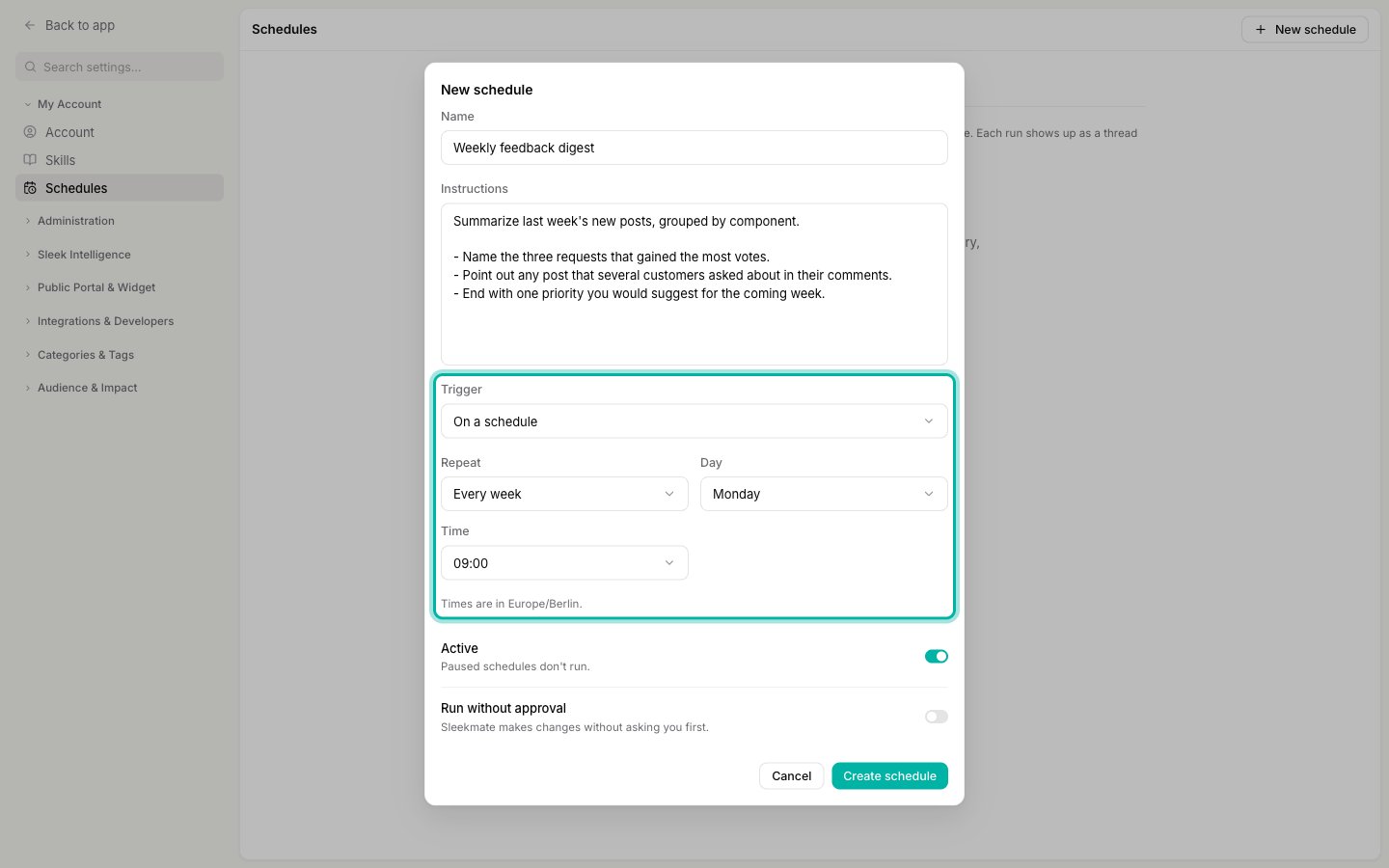 If a run can't start at its time, for example because the workspace is out of credits, that run is skipped. Sleekmate doesn't catch up on missed runs later: the schedule simply runs again at its next time.
## Run when something happens
With **When something happens**, choose the **Event** that starts a run:
| Area | Events |
| ------------------ | -------------------------------------------------------------------------------------------------------------------- |
| Posts | Post created, Post updated, Post deleted |
| Comments | Comment created, Comment updated, Comment deleted |
| Votes | Vote cast or removed, Priority set |
| Post subscriptions | Subscribed to a post, Unsubscribed from a post |
| Customers | Customer created, Customer updated, Customer deleted |
| Changelog | Changelog entry created, Changelog entry updated, Subscribed to the changelog |
| Surveys | NPS response received, NPS response updated, CSAT response received, CSAT response updated, Survey response received |
These are the same events a [webhook](/help/integrations/custom-integrations) can listen to.
If a run can't start at its time, for example because the workspace is out of credits, that run is skipped. Sleekmate doesn't catch up on missed runs later: the schedule simply runs again at its next time.
## Run when something happens
With **When something happens**, choose the **Event** that starts a run:
| Area | Events |
| ------------------ | -------------------------------------------------------------------------------------------------------------------- |
| Posts | Post created, Post updated, Post deleted |
| Comments | Comment created, Comment updated, Comment deleted |
| Votes | Vote cast or removed, Priority set |
| Post subscriptions | Subscribed to a post, Unsubscribed from a post |
| Customers | Customer created, Customer updated, Customer deleted |
| Changelog | Changelog entry created, Changelog entry updated, Subscribed to the changelog |
| Surveys | NPS response received, NPS response updated, CSAT response received, CSAT response updated, Survey response received |
These are the same events a [webhook](/help/integrations/custom-integrations) can listen to.
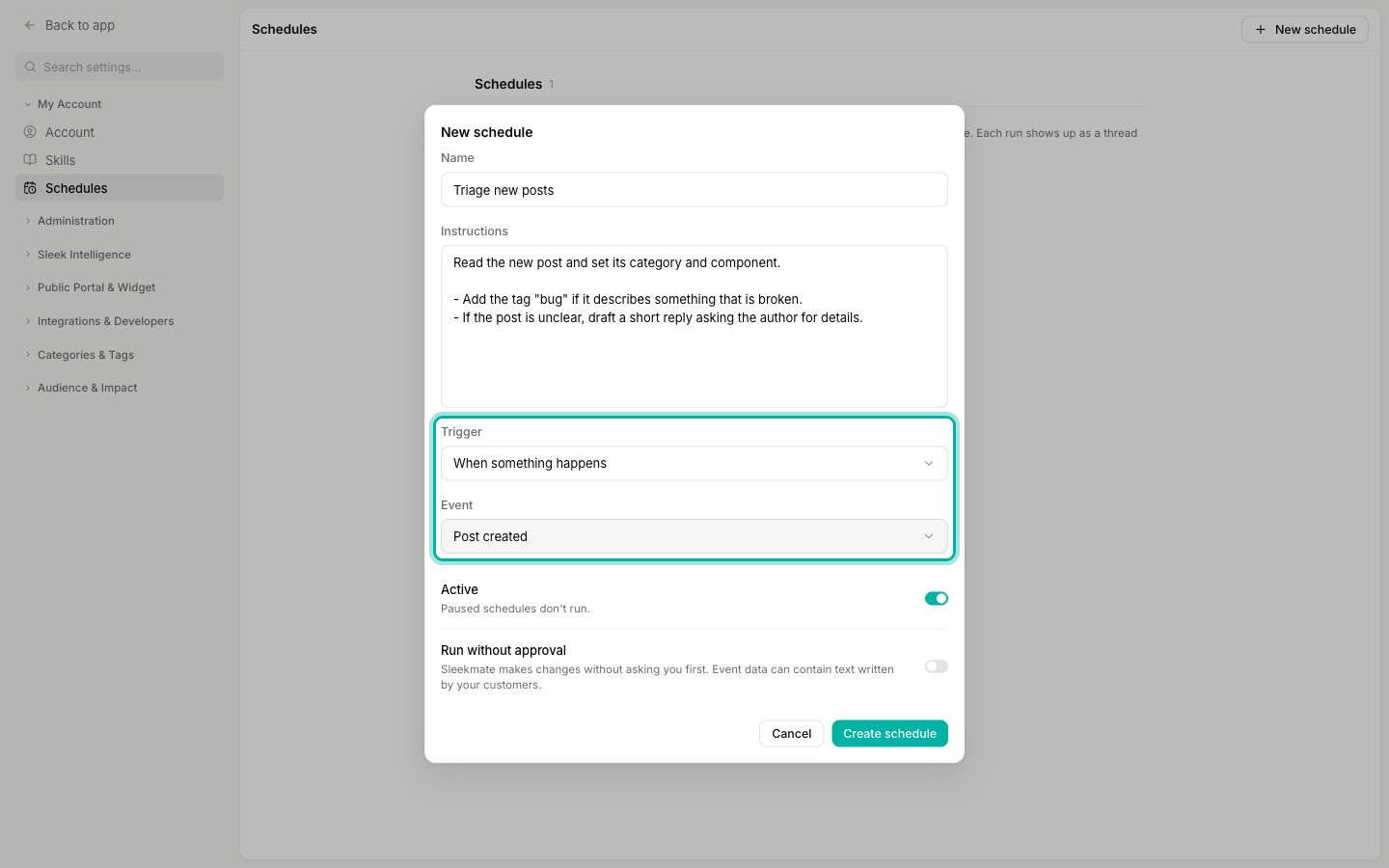 Each run receives the event's data together with your instructions, so Sleekmate knows which post, comment or customer the run is about. Sleekmate treats that data as information to work with, never as instructions to follow.
A few things to know about event schedules:
* **One run per event.** The same event starts a schedule at most once within 10 minutes, and a schedule runs at most 20 times per hour. Events beyond that are skipped, and the schedule shows **Some events skipped**.
* **No loops.** Changes a scheduled run makes don't start your schedules again, so a schedule that edits posts can't keep triggering itself.
* **Imports don't count.** Posts, changelog entries and customers brought in with an [import](/help/integrations/import) don't start schedules.
* **Deleted items.** For **Post deleted**, **Comment deleted** and **Customer deleted**, the run starts after the item is gone, so Sleekmate only has the data from the event itself.
## Approving what a run changes
By default, a scheduled run asks before it changes anything, exactly like the chat. When Sleekmate wants to create, edit, merge or delete something, the run pauses with an [approval card](/help/sleek-intelligence/sleekmate#approving-its-actions) in its conversation. In your Sleekmate conversation list, the run shows **Waiting for your approval**. Open it and approve or reject the change whenever you get to it: the card waits for you.
If you turn on **Run without approval**, Sleekmate makes its changes right away without asking, like [Yolo mode](/help/sleek-intelligence/sleekmate#yolo-mode) in the chat. That includes changes in your [connected apps](/help/sleek-intelligence/connectors#connectors-in-schedules).
With **Run without approval** on, a schedule can create, edit, merge and delete content without anyone reviewing it. Be especially careful with event schedules: the event's data can contain text your customers wrote, and Sleekmate acts on it unattended. Leave it off unless you trust the instructions and the events completely.
## Run a schedule now
To test a schedule, or to run it outside its usual time, open it and click **Run now**. You'll see "Run started. It shows up in Sleekmate in a moment." and the run appears in your Sleekmate conversation list.
Each run receives the event's data together with your instructions, so Sleekmate knows which post, comment or customer the run is about. Sleekmate treats that data as information to work with, never as instructions to follow.
A few things to know about event schedules:
* **One run per event.** The same event starts a schedule at most once within 10 minutes, and a schedule runs at most 20 times per hour. Events beyond that are skipped, and the schedule shows **Some events skipped**.
* **No loops.** Changes a scheduled run makes don't start your schedules again, so a schedule that edits posts can't keep triggering itself.
* **Imports don't count.** Posts, changelog entries and customers brought in with an [import](/help/integrations/import) don't start schedules.
* **Deleted items.** For **Post deleted**, **Comment deleted** and **Customer deleted**, the run starts after the item is gone, so Sleekmate only has the data from the event itself.
## Approving what a run changes
By default, a scheduled run asks before it changes anything, exactly like the chat. When Sleekmate wants to create, edit, merge or delete something, the run pauses with an [approval card](/help/sleek-intelligence/sleekmate#approving-its-actions) in its conversation. In your Sleekmate conversation list, the run shows **Waiting for your approval**. Open it and approve or reject the change whenever you get to it: the card waits for you.
If you turn on **Run without approval**, Sleekmate makes its changes right away without asking, like [Yolo mode](/help/sleek-intelligence/sleekmate#yolo-mode) in the chat. That includes changes in your [connected apps](/help/sleek-intelligence/connectors#connectors-in-schedules).
With **Run without approval** on, a schedule can create, edit, merge and delete content without anyone reviewing it. Be especially careful with event schedules: the event's data can contain text your customers wrote, and Sleekmate acts on it unattended. Leave it off unless you trust the instructions and the events completely.
## Run a schedule now
To test a schedule, or to run it outside its usual time, open it and click **Run now**. You'll see "Run started. It shows up in Sleekmate in a moment." and the run appears in your Sleekmate conversation list.
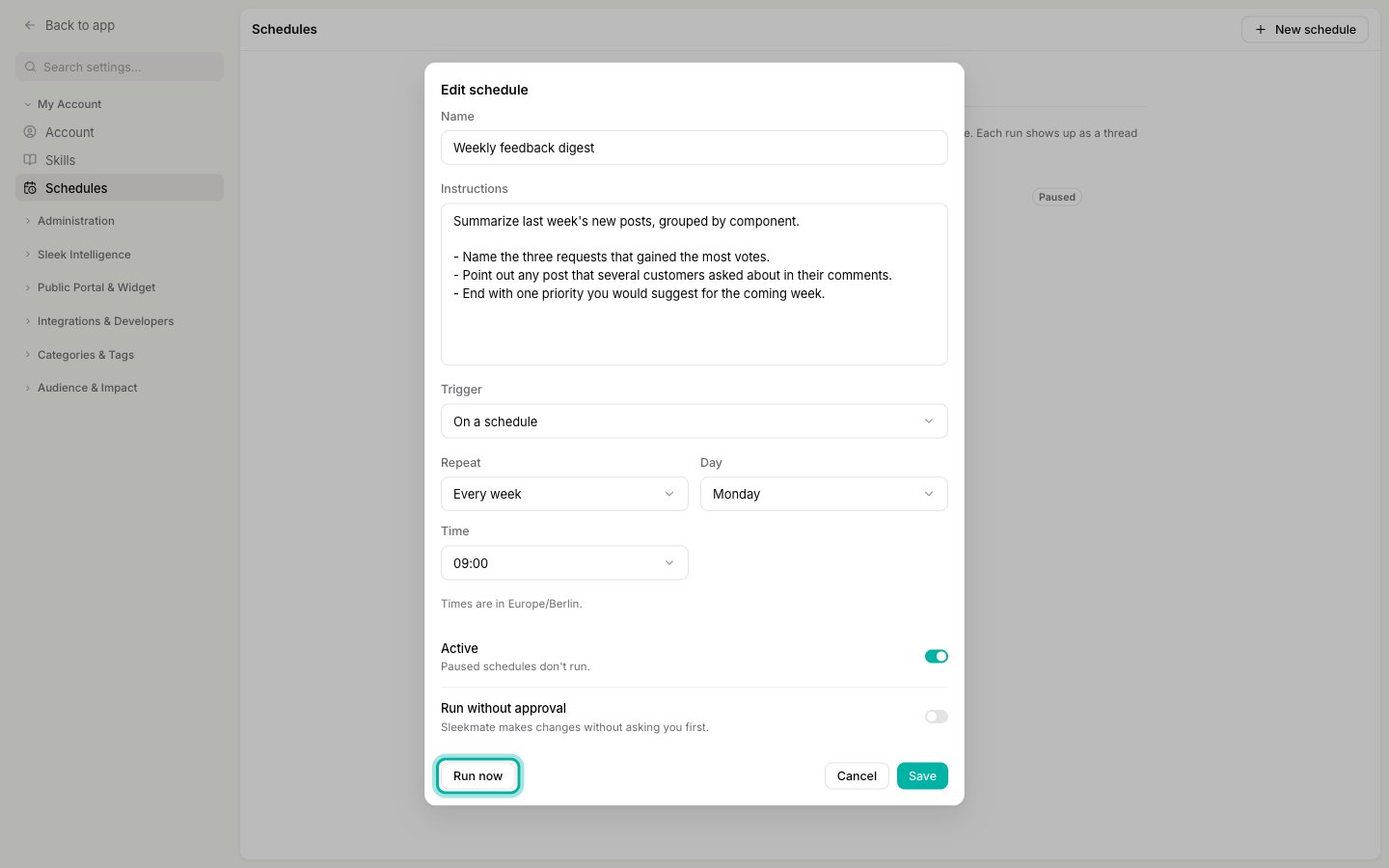 **Run now** uses the saved version of the schedule, so it's disabled while you have unsaved changes: save first, then run. It also works on a paused schedule.
## Manage your schedules
The **Schedules** page lists your schedules with when each one runs, for example "Every Monday at 09:00" or "When: Post created".
**Run now** uses the saved version of the schedule, so it's disabled while you have unsaved changes: save first, then run. It also works on a paused schedule.
## Manage your schedules
The **Schedules** page lists your schedules with when each one runs, for example "Every Monday at 09:00" or "When: Post created".
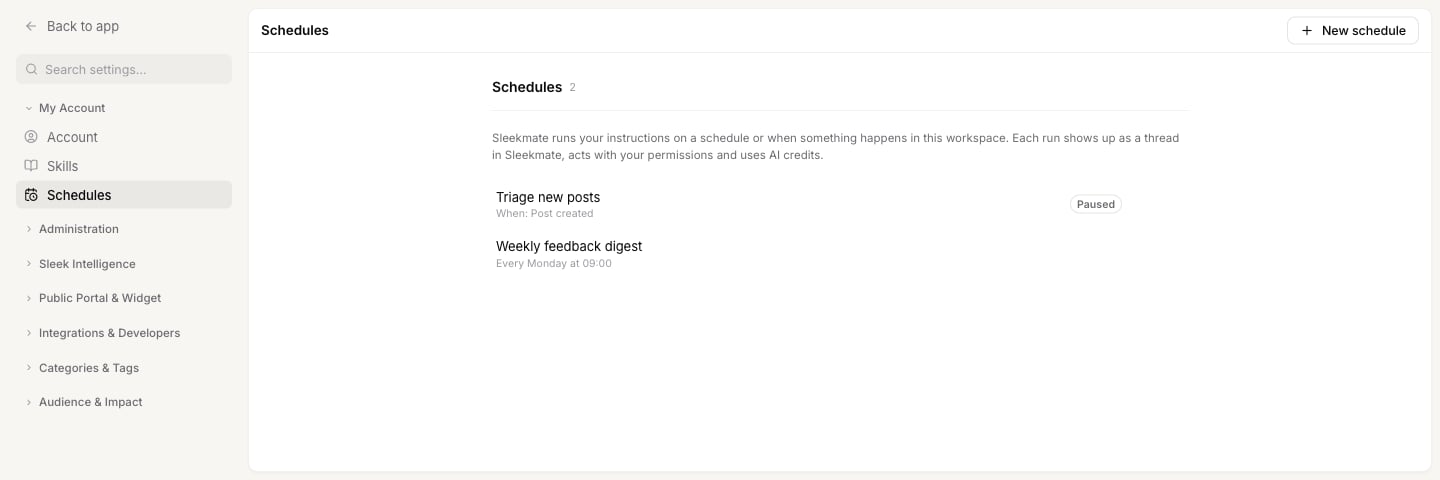 * **See the last run.** A row shows when the schedule last ran, for example "Ran 2 hours ago". Open the schedule and click **Open thread** to jump to that conversation.
* **Pause a schedule.** Open it, turn off **Active** and click **Save**. A paused schedule shows **Paused** and doesn't run until you turn it back on.
* **Edit or delete.** Hover a row and click **Edit** or **Delete**. Deleting asks you to confirm.
### When a run didn't start
A row that shows **Last run failed** has a reason in the schedule itself. Open it to see the message at the top:
| Message | What to do |
| ---------------------------------------------------------- | ------------------------------------------------------------------------------------------------------------ |
| Sleekmate is turned off for this workspace. | An owner or admin needs to [turn Sleekmate on](/help/sleek-intelligence/sleekmate#turn-sleekmate-on-or-off). |
| No AI credits left. | Top up or wait for your monthly quota. See [Intelligence credits](/help/sleek-intelligence/credits). |
| Your plan doesn't include Sleekmate. | Sleekmate needs a plan that includes AI (**Starter** and above). |
| Sleekmate could not be reached. / Could not start the run. | A temporary problem. The schedule tries again at its next time or event. |
The schedule stays active in all of these cases.
If you leave the workspace, or your seat is deactivated, your schedules pause with "Paused: you no longer have access to this workspace." so nothing runs in your name. Turning a paused schedule back on clears the message.
## Limits
* Up to **20 schedules** per person in each workspace.
* A **name** can have up to 100 characters and the **instructions** up to 5,000.
* **Run now** can start up to 10 runs per 10 minutes. Past that, you'll see "Too many runs started. Try again in a few minutes."
* An **event schedule** runs at most once per event within 10 minutes, and at most 20 times per hour.
## Related
The copilot that runs your schedules, and where every run shows up.
Write down how a task should be done once, and every run can follow it.
How runs use credits and how to top up.
What owners, admins, and members can each do.
* **See the last run.** A row shows when the schedule last ran, for example "Ran 2 hours ago". Open the schedule and click **Open thread** to jump to that conversation.
* **Pause a schedule.** Open it, turn off **Active** and click **Save**. A paused schedule shows **Paused** and doesn't run until you turn it back on.
* **Edit or delete.** Hover a row and click **Edit** or **Delete**. Deleting asks you to confirm.
### When a run didn't start
A row that shows **Last run failed** has a reason in the schedule itself. Open it to see the message at the top:
| Message | What to do |
| ---------------------------------------------------------- | ------------------------------------------------------------------------------------------------------------ |
| Sleekmate is turned off for this workspace. | An owner or admin needs to [turn Sleekmate on](/help/sleek-intelligence/sleekmate#turn-sleekmate-on-or-off). |
| No AI credits left. | Top up or wait for your monthly quota. See [Intelligence credits](/help/sleek-intelligence/credits). |
| Your plan doesn't include Sleekmate. | Sleekmate needs a plan that includes AI (**Starter** and above). |
| Sleekmate could not be reached. / Could not start the run. | A temporary problem. The schedule tries again at its next time or event. |
The schedule stays active in all of these cases.
If you leave the workspace, or your seat is deactivated, your schedules pause with "Paused: you no longer have access to this workspace." so nothing runs in your name. Turning a paused schedule back on clears the message.
## Limits
* Up to **20 schedules** per person in each workspace.
* A **name** can have up to 100 characters and the **instructions** up to 5,000.
* **Run now** can start up to 10 runs per 10 minutes. Past that, you'll see "Too many runs started. Try again in a few minutes."
* An **event schedule** runs at most once per event within 10 minutes, and at most 20 times per hour.
## Related
The copilot that runs your schedules, and where every run shows up.
Write down how a task should be done once, and every run can follow it.
How runs use credits and how to top up.
What owners, admins, and members can each do.