> ## Documentation Index
> Fetch the complete documentation index at: https://sleekplan.com/llms.txt
> Use this file to discover all available pages before exploring further.
# Connectors
> Connect Sleekmate to the other tools your team works in, like Linear, Jira or Notion, so it can look things up and take actions there too.
A **connector** links [Sleekmate](/help/sleek-intelligence/sleekmate) to another tool your team uses, like Linear, Jira, Notion or Sentry. Once it's connected, Sleekmate can work across both from the same chat: find the Linear issue behind a feedback post, check Sentry for the error a customer reported, or turn a request into a Jira ticket.
A connector is a **remote MCP server**. MCP (Model Context Protocol) is an open standard that lets AI assistants work with other apps, and many tools offer an MCP server of their own. Sleekplan lists the popular ones as ready-made presets, and you can add any other remote MCP server by its URL.
Go to [**Settings → My Account → Connectors**](https://app.sleekplan.com/settings/connectors). **Owner**, **Admin** and **Member** can all add connectors. Your connectors are private: only you see them, and only your own Sleekmate chats and [schedules](/help/sleek-intelligence/schedules) use them, with the access you signed in with.
Connectors work inside Sleekmate, so Sleekmate must be turned on for your workspace and your plan must include AI (**Starter** and above). Each message still uses [Intelligence credits](/help/sleek-intelligence/credits).
## Add a connector
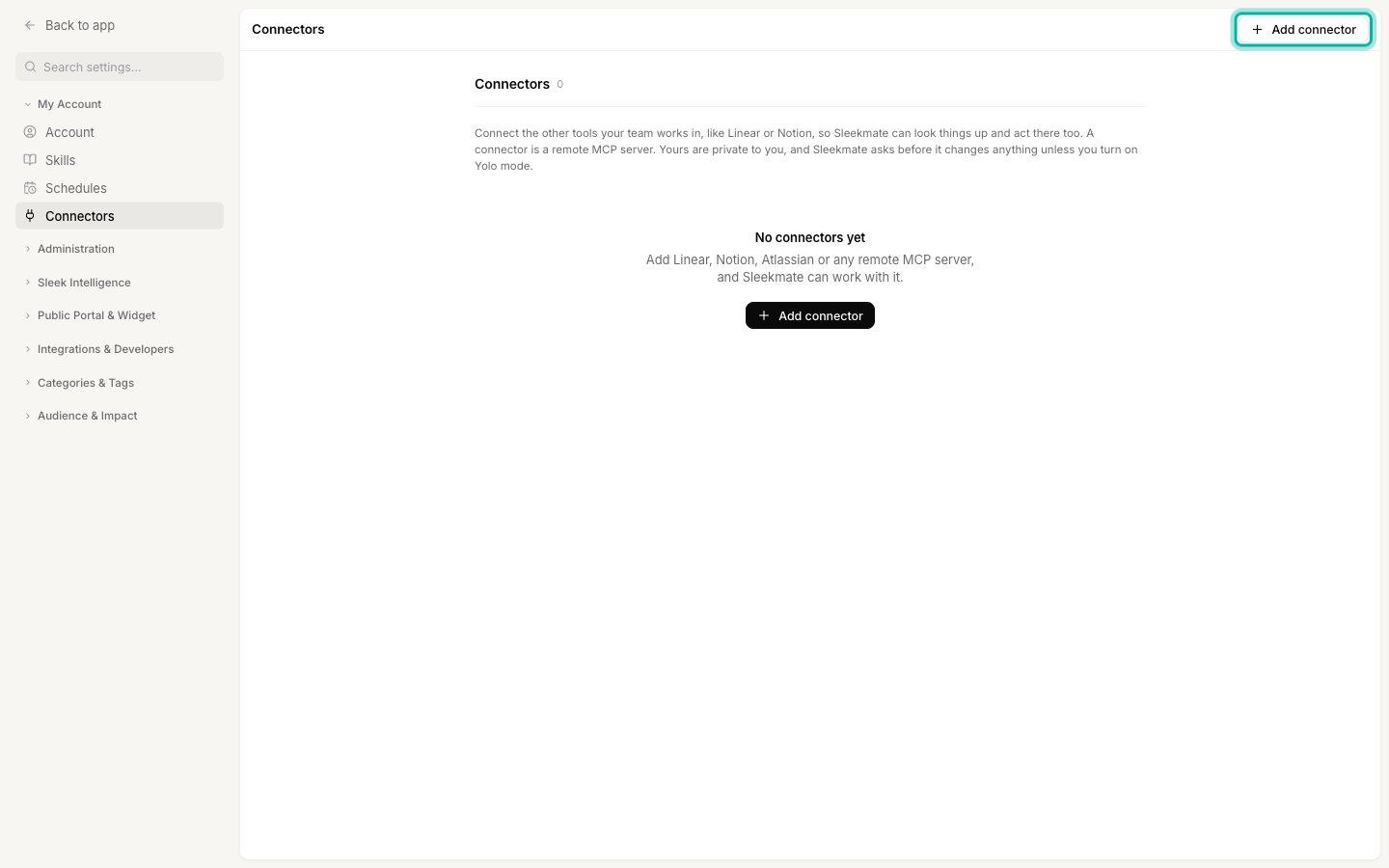
Go to [**Settings → My Account → Connectors**](https://app.sleekplan.com/settings/connectors) and click **Add connector**.
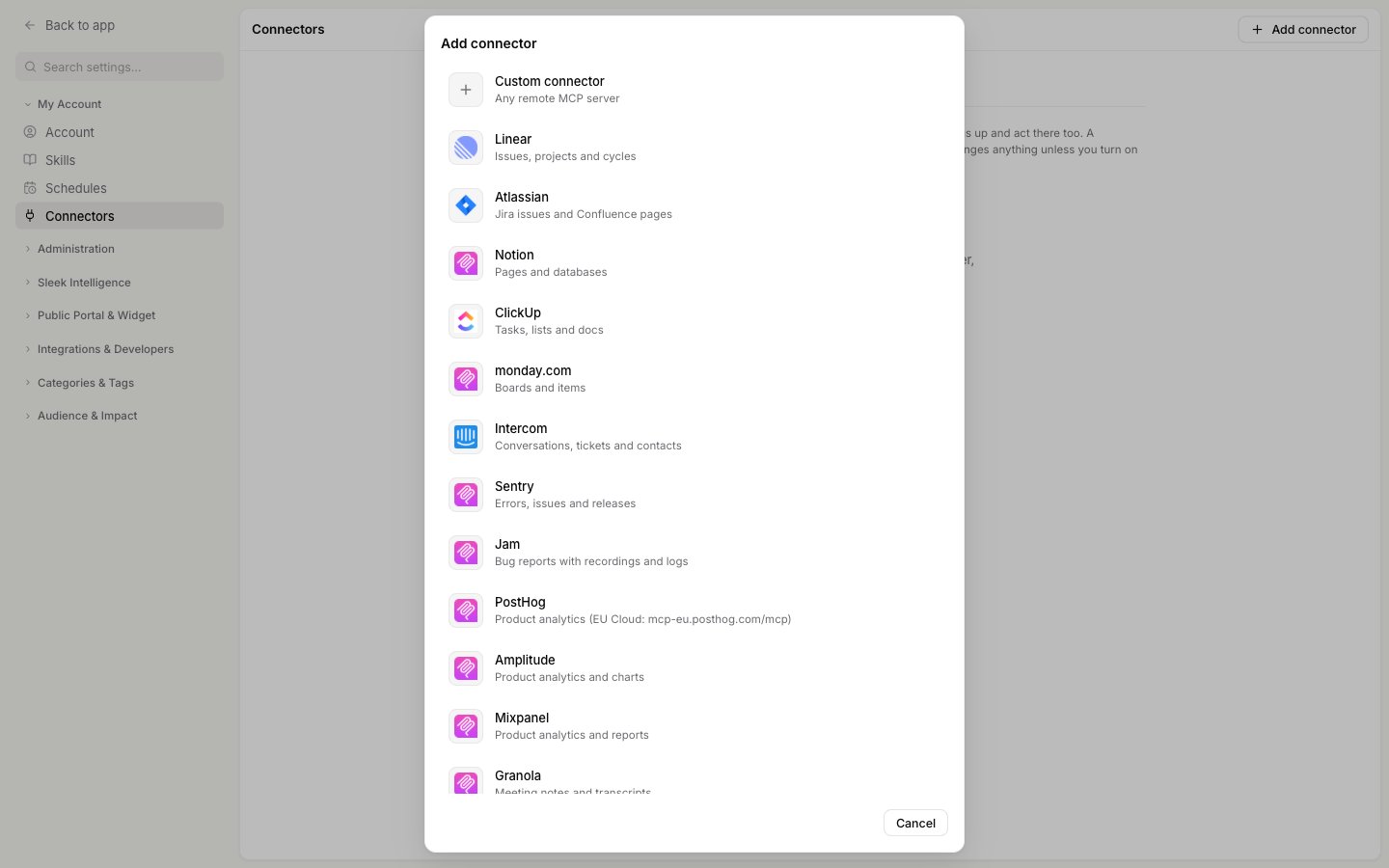
 Choose an app from the list, or **Custom connector** for any other remote MCP server. Picking an app fills in its name and server URL for you. See [Available apps](#available-apps) for the full list.
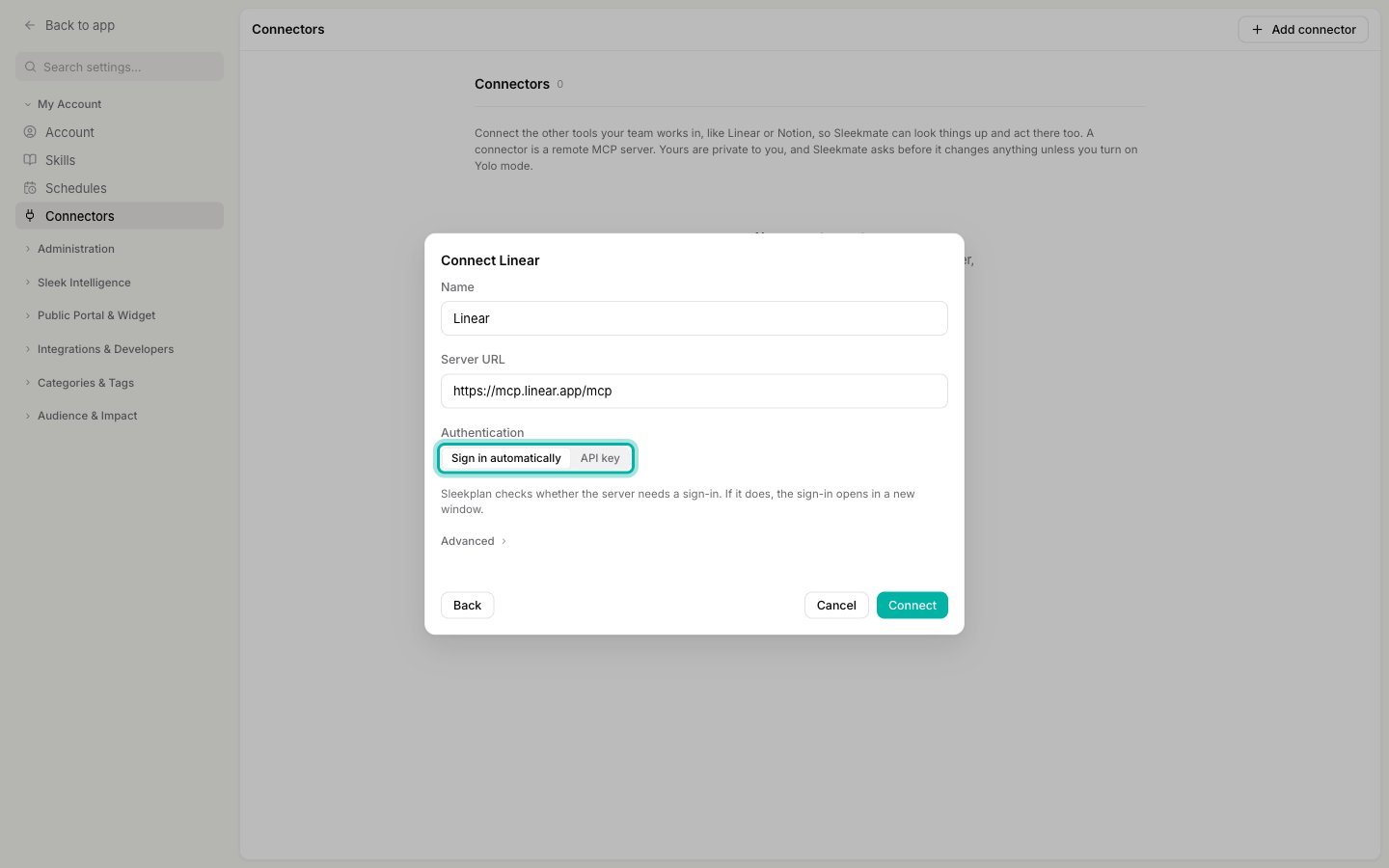
 The **Name** is how the connector shows up in Sleekmate. For a custom connector, paste the **Server URL** from the app's own documentation. It must start with `https://` and usually ends in `/mcp`.
Only connect servers you trust. Sleekmate uses a connector with your access to that app.
Under **Authentication**, keep **Sign in automatically** for most apps. Sleekplan checks whether the server needs a sign-in and, if it does, opens the app's sign-in in a new window. Choose **API key** when the app gives you a key or token instead, see [Connect with an API key](#connect-with-an-api-key).
The **Name** is how the connector shows up in Sleekmate. For a custom connector, paste the **Server URL** from the app's own documentation. It must start with `https://` and usually ends in `/mcp`.
Only connect servers you trust. Sleekmate uses a connector with your access to that app.
Under **Authentication**, keep **Sign in automatically** for most apps. Sleekplan checks whether the server needs a sign-in and, if it does, opens the app's sign-in in a new window. Choose **API key** when the app gives you a key or token instead, see [Connect with an API key](#connect-with-an-api-key).
 Click **Connect**. If the app asks you to sign in, log in and allow access in the window that opens. The window then shows **Connected** and closes by itself, and the connector appears in your list. A server that needs no sign-in connects right away.
The sign-in opens in a pop-up window. If your browser blocks it, you'll see "Your browser blocked the window. Allow pop-ups for this site and try again."
### Available apps
| App | What it covers |
| -------------- | -------------------------------------- |
| **Linear** | Issues, projects and cycles |
| **Atlassian** | Jira issues and Confluence pages |
| **Notion** | Pages and databases |
| **ClickUp** | Tasks, lists and docs |
| **monday.com** | Boards and items |
| **Intercom** | Conversations, tickets and contacts |
| **Sentry** | Errors, issues and releases |
| **Jam** | Bug reports with recordings and logs |
| **PostHog** | Product analytics |
| **Amplitude** | Product analytics and charts |
| **Mixpanel** | Product analytics and reports |
| **Granola** | Meeting notes and transcripts |
| **Miro** | Boards and diagrams |
| **Attio** | CRM records and lists |
| **Stripe** | Customers, subscriptions and payments |
| **GitHub** | Repositories, issues and pull requests |
A few of them need an extra step:
* **Atlassian:** an Atlassian admin may need to allow Sleekplan before you can sign in.
* **PostHog:** if your PostHog project is on EU Cloud, change the server URL to `https://mcp-eu.posthog.com/mcp`.
* **GitHub:** GitHub doesn't let other apps sign in to its MCP server, so it connects with a personal access token. See the next section.
### Connect with an API key
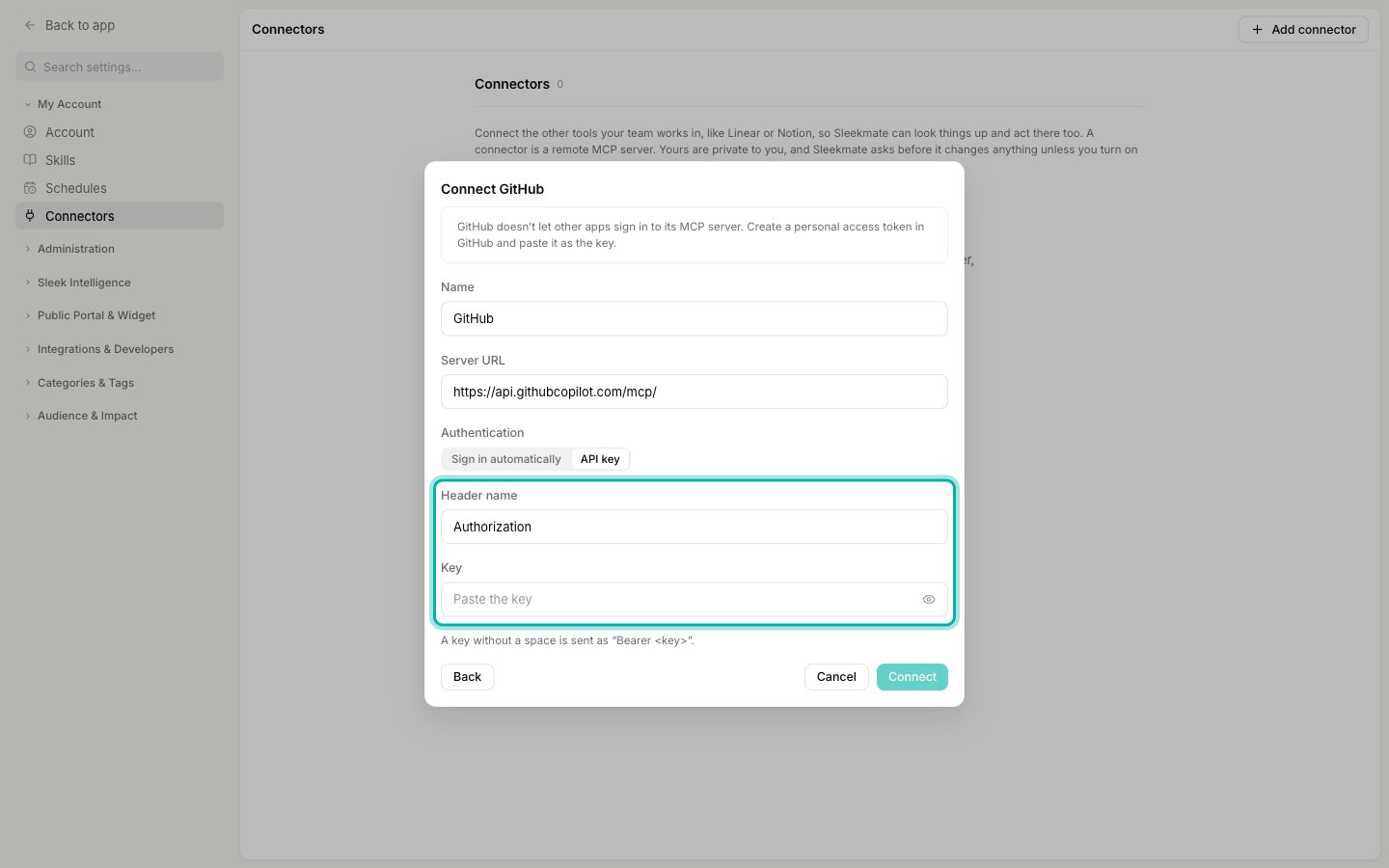
Some servers don't offer a sign-in and take an API key or access token instead. GitHub is one of them, so its preset switches to **API key** for you.
Create an API key or access token in the app you're connecting. For GitHub, create a personal access token.
In the connector form, choose **API key** under **Authentication**. Leave **Header name** as `Authorization` unless the app's documentation names a different header, then paste your key into **Key**.
Click **Connect**. If the app asks you to sign in, log in and allow access in the window that opens. The window then shows **Connected** and closes by itself, and the connector appears in your list. A server that needs no sign-in connects right away.
The sign-in opens in a pop-up window. If your browser blocks it, you'll see "Your browser blocked the window. Allow pop-ups for this site and try again."
### Available apps
| App | What it covers |
| -------------- | -------------------------------------- |
| **Linear** | Issues, projects and cycles |
| **Atlassian** | Jira issues and Confluence pages |
| **Notion** | Pages and databases |
| **ClickUp** | Tasks, lists and docs |
| **monday.com** | Boards and items |
| **Intercom** | Conversations, tickets and contacts |
| **Sentry** | Errors, issues and releases |
| **Jam** | Bug reports with recordings and logs |
| **PostHog** | Product analytics |
| **Amplitude** | Product analytics and charts |
| **Mixpanel** | Product analytics and reports |
| **Granola** | Meeting notes and transcripts |
| **Miro** | Boards and diagrams |
| **Attio** | CRM records and lists |
| **Stripe** | Customers, subscriptions and payments |
| **GitHub** | Repositories, issues and pull requests |
A few of them need an extra step:
* **Atlassian:** an Atlassian admin may need to allow Sleekplan before you can sign in.
* **PostHog:** if your PostHog project is on EU Cloud, change the server URL to `https://mcp-eu.posthog.com/mcp`.
* **GitHub:** GitHub doesn't let other apps sign in to its MCP server, so it connects with a personal access token. See the next section.
### Connect with an API key
Some servers don't offer a sign-in and take an API key or access token instead. GitHub is one of them, so its preset switches to **API key** for you.
Create an API key or access token in the app you're connecting. For GitHub, create a personal access token.
In the connector form, choose **API key** under **Authentication**. Leave **Header name** as `Authorization` unless the app's documentation names a different header, then paste your key into **Key**.
 Click **Connect**. Sleekplan tries the key with the server first and only saves the connector if the server accepts it.
A key without a space is sent as `Bearer `, which is what most servers expect. If an app needs another format, like `Basic …`, paste the full value including that prefix.
### When a server can't register Sleekplan by itself
During sign-in, most apps let Sleekplan register itself automatically. If one doesn't, you'll see "This server doesn't let apps register automatically. Add an OAuth client ID under Advanced." The connector is saved with **Needs sign-in**, and its settings open with **Advanced** unfolded:
1. In the other app, create an OAuth app (some apps call it an OAuth client or an integration). Use the **Callback URL** shown under **Advanced** as its redirect URL.
2. Back in Sleekplan, enter the app's **OAuth client ID**, and its **OAuth client secret** if it gave you one. Click **Save**.
3. Open the connector again and click **Sign in**.
If you already know an app works this way, fill in **Advanced** before you click **Connect**.
## Use connectors in Sleekmate
Once a connector is added, Sleekmate can use it in every chat. Ask in plain language, and Sleekmate reaches for the connected app when your request needs it, for example:
* "Find the Linear issue for this post and tell me its status."
* "Create a Jira ticket from this feedback."
* "Check Sentry for errors that match what this customer reported."
* "Summarize our Notion spec for this feature."
### Switch connectors on or off for a chat
Under the composer, next to **Yolo mode**, the **Connectors** button shows how many of your connectors this chat uses, for example "1 of 1". Click it to switch a connector off for the current chat, or click **Manage connectors** to open the settings page.
Click **Connect**. Sleekplan tries the key with the server first and only saves the connector if the server accepts it.
A key without a space is sent as `Bearer `, which is what most servers expect. If an app needs another format, like `Basic …`, paste the full value including that prefix.
### When a server can't register Sleekplan by itself
During sign-in, most apps let Sleekplan register itself automatically. If one doesn't, you'll see "This server doesn't let apps register automatically. Add an OAuth client ID under Advanced." The connector is saved with **Needs sign-in**, and its settings open with **Advanced** unfolded:
1. In the other app, create an OAuth app (some apps call it an OAuth client or an integration). Use the **Callback URL** shown under **Advanced** as its redirect URL.
2. Back in Sleekplan, enter the app's **OAuth client ID**, and its **OAuth client secret** if it gave you one. Click **Save**.
3. Open the connector again and click **Sign in**.
If you already know an app works this way, fill in **Advanced** before you click **Connect**.
## Use connectors in Sleekmate
Once a connector is added, Sleekmate can use it in every chat. Ask in plain language, and Sleekmate reaches for the connected app when your request needs it, for example:
* "Find the Linear issue for this post and tell me its status."
* "Create a Jira ticket from this feedback."
* "Check Sentry for errors that match what this customer reported."
* "Summarize our Notion spec for this feature."
### Switch connectors on or off for a chat
Under the composer, next to **Yolo mode**, the **Connectors** button shows how many of your connectors this chat uses, for example "1 of 1". Click it to switch a connector off for the current chat, or click **Manage connectors** to open the settings page.
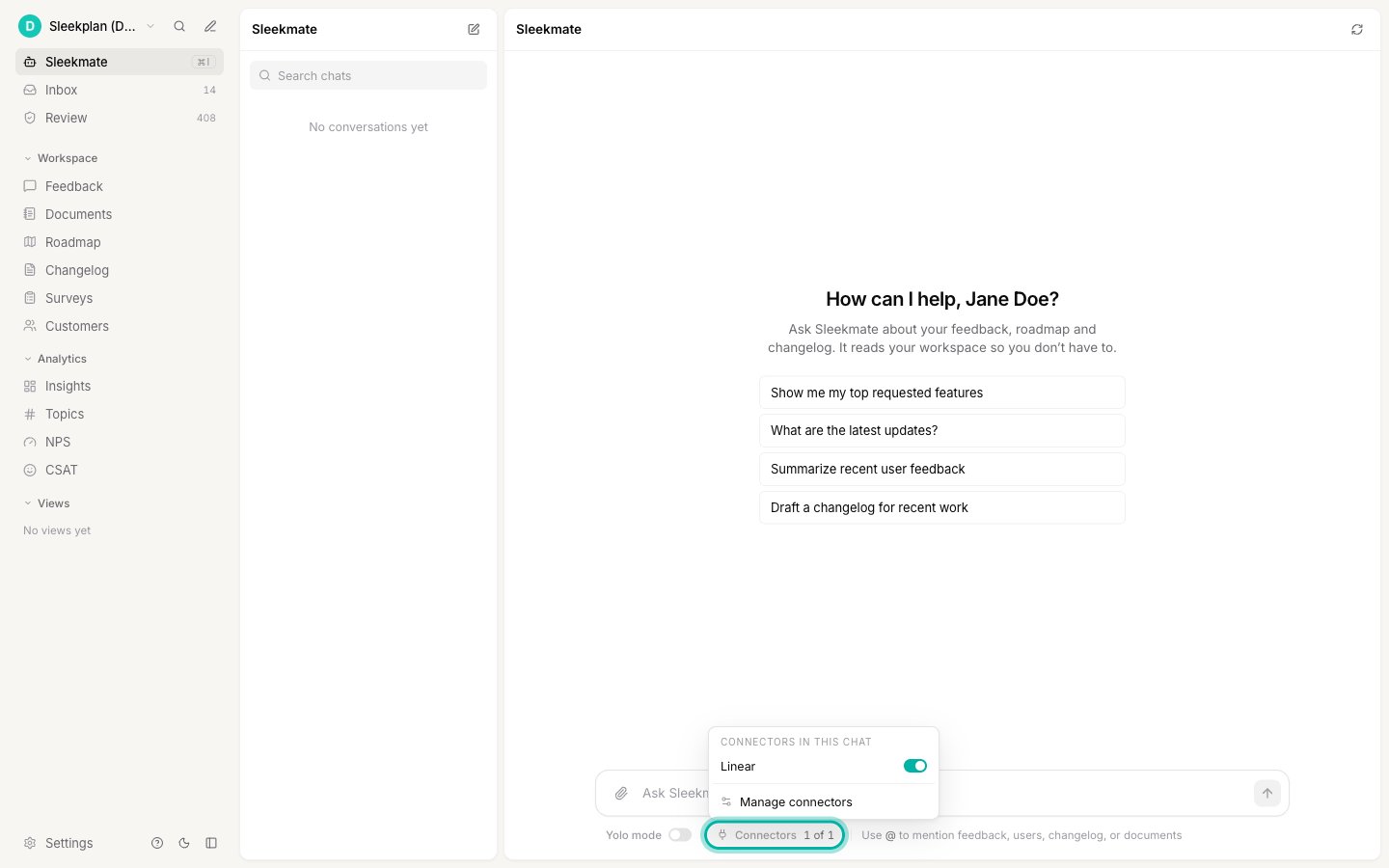 * A new chat starts with all your connectors on, and each chat remembers its own choice.
* The button only appears once you have at least one connector.
* A connector that needs attention is greyed out with **Needs sign-in** or **Needs a new key**. See [Fix a connector](#fix-a-connector).
### Approving changes in other apps
Sleekmate treats your other apps the way it treats your board. It only runs an action without asking when the app marks it as read-only, like a search or a lookup. Anything else, like creating an issue or editing a page, stops at an [approval card](/help/sleek-intelligence/sleekmate#approving-its-actions) first. The card names the app and the action, for example **Linear · create issue**.
[Yolo mode](/help/sleek-intelligence/sleekmate#yolo-mode) turns these approvals off for connectors too. While it's on, the Connectors menu reminds you: "Yolo mode is on: Sleekmate makes changes in these apps without asking."
With **Yolo mode** on, Sleekmate can create, change and delete things in your connected apps without asking first. Leave it off if you want to review each action before it happens.
If a connector can't be used during a chat, for example because its sign-in expired or the server doesn't answer, Sleekmate carries on without it and tells you the app is unavailable.
## Connectors in schedules
When you create or edit a [schedule](/help/sleek-intelligence/schedules), the **Connectors** section lists your connectors, each with a switch. They're all on by default, and a connector you add later is on for your existing schedules too. Switch off the ones a schedule doesn't need.
* A new chat starts with all your connectors on, and each chat remembers its own choice.
* The button only appears once you have at least one connector.
* A connector that needs attention is greyed out with **Needs sign-in** or **Needs a new key**. See [Fix a connector](#fix-a-connector).
### Approving changes in other apps
Sleekmate treats your other apps the way it treats your board. It only runs an action without asking when the app marks it as read-only, like a search or a lookup. Anything else, like creating an issue or editing a page, stops at an [approval card](/help/sleek-intelligence/sleekmate#approving-its-actions) first. The card names the app and the action, for example **Linear · create issue**.
[Yolo mode](/help/sleek-intelligence/sleekmate#yolo-mode) turns these approvals off for connectors too. While it's on, the Connectors menu reminds you: "Yolo mode is on: Sleekmate makes changes in these apps without asking."
With **Yolo mode** on, Sleekmate can create, change and delete things in your connected apps without asking first. Leave it off if you want to review each action before it happens.
If a connector can't be used during a chat, for example because its sign-in expired or the server doesn't answer, Sleekmate carries on without it and tells you the app is unavailable.
## Connectors in schedules
When you create or edit a [schedule](/help/sleek-intelligence/schedules), the **Connectors** section lists your connectors, each with a switch. They're all on by default, and a connector you add later is on for your existing schedules too. Switch off the ones a schedule doesn't need.
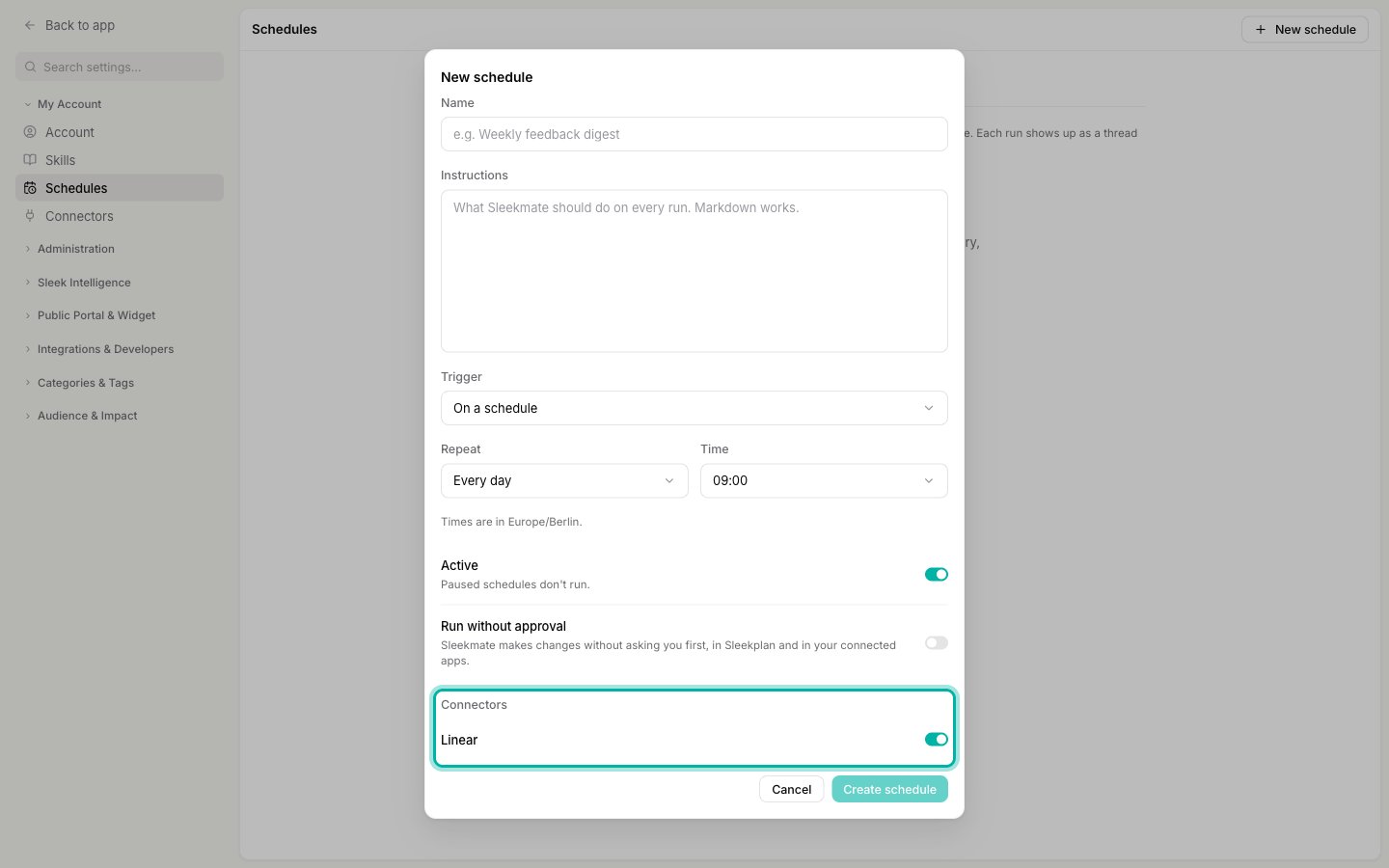 A scheduled run asks before it changes anything in a connected app, just like a chat. With **Run without approval** on, it makes those changes right away: the toggle's hint then reads "Sleekmate makes changes without asking you first, in Sleekplan and in your connected apps."
Be especially careful with **Run without approval** on an event schedule. The event's data can contain text your customers wrote, and Sleekmate acts on it in your connected apps with nobody reviewing it.
## Manage your connectors
The **Connectors** page lists each connector with its server address and how it signs in: **OAuth**, **API key** or **No sign-in**. Hover a row to edit or delete it.
A scheduled run asks before it changes anything in a connected app, just like a chat. With **Run without approval** on, it makes those changes right away: the toggle's hint then reads "Sleekmate makes changes without asking you first, in Sleekplan and in your connected apps."
Be especially careful with **Run without approval** on an event schedule. The event's data can contain text your customers wrote, and Sleekmate acts on it in your connected apps with nobody reviewing it.
## Manage your connectors
The **Connectors** page lists each connector with its server address and how it signs in: **OAuth**, **API key** or **No sign-in**. Hover a row to edit or delete it.
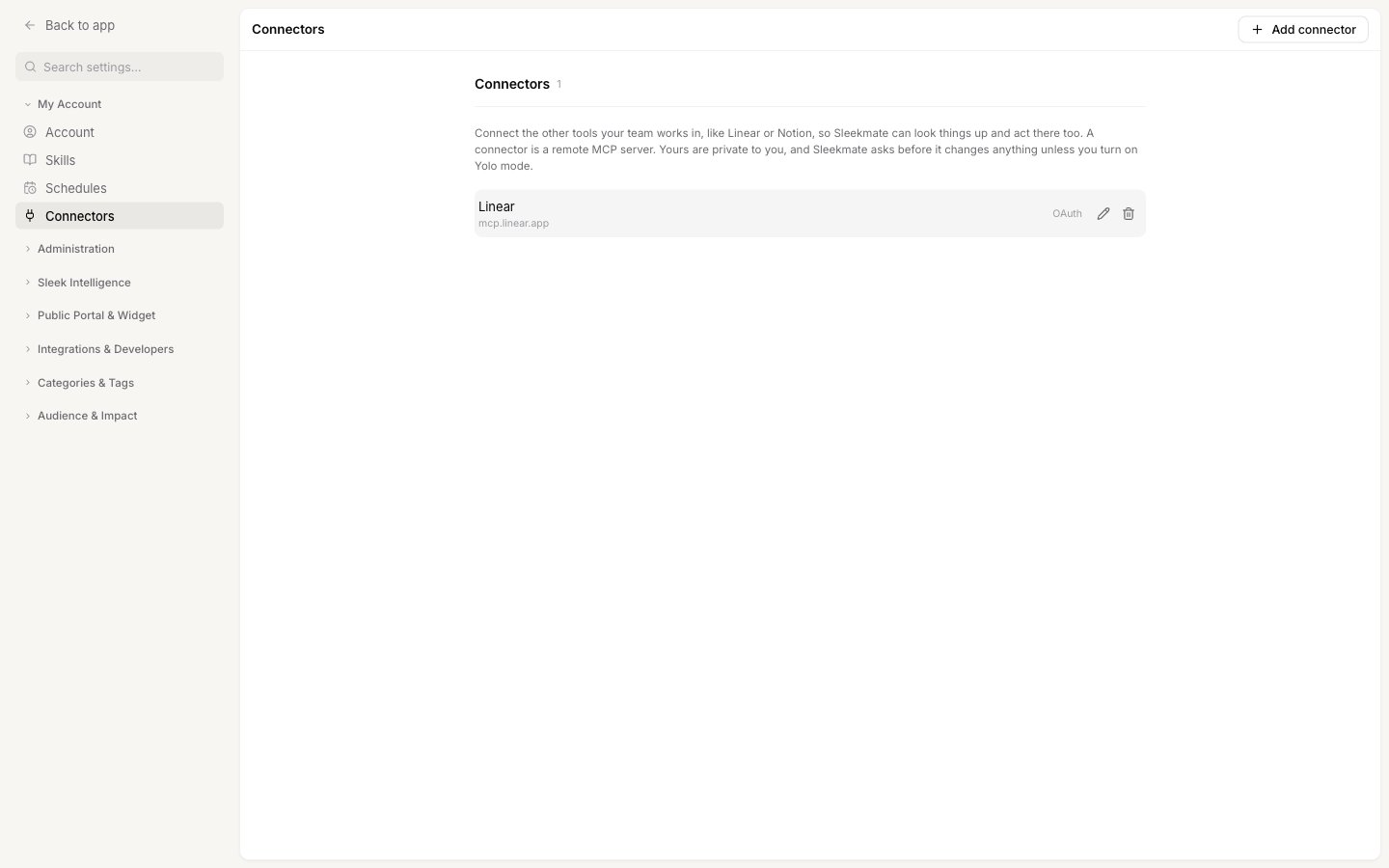 * **Rename a connector.** Click the row, change **Name** and click **Save**. The server URL can't be changed: to use another URL, add a new connector and delete the old one.
* **Sign in again.** For a connector that signs in with OAuth, open it and click **Sign in again**.
* **Replace an API key.** Open the connector and click **Replace API key**. A saved key is never shown again, not even to you.
* **Delete a connector.** Hover the row, click **Delete** and confirm. Sleekmate stops using it in your chats and schedules. This can't be undone.
* **Rename a connector.** Click the row, change **Name** and click **Save**. The server URL can't be changed: to use another URL, add a new connector and delete the old one.
* **Sign in again.** For a connector that signs in with OAuth, open it and click **Sign in again**.
* **Replace an API key.** Open the connector and click **Replace API key**. A saved key is never shown again, not even to you.
* **Delete a connector.** Hover the row, click **Delete** and confirm. Sleekmate stops using it in your chats and schedules. This can't be undone.
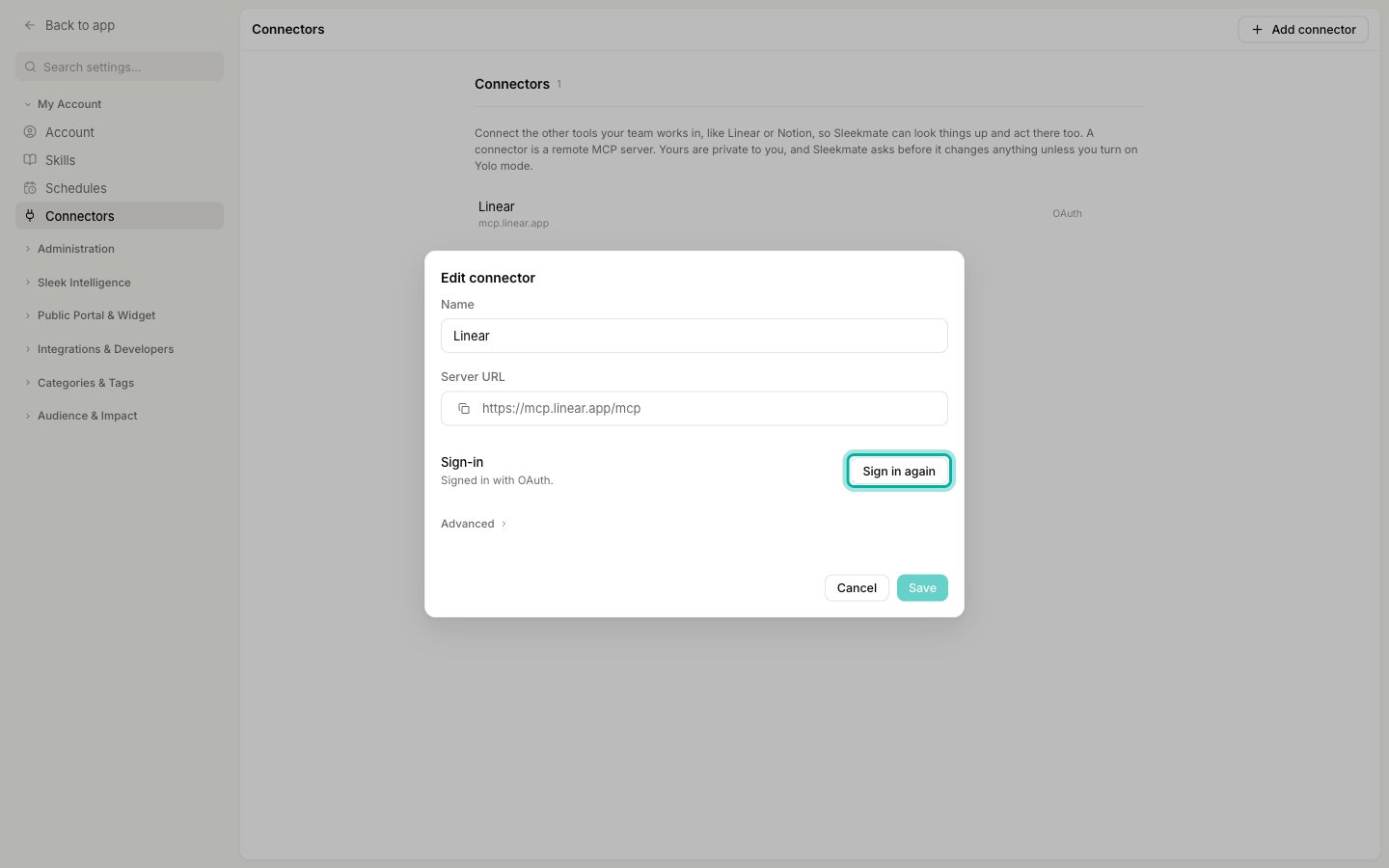 Deleting a connector removes it from Sleekplan, but doesn't revoke the access you granted in the other app. To cut that off too, remove Sleekplan's access in that app's settings, or revoke the API key you created for it.
Sleekplan stores sign-ins and API keys encrypted. If you're removed from a workspace, or delete your account, your connectors in that workspace are deleted too.
### Fix a connector
A tag on the row tells you when a connector can't be used:
| Tag | What happened | What to do |
| ------------------- | ---------------------------------------------------------------- | -------------------------------------------------------------------------------------------------------------- |
| **Needs sign-in** | The sign-in expired, was never finished, or the app declined it. | Open the connector and click **Sign in** (or **Sign in again**). The reason is shown at the top of the dialog. |
| **Needs a new key** | Sleekplan can no longer use the saved API key. | Open the connector, click **Replace API key** and paste the key again. |
## Troubleshooting
These messages can appear when you add a connector or sign in:
| Message | What to do |
| ------------------------------------------------------------------------------------------- | ------------------------------------------------------------------------------------------------------------------------------------------------------ |
| Use an https\:// URL of a public MCP server. | The URL must start with `https://` and point to a server on the public internet. Servers on your own computer or a private network can't be connected. |
| This looks like a legacy SSE endpoint. | Use the server's current URL. It usually ends in `/mcp` instead of `/sse`. |
| We couldn't reach this server. Check the URL and try again. | Check the URL for typos and make sure the server is online. |
| No MCP server answered at this URL (HTTP 404). | The address isn't an MCP server. Look up the app's remote MCP server URL in its documentation. |
| The server redirected the request to … Use that URL instead. | Replace the URL with the one in the message. |
| This server doesn't let apps register automatically. Add an OAuth client ID under Advanced. | See [When a server can't register Sleekplan by itself](#when-a-server-cant-register-sleekplan-by-itself). |
| The server didn't accept this API key (HTTP 401). | Check the key, its permissions in the other app, and the header name. |
| This header can't carry an API key. Use Authorization or a custom X- header. | Change **Header name** to `Authorization` or to the `X-` header the app's documentation names. |
| … didn't grant access: … | Access was declined during sign-in. Sign in again and allow access, or ask the app's admin to allow Sleekplan. |
| This sign-in link expired. Start again from Settings → Connectors. | A sign-in has to be finished within 10 minutes and works only once. Open the connector and click **Sign in** again. |
| Too many connection attempts. Try again in a few minutes. | Wait a few minutes before you try again. |
| You can add up to 10 connectors in this workspace. | Delete a connector you no longer need. |
## Limits
* Up to **10 connectors** per person in each workspace.
* A connector **name** can have up to 60 characters.
* Only **remote** MCP servers over `https://` are supported. MCP servers that run locally on your computer, and servers that only offer the older SSE connection, can't be added.
* Up to **20 connection attempts** per 10 minutes. Adding a connector, starting a sign-in and saving a new API key each count as one.
* Sleekmate uses up to **100 tools** from one connector and up to **150 connector tools** in one chat. A connector that would take a chat past 150 is left out of that chat, so switch off the connectors a chat doesn't need.
## Related
The copilot that uses your connectors, and how approvals and Yolo mode work.
Let Sleekmate run your instructions on a schedule, with the connectors you choose.
Write down how a task should be done once, including the steps in your other apps.
The other direction: work with your Sleekplan data from Claude, ChatGPT or Cursor.
Deleting a connector removes it from Sleekplan, but doesn't revoke the access you granted in the other app. To cut that off too, remove Sleekplan's access in that app's settings, or revoke the API key you created for it.
Sleekplan stores sign-ins and API keys encrypted. If you're removed from a workspace, or delete your account, your connectors in that workspace are deleted too.
### Fix a connector
A tag on the row tells you when a connector can't be used:
| Tag | What happened | What to do |
| ------------------- | ---------------------------------------------------------------- | -------------------------------------------------------------------------------------------------------------- |
| **Needs sign-in** | The sign-in expired, was never finished, or the app declined it. | Open the connector and click **Sign in** (or **Sign in again**). The reason is shown at the top of the dialog. |
| **Needs a new key** | Sleekplan can no longer use the saved API key. | Open the connector, click **Replace API key** and paste the key again. |
## Troubleshooting
These messages can appear when you add a connector or sign in:
| Message | What to do |
| ------------------------------------------------------------------------------------------- | ------------------------------------------------------------------------------------------------------------------------------------------------------ |
| Use an https\:// URL of a public MCP server. | The URL must start with `https://` and point to a server on the public internet. Servers on your own computer or a private network can't be connected. |
| This looks like a legacy SSE endpoint. | Use the server's current URL. It usually ends in `/mcp` instead of `/sse`. |
| We couldn't reach this server. Check the URL and try again. | Check the URL for typos and make sure the server is online. |
| No MCP server answered at this URL (HTTP 404). | The address isn't an MCP server. Look up the app's remote MCP server URL in its documentation. |
| The server redirected the request to … Use that URL instead. | Replace the URL with the one in the message. |
| This server doesn't let apps register automatically. Add an OAuth client ID under Advanced. | See [When a server can't register Sleekplan by itself](#when-a-server-cant-register-sleekplan-by-itself). |
| The server didn't accept this API key (HTTP 401). | Check the key, its permissions in the other app, and the header name. |
| This header can't carry an API key. Use Authorization or a custom X- header. | Change **Header name** to `Authorization` or to the `X-` header the app's documentation names. |
| … didn't grant access: … | Access was declined during sign-in. Sign in again and allow access, or ask the app's admin to allow Sleekplan. |
| This sign-in link expired. Start again from Settings → Connectors. | A sign-in has to be finished within 10 minutes and works only once. Open the connector and click **Sign in** again. |
| Too many connection attempts. Try again in a few minutes. | Wait a few minutes before you try again. |
| You can add up to 10 connectors in this workspace. | Delete a connector you no longer need. |
## Limits
* Up to **10 connectors** per person in each workspace.
* A connector **name** can have up to 60 characters.
* Only **remote** MCP servers over `https://` are supported. MCP servers that run locally on your computer, and servers that only offer the older SSE connection, can't be added.
* Up to **20 connection attempts** per 10 minutes. Adding a connector, starting a sign-in and saving a new API key each count as one.
* Sleekmate uses up to **100 tools** from one connector and up to **150 connector tools** in one chat. A connector that would take a chat past 150 is left out of that chat, so switch off the connectors a chat doesn't need.
## Related
The copilot that uses your connectors, and how approvals and Yolo mode work.
Let Sleekmate run your instructions on a schedule, with the connectors you choose.
Write down how a task should be done once, including the steps in your other apps.
The other direction: work with your Sleekplan data from Claude, ChatGPT or Cursor.