> ## Documentation Index
> Fetch the complete documentation index at: https://sleekplan.com/llms.txt
> Use this file to discover all available pages before exploring further.
# Using the ETA based roadmap
> Arrange your roadmap by timeline instead of status. The Month and Quarter views group feedback posts by their estimated delivery date, so you can share a time-based plan with your users.
The roadmap can group posts by *when* you expect to ship them rather than by their status. The **Month** and **Quarter** views arrange your feedback posts into time columns based on each post's estimate, giving you and your users a timeline-style plan.
Both views read the same field: the post's **estimate**. A post only appears in a Month or Quarter column once you give it an estimated date. Posts without an estimate are simply left off these views (they still show up in the [Status view](/help/roadmap)).
The estimate is also shown to your users on the public post, so setting it does more than position the card. Set expectations you are comfortable sharing.
## Set an estimate on a post
The estimate is a month and year, for example August 2026. There is no day-level precision, because the roadmap plans in months and quarters.
Click any post on the [**Roadmap**](https://app.sleekplan.com/roadmap) or in the [**Feedback**](https://app.sleekplan.com/feedback) list to open its detail panel.
In the **Properties** section, click **Set estimate** and pick a month and year.
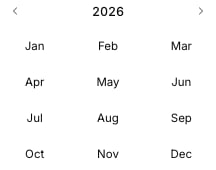 Reopen the estimate any time to choose a different month, or clear it to remove the post from the Month and Quarter views.
You can also set the estimate while [creating a post](/help/feedback/create-post#set-the-post-properties), and filter your feedback list by it using the **Estimated** filter described in [Filter, sort, and search feedback](/help/feedback/filters).
## Month view
Open the **Group by** menu on the roadmap and choose **Month** to lay posts out across individual months. Each column is one month, and a post sits in the month of its estimate.
Reopen the estimate any time to choose a different month, or clear it to remove the post from the Month and Quarter views.
You can also set the estimate while [creating a post](/help/feedback/create-post#set-the-post-properties), and filter your feedback list by it using the **Estimated** filter described in [Filter, sort, and search feedback](/help/feedback/filters).
## Month view
Open the **Group by** menu on the roadmap and choose **Month** to lay posts out across individual months. Each column is one month, and a post sits in the month of its estimate.
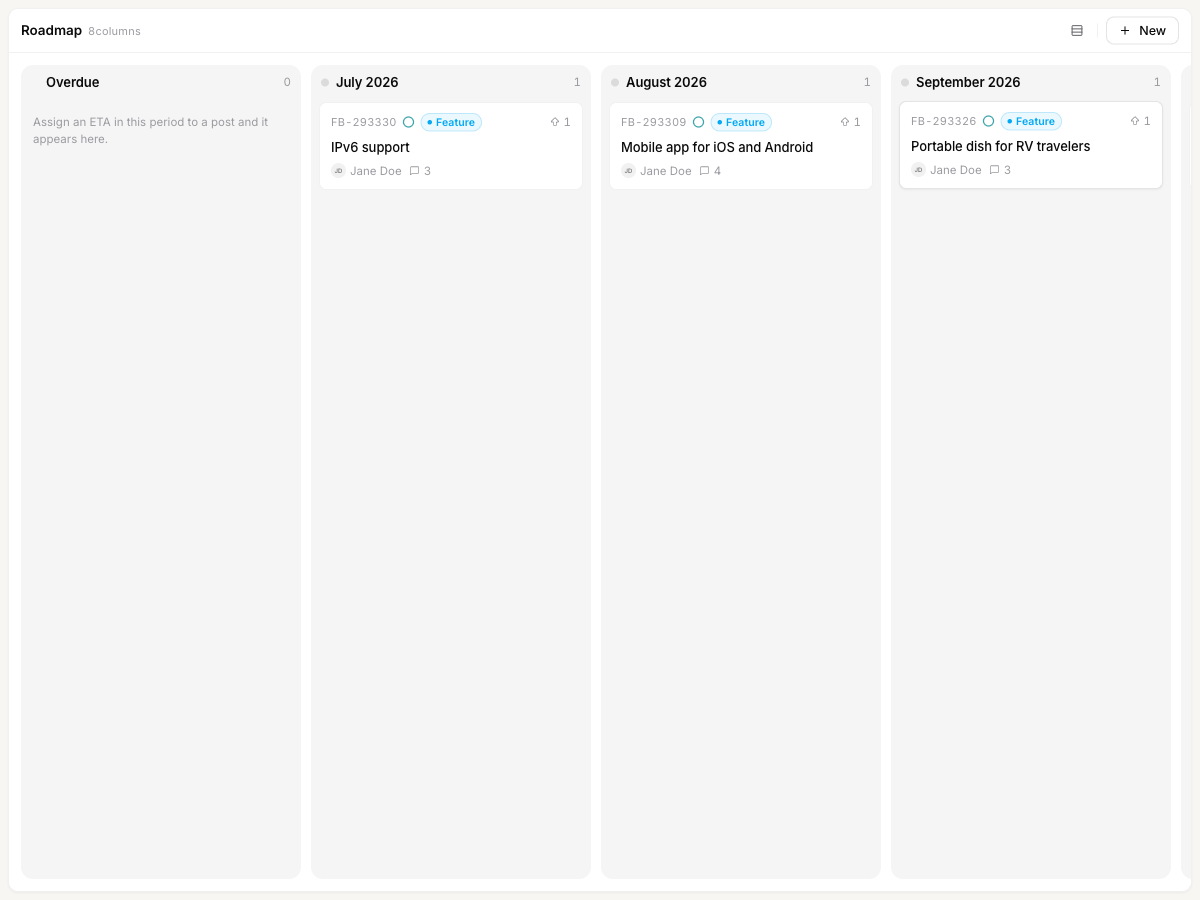 The view shows a rolling window of upcoming months. Two extra columns bookend it:
* **Overdue** collects posts whose estimate has already passed but are not yet complete, so nothing slips through unnoticed.
* **Future** collects posts estimated beyond the last month shown in the window.
Month view is best for near-term planning, when you want to see exactly which requests land in which month.
## Quarter view
Choose **Quarter** from the **Group by** menu to zoom out. Each column is a calendar quarter, and posts are grouped by the quarter their estimate falls in.
The view shows a rolling window of upcoming months. Two extra columns bookend it:
* **Overdue** collects posts whose estimate has already passed but are not yet complete, so nothing slips through unnoticed.
* **Future** collects posts estimated beyond the last month shown in the window.
Month view is best for near-term planning, when you want to see exactly which requests land in which month.
## Quarter view
Choose **Quarter** from the **Group by** menu to zoom out. Each column is a calendar quarter, and posts are grouped by the quarter their estimate falls in.
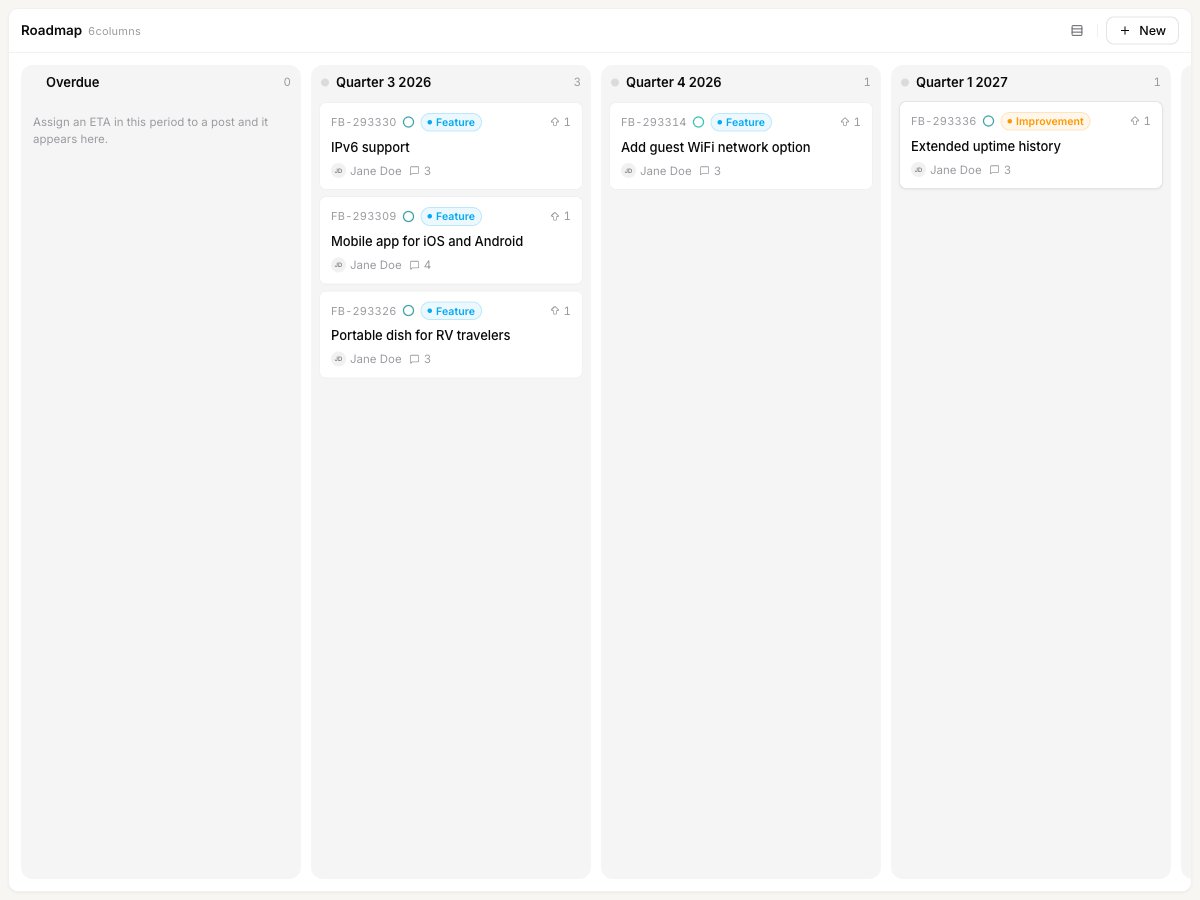 Like Month view, it includes an **Overdue** column at the start and a **Future** column at the end. Quarter view suits longer-range planning and higher-level updates, where month-by-month detail is more than your users need.
## Moving a post's timeline
Cards are not draggable in Month or Quarter view. To move a post to a different month or quarter, open it and change its estimate. Dragging between columns only works in [Status view](/help/roadmap#status-view), where it changes the post's status.
## Show a timeline roadmap to your users
By default the public roadmap is grouped by status. To make the Month or Quarter layout the one visitors see first, go to [**Settings → Roadmap**](https://app.sleekplan.com/settings/roadmap) and set **Default roadmap type** to **Month-based** or **Quarter-based**. This is covered in [The roadmap](/help/roadmap#set-the-default-view-for-visitors).
## Related
Group by status, drag posts between columns, and set the public default view.
Add feedback and set its estimate along with status, category, and owner.
Like Month view, it includes an **Overdue** column at the start and a **Future** column at the end. Quarter view suits longer-range planning and higher-level updates, where month-by-month detail is more than your users need.
## Moving a post's timeline
Cards are not draggable in Month or Quarter view. To move a post to a different month or quarter, open it and change its estimate. Dragging between columns only works in [Status view](/help/roadmap#status-view), where it changes the post's status.
## Show a timeline roadmap to your users
By default the public roadmap is grouped by status. To make the Month or Quarter layout the one visitors see first, go to [**Settings → Roadmap**](https://app.sleekplan.com/settings/roadmap) and set **Default roadmap type** to **Month-based** or **Quarter-based**. This is covered in [The roadmap](/help/roadmap#set-the-default-view-for-visitors).
## Related
Group by status, drag posts between columns, and set the public default view.
Add feedback and set its estimate along with status, category, and owner.