> ## Documentation Index
> Fetch the complete documentation index at: https://sleekplan.com/llms.txt
> Use this file to discover all available pages before exploring further.
# Choose the widget's home screen
> The home screen is the first thing a visitor sees when they open your widget. Pick which section loads first: the feedback board, the changelog, or the roadmap. This guide shows how to set it and what each choice looks like to a visitor.
The **home screen** is the section your widget opens on. When a visitor clicks your launcher button, this is the first screen they land on before they navigate anywhere else. You can point it at your feedback board, your changelog, or your roadmap, so people arrive exactly where you want them.
The Home screen setting lives under **Public Portal & Widget** in your workspace settings, and only workspace **owners** and **admins** can change it. If you have not added the widget to your site yet, [install the widget](/help/getting-started/install-widget) first.
## Open the Home screen settings
Navigate to [**Settings → Public Portal & Widget → Widget**](https://app.sleekplan.com/settings/widget).
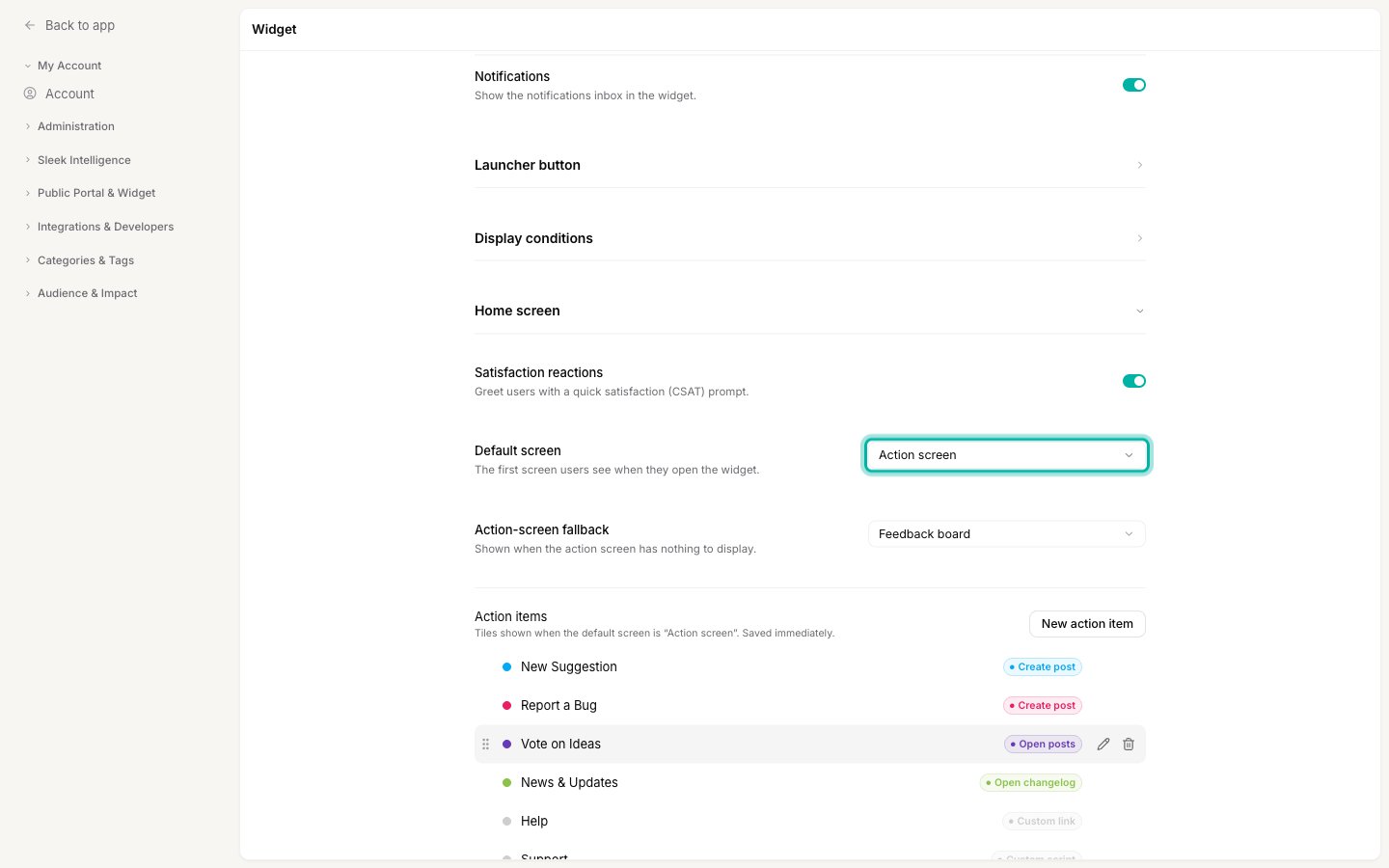
Scroll down and click **Home screen** to open it. Inside you will find the **Default screen** control.
 ## Pick a default screen
Open the **Default screen** dropdown and choose which section loads first.
## Pick a default screen
Open the **Default screen** dropdown and choose which section loads first.
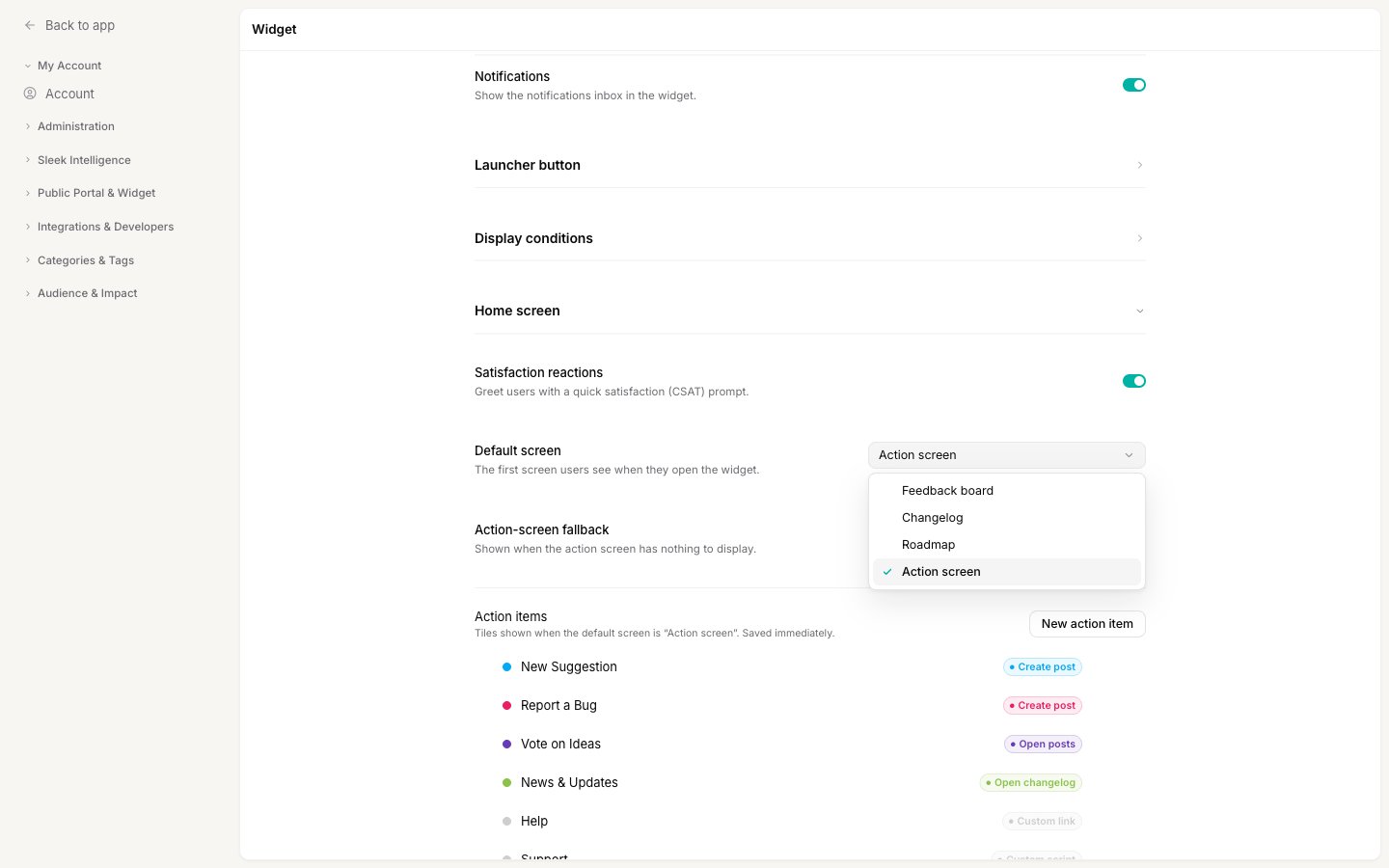 You have four choices. This article covers the three board options below. The fourth, **Action screen**, is a custom launcher of quick-action tiles and is covered in its own guide: [set up an action screen](/help/portal-widget/widget-action-screen).
After you pick an option, a save bar appears at the bottom of the page. Click **Save changes** to make it live, or **Discard** to revert.
A section can only be your home screen if it is switched on in the **Navigation** part of the same Widget settings page (and its module is enabled for your workspace). If you choose a section that is turned off, the widget quietly falls back to the first section that is enabled, so the home screen and the menu never disagree.
### Feedback board
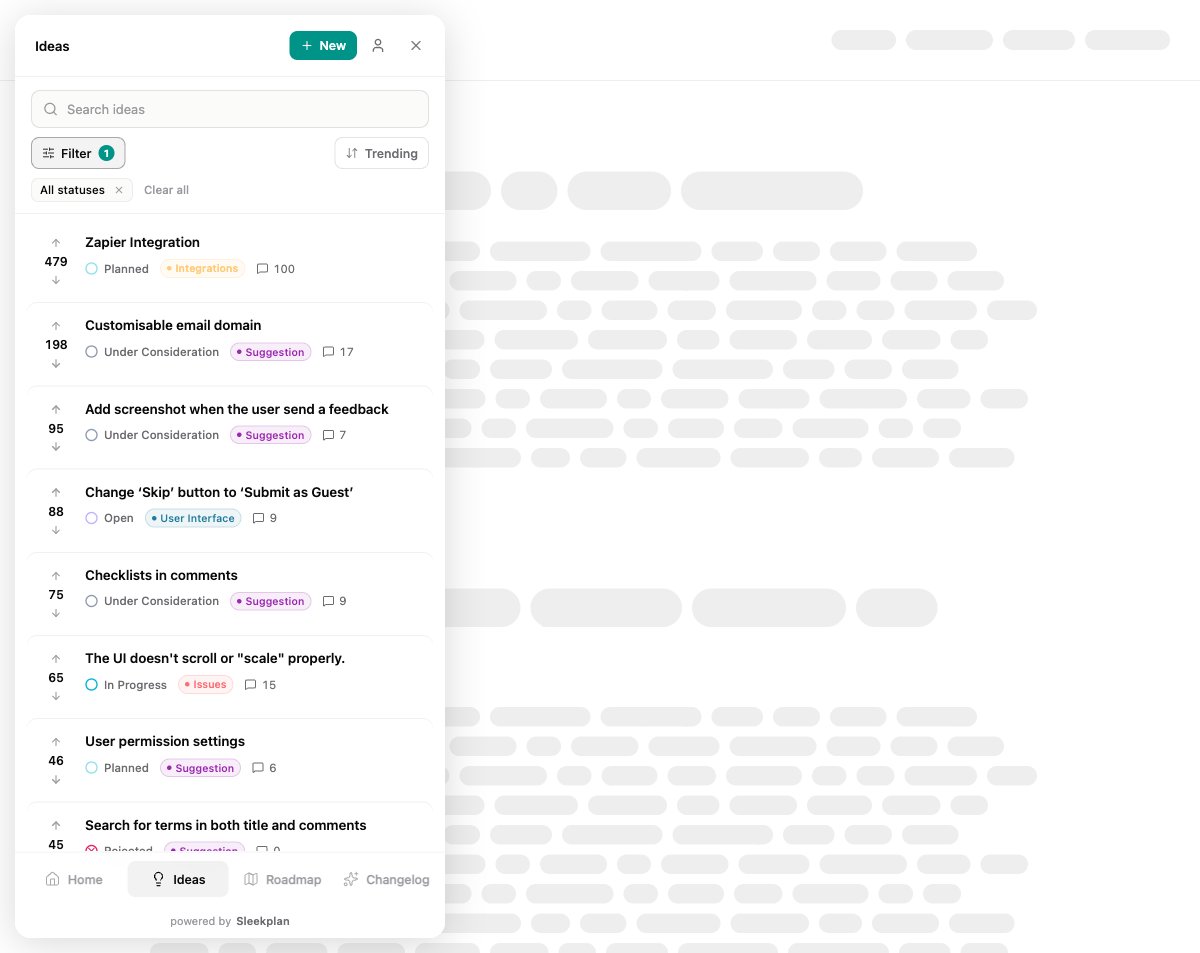
Visitors land on your feedback board, the list of ideas people can vote on and comment on. This is the best default when collecting and prioritizing feature requests is your main goal.
You have four choices. This article covers the three board options below. The fourth, **Action screen**, is a custom launcher of quick-action tiles and is covered in its own guide: [set up an action screen](/help/portal-widget/widget-action-screen).
After you pick an option, a save bar appears at the bottom of the page. Click **Save changes** to make it live, or **Discard** to revert.
A section can only be your home screen if it is switched on in the **Navigation** part of the same Widget settings page (and its module is enabled for your workspace). If you choose a section that is turned off, the widget quietly falls back to the first section that is enabled, so the home screen and the menu never disagree.
### Feedback board
Visitors land on your feedback board, the list of ideas people can vote on and comment on. This is the best default when collecting and prioritizing feature requests is your main goal.
 ### Roadmap
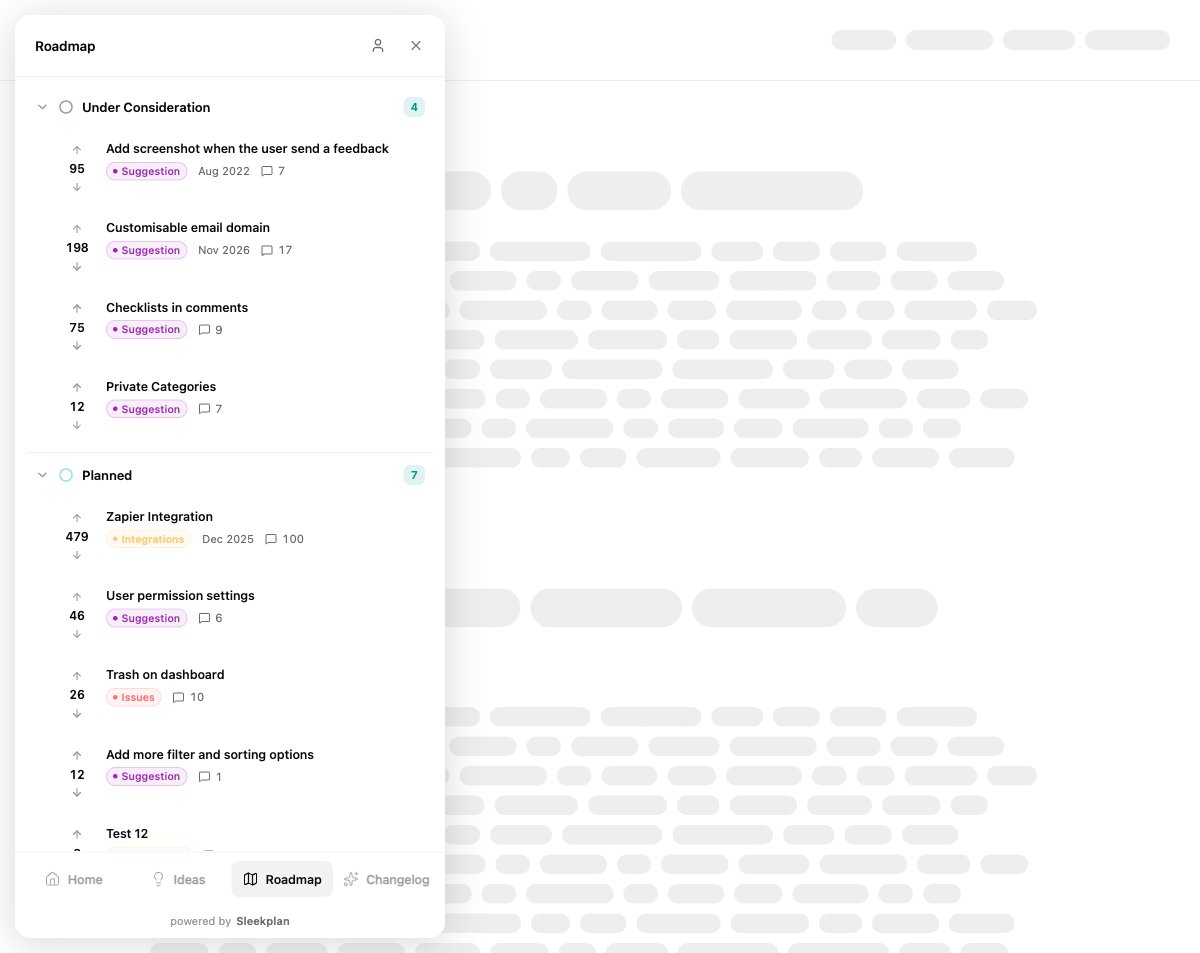
Visitors land on your [roadmap](/help/roadmap), the columns that show what is under consideration, planned, and in progress. Choose this when you want to lead with what you are building next and set expectations.
### Roadmap
Visitors land on your [roadmap](/help/roadmap), the columns that show what is under consideration, planned, and in progress. Choose this when you want to lead with what you are building next and set expectations.
 ### Changelog
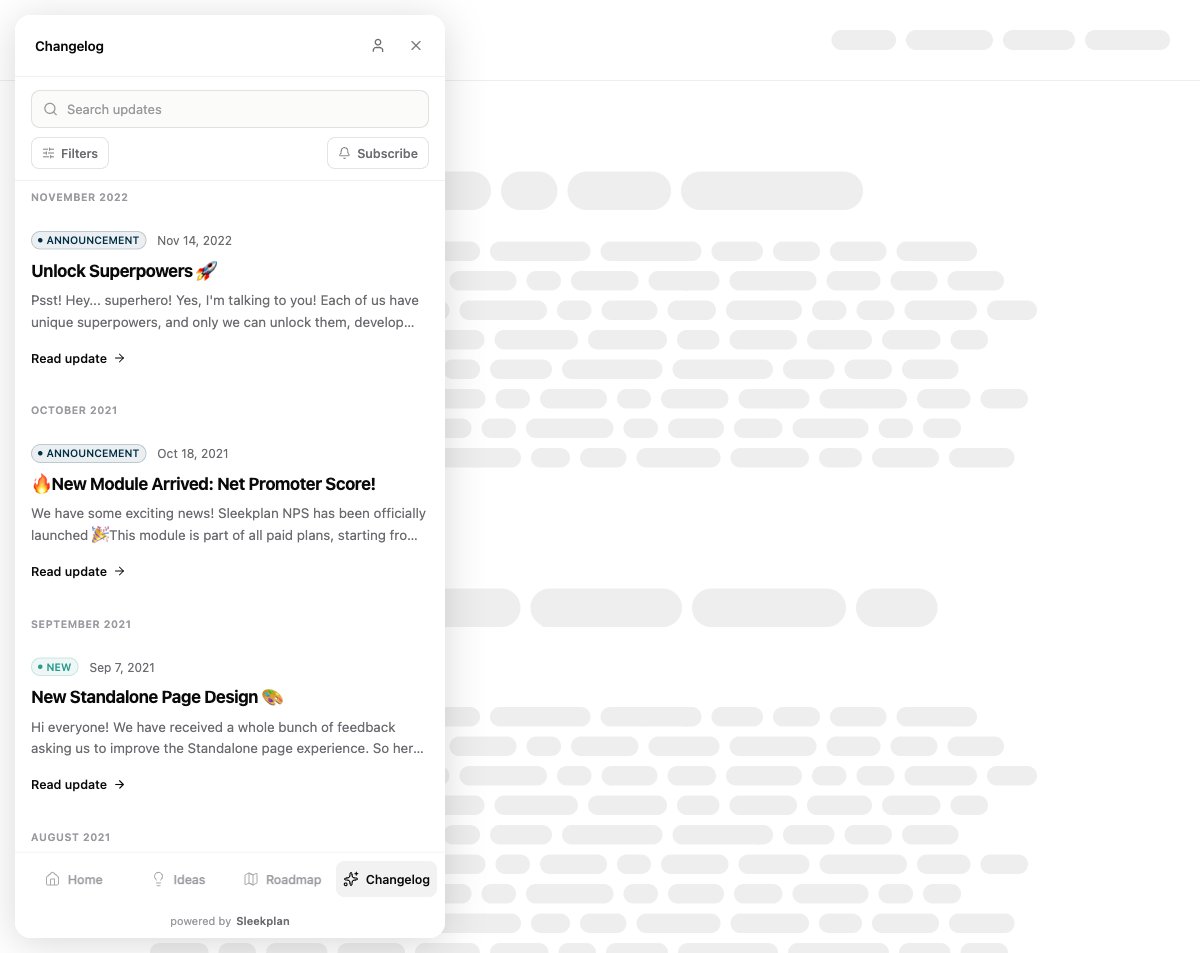
Visitors land on your changelog, the timeline of updates and releases you have shipped. Choose this when announcing what is new is the point of your widget.
### Changelog
Visitors land on your changelog, the timeline of updates and releases you have shipped. Choose this when announcing what is new is the point of your widget.
 ## The tab bar still lets visitors move around
The home screen only decides where a visitor *starts*. The tab bar at the bottom of the widget still lets them switch between every section you have enabled, so setting a default screen never hides the others. Use the **Navigation** section on the same page to control which tabs appear at all.
## The same setting for your public portal
The Home screen setting also exists under [**Settings → Public Portal & Widget → Portal**](https://app.sleekplan.com/settings/portal), where it controls the landing section of your public portal website. The **Action-screen fallback** option matters here too: because the public portal has no action screen, a portal set to the action screen falls back to the board you pick there.
## Next steps
Replace the home screen with a custom launcher of quick-action tiles.
Decide who can reach your portal and how they sign in.
## The tab bar still lets visitors move around
The home screen only decides where a visitor *starts*. The tab bar at the bottom of the widget still lets them switch between every section you have enabled, so setting a default screen never hides the others. Use the **Navigation** section on the same page to control which tabs appear at all.
## The same setting for your public portal
The Home screen setting also exists under [**Settings → Public Portal & Widget → Portal**](https://app.sleekplan.com/settings/portal), where it controls the landing section of your public portal website. The **Action-screen fallback** option matters here too: because the public portal has no action screen, a portal set to the action screen falls back to the board you pick there.
## Next steps
Replace the home screen with a custom launcher of quick-action tiles.
Decide who can reach your portal and how they sign in.