> ## Documentation Index
> Fetch the complete documentation index at: https://sleekplan.com/llms.txt
> Use this file to discover all available pages before exploring further.
# Set up a widget action screen
> The action screen turns your widget's home into a custom launcher of tiles: create a post, open the roadmap, jump to a help page, start a chat, and more. This guide shows how to switch it on and build each action item.
The **action screen** replaces the widget's home with a grid of tiles you design. Instead of dropping visitors straight onto the feedback board, you greet them with clear next steps: "Suggest a feature", "Report a bug", "See what's new", "Talk to support". Each tile is an **action item** you configure, so the first thing people see is a menu built around what you want them to do.
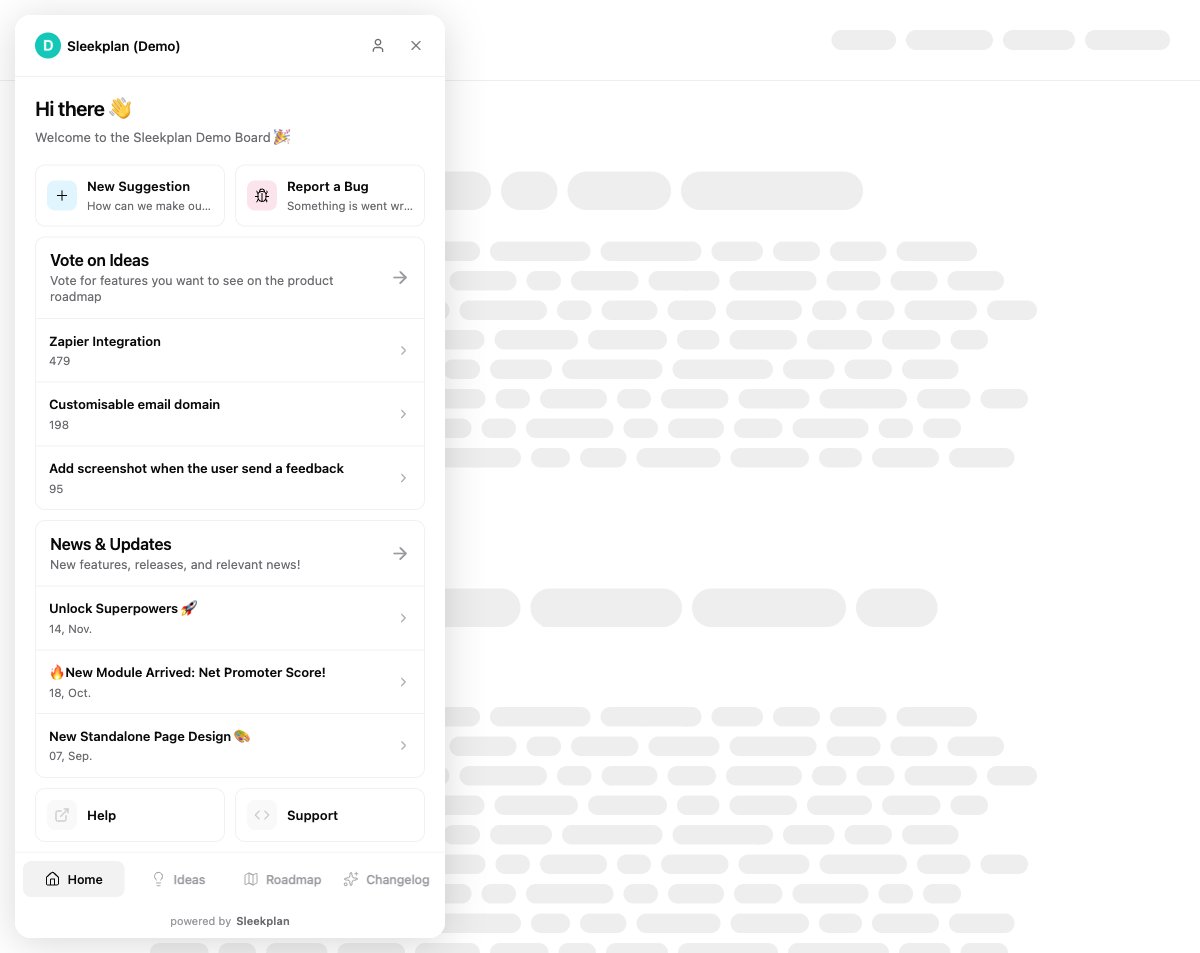 The action screen lives under **Public Portal & Widget** in your workspace settings, and only workspace **owners** and **admins** can change it. If you have not added the widget to your site yet, [install the widget](/help/getting-started/install-widget) first. The action screen shows in the embeddable widget; your public portal website uses the fallback board instead (see below).
## Turn on the action screen
Navigate to [**Settings → Public Portal & Widget → Widget**](https://app.sleekplan.com/settings/widget) and expand the **Home screen** section.
In the **Default screen** dropdown, choose **Action screen**. A save bar appears at the bottom of the page: click **Save changes** to apply it.
The action screen lives under **Public Portal & Widget** in your workspace settings, and only workspace **owners** and **admins** can change it. If you have not added the widget to your site yet, [install the widget](/help/getting-started/install-widget) first. The action screen shows in the embeddable widget; your public portal website uses the fallback board instead (see below).
## Turn on the action screen
Navigate to [**Settings → Public Portal & Widget → Widget**](https://app.sleekplan.com/settings/widget) and expand the **Home screen** section.
In the **Default screen** dropdown, choose **Action screen**. A save bar appears at the bottom of the page: click **Save changes** to apply it.
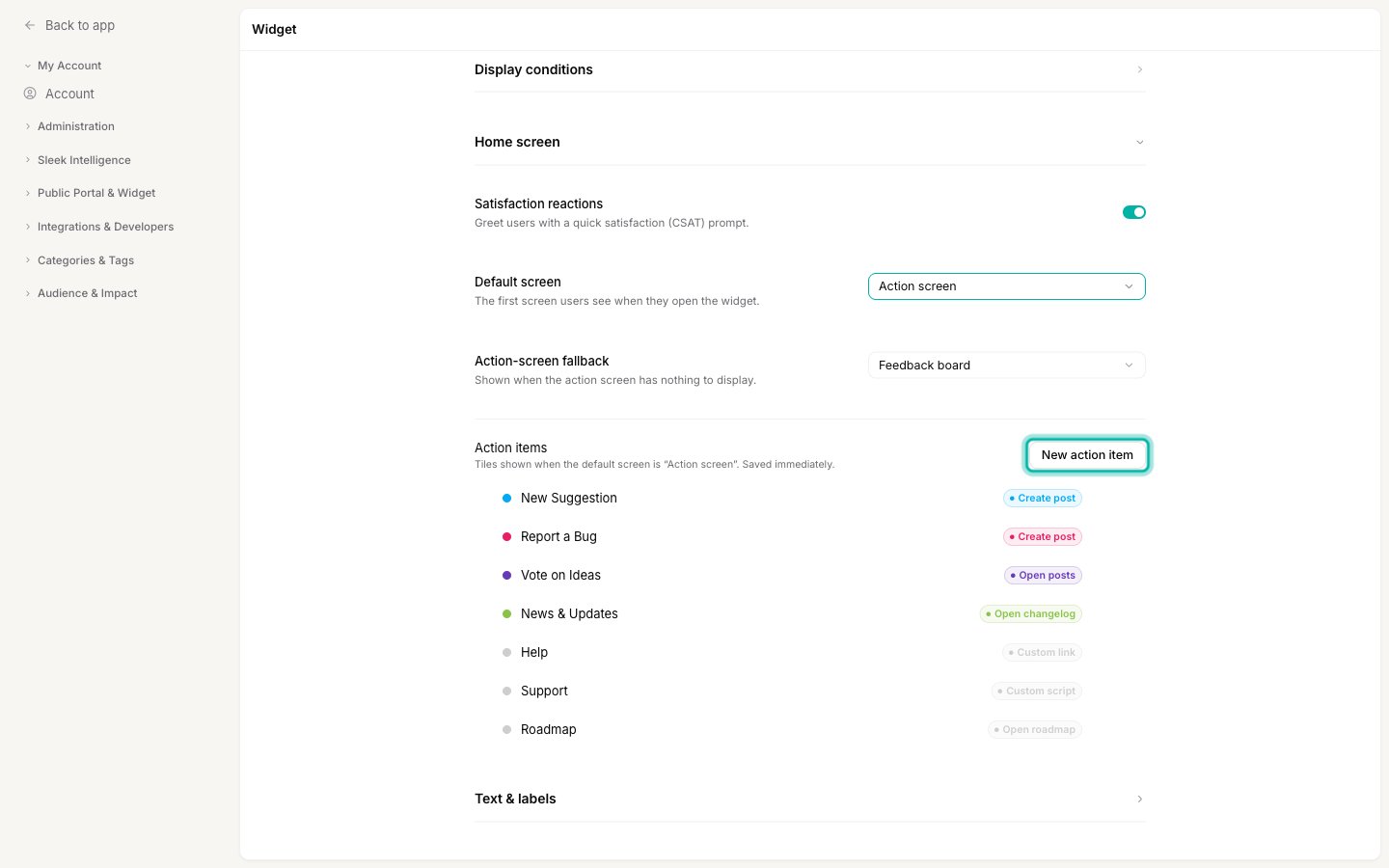 Choose an **Action-screen fallback** (Feedback board, Changelog, or Roadmap). This is what shows when the action screen has nothing to display, and it is also what your [public portal](/help/portal-widget/widget-home-screen#the-same-setting-for-your-public-portal) lands on, since the portal website has no action screen.
For more on the default-screen choice and the other options, see [Choose the widget's home screen](/help/portal-widget/widget-home-screen).
## Add an action item
Each tile on the action screen is one action item. In the **Action items** list, click **New action item** to open the editor. Action items are **saved immediately**, one at a time, so you do not need the page's save bar for them.
Choose an **Action-screen fallback** (Feedback board, Changelog, or Roadmap). This is what shows when the action screen has nothing to display, and it is also what your [public portal](/help/portal-widget/widget-home-screen#the-same-setting-for-your-public-portal) lands on, since the portal website has no action screen.
For more on the default-screen choice and the other options, see [Choose the widget's home screen](/help/portal-widget/widget-home-screen).
## Add an action item
Each tile on the action screen is one action item. In the **Action items** list, click **New action item** to open the editor. Action items are **saved immediately**, one at a time, so you do not need the page's save bar for them.
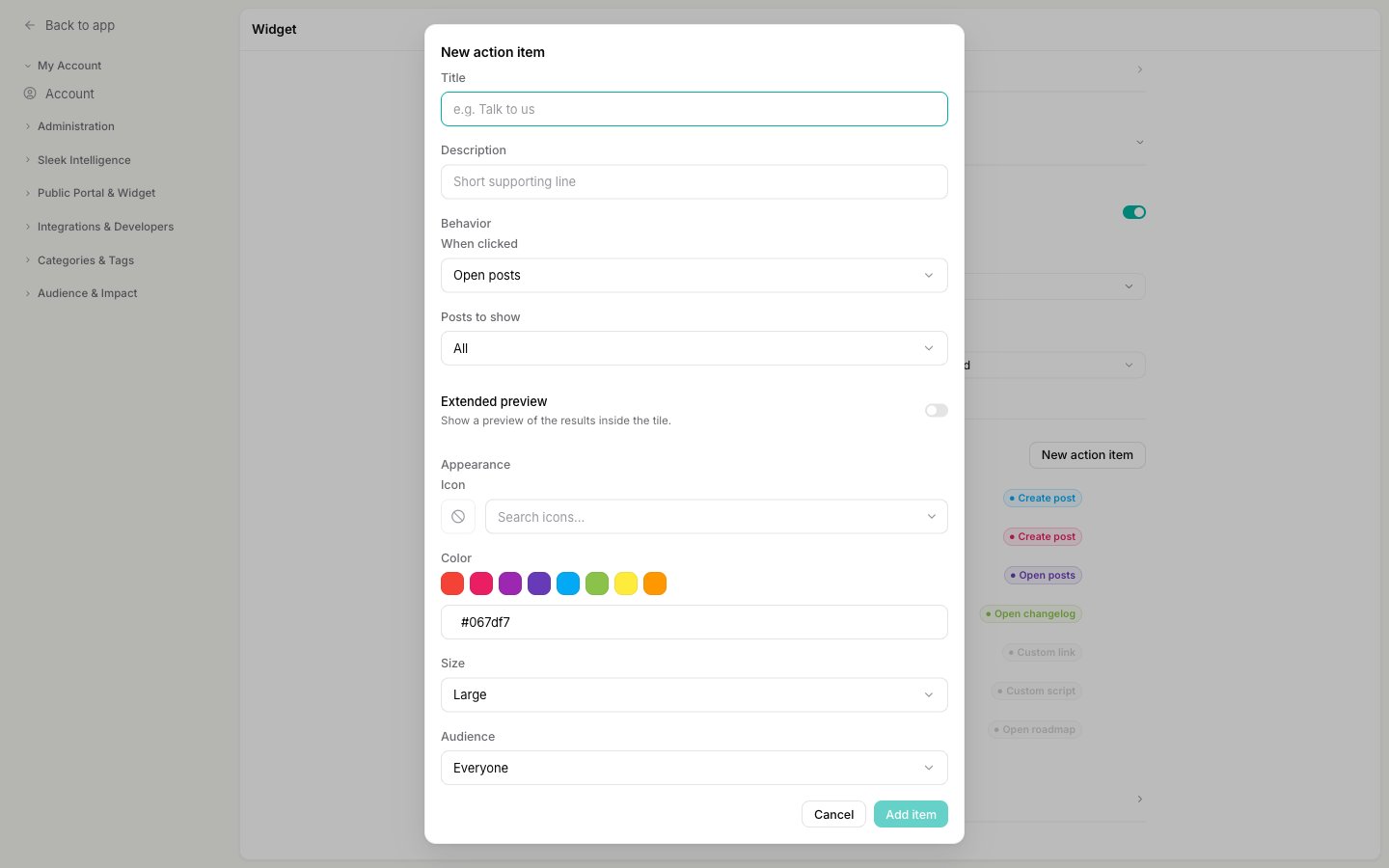 Fill in the fields:
Give it a **Title** (required, for example "Talk to us") and an optional **Description**, the short supporting line shown beneath the title.
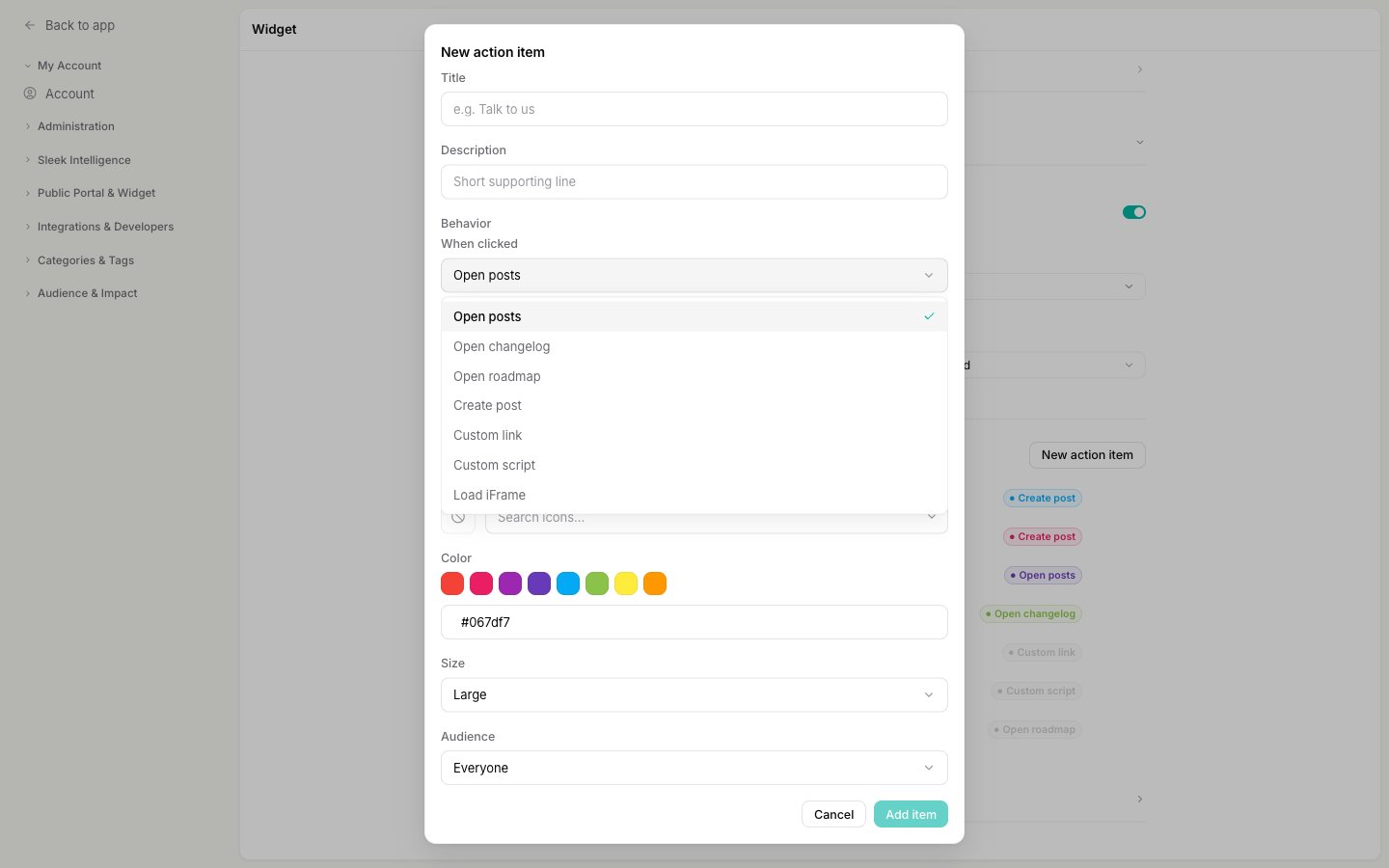
Under **Behavior**, open the **When clicked** dropdown and pick an action type (see the full list below). Depending on the type, a second field appears to point the action at the right place.
Fill in the fields:
Give it a **Title** (required, for example "Talk to us") and an optional **Description**, the short supporting line shown beneath the title.
Under **Behavior**, open the **When clicked** dropdown and pick an action type (see the full list below). Depending on the type, a second field appears to point the action at the right place.
 Under **Appearance**, pick an **Icon**, a **Color**, and a **Size** (**Large** for a full-width row, **Small** to sit two-per-row in a grid).
If your workspace uses segments, set the **Audience** to **Everyone** or a specific segment so the tile only shows to the people you target.
Click **Add item**. The tile appears in the list and on the widget's action screen right away.
## Action types
The **When clicked** dropdown decides what a tile does:
| Action type | What it does |
| ------------------ | -------------------------------------------------------------------------------------------------------------------------------------------------------------------------------------------------------------------------------------------------------------- |
| **Open posts** | Opens the feedback board. You can pick which **posts to show** (all, all except closed, or a single status). Use this for a "Vote on ideas" tile. |
| **Open changelog** | Opens the changelog timeline. Use this for a "What's new" tile. |
| **Open roadmap** | Opens the [roadmap](/help/roadmap). |
| **Create post** | Opens the [new-post form](/help/feedback/create-post). Set a **Category** to pre-select a [feedback category](/help/feedback/categories), or leave it on **User selection** to let the visitor choose. Ideal for "Suggest a feature" and "Report a bug" tiles. |
| **Custom link** | Opens a URL you enter in a new tab. Point it at your docs, a demo booking page, or anywhere else. |
| **Custom script** | Runs a snippet of JavaScript on your page, for example `window.Intercom('show')` to open a chat widget. |
| **Load iFrame** | Embeds a page you enter directly inside the widget. |
## Show a live preview inside the tile
For **Open posts** and **Open changelog** tiles, turn on **Extended preview** in the editor to show a few real results inside the tile itself. That is how the Demo workspace's "Vote on Ideas" tile lists its top posts and "News & Updates" shows recent changelog entries, straight on the action screen.
## Reorder, edit, and remove items
In the **Action items** list, drag an item by its handle to reorder the tiles, use the pencil icon to **edit** it, or the trash icon to **delete** it. Every change saves immediately.
## Next steps
Prefer a plain board? Point the home screen at feedback, roadmap, or changelog instead.
See how the posts behind your "Create post" and "Open posts" tiles work.
Under **Appearance**, pick an **Icon**, a **Color**, and a **Size** (**Large** for a full-width row, **Small** to sit two-per-row in a grid).
If your workspace uses segments, set the **Audience** to **Everyone** or a specific segment so the tile only shows to the people you target.
Click **Add item**. The tile appears in the list and on the widget's action screen right away.
## Action types
The **When clicked** dropdown decides what a tile does:
| Action type | What it does |
| ------------------ | -------------------------------------------------------------------------------------------------------------------------------------------------------------------------------------------------------------------------------------------------------------- |
| **Open posts** | Opens the feedback board. You can pick which **posts to show** (all, all except closed, or a single status). Use this for a "Vote on ideas" tile. |
| **Open changelog** | Opens the changelog timeline. Use this for a "What's new" tile. |
| **Open roadmap** | Opens the [roadmap](/help/roadmap). |
| **Create post** | Opens the [new-post form](/help/feedback/create-post). Set a **Category** to pre-select a [feedback category](/help/feedback/categories), or leave it on **User selection** to let the visitor choose. Ideal for "Suggest a feature" and "Report a bug" tiles. |
| **Custom link** | Opens a URL you enter in a new tab. Point it at your docs, a demo booking page, or anywhere else. |
| **Custom script** | Runs a snippet of JavaScript on your page, for example `window.Intercom('show')` to open a chat widget. |
| **Load iFrame** | Embeds a page you enter directly inside the widget. |
## Show a live preview inside the tile
For **Open posts** and **Open changelog** tiles, turn on **Extended preview** in the editor to show a few real results inside the tile itself. That is how the Demo workspace's "Vote on Ideas" tile lists its top posts and "News & Updates" shows recent changelog entries, straight on the action screen.
## Reorder, edit, and remove items
In the **Action items** list, drag an item by its handle to reorder the tiles, use the pencil icon to **edit** it, or the trash icon to **delete** it. Every change saves immediately.
## Next steps
Prefer a plain board? Point the home screen at feedback, roadmap, or changelog instead.
See how the posts behind your "Create post" and "Open posts" tiles work.