> ## Documentation Index
> Fetch the complete documentation index at: https://sleekplan.com/llms.txt
> Use this file to discover all available pages before exploring further.
# Personalize your widget with variables
> Variables drop a visitor's own name or email into your widget titles, popups, and survey questions, so each person sees a message addressed to them. This guide covers the syntax, the four available variables, and where they work.
Variables let you insert a visitor's own details into the text your widget shows. Instead of a generic "Hi there", a signed-in visitor named John sees "Hi John". You write a short token in any supported text field, and Sleekplan swaps it for that visitor's data when the widget loads.
Variables are filled in for visitors Sleekplan can identify: people signed in to your portal, or visitors you identify through the [widget SDK](/help/getting-started/install-widget). Anonymous visitors always see the **fallback** text you provide, so your message reads well for everyone.
## The syntax
A variable is a name and a fallback, wrapped in curly braces and separated by a pipe:
```
{variable|fallback}
```
* **`variable`** is the detail to insert (see [the available variables](#the-available-variables)).
* **`fallback`** is the text to show when that detail is missing.
For example, `Hi {user_first_name|there} 👋` renders as:
* **Hi John 👋** for a signed-in visitor named John Doe.
* **Hi there 👋** for an anonymous visitor, or one whose name Sleekplan does not have.
Always include a fallback. Without one, a visitor whose detail is missing can see the raw `{...}` text instead of a clean message. The fallback is what keeps the sentence readable when the personal detail is not available.
Write the token without spaces around the pipe, like `{user_first_name|there}`. The variable name is matched loosely, but anything you type after the pipe (including spaces) becomes part of your fallback text.
## The available variables
Four visitor variables are supported:
| Variable | Inserts |
| ----------------- | -------------------------------------------------------- |
| `user_first_name` | The visitor's first name (the first word of their name). |
| `user_full_name` | The visitor's full name. |
| `user_name` | The visitor's name. |
| `user_email` | The visitor's email address. |
Only these four names work. A token that does not match one of them is treated as missing, so its fallback (or, with no fallback, the raw text) is shown instead. Type the names exactly as listed.
## Where you can use variables
Variables are substituted inside the embedded widget and its popups. You can add them to these fields:
**Widget content**, under [**Settings → Public Portal & Widget → Widget**](https://app.sleekplan.com/settings/widget), in the **Text & labels** section:
* **Title**
* **Description**
* **Satisfaction prompt title**
These same fields are also available under [**Settings → Public Portal & Widget → Portal**](https://app.sleekplan.com/settings/portal).
**Outbound messages (popups)**, under [**Settings → Public Portal & Widget → Outbound messages**](https://app.sleekplan.com/settings/outbound). Add a variable to the **Message** or **Question** of your Feedback, Subscribe, CSAT, and NPS messages, and to the NPS **Follow-up prompt**.
**Survey questions**, in the question text of any survey on the [**Surveys**](https://app.sleekplan.com/surveys) screen.
Variables apply in the embedded widget and its popups only. They are not filled in on your standalone hosted portal pages, so keep variables to widget and popup text rather than content a portal visitor reads directly.
## Add a variable
For the widget greeting, go to [**Settings → Public Portal & Widget → Widget**](https://app.sleekplan.com/settings/widget) and open the **Text & labels** section.
Add the variable where you want the personal detail to appear. For example, set the **Title** to `Hi {user_first_name|there} 👋`.
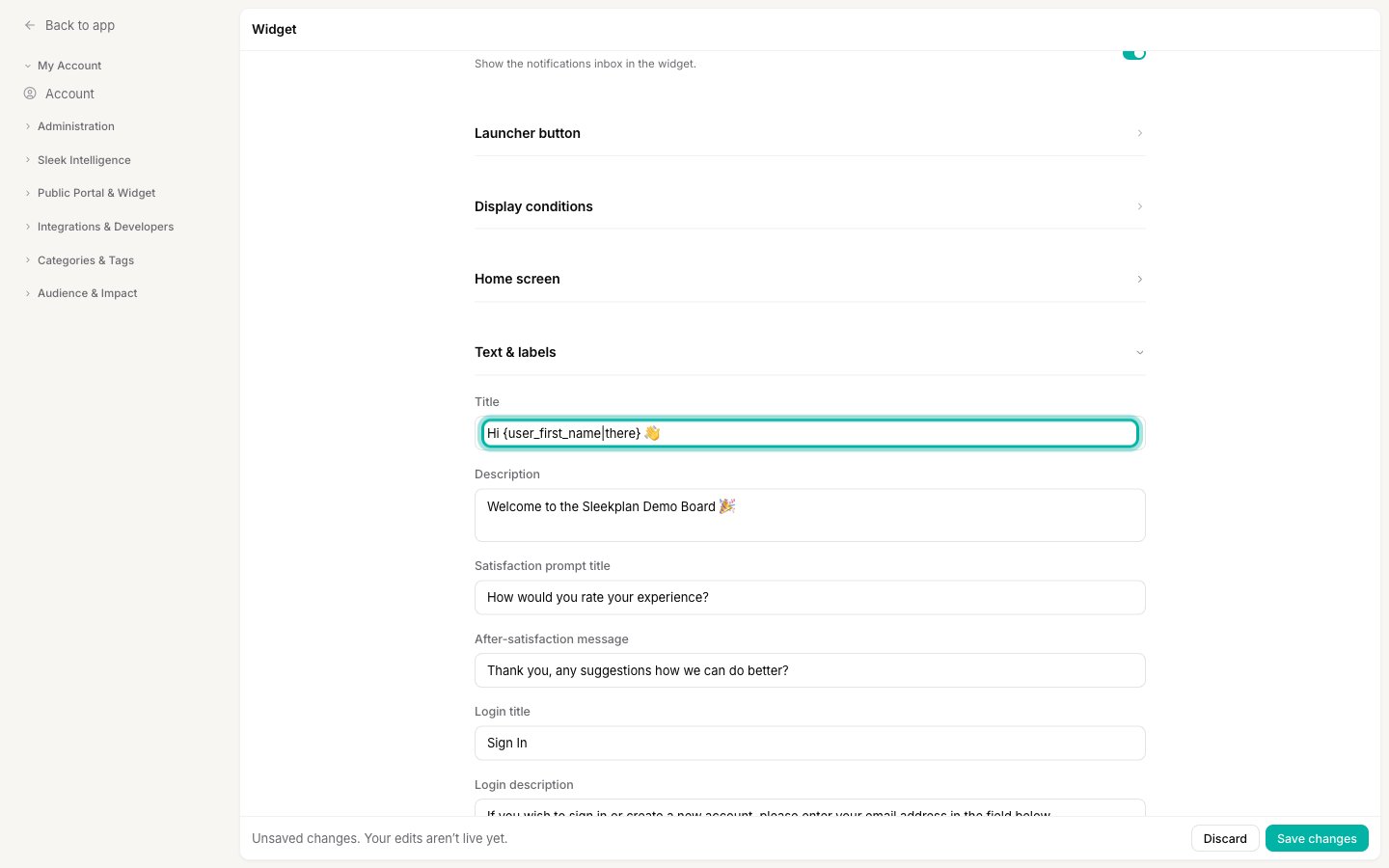 A save bar appears at the bottom of the page once you edit a field. Click **Save changes** to make it live.
Open your widget as a signed-in visitor to see the personalized text, then as an anonymous visitor to confirm the fallback reads well. Both are worth checking, because most of your visitors may be seeing the fallback.
## Use variables in popups and surveys
The same `{variable|fallback}` syntax works in your popups and survey questions.
**In a popup**, open [**Settings → Public Portal & Widget → Outbound messages**](https://app.sleekplan.com/settings/outbound), then create or edit a message and add a variable to its **Message** or **Question** field. For an NPS message you can also personalize the **Follow-up prompt**.
A save bar appears at the bottom of the page once you edit a field. Click **Save changes** to make it live.
Open your widget as a signed-in visitor to see the personalized text, then as an anonymous visitor to confirm the fallback reads well. Both are worth checking, because most of your visitors may be seeing the fallback.
## Use variables in popups and surveys
The same `{variable|fallback}` syntax works in your popups and survey questions.
**In a popup**, open [**Settings → Public Portal & Widget → Outbound messages**](https://app.sleekplan.com/settings/outbound), then create or edit a message and add a variable to its **Message** or **Question** field. For an NPS message you can also personalize the **Follow-up prompt**.
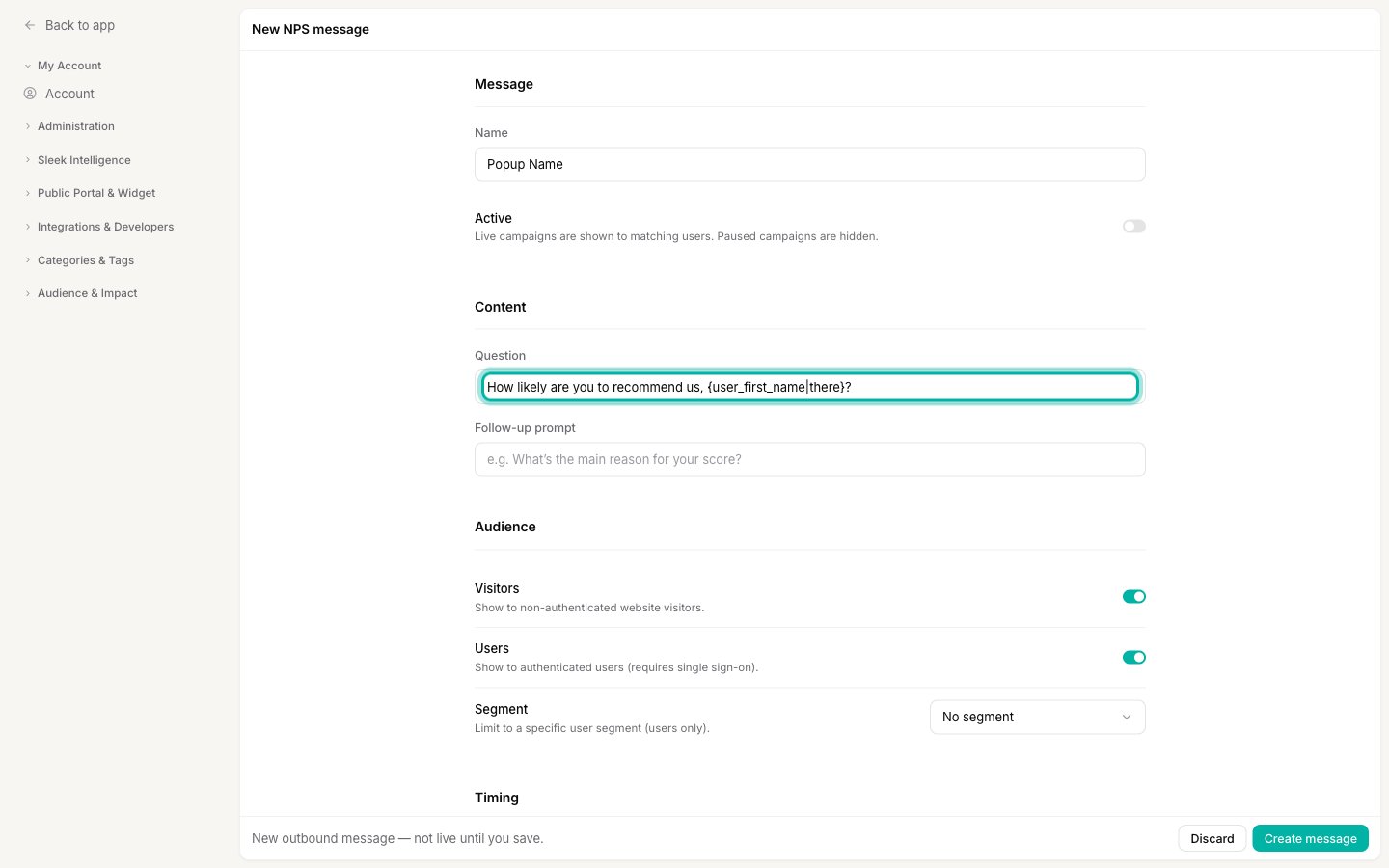 **In a survey**, open the [**Surveys**](https://app.sleekplan.com/surveys) screen, edit a survey, and add a variable to any question's text. It resolves the same way when a visitor answers.
## Good to know
* **Personalization needs an identified visitor.** The variable is only replaced with real data when Sleekplan knows who the visitor is. Anonymous visitors, and the widget preview in your settings, show the fallback.
* **A fallback is not optional in practice.** Because many visitors are anonymous, the fallback is what most people see. Write it as a complete, natural message.
* **Only the four variables above are recognized.** Any other name falls back.
* **Not for the standalone portal.** Variables are a widget and popup feature.
## Related
Choose which section a visitor lands on when they open the widget.
Build a launcher of quick-action tiles for the widget.
How visitors sign in and get identified, which is what unlocks personalization.
Go further and inject your own HTML, CSS, and JavaScript into your portal.
**In a survey**, open the [**Surveys**](https://app.sleekplan.com/surveys) screen, edit a survey, and add a variable to any question's text. It resolves the same way when a visitor answers.
## Good to know
* **Personalization needs an identified visitor.** The variable is only replaced with real data when Sleekplan knows who the visitor is. Anonymous visitors, and the widget preview in your settings, show the fallback.
* **A fallback is not optional in practice.** Because many visitors are anonymous, the fallback is what most people see. Write it as a complete, natural message.
* **Only the four variables above are recognized.** Any other name falls back.
* **Not for the standalone portal.** Variables are a widget and popup feature.
## Related
Choose which section a visitor lands on when they open the widget.
Build a launcher of quick-action tiles for the widget.
How visitors sign in and get identified, which is what unlocks personalization.
Go further and inject your own HTML, CSS, and JavaScript into your portal.