> ## Documentation Index
> Fetch the complete documentation index at: https://sleekplan.com/llms.txt
> Use this file to discover all available pages before exploring further.
# Show components on your public board
> Components are internal by default. Two settings on the Feedback board page make them public: show which part of the product each post is about and let visitors filter by it, and let users pick a component when they submit.
[Components](/help/feedback/components) are internal by default: your team uses them to see which part of the product demand is landing on, but the people submitting feedback never see them. Two settings turn them into part of the public experience. Both live in [**Settings → Feedback board**](https://app.sleekplan.com/settings/feedback).
These settings act on the components you have already created. Set them up first, in [**Settings → Components**](https://app.sleekplan.com/settings/components).
## Show components publicly
Turn on **Public components** in the **Public board display** section. Each post then shows its component, and visitors get a component filter so they can browse only the posts about one part of your product.
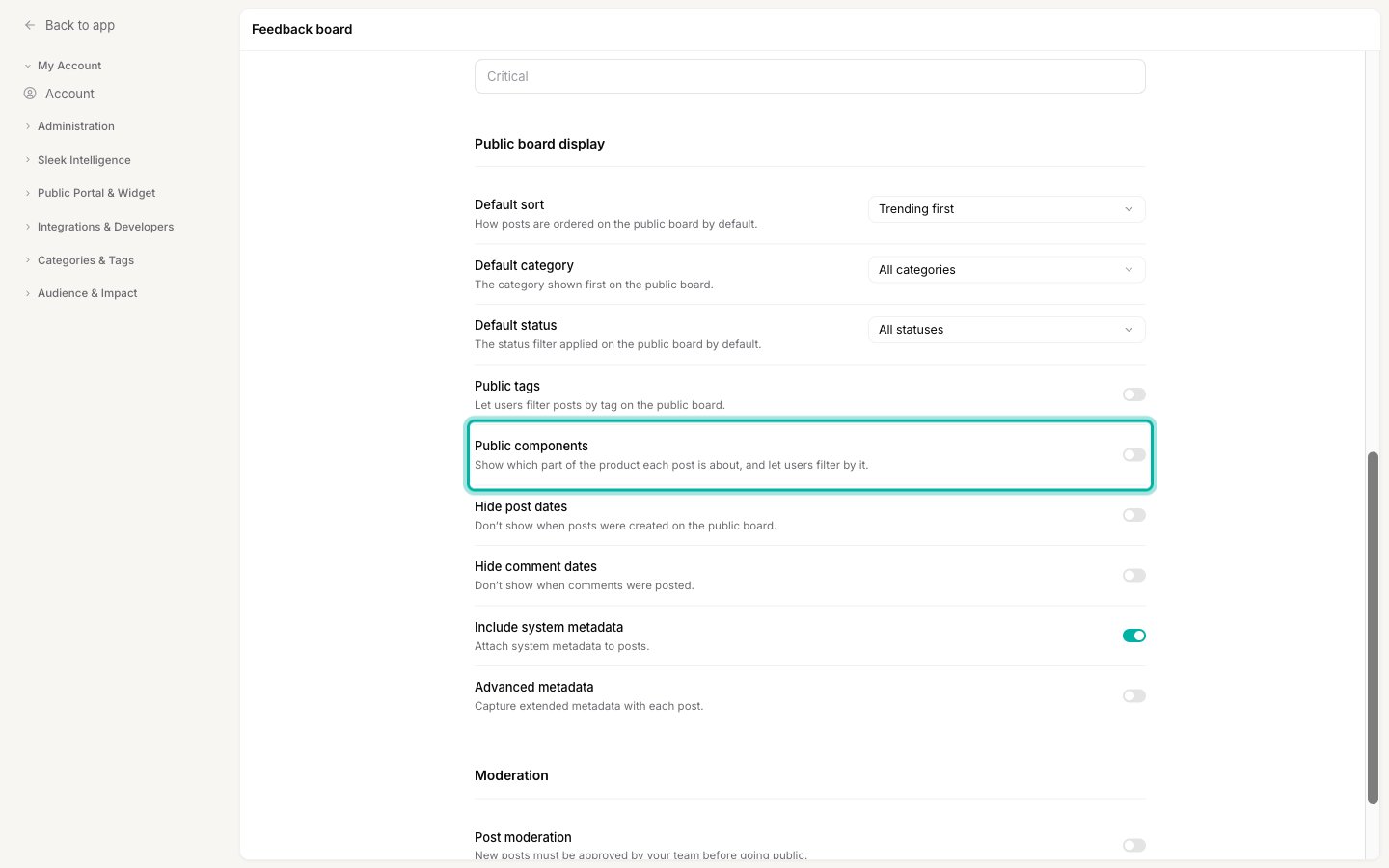 This is the setting that matters most. With it off, components do not exist as far as your customers are concerned: no label on a post, no filter, nothing.
## Let users pick a component when submitting
Turn on **Let users set components** in the **Submission & voting** section to add a component picker to the post form. Visitors can then say which part of your product their request is about, so feedback arrives already sorted.
This is the setting that matters most. With it off, components do not exist as far as your customers are concerned: no label on a post, no filter, nothing.
## Let users pick a component when submitting
Turn on **Let users set components** in the **Submission & voting** section to add a component picker to the post form. Visitors can then say which part of your product their request is about, so feedback arrives already sorted.
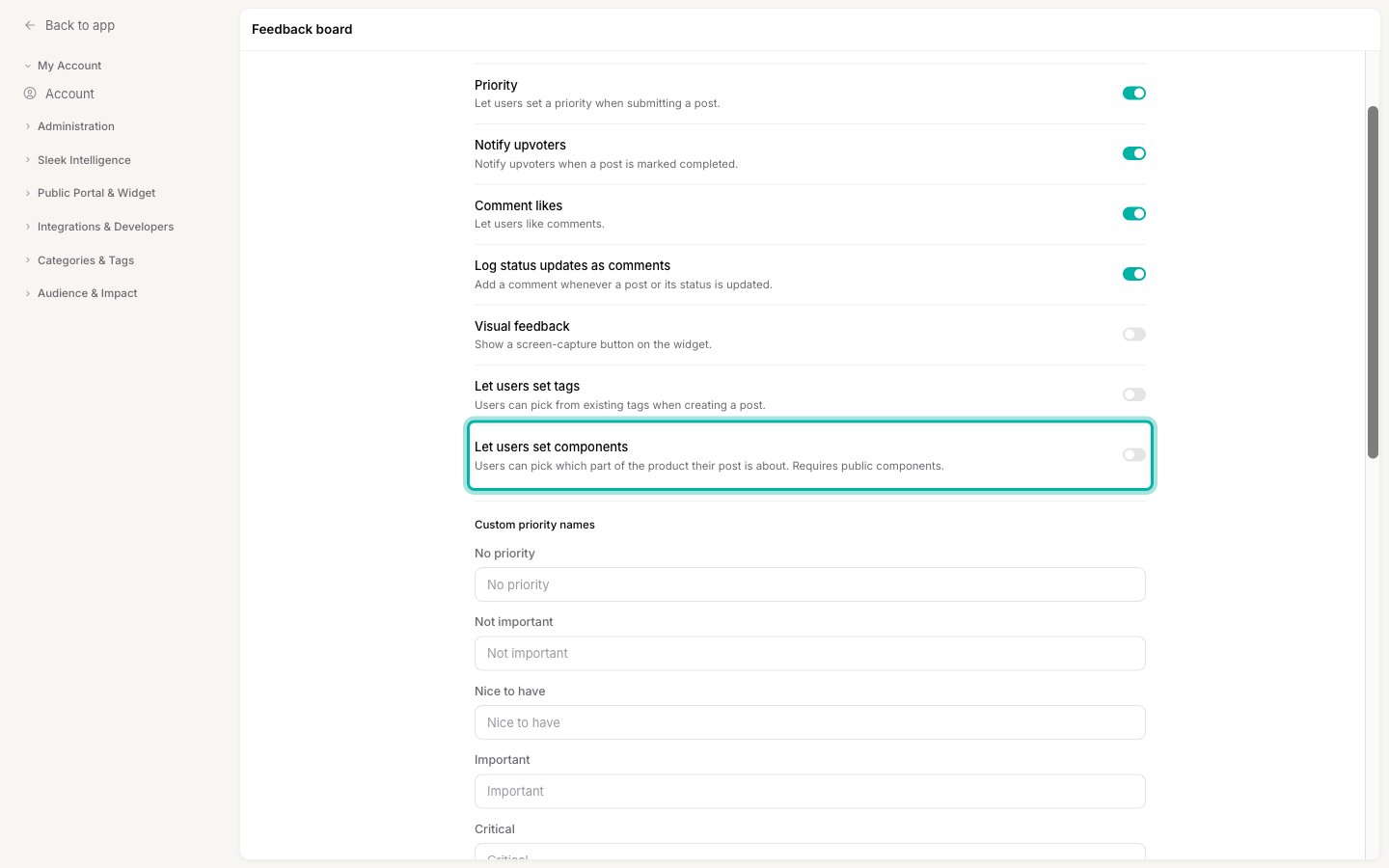 This setting depends on the first one. It stays greyed out until **Public components** is on, because asking someone to pick a component while hiding components everywhere else makes no sense.
Users can only pick from the components you created, they cannot invent new ones. Picking one is always optional.
## Mix and match
The two settings give you three useful combinations:
* **Both off** keeps components fully internal. Your team still sets them on posts; customers see nothing. This is the default.
* **Public components only** shows the component on each post and lets visitors filter by it, without asking them to choose one. Your team stays in control of what goes where, which usually produces cleaner data.
* **Both on** gives you a fully public component axis: customers label their own posts and everyone can filter by those labels.
There is no fourth combination. Turning on **Public components** is required for the picker, and if you turn it back off, the picker is switched off with it.
After changing either toggle, click **Save changes**.
Whatever these settings say, your team always sees and sets components in the dashboard. They only control what your customers see.
Components pair well with your [category](/help/feedback/categories) precisely because they answer a different question. Category says what kind of request it is, component says which part of the product it touches, and a visitor can filter by both. See [Categories, components, tags, and statuses](/help/feedback/organizing-feedback).
## Related
Create the components these settings expose.
The same pair of settings for tags.
Decide which axes your customers should see and filter by.
The other settings in this section.
This setting depends on the first one. It stays greyed out until **Public components** is on, because asking someone to pick a component while hiding components everywhere else makes no sense.
Users can only pick from the components you created, they cannot invent new ones. Picking one is always optional.
## Mix and match
The two settings give you three useful combinations:
* **Both off** keeps components fully internal. Your team still sets them on posts; customers see nothing. This is the default.
* **Public components only** shows the component on each post and lets visitors filter by it, without asking them to choose one. Your team stays in control of what goes where, which usually produces cleaner data.
* **Both on** gives you a fully public component axis: customers label their own posts and everyone can filter by those labels.
There is no fourth combination. Turning on **Public components** is required for the picker, and if you turn it back off, the picker is switched off with it.
After changing either toggle, click **Save changes**.
Whatever these settings say, your team always sees and sets components in the dashboard. They only control what your customers see.
Components pair well with your [category](/help/feedback/categories) precisely because they answer a different question. Category says what kind of request it is, component says which part of the product it touches, and a visitor can filter by both. See [Categories, components, tags, and statuses](/help/feedback/organizing-feedback).
## Related
Create the components these settings expose.
The same pair of settings for tags.
Decide which axes your customers should see and filter by.
The other settings in this section.