> ## Documentation Index
> Fetch the complete documentation index at: https://sleekplan.com/llms.txt
> Use this file to discover all available pages before exploring further.
# Popups
> Popups are in-app messages your widget shows to the right people at the right moment. Learn the five popup types, how in-app announcements and survey popups differ, and how to create, edit, and delete a popup.
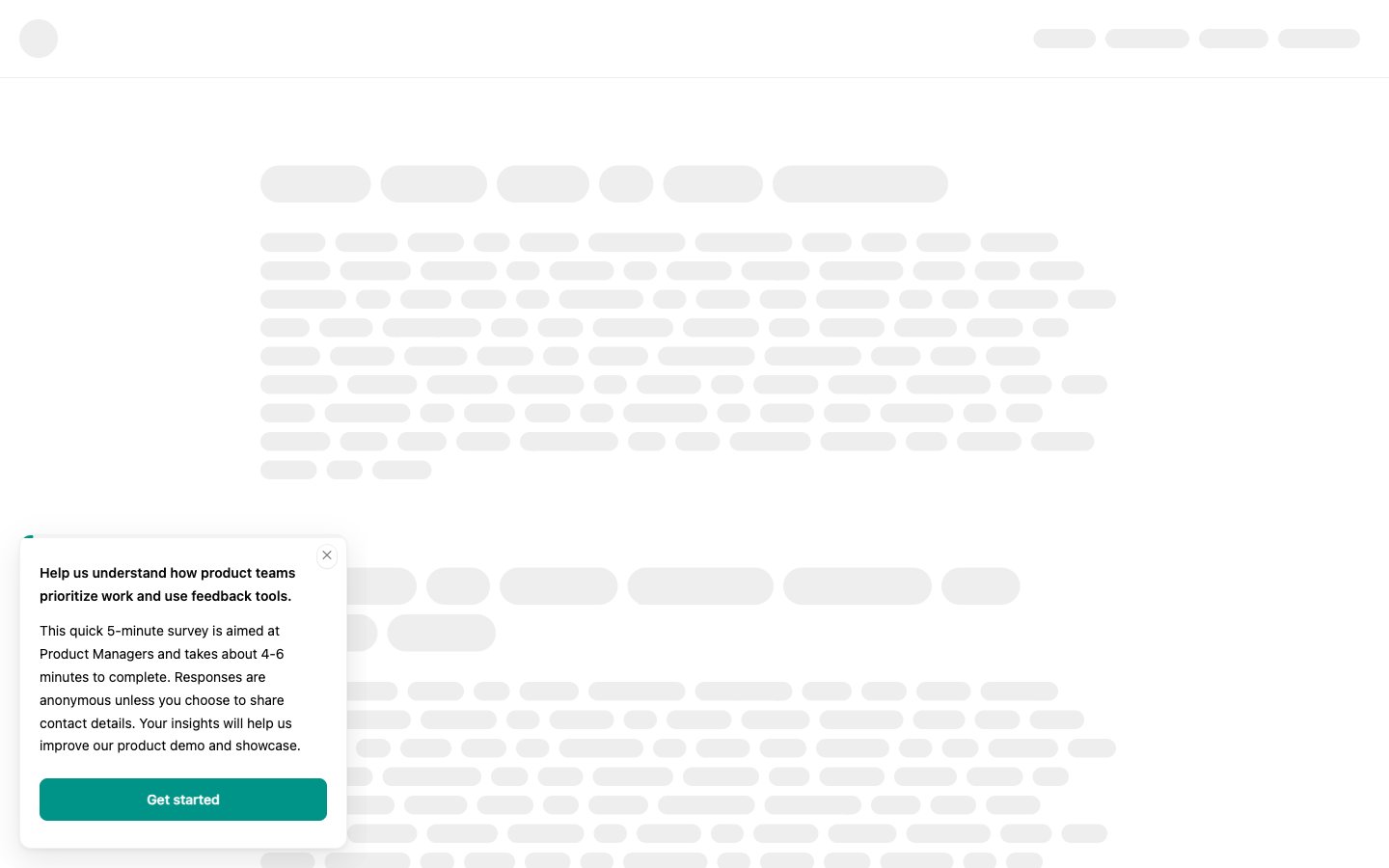
A popup (also called an **outbound message**) is a small in-app message your Sleekplan widget shows to visitors and users while they are in your product. Instead of waiting for people to open the widget, a popup comes to them and asks for something specific: feedback, a rating, or a subscription, shown at a moment and on the pages you choose.
Popups live in [**Settings → Public Portal & Widget → Outbound messages**](https://app.sleekplan.com/settings/outbound). Each one targets an audience, waits for a delay, and appears only on the pages you allow.
Popups are managed by workspace **Owners** and **Admins**, and they are a paid feature. Some types and options depend on your plan: **CSAT** and **NPS** popups need the matching module enabled, and targeting a [user segment](/help/account-security/segments) requires a Business plan. See [Billing](/help/account-security/billing) and [Add-ons](/help/account-security/add-ons) for what your plan includes.
## The five popup types
When you create a popup you pick one of five types. Each asks for a different thing and renders its own way in the widget.
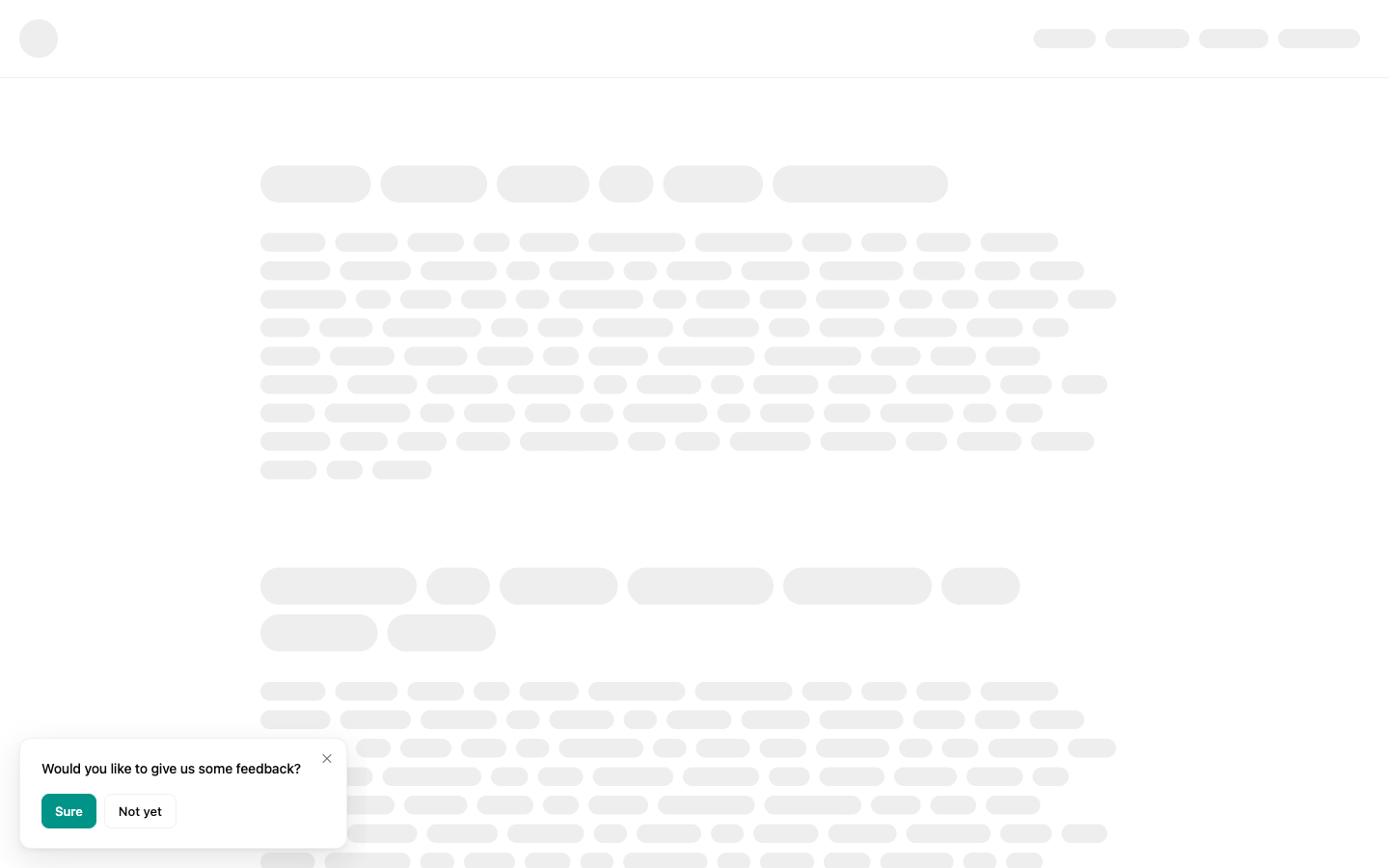
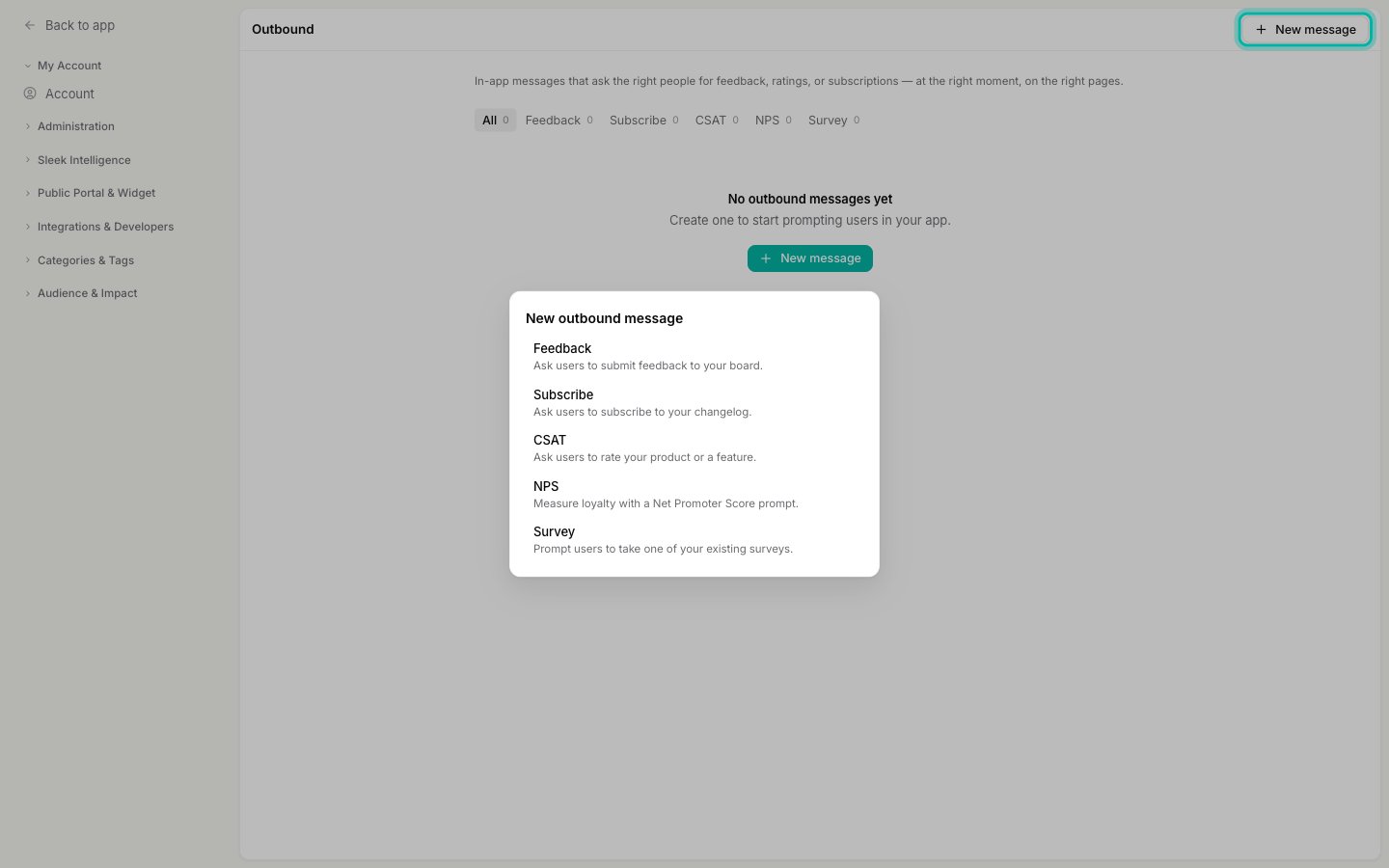
* **Feedback** asks users to submit feedback to your board. It appears as a short prompt, and answering it opens the feedback form.
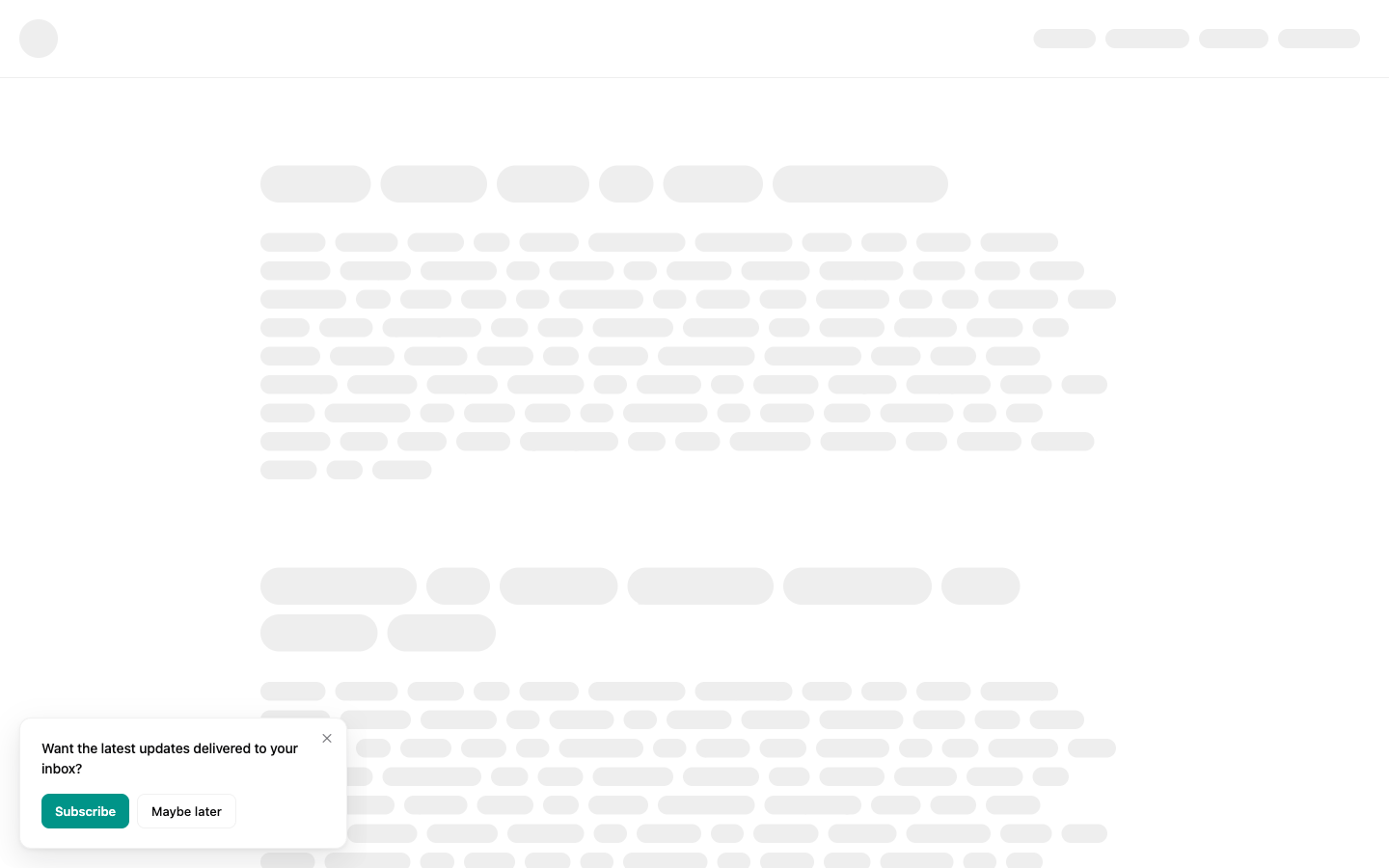
 * **Subscribe** asks users to subscribe to your [changelog](/help/changelog) so future updates reach their inbox.
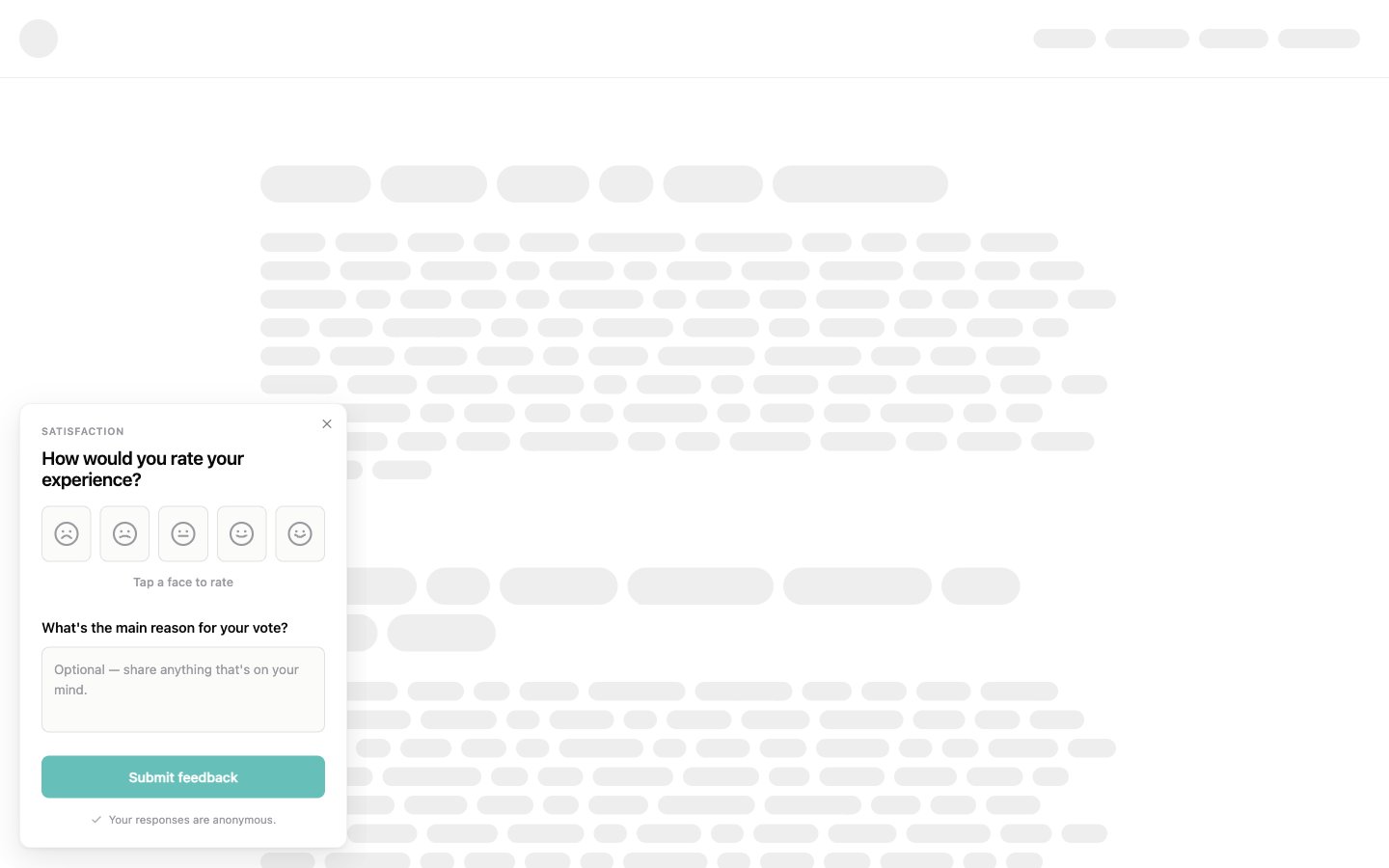
 * **CSAT** (Customer Satisfaction) asks users to rate your product or a specific feature on a five-face scale, with an optional comment.
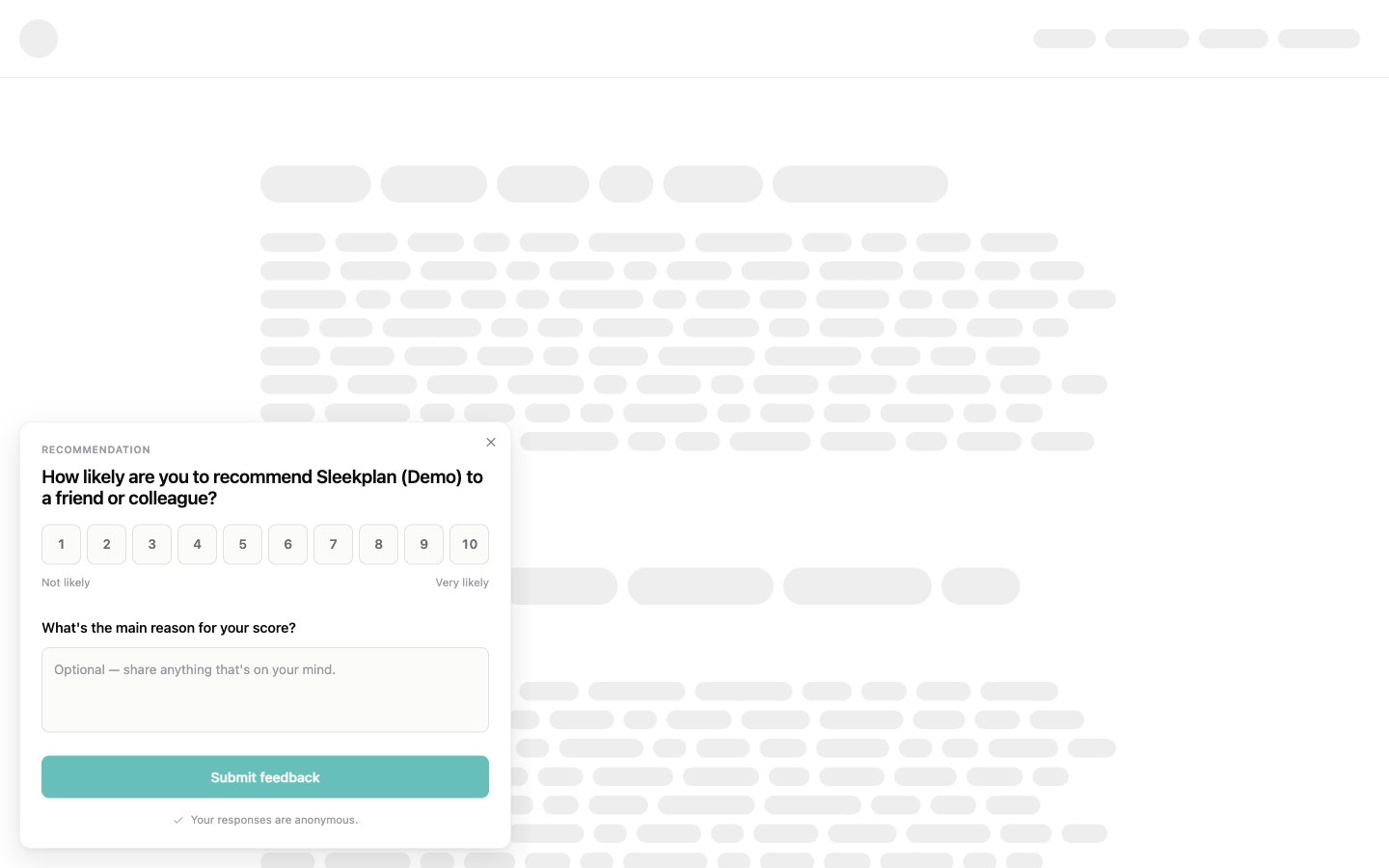
 * **NPS** (Net Promoter Score) measures loyalty by asking how likely someone is to recommend you, on a scale from 1 to 10, with an optional reason.
 * **Survey** prompts users to take one of your existing surveys. This type links to a survey you have already built, so it is a little different from the others (see below).
 ## Two special cases
Two kinds of popup are set up differently from the five types above.
### In-app announcements come from the changelog
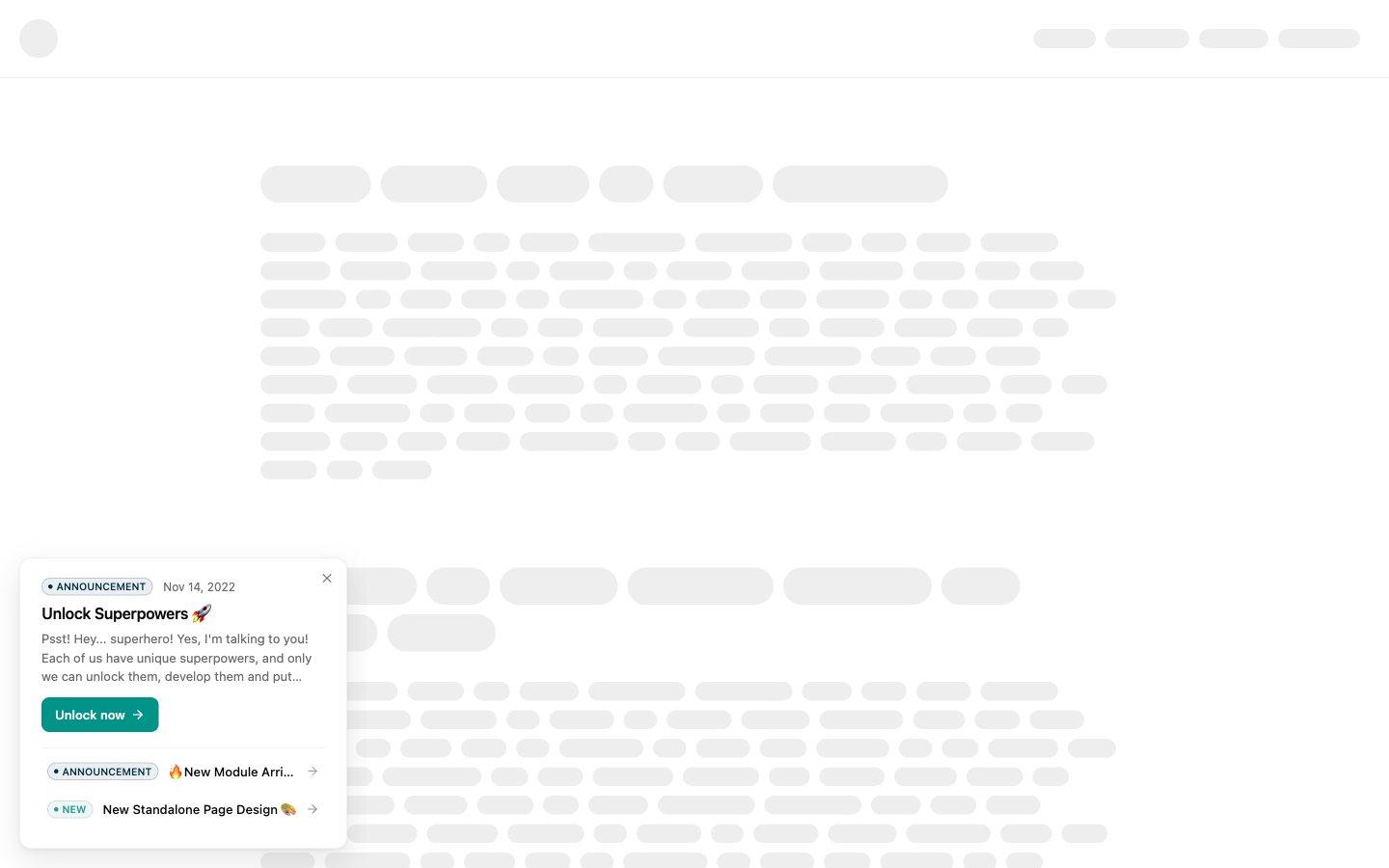
An **in-app announcement** is also a popup, but you do not create it on the Outbound messages screen. Instead, you turn it on **per changelog entry**: when you publish an entry with **In-app announcement** enabled, it appears in the widget as a "New Updates" popup. This keeps each update tied to the entry it announces.
## Two special cases
Two kinds of popup are set up differently from the five types above.
### In-app announcements come from the changelog
An **in-app announcement** is also a popup, but you do not create it on the Outbound messages screen. Instead, you turn it on **per changelog entry**: when you publish an entry with **In-app announcement** enabled, it appears in the widget as a "New Updates" popup. This keeps each update tied to the entry it announces.
 For the full walkthrough, see [In-app announcements](/help/changelog/in-app-announcements).
### Survey popups are usually created from the survey
A **Survey popup** points at a survey you have already built. You can create it from the Outbound messages screen and pick the survey there, but the common path is to open the survey in the **Surveys** area and attach a popup to it directly, so the survey and its prompt stay together. See [Share and target a survey](/help/surveys/share-and-target) for that flow, and [Surveys](/help/surveys) to build the survey itself.
## Create a popup
Go to [**Settings → Public Portal & Widget → Outbound messages**](https://app.sleekplan.com/settings/outbound). This screen lists every popup in your workspace, filtered by type along the top.
For the full walkthrough, see [In-app announcements](/help/changelog/in-app-announcements).
### Survey popups are usually created from the survey
A **Survey popup** points at a survey you have already built. You can create it from the Outbound messages screen and pick the survey there, but the common path is to open the survey in the **Surveys** area and attach a popup to it directly, so the survey and its prompt stay together. See [Share and target a survey](/help/surveys/share-and-target) for that flow, and [Surveys](/help/surveys) to build the survey itself.
## Create a popup
Go to [**Settings → Public Portal & Widget → Outbound messages**](https://app.sleekplan.com/settings/outbound). This screen lists every popup in your workspace, filtered by type along the top.
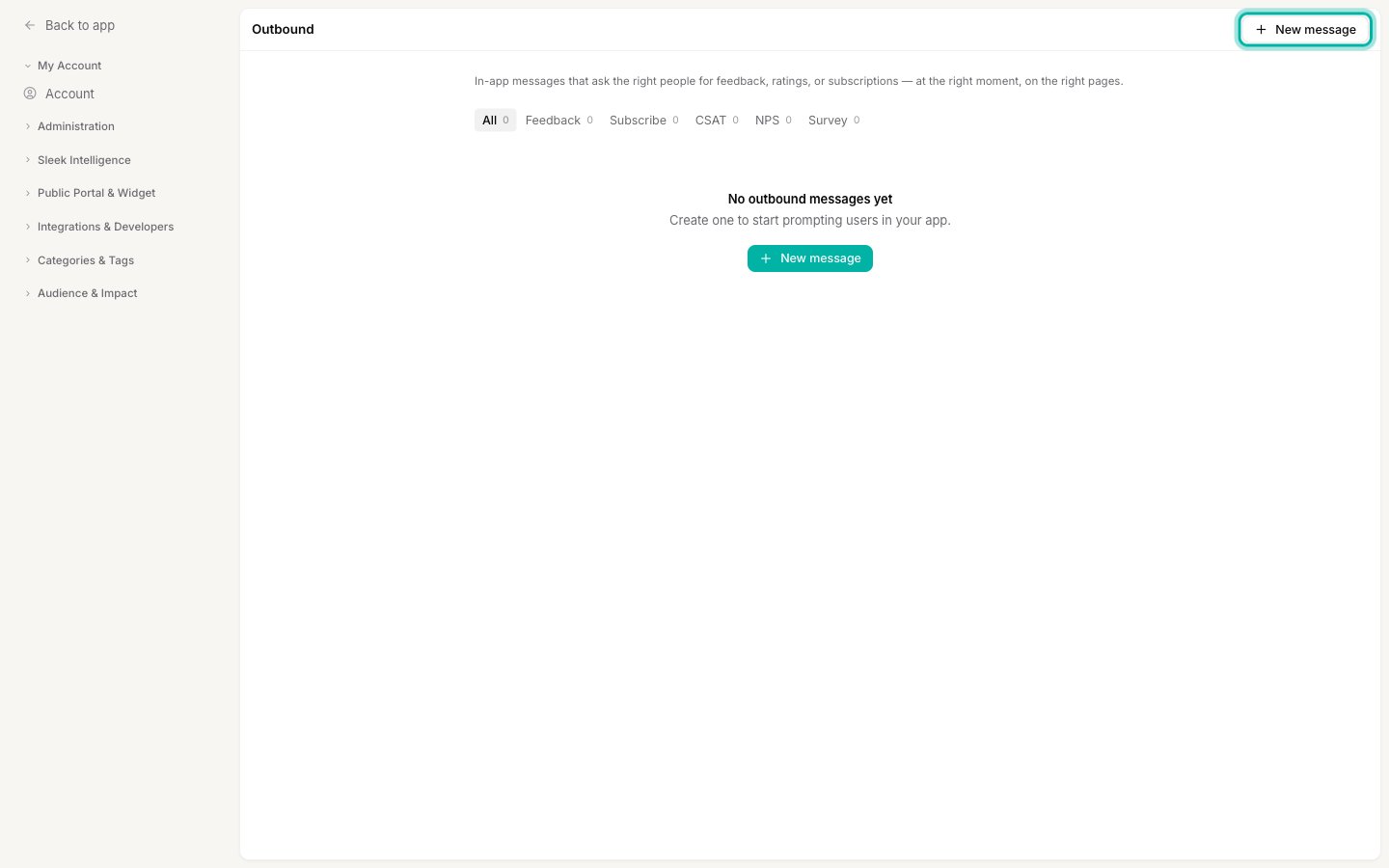 Select **New message**, then pick one of the five types: **Feedback**, **Subscribe**, **CSAT**, **NPS**, or **Survey**. Your choice decides what the popup asks for and cannot be changed later, so create a new one if you need a different type.
 In **Message**, give the popup an internal **Name** (only your team sees it). Use the **Content** section to write what users see: a short **Message** for Feedback and Subscribe, a **Question** for CSAT and NPS, or the linked **Survey** for a survey popup.
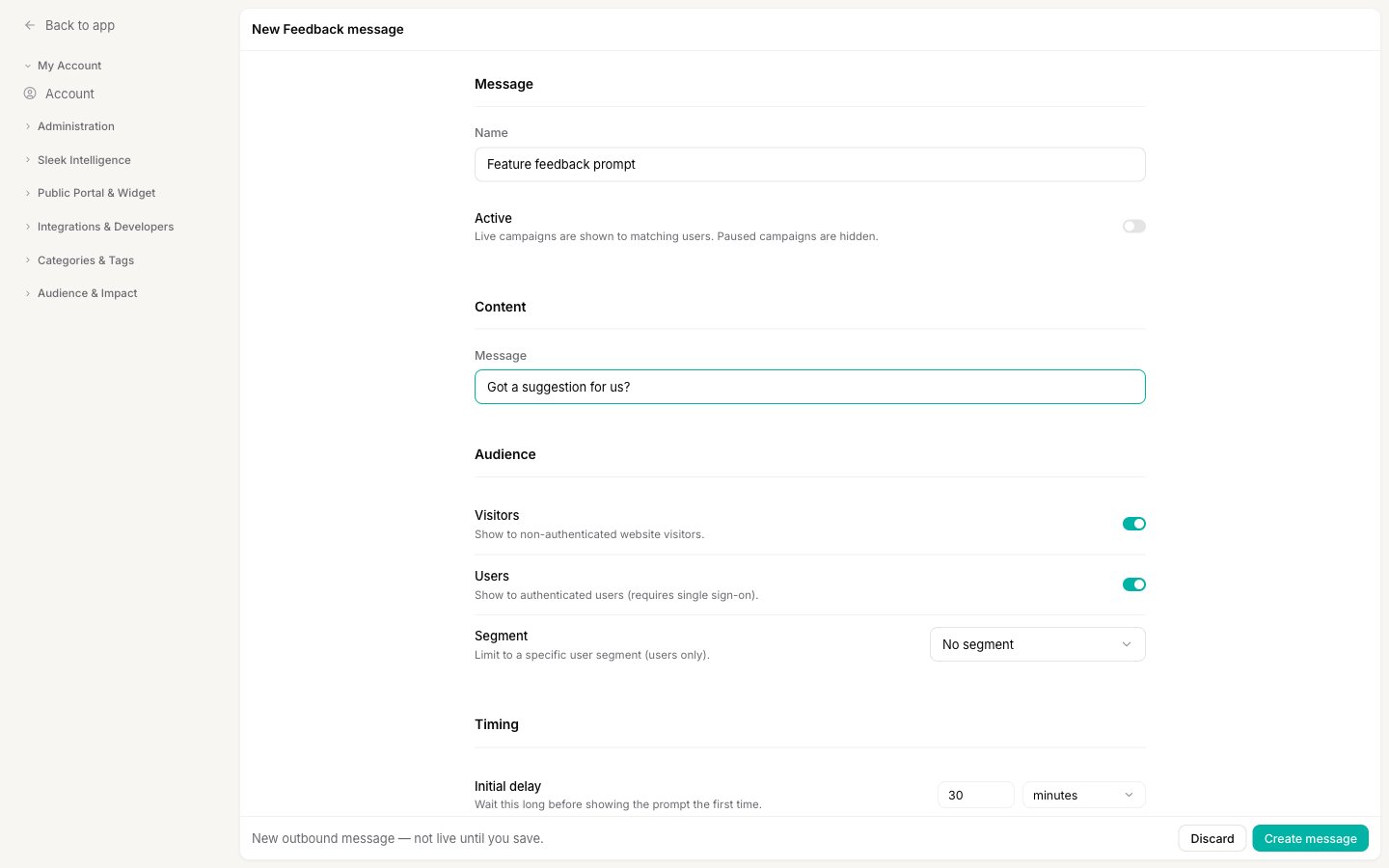 In **Audience**, decide who the popup reaches:
* **Visitors** shows it to non-authenticated website visitors.
* **Users** shows it to authenticated (signed-in) users, which requires single sign-on.
* **Segment** limits it to a specific [user segment](/help/account-security/segments). Segments apply to signed-in users only.
In **Timing**, set an **Initial delay** before the popup first appears, and optionally turn on **Follow up** (ask again at intervals if unanswered) or **Repeat** (restart the whole flow after a delay). In **Pages**, leave the URL rules empty to show the popup everywhere, or add URLs to limit it to (or exclude it from) specific pages. Use `*` as a wildcard.
In **Audience**, decide who the popup reaches:
* **Visitors** shows it to non-authenticated website visitors.
* **Users** shows it to authenticated (signed-in) users, which requires single sign-on.
* **Segment** limits it to a specific [user segment](/help/account-security/segments). Segments apply to signed-in users only.
In **Timing**, set an **Initial delay** before the popup first appears, and optionally turn on **Follow up** (ask again at intervals if unanswered) or **Repeat** (restart the whole flow after a delay). In **Pages**, leave the URL rules empty to show the popup everywhere, or add URLs to limit it to (or exclude it from) specific pages. Use `*` as a wildcard.
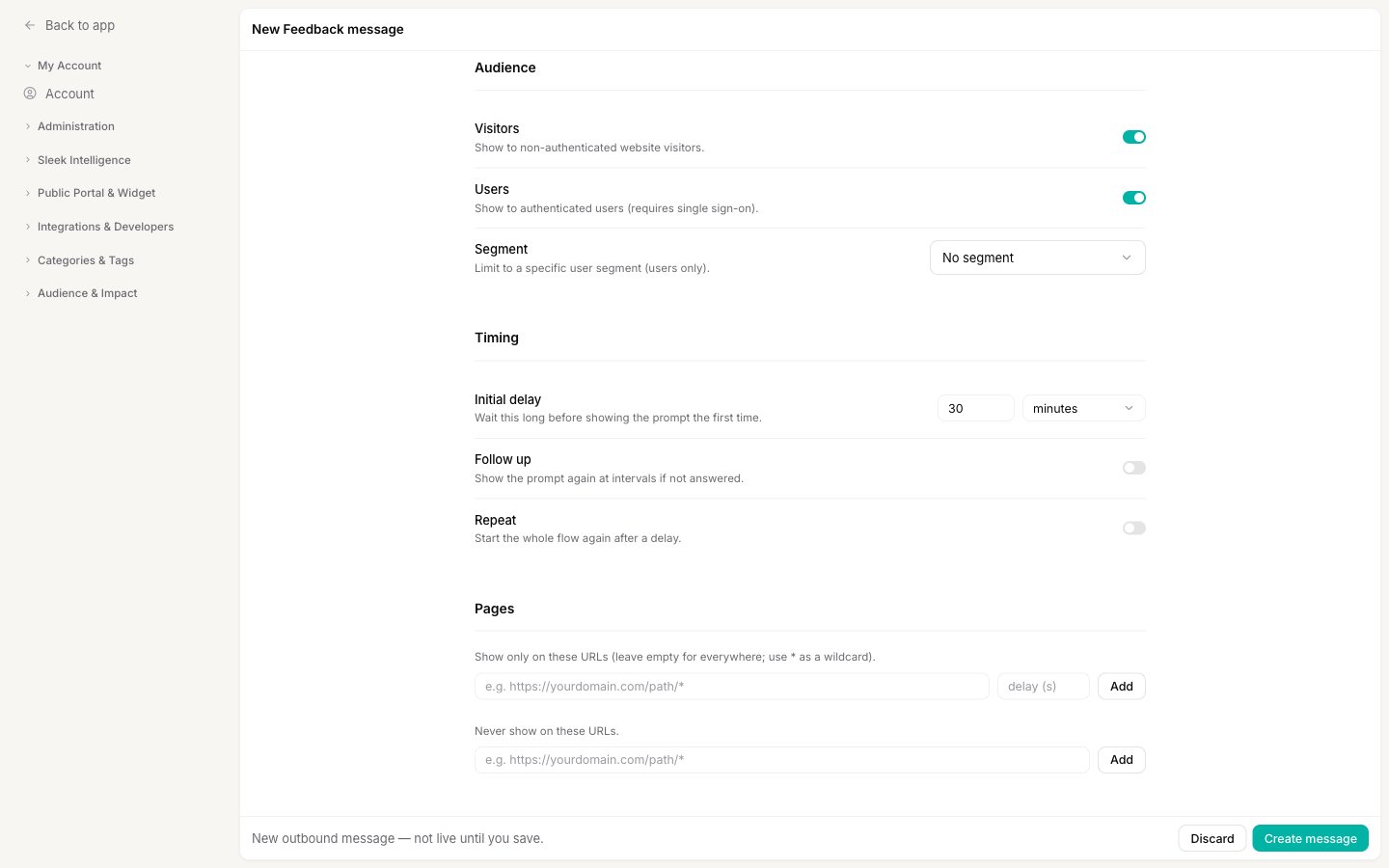 Switch **Active** on to make the popup live, then select **Create message**. A paused popup stays hidden until you turn it on. You can flip **Active** at any time from the list.
## Edit a popup
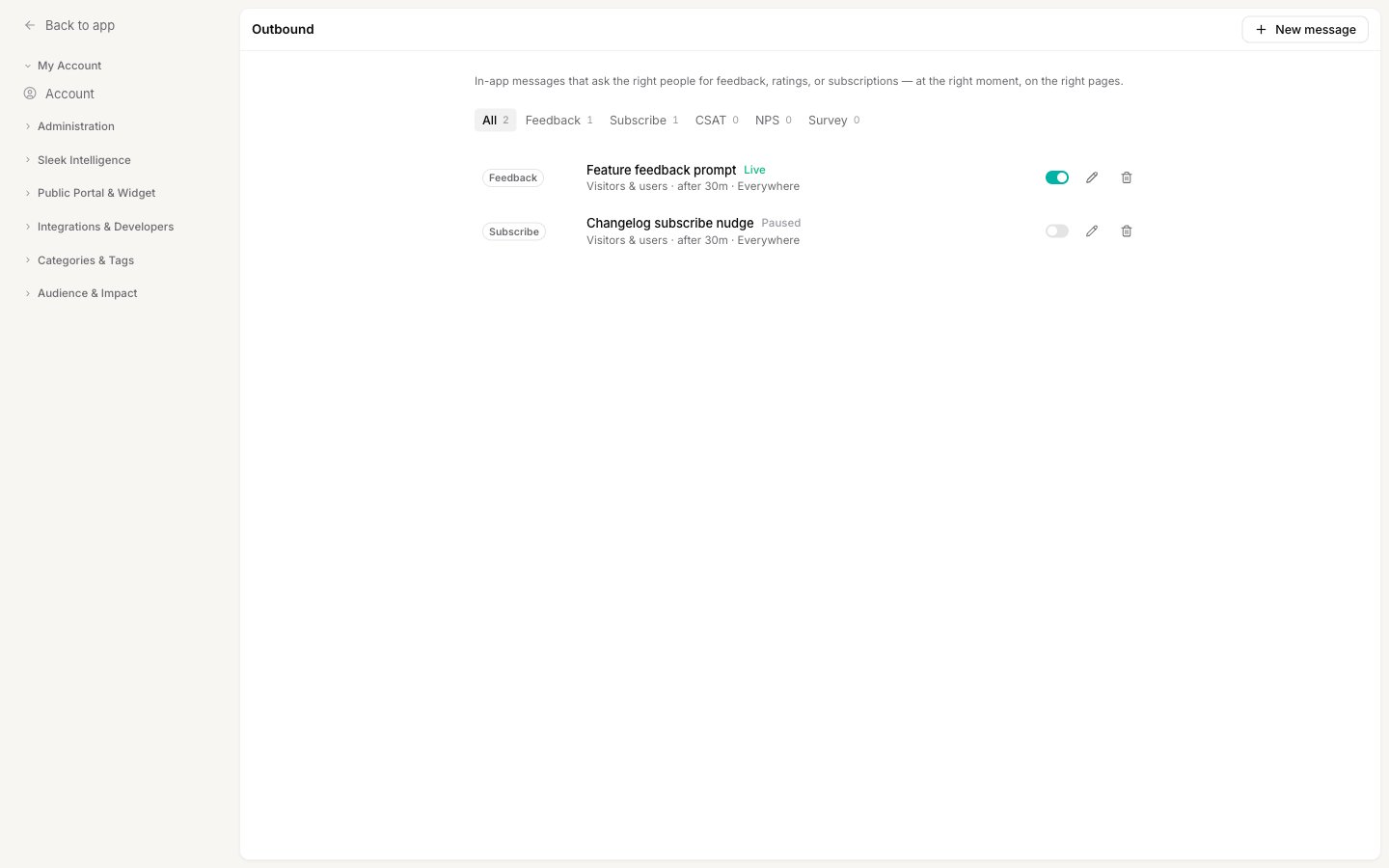
Every popup on the [Outbound messages](https://app.sleekplan.com/settings/outbound) screen shows its type, name, live status, and a one-line summary of its audience, timing, and pages.
* To change a popup, select the **pencil** icon on its row. This reopens the editor with every field from create, and **Save changes** applies them.
* To turn a popup on or off without opening it, use the toggle on its row. **Live** popups are shown to matching users; **Paused** popups are hidden.
Switch **Active** on to make the popup live, then select **Create message**. A paused popup stays hidden until you turn it on. You can flip **Active** at any time from the list.
## Edit a popup
Every popup on the [Outbound messages](https://app.sleekplan.com/settings/outbound) screen shows its type, name, live status, and a one-line summary of its audience, timing, and pages.
* To change a popup, select the **pencil** icon on its row. This reopens the editor with every field from create, and **Save changes** applies them.
* To turn a popup on or off without opening it, use the toggle on its row. **Live** popups are shown to matching users; **Paused** popups are hidden.
 ## Delete a popup
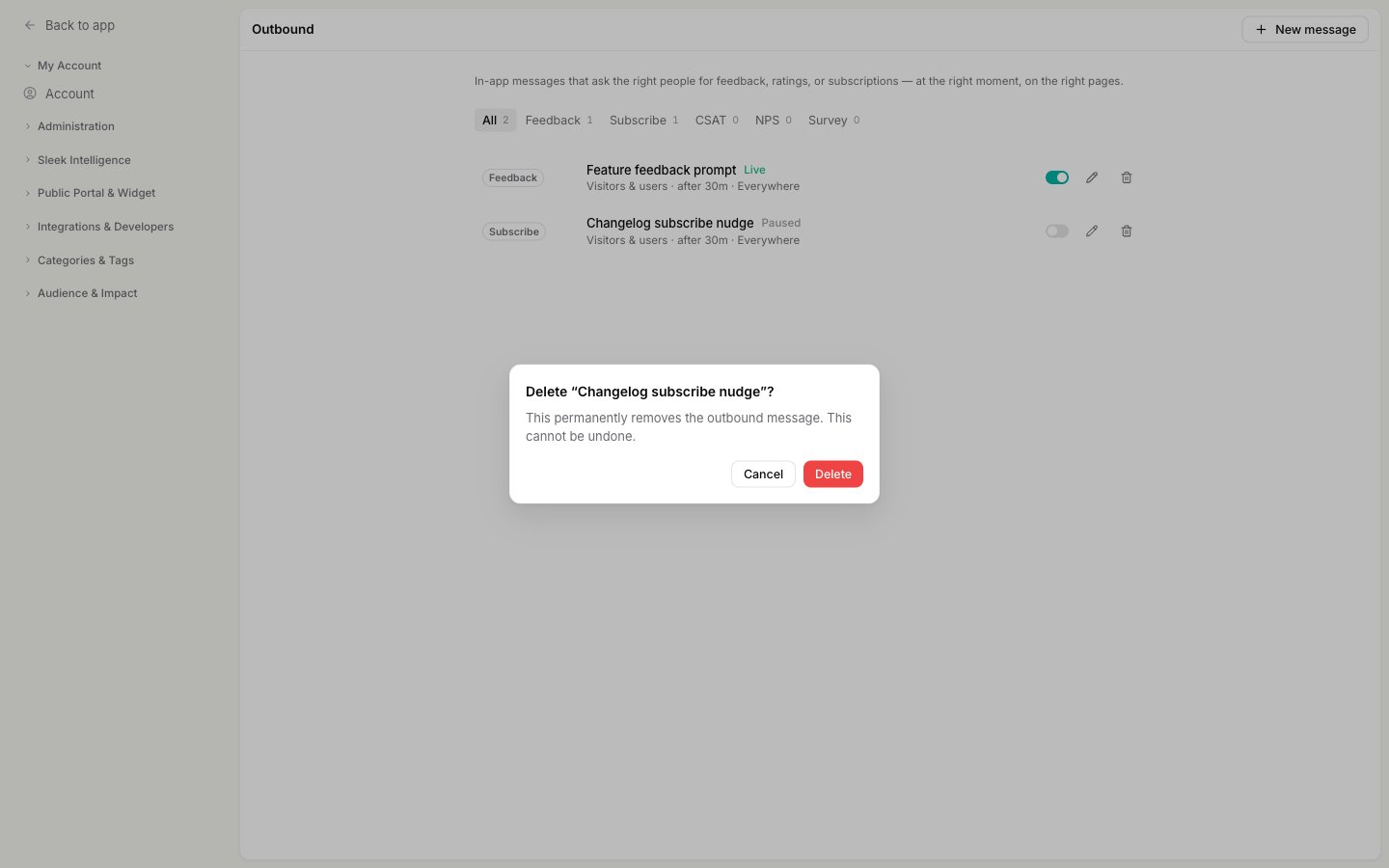
Select the **trash** icon on a popup's row, then confirm in the dialog. Deleting is permanent and cannot be undone, so pause a popup instead if you only want to stop showing it for now.
## Delete a popup
Select the **trash** icon on a popup's row, then confirm in the dialog. Deleting is permanent and cannot be undone, so pause a popup instead if you only want to stop showing it for now.
 ## Related
Attach a survey to a popup and choose who sees it.
Turn a published changelog entry into a New Updates popup.
Build the audiences that let a popup target specific users.
Publish updates that Subscribe popups and announcements point to.
See which popup types and options your plan includes.
## Related
Attach a survey to a popup and choose who sees it.
Turn a published changelog entry into a New Updates popup.
Build the audiences that let a popup target specific users.
Publish updates that Subscribe popups and announcements point to.
See which popup types and options your plan includes.