> ## Documentation Index
> Fetch the complete documentation index at: https://sleekplan.com/llms.txt
> Use this file to discover all available pages before exploring further.
# Submission & voting settings
> Control what people can do when they submit and vote on your feedback board: downvotes, priority, comment likes, screen captures, upvoter notifications, and automatic status comments.
The **Submission & voting** section decides how much your users can do on your public feedback board. It shapes the post form they fill in, the ways they can react to other posts, and what happens after they vote. Turning the right options on makes feedback richer (a priority, a screenshot, a downvote) without adding friction for the person leaving it.
Changing these settings requires an **Owner** or **Admin** role on the workspace.
## Open the Feedback board settings
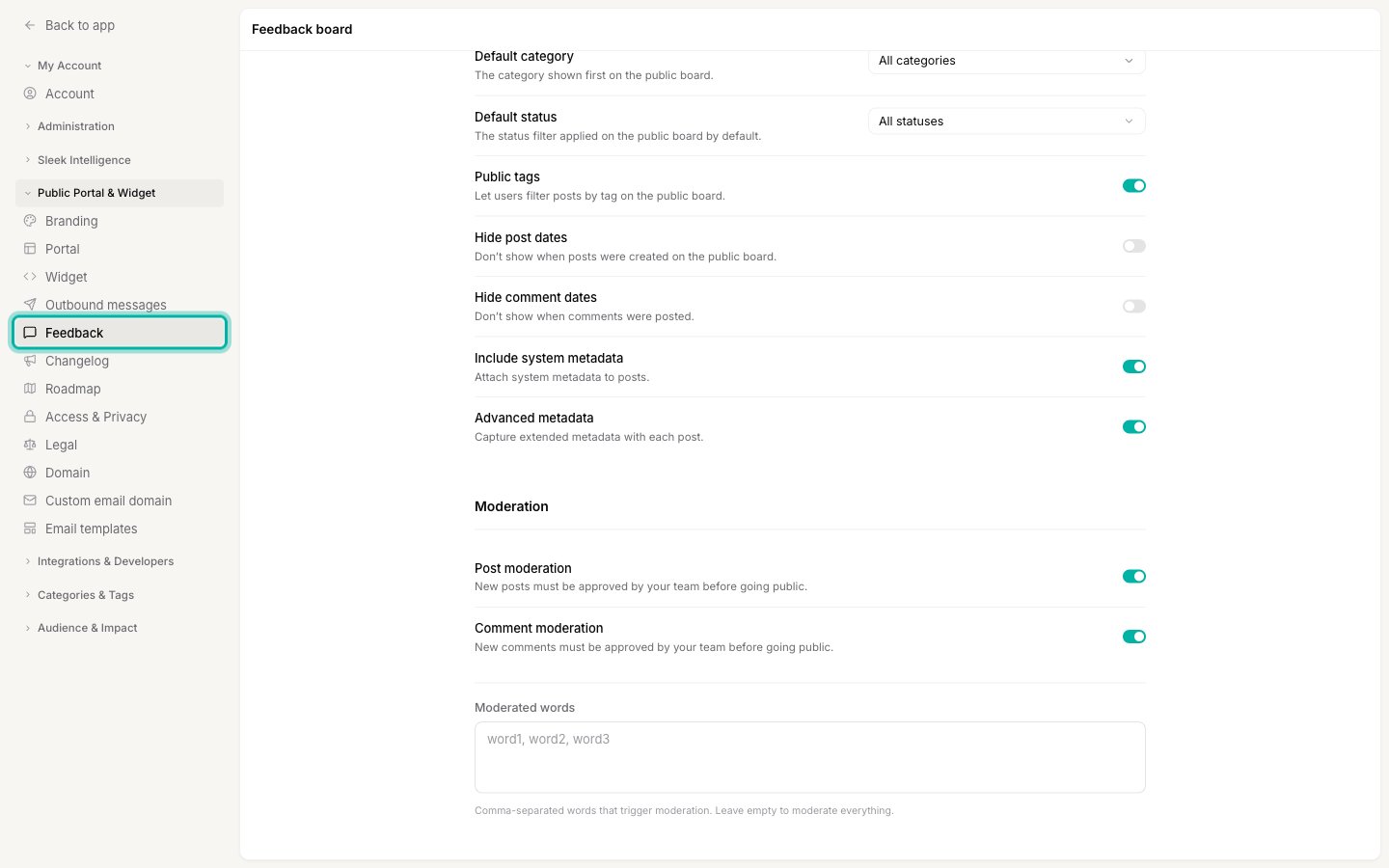
Go to [**Settings → Public Portal & Widget → Feedback**](https://app.sleekplan.com/settings/feedback). The **Submission & voting** section is at the top of the page.
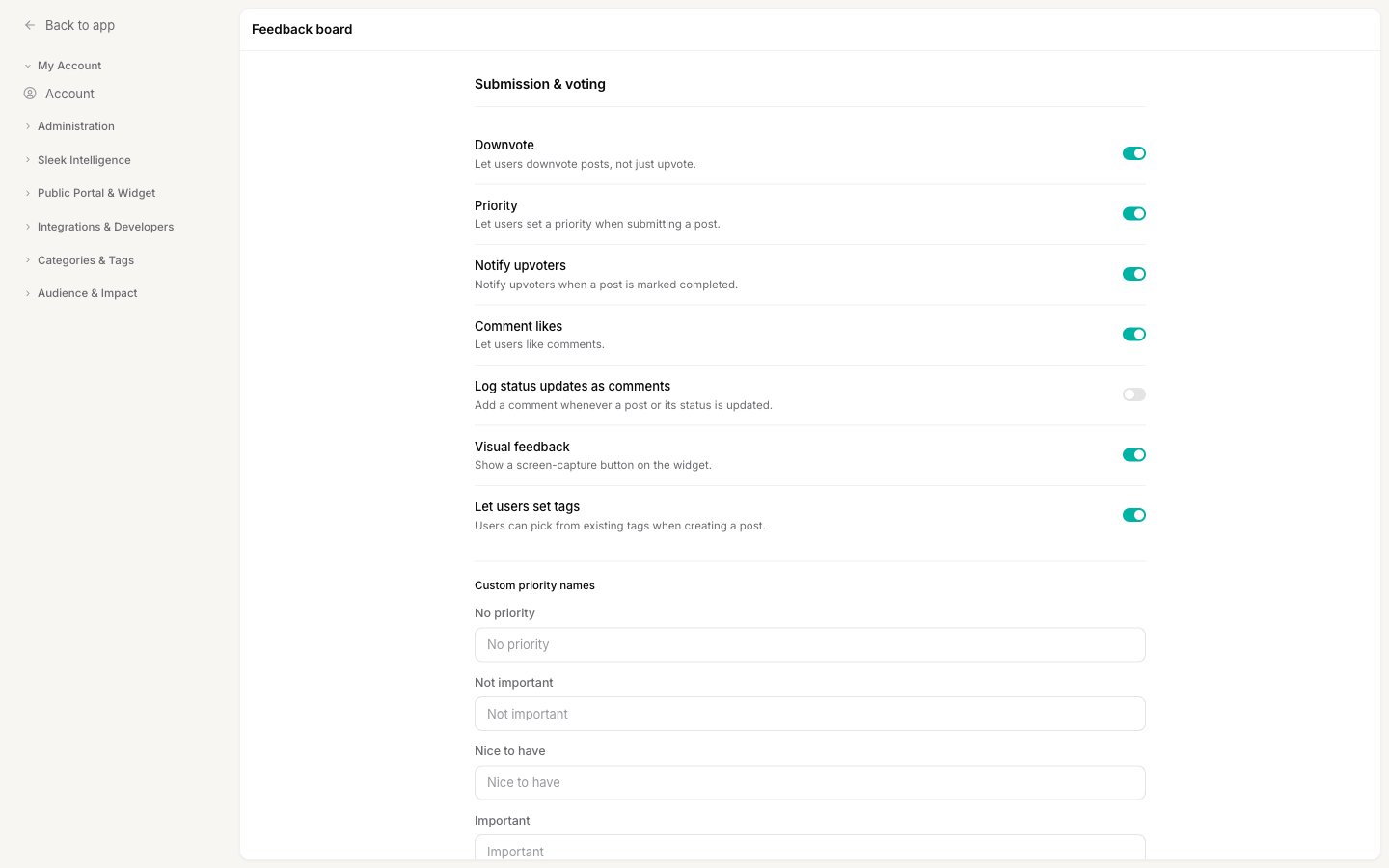 Each option below is independent, so turn on only the ones that fit how you want to collect feedback. After changing anything, click **Save**.
## Downvote
Turn on **Downvote** to let users vote a post down as well as up, instead of only upvoting. A post's score then becomes the net of up and down votes.
Downvotes surface disagreement that a pure upvote count hides: a request that half your users actively dislike no longer looks popular. Leave it off if you want the board to read as a simple wishlist where votes only ever add support.
## Priority
Turn on **Priority** to let users attach a priority to a post when they submit it, so you learn not just what they want but how badly they want it. The priority someone picks is recorded the same way a vote is, and Sleekplan rolls those choices up into an average and total priority you can sort and report on.
Priority uses five levels. You can rename them to match your language under **Custom priority names**, which appears once **Priority** is on:
| Level | Default label |
| ----- | ------------- |
| 0 | No priority |
| 1 | Not important |
| 2 | Nice to have |
| 3 | Important |
| 4 | Critical |
Leave a field blank to keep its default label. The names you set here are what users see when they pick a priority and what your team sees on the post.
## Notify upvoters
Turn on **Notify upvoters** to email everyone who upvoted a post the moment it is marked **Completed**. This is the "the feature you asked for just shipped" message, and it closes the loop with the exact people who cared enough to vote.
The notification only fires on the **Completed** status, not on other status changes. For the full picture of which emails Sleekplan sends and to whom, see [Feedback emails](/help/account-security/emails).
## Comment likes
Turn on **Comment likes** to let users like individual comments. Likes give your community a lightweight way to agree with a point in the discussion without adding another "+1" comment, and they help the most useful replies rise to the top of a thread.
## Log status updates as comments
Turn on **Log status updates as comments** to add an automatic comment to a post whenever it changes, so the thread keeps a visible history. Sleekplan posts a system comment when you move a post to a new [status](/help/feedback/statuses), and a combined "changed" comment when you edit its title, description, or [category](/help/feedback/categories).
This keeps everyone following the post informed about how it is progressing. Leave it off if you prefer a clean comment thread that only holds messages people actually wrote.
## Visual feedback
Turn on **Visual feedback** to add a screen-capture button to the post form. When a user clicks it, Sleekplan captures an image of the page they are on, lets them annotate it (draw boxes and arrows, add text, black out sensitive areas), and attaches the result to their post as a file.
A picture of the exact screen turns a vague bug report into an actionable one, so this is especially worth enabling for bug feedback.
The screen-capture button only appears in the embedded widget on your site, where it can see the page around it. It is not shown on the standalone public portal.
## Let users set tags
Turn on **Let users set tags** to add a tag picker to the post form, so people can label their own feedback from the [tags](/help/feedback/tags) you have already created. Users can only choose from your existing tags, they cannot invent new ones.
This is one half of making tags public. For the full picture, including letting visitors filter the board by tag, see [Show tags on your public board](/help/portal-widget/public-tags).
## Related
Set the default sort, category, status, and metadata for your public board.
Hold new submissions for approval before they go public.
See every notification Sleekplan sends, including the upvoter email.
Let users apply tags and filter the board by them.
Each option below is independent, so turn on only the ones that fit how you want to collect feedback. After changing anything, click **Save**.
## Downvote
Turn on **Downvote** to let users vote a post down as well as up, instead of only upvoting. A post's score then becomes the net of up and down votes.
Downvotes surface disagreement that a pure upvote count hides: a request that half your users actively dislike no longer looks popular. Leave it off if you want the board to read as a simple wishlist where votes only ever add support.
## Priority
Turn on **Priority** to let users attach a priority to a post when they submit it, so you learn not just what they want but how badly they want it. The priority someone picks is recorded the same way a vote is, and Sleekplan rolls those choices up into an average and total priority you can sort and report on.
Priority uses five levels. You can rename them to match your language under **Custom priority names**, which appears once **Priority** is on:
| Level | Default label |
| ----- | ------------- |
| 0 | No priority |
| 1 | Not important |
| 2 | Nice to have |
| 3 | Important |
| 4 | Critical |
Leave a field blank to keep its default label. The names you set here are what users see when they pick a priority and what your team sees on the post.
## Notify upvoters
Turn on **Notify upvoters** to email everyone who upvoted a post the moment it is marked **Completed**. This is the "the feature you asked for just shipped" message, and it closes the loop with the exact people who cared enough to vote.
The notification only fires on the **Completed** status, not on other status changes. For the full picture of which emails Sleekplan sends and to whom, see [Feedback emails](/help/account-security/emails).
## Comment likes
Turn on **Comment likes** to let users like individual comments. Likes give your community a lightweight way to agree with a point in the discussion without adding another "+1" comment, and they help the most useful replies rise to the top of a thread.
## Log status updates as comments
Turn on **Log status updates as comments** to add an automatic comment to a post whenever it changes, so the thread keeps a visible history. Sleekplan posts a system comment when you move a post to a new [status](/help/feedback/statuses), and a combined "changed" comment when you edit its title, description, or [category](/help/feedback/categories).
This keeps everyone following the post informed about how it is progressing. Leave it off if you prefer a clean comment thread that only holds messages people actually wrote.
## Visual feedback
Turn on **Visual feedback** to add a screen-capture button to the post form. When a user clicks it, Sleekplan captures an image of the page they are on, lets them annotate it (draw boxes and arrows, add text, black out sensitive areas), and attaches the result to their post as a file.
A picture of the exact screen turns a vague bug report into an actionable one, so this is especially worth enabling for bug feedback.
The screen-capture button only appears in the embedded widget on your site, where it can see the page around it. It is not shown on the standalone public portal.
## Let users set tags
Turn on **Let users set tags** to add a tag picker to the post form, so people can label their own feedback from the [tags](/help/feedback/tags) you have already created. Users can only choose from your existing tags, they cannot invent new ones.
This is one half of making tags public. For the full picture, including letting visitors filter the board by tag, see [Show tags on your public board](/help/portal-widget/public-tags).
## Related
Set the default sort, category, status, and metadata for your public board.
Hold new submissions for approval before they go public.
See every notification Sleekplan sends, including the upvoter email.
Let users apply tags and filter the board by them.