> ## Documentation Index
> Fetch the complete documentation index at: https://sleekplan.com/llms.txt
> Use this file to discover all available pages before exploring further.
# Moderate posts and comments
> Hold new posts and comments for your team to approve before they appear on your public board, and use a word list to moderate only the submissions that need a closer look.
Moderation lets you review what users submit before it goes public. When it is on, new posts or comments wait for a member of your team to approve them, so nothing questionable, spammy, or off-topic appears on your board without a human seeing it first. This protects the tone of a public board, at the cost of a small approval step for you.
Changing these settings requires an **Owner** or **Admin** role on the workspace.
## Open the Feedback board settings
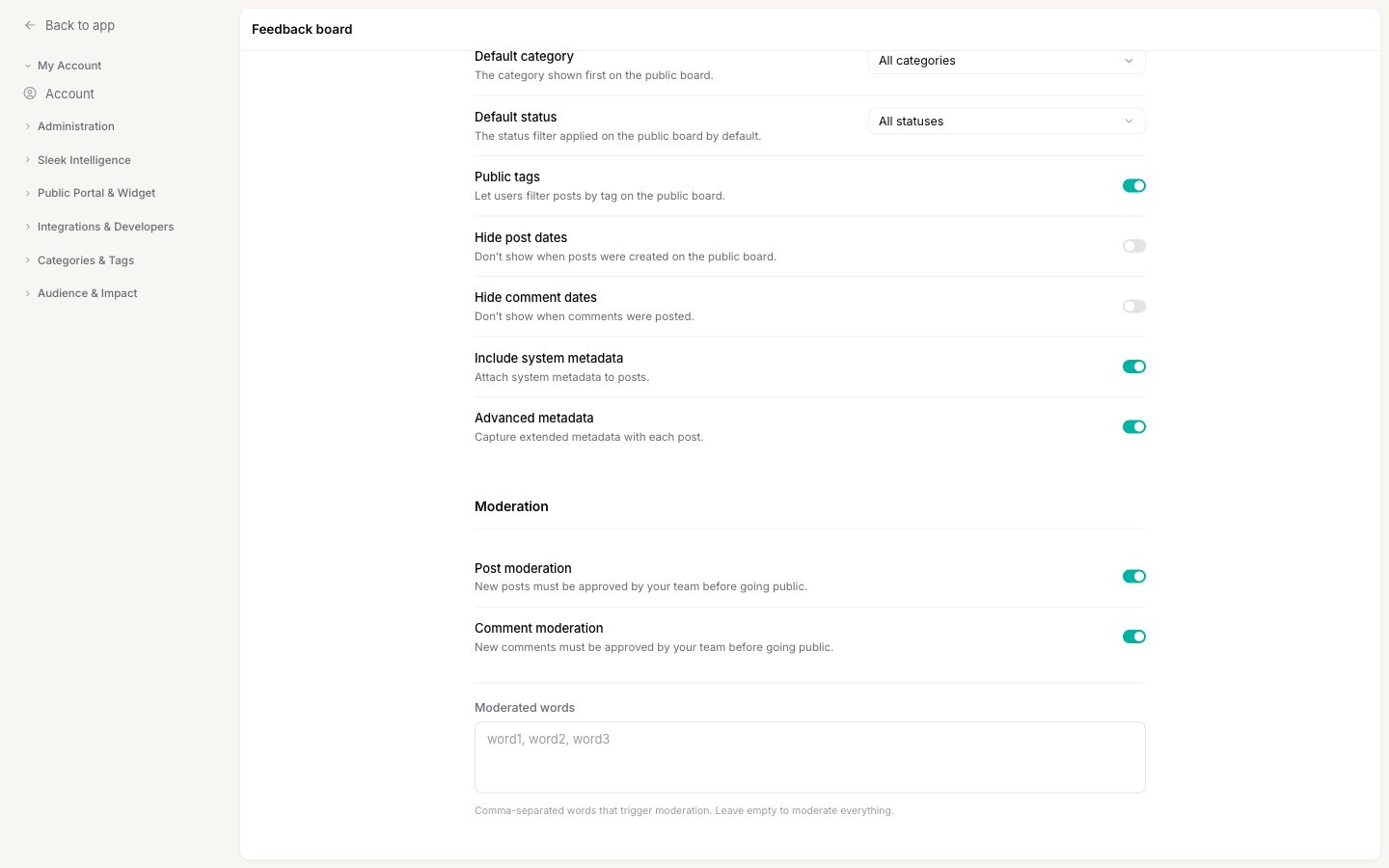
Go to [**Settings → Public Portal & Widget → Feedback**](https://app.sleekplan.com/settings/feedback) and scroll to the **Moderation** section.
 After changing anything, click **Save**.
## Post moderation
Turn on **Post moderation** to require that new posts are approved by your team before they go public. Held posts do not show on your board until someone approves them.
## Comment moderation
Turn on **Comment moderation** to require the same approval for new comments. Held comments stay hidden from the thread until approved.
Moderation only applies to submissions from your users. Posts and comments your team creates, and posts you submit [on behalf of a user](/help/feedback/vote-on-behalf), skip the queue and go live immediately.
## Moderated words
By default, turning on moderation holds **every** new submission for approval. The **Moderated words** field lets you narrow that down so you only review the submissions that are likely to need it.
* **Leave it empty** to moderate everything. Every new post or comment waits for approval.
* **Add a comma-separated list of words** to moderate selectively. Only submissions that contain one of those words are held; everything else goes live immediately. Matching is not case sensitive.
This is useful when you trust most of your community but want a safety net for specific terms, for example profanity or a competitor's name. Enter the words separated by commas, like `spam, refund, competitor`.
The word list only takes effect when **Post moderation** or **Comment moderation** is on. On its own, a matching word never forces a submission into the queue.
## Approve or reject held items
Everything moderation holds waits in the **Review** queue, which you open from **Review** in the main sidebar. Its **Moderation** tab lists the posts and comments awaiting your decision, where you can approve, reject, or edit each one before it goes live. For the full walkthrough, see [Reviewing AI actions](/help/sleek-intelligence/review), which covers both moderation and Sleek Intelligence in the same queue.
Bulk-importing feedback? Turn **Post moderation** off before you import so the imported posts are not all held for approval, then turn it back on afterwards. See [Import feedback from other tools](/help/integrations/import/from-other-tools).
## Related
Approve, edit, or reject held items in the Review queue.
Control downvotes, priority, comment likes, and screen captures.
Set the default sort, category, status, and metadata for your board.
Bring existing feedback in without tripping moderation.
After changing anything, click **Save**.
## Post moderation
Turn on **Post moderation** to require that new posts are approved by your team before they go public. Held posts do not show on your board until someone approves them.
## Comment moderation
Turn on **Comment moderation** to require the same approval for new comments. Held comments stay hidden from the thread until approved.
Moderation only applies to submissions from your users. Posts and comments your team creates, and posts you submit [on behalf of a user](/help/feedback/vote-on-behalf), skip the queue and go live immediately.
## Moderated words
By default, turning on moderation holds **every** new submission for approval. The **Moderated words** field lets you narrow that down so you only review the submissions that are likely to need it.
* **Leave it empty** to moderate everything. Every new post or comment waits for approval.
* **Add a comma-separated list of words** to moderate selectively. Only submissions that contain one of those words are held; everything else goes live immediately. Matching is not case sensitive.
This is useful when you trust most of your community but want a safety net for specific terms, for example profanity or a competitor's name. Enter the words separated by commas, like `spam, refund, competitor`.
The word list only takes effect when **Post moderation** or **Comment moderation** is on. On its own, a matching word never forces a submission into the queue.
## Approve or reject held items
Everything moderation holds waits in the **Review** queue, which you open from **Review** in the main sidebar. Its **Moderation** tab lists the posts and comments awaiting your decision, where you can approve, reject, or edit each one before it goes live. For the full walkthrough, see [Reviewing AI actions](/help/sleek-intelligence/review), which covers both moderation and Sleek Intelligence in the same queue.
Bulk-importing feedback? Turn **Post moderation** off before you import so the imported posts are not all held for approval, then turn it back on afterwards. See [Import feedback from other tools](/help/integrations/import/from-other-tools).
## Related
Approve, edit, or reject held items in the Review queue.
Control downvotes, priority, comment likes, and screen captures.
Set the default sort, category, status, and metadata for your board.
Bring existing feedback in without tripping moderation.