> ## Documentation Index
> Fetch the complete documentation index at: https://sleekplan.com/llms.txt
> Use this file to discover all available pages before exploring further.
# Set up a custom email sending domain
> Send Sleekplan notification emails from your own domain, like feedback@yourcompany.com, so replies and updates come from you instead of Sleekplan's default address. You verify the address and add DKIM records.
By default, Sleekplan sends notification emails (status updates, changelog announcements, reply notifications) from its own address. When you set a custom email sending domain, those emails go out from an address on your domain instead, for example `feedback@yourcompany.com`, so they look like they come from you and users can reply to your own inbox.
Setting this up has two parts: you verify that you own the address, and you add DKIM records so email providers trust messages Sleekplan sends on your behalf.
You'll need access to the inbox for the address you choose (to click the verification link) and to your domain's DNS settings (to add the DKIM records).
Everything on this page lives in [**Settings → Public Portal & Widget → Custom email domain**](https://app.sleekplan.com/settings/email).
In the **Sending domain** section, enter the address you want emails to come from, for example `feedback@yourcompany.com`, then click **Set address**.
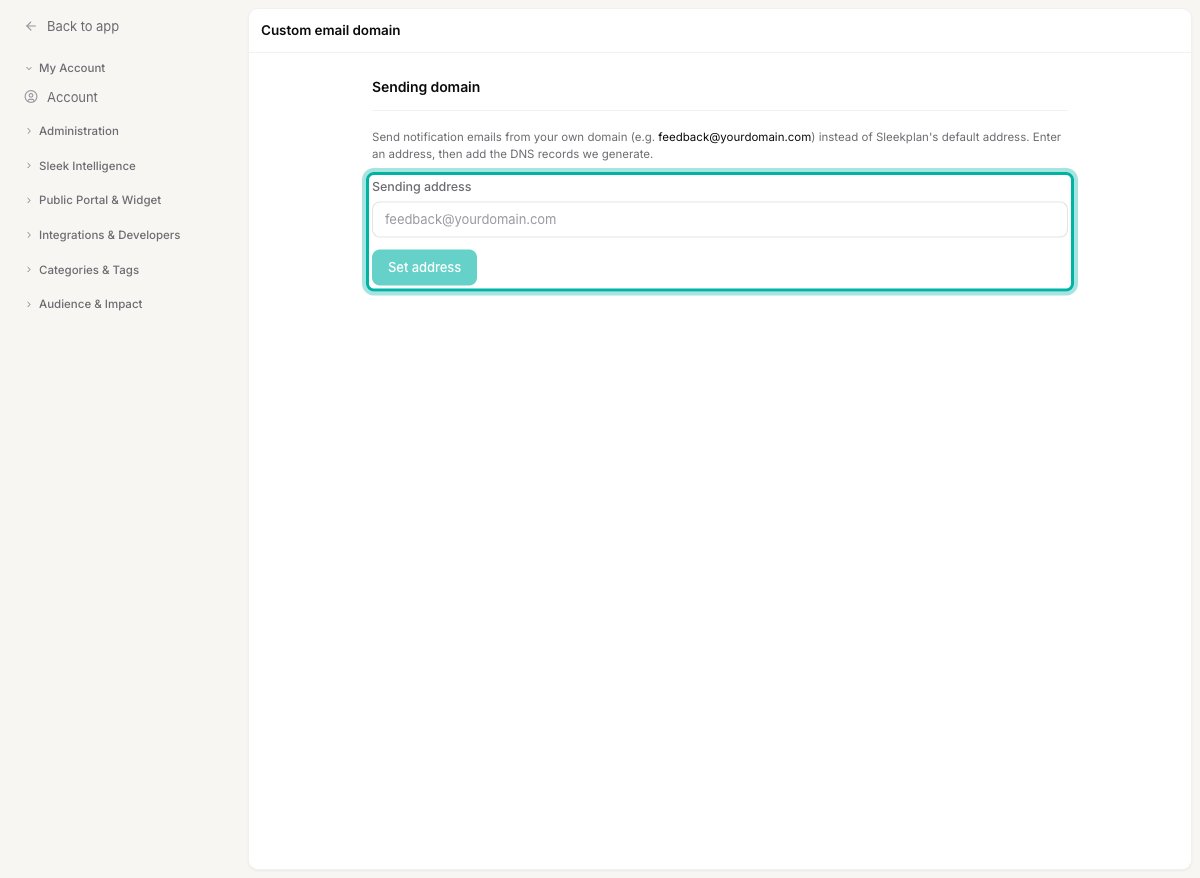 We immediately send a verification email to that address.
Open the inbox for the address you entered and click the verification link in the email we sent. The address then shows an **Active** badge on the settings page.
If the email doesn't arrive, use **Resend verification email** on the settings page to send it again.
After you set an address, Sleekplan generates a set of **DKIM** records (DomainKeys Identified Mail). These prove to email providers that Sleekplan is authorized to send for your domain, which keeps your messages out of spam.
Sign in to your domain provider and add each record exactly as shown on the settings page. They are **CNAME** records that look like this:
| Field | Value |
| ----- | ------------------------------------ |
| Type | `CNAME` |
| Name | `._domainkey.yourcompany.com` |
| Value | `.dkim.amazonses.com` |
Many providers only need the subdomain portion in the name field (for example `._domainkey`) rather than the full record name. Copy each value straight from the settings page, and check your provider's documentation if you're unsure which format they expect.
Sleekplan detects your DKIM records automatically. This usually completes quickly but can take up to 72 hours depending on your DNS provider. When the records are found, the DNS records section shows as **Verified** and your custom sending domain is ready to use.
## Removing the sending domain
To go back to Sleekplan's default sending address, click **Remove** next to your address on the settings page. Notification emails will be sent from Sleekplan's default address again, and you can reconnect a domain later at any time.
## Related
Host your public feedback portal on your own domain.
Customize the layout and content of the notification emails Sleekplan sends.
We immediately send a verification email to that address.
Open the inbox for the address you entered and click the verification link in the email we sent. The address then shows an **Active** badge on the settings page.
If the email doesn't arrive, use **Resend verification email** on the settings page to send it again.
After you set an address, Sleekplan generates a set of **DKIM** records (DomainKeys Identified Mail). These prove to email providers that Sleekplan is authorized to send for your domain, which keeps your messages out of spam.
Sign in to your domain provider and add each record exactly as shown on the settings page. They are **CNAME** records that look like this:
| Field | Value |
| ----- | ------------------------------------ |
| Type | `CNAME` |
| Name | `._domainkey.yourcompany.com` |
| Value | `.dkim.amazonses.com` |
Many providers only need the subdomain portion in the name field (for example `._domainkey`) rather than the full record name. Copy each value straight from the settings page, and check your provider's documentation if you're unsure which format they expect.
Sleekplan detects your DKIM records automatically. This usually completes quickly but can take up to 72 hours depending on your DNS provider. When the records are found, the DNS records section shows as **Verified** and your custom sending domain is ready to use.
## Removing the sending domain
To go back to Sleekplan's default sending address, click **Remove** next to your address on the settings page. Notification emails will be sent from Sleekplan's default address again, and you can reconnect a domain later at any time.
## Related
Host your public feedback portal on your own domain.
Customize the layout and content of the notification emails Sleekplan sends.