> ## Documentation Index
> Fetch the complete documentation index at: https://sleekplan.com/llms.txt
> Use this file to discover all available pages before exploring further.
# Add custom Content Security Policy (CSP) rules
> Extend the Content Security Policy that Sleekplan serves for your hosted feedback portal so third-party scripts, styles, frames, and fonts you add through custom code are not blocked.
A Content Security Policy (CSP) is a browser security feature that limits which origins a page may load scripts, styles, frames, images, and other resources from. It helps protect against cross-site scripting (XSS) attacks. When your feedback portal runs on your own domain, Sleekplan serves it with a default CSP that already covers the portal itself and the integrations we support out of the box.
If you add your own third-party code to the portal (for example an analytics snippet or a support chat widget through [Custom code](https://app.sleekplan.com/settings/portal)), that code may load resources from origins the default policy does not allow, and the browser will block them. Custom CSP rules let you add those origins to the policy so your code works.
Custom CSP rules are an advanced feature. They require an **Admin** or **Owner** role, a **paid plan**, and a **connected custom domain**. On a free `.sleekplan.app` address the rules are saved but never applied. See [Connect a custom domain](/help/portal-widget/custom-domain) first.
## How custom rules are applied
Sleekplan **adds** your rules to its default policy. It never replaces it. For each directive you list, your origins are appended to whatever the default policy already allows, and any brand new directive you add is included as well.
This means:
* You only write the extra origins you need, not the whole policy.
* You cannot remove or tighten Sleekplan's own required sources. The portal keeps working no matter what you enter.
Custom CSP rules apply only to your **hosted portal** (the standalone site on your custom domain). They do not change the embedded widget on your own website. That page's CSP is controlled by your site, which is a separate topic covered in [Use the widget with a Content Security Policy](/help/getting-started/install-widget/content-security-policy).
## Add your rules
Go to [**Settings → Public Portal & Widget → Portal**](https://app.sleekplan.com/settings/portal).
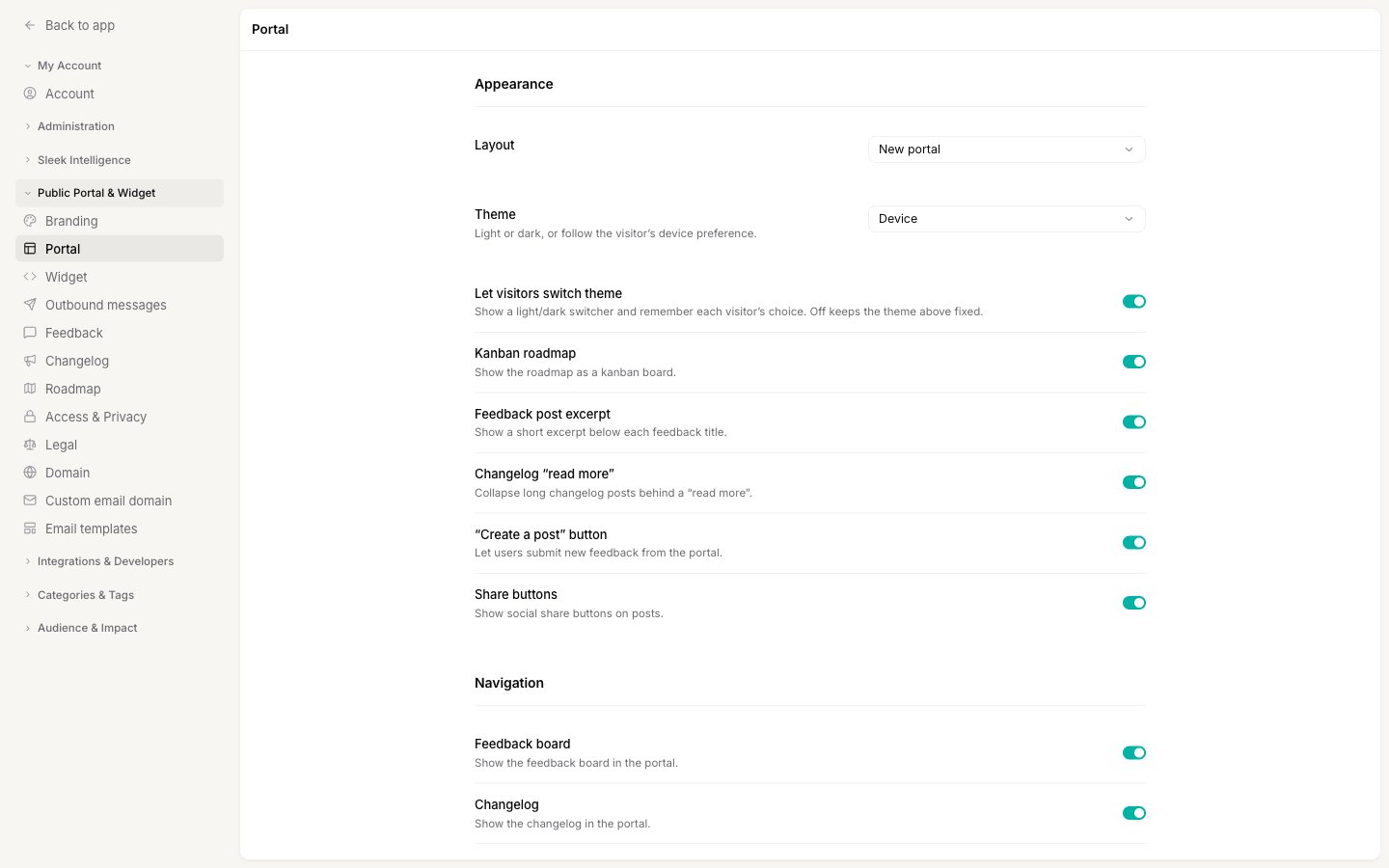 Scroll to the bottom of the page and open the **Custom code** section. The **Content Security Policy** field is the last one, below Custom JavaScript.
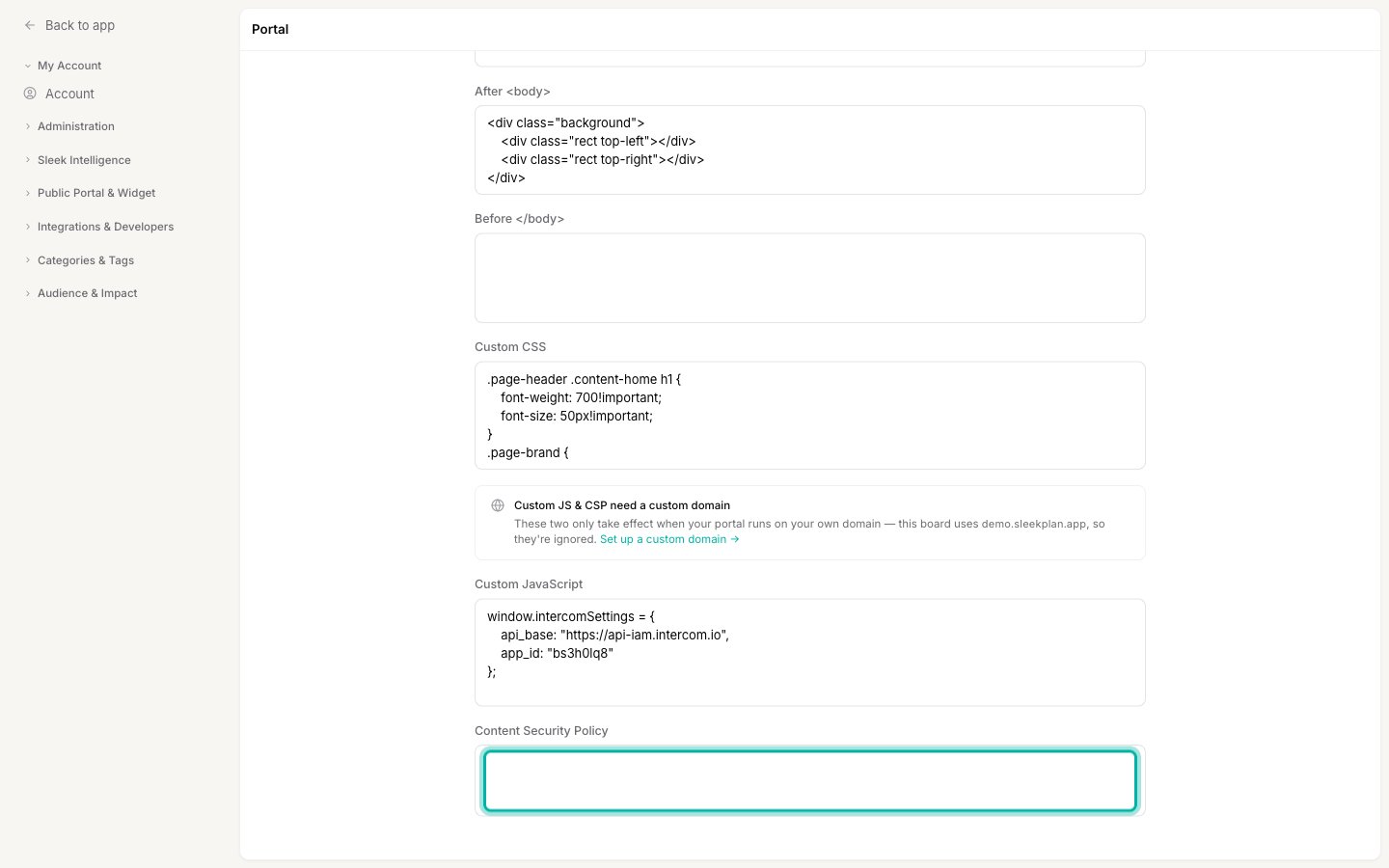 If your portal is still on a `.sleekplan.app` address, a notice reminds you that Custom JS and CSP only take effect on a custom domain. Connect one first for your rules to apply.
Write standard CSP directives, each as a directive name followed by the origins to allow, separated by semicolons. For example, to allow a support chat widget and an embedded YouTube video:
```
script-src https://widget.intercom.io https://js.intercomcdn.com;
connect-src https://api-iam.intercom.io wss://nexus-websocket-a.intercom.io;
frame-src https://www.youtube-nocookie.com;
```
Common directives are `script-src` (scripts), `style-src` (stylesheets), `img-src` (images), `font-src` (fonts), `connect-src` (network requests, including WebSockets), and `frame-src` (embedded iframes). Alongside origins you can use standard CSP source keywords such as `'self'`, `https:`, `data:`, and `blob:`.
Click **Save** at the bottom of the page. Sleekplan validates your rules and, if anything is malformed, shows the error `CSP directives are not valid`. In that case, check for typos in the directive names and remove any HTML tags: the field accepts policy directives only, not markup.
## Check that it worked
Open your portal on its custom domain and load the page that uses your custom code. Open your browser's developer tools (right-click, then **Inspect**) and look at the **Console** tab. If a resource is still blocked, you will see a message like `Refused to load ... because it violates the following Content Security Policy directive`. The message names the directive and the origin that was blocked, so add that origin to the matching directive and save again.
Only add origins you trust. Every origin you allow can run code or load content on your portal, so keep the list to the specific services you actually use.
## Related
Host your portal on your own domain, which is required for custom CSP rules to apply.
Allowlist Sleekplan in your own site's CSP when you embed the widget.
If your portal is still on a `.sleekplan.app` address, a notice reminds you that Custom JS and CSP only take effect on a custom domain. Connect one first for your rules to apply.
Write standard CSP directives, each as a directive name followed by the origins to allow, separated by semicolons. For example, to allow a support chat widget and an embedded YouTube video:
```
script-src https://widget.intercom.io https://js.intercomcdn.com;
connect-src https://api-iam.intercom.io wss://nexus-websocket-a.intercom.io;
frame-src https://www.youtube-nocookie.com;
```
Common directives are `script-src` (scripts), `style-src` (stylesheets), `img-src` (images), `font-src` (fonts), `connect-src` (network requests, including WebSockets), and `frame-src` (embedded iframes). Alongside origins you can use standard CSP source keywords such as `'self'`, `https:`, `data:`, and `blob:`.
Click **Save** at the bottom of the page. Sleekplan validates your rules and, if anything is malformed, shows the error `CSP directives are not valid`. In that case, check for typos in the directive names and remove any HTML tags: the field accepts policy directives only, not markup.
## Check that it worked
Open your portal on its custom domain and load the page that uses your custom code. Open your browser's developer tools (right-click, then **Inspect**) and look at the **Console** tab. If a resource is still blocked, you will see a message like `Refused to load ... because it violates the following Content Security Policy directive`. The message names the directive and the origin that was blocked, so add that origin to the matching directive and save again.
Only add origins you trust. Every origin you allow can run code or load content on your portal, so keep the list to the specific services you actually use.
## Related
Host your portal on your own domain, which is required for custom CSP rules to apply.
Allowlist Sleekplan in your own site's CSP when you embed the widget.