> ## Documentation Index
> Fetch the complete documentation index at: https://sleekplan.com/llms.txt
> Use this file to discover all available pages before exploring further.
# Changelog settings
> Configure how your public changelog behaves: let visitors subscribe to updates, auto-subscribe new users, publish completed feedback automatically, and collect reactions on each entry.
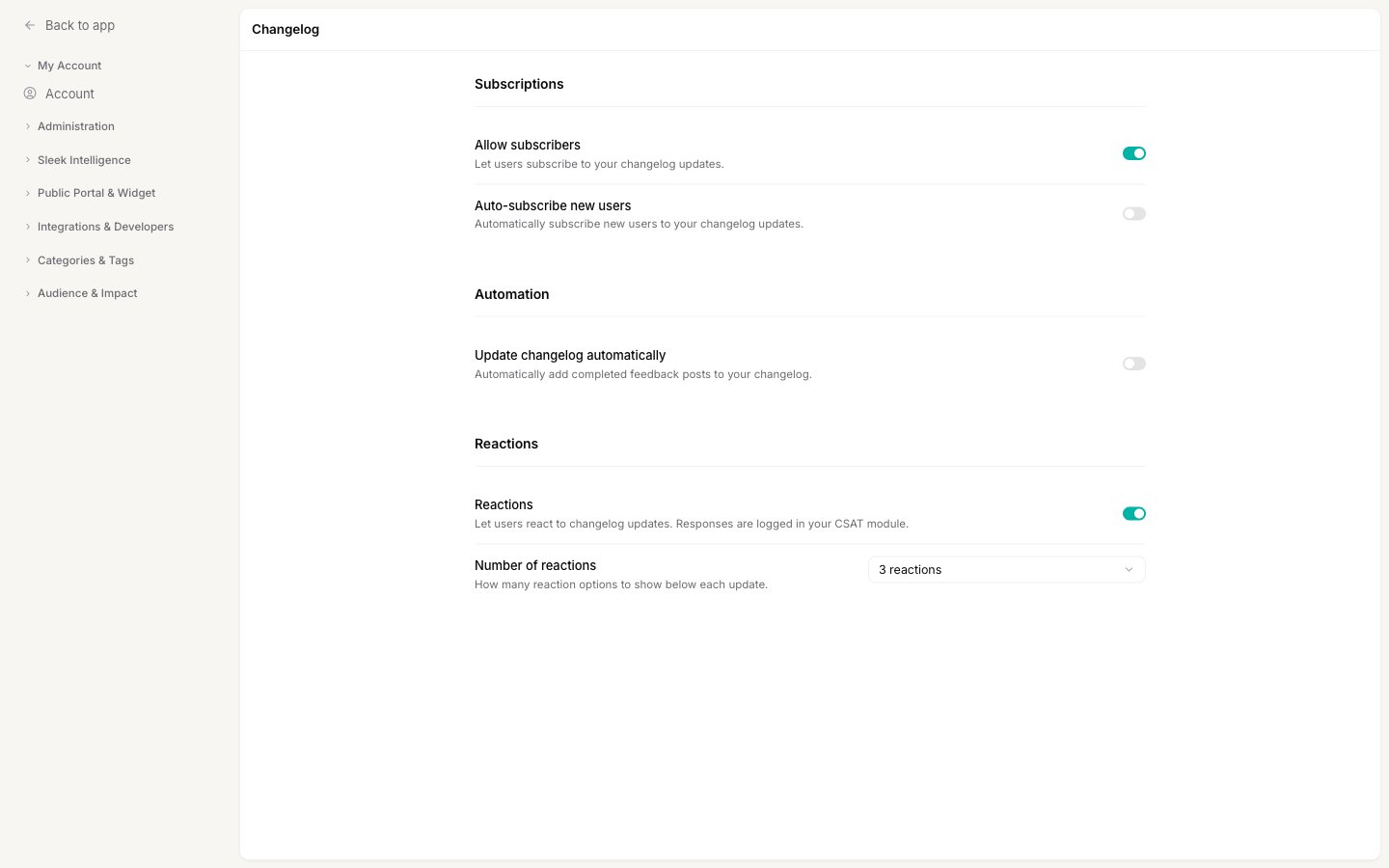
The **Changelog settings** screen controls how your public changelog behaves once it is live: who can follow it, whether completed feedback flows into it on its own, and how readers respond to each entry. These settings shape the experience on your public board and widget, not the content of individual posts. To learn about the changelog itself and how to write entries, see [The changelog](/help/changelog) and [Create changelog entries](/help/changelog/create-entries).
Changing these settings requires an **Owner** or **Admin** role on the workspace.
All of these options live in one place. Go to [**Settings → Changelog**](https://app.sleekplan.com/settings/changelog) to find them.
 ## Subscriptions
Subscriptions let people follow your changelog so they hear about new updates without checking back. This is how you turn a one-time reader into a returning audience: when someone subscribes, they are notified every time you publish, which keeps your product improvements in front of the users who care.
Go to [**Settings → Changelog**](https://app.sleekplan.com/settings/changelog) and find the **Subscriptions** section at the top.
## Subscriptions
Subscriptions let people follow your changelog so they hear about new updates without checking back. This is how you turn a one-time reader into a returning audience: when someone subscribes, they are notified every time you publish, which keeps your product improvements in front of the users who care.
Go to [**Settings → Changelog**](https://app.sleekplan.com/settings/changelog) and find the **Subscriptions** section at the top.
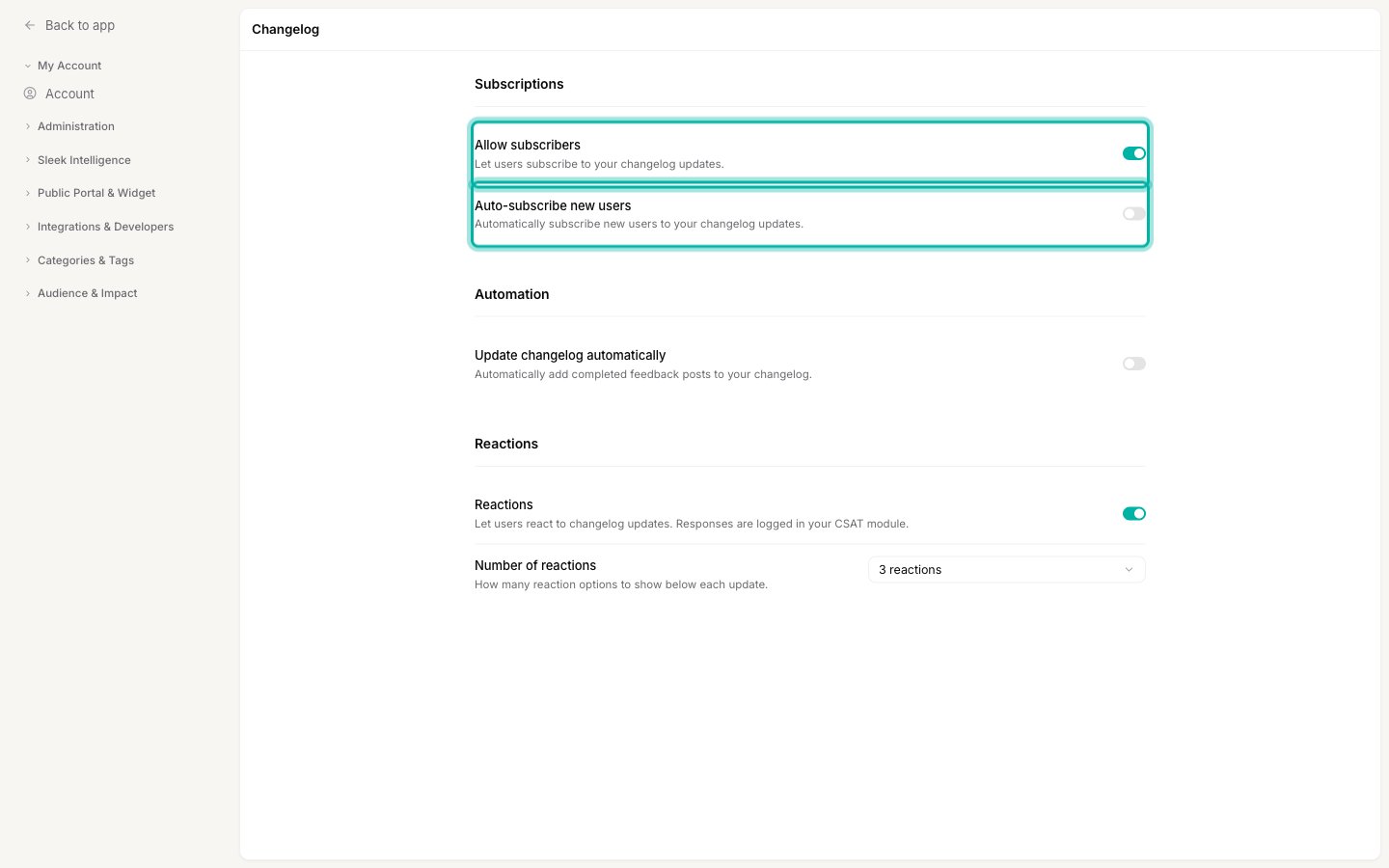 Turn on **Allow subscribers** so visitors can opt in to your changelog updates. With this off, there is no way for readers to follow your changelog, so leave it on if you want an audience for your announcements.
Turn on **Auto-subscribe new users** to subscribe every new user to your changelog updates the moment they arrive, instead of waiting for them to opt in. This grows your reach fastest, but it also means people are subscribed without explicitly asking, so choose it based on how your users expect to be contacted. They can always unsubscribe later.
## Automation
Keeping a changelog current is the hard part: every shipped feature is one more thing to remember to write up. Automation closes that gap by moving completed feedback into your changelog for you, so the work you already do in [feedback](/help/changelog) becomes an announcement without a separate step.
On the same [**Settings → Changelog**](https://app.sleekplan.com/settings/changelog) screen, scroll to the **Automation** section.
Turn on **Allow subscribers** so visitors can opt in to your changelog updates. With this off, there is no way for readers to follow your changelog, so leave it on if you want an audience for your announcements.
Turn on **Auto-subscribe new users** to subscribe every new user to your changelog updates the moment they arrive, instead of waiting for them to opt in. This grows your reach fastest, but it also means people are subscribed without explicitly asking, so choose it based on how your users expect to be contacted. They can always unsubscribe later.
## Automation
Keeping a changelog current is the hard part: every shipped feature is one more thing to remember to write up. Automation closes that gap by moving completed feedback into your changelog for you, so the work you already do in [feedback](/help/changelog) becomes an announcement without a separate step.
On the same [**Settings → Changelog**](https://app.sleekplan.com/settings/changelog) screen, scroll to the **Automation** section.
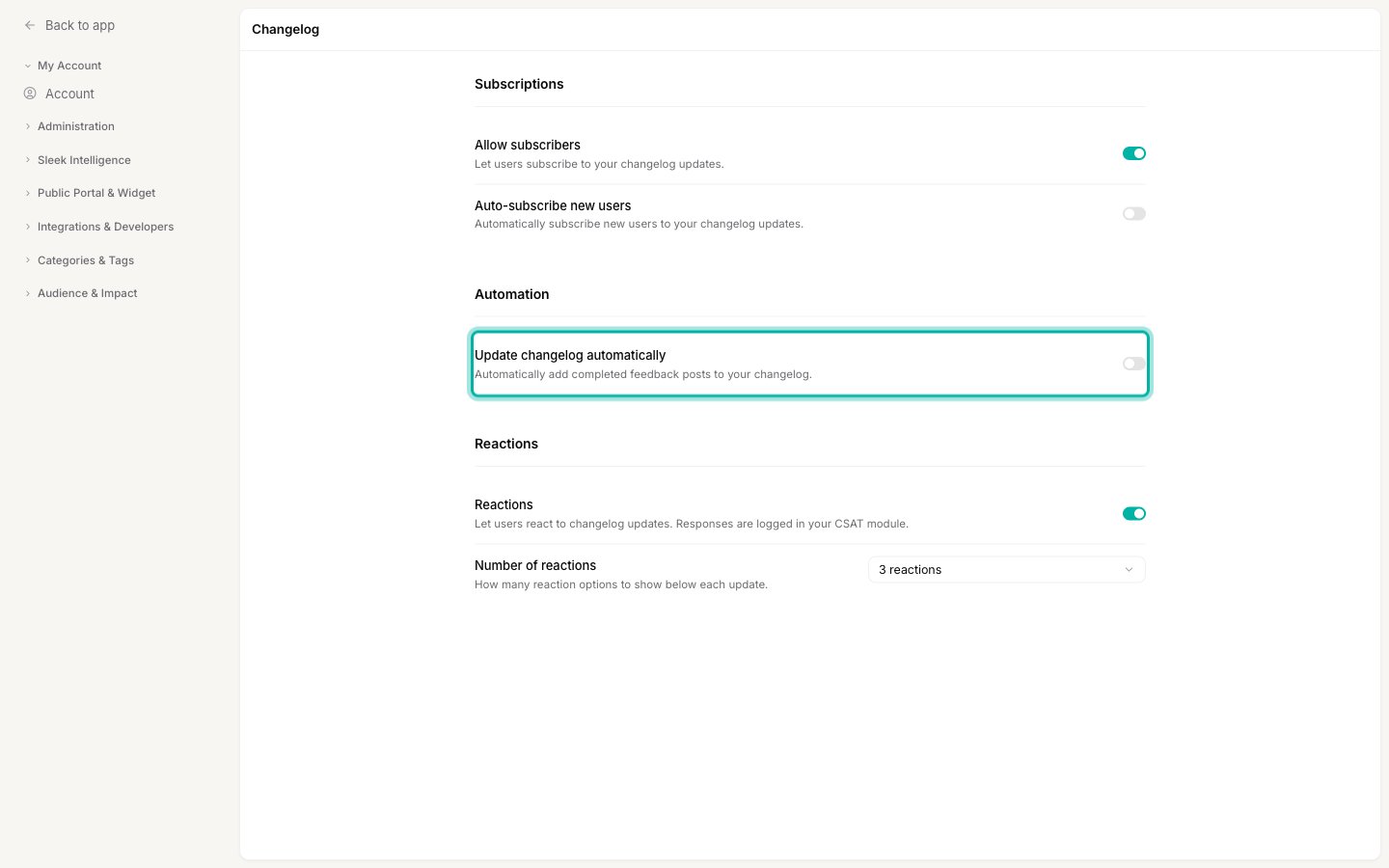 Turn on **Update changelog automatically** to add completed feedback posts to your changelog as they are marked done. This keeps your changelog fresh with no extra effort, which is ideal when your feedback statuses already track shipped work. If you prefer to hand-craft each announcement, leave it off and [create entries manually](/help/changelog/create-entries) instead.
## Reactions
A changelog is a broadcast, but reactions turn it into a signal: they let readers tell you, in one click, how they feel about what you shipped. This gives you lightweight sentiment on every release without asking people to write a comment, and those responses feed straight into your satisfaction (CSAT) reporting so you can see which updates landed well.
On the [**Settings → Changelog**](https://app.sleekplan.com/settings/changelog) screen, go to the **Reactions** section.
Turn on **Update changelog automatically** to add completed feedback posts to your changelog as they are marked done. This keeps your changelog fresh with no extra effort, which is ideal when your feedback statuses already track shipped work. If you prefer to hand-craft each announcement, leave it off and [create entries manually](/help/changelog/create-entries) instead.
## Reactions
A changelog is a broadcast, but reactions turn it into a signal: they let readers tell you, in one click, how they feel about what you shipped. This gives you lightweight sentiment on every release without asking people to write a comment, and those responses feed straight into your satisfaction (CSAT) reporting so you can see which updates landed well.
On the [**Settings → Changelog**](https://app.sleekplan.com/settings/changelog) screen, go to the **Reactions** section.
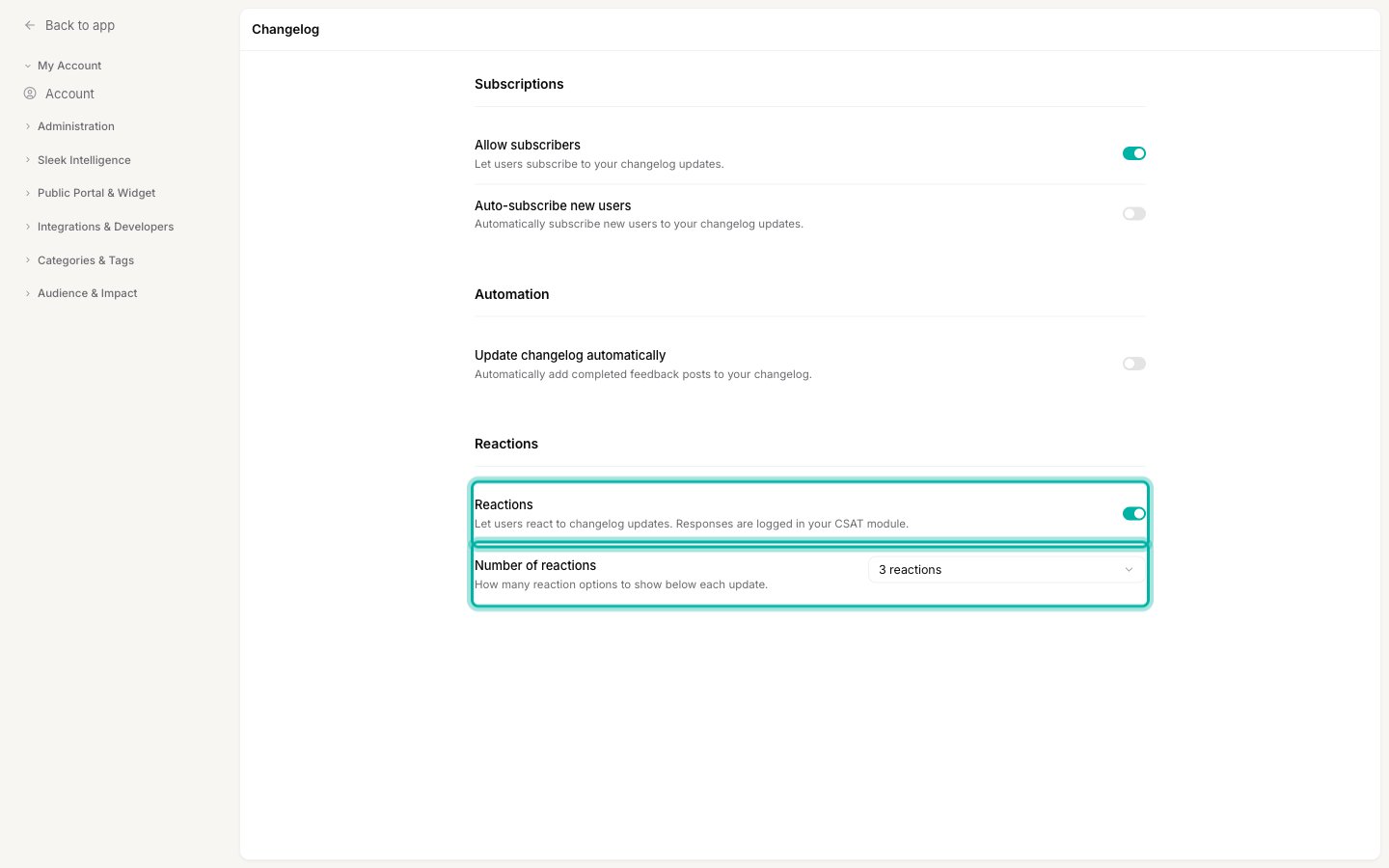 Turn on **Reactions** to show reaction options below each changelog update. Responses are logged in your CSAT module, so you can track how satisfied readers are with each release over time.
With **Reactions** on, use **Number of reactions** to pick how many reaction options appear below each update: **2**, **3**, or **5**. Fewer options make it a quick yes-or-no signal, while more options capture a finer range of sentiment. Start with **3** if you are unsure.
## Related
Understand what the changelog is and how it fits into your workspace.
Write, schedule, and publish individual changelog posts.
Surface new updates to users right inside your product.
Let readers and tools follow your updates through a standard feed.
Turn on **Reactions** to show reaction options below each changelog update. Responses are logged in your CSAT module, so you can track how satisfied readers are with each release over time.
With **Reactions** on, use **Number of reactions** to pick how many reaction options appear below each update: **2**, **3**, or **5**. Fewer options make it a quick yes-or-no signal, while more options capture a finer range of sentiment. Start with **3** if you are unsure.
## Related
Understand what the changelog is and how it fits into your workspace.
Write, schedule, and publish individual changelog posts.
Surface new updates to users right inside your product.
Let readers and tools follow your updates through a standard feed.