> ## Documentation Index
> Fetch the complete documentation index at: https://sleekplan.com/llms.txt
> Use this file to discover all available pages before exploring further.
# Access the changelog RSS feed
> Every public portal publishes its changelog as an RSS 2.0 feed at /changelog/rss.xml, so readers and tools like Slack, Zapier, or an RSS reader can follow your product updates automatically.
Your changelog is also published as an **RSS feed**. RSS is a standard format that lets people and tools subscribe to a stream of updates, so every time you publish a changelog entry it shows up automatically in their reader, Slack channel, or automation. There is nothing to switch on: the feed exists as soon as your changelog is live.
The feed is public. It only works while your portal is publicly reachable, so it is not available on boards set to private under [Access & Privacy](/help/portal-widget/access-privacy).
## Where the feed lives
The feed sits at `/changelog/rss.xml` on your public portal address. Take your portal URL and add that path:
```
https://yourproduct.sleekplan.app/changelog/rss.xml
```
If you have [connected a custom domain](/help/portal-widget/custom-domain), use that instead:
```
https://feedback.yourcompany.com/changelog/rss.xml
```
Not sure what your portal address is? It is the same address people use to reach your public feedback board. You will find and change it under [**Settings → Public Portal & Widget → Domain**](https://app.sleekplan.com/settings/domain).
## Find your feed URL
Visit your portal and open the **Changelog** tab. This is the page the RSS feed mirrors.
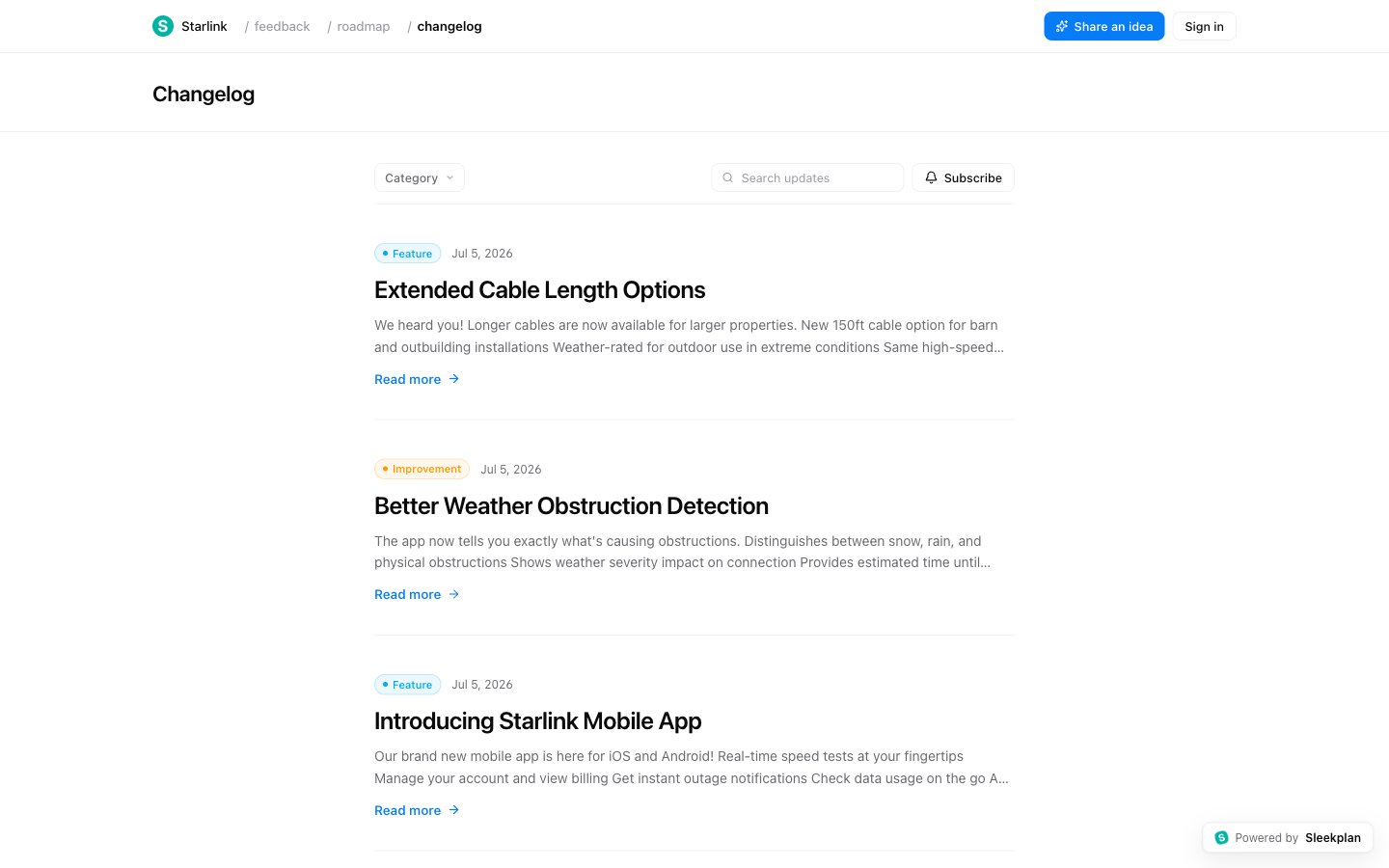 Take the portal address from the browser bar (for example `https://yourproduct.sleekplan.app`) and add `/changelog/rss.xml` to the end. Open that URL in a new tab to confirm it loads.
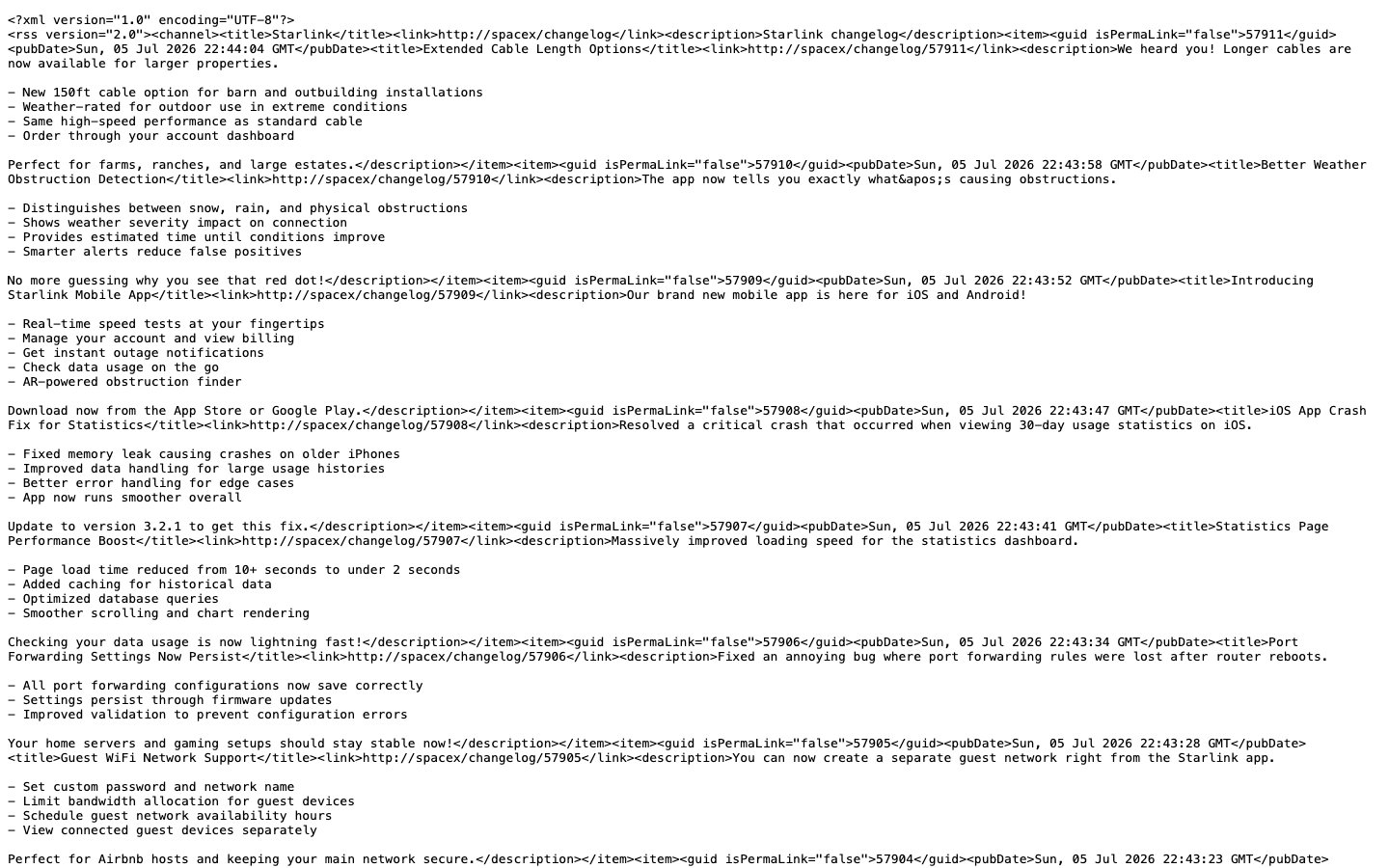 The page returns raw XML rather than a styled page. That is expected: the feed is meant to be read by apps, not people. Copy the URL from the address bar to use it.
Paste the feed URL into any tool that accepts RSS: an RSS reader (Feedly, Inoreader), a Slack RSS app, an automation platform (Zapier, Make), or your own script. It will pull new entries automatically as you publish them.
## What the feed includes
The feed lists your most recent **published** changelog entries, newest first. To keep it clean and public-safe, some entries are left out:
* **Drafts and scheduled entries** stay hidden until they go live.
* **Hidden or segment-targeted categories** are excluded, so entries meant for a specific audience never appear in the public feed.
Each entry in the feed carries its title, a description, a publish date, and a link back to the full entry on your changelog.
## Common uses
* **Post updates to Slack or Teams** automatically with the platform's built-in RSS app.
* **Trigger automations** in Zapier or Make whenever a new entry is published, for example to cross-post to social media or a status page.
* **Let power users follow along** in their own RSS reader without needing an account.
If you would rather notify people by email when you ship an update, use the **Subscribe** button on your public changelog instead. That collects email subscribers who receive each new entry directly.
## Related
Serve your portal, and its RSS feed, from your own domain.
Control who can reach your portal. Private boards disable the public feed.
The page returns raw XML rather than a styled page. That is expected: the feed is meant to be read by apps, not people. Copy the URL from the address bar to use it.
Paste the feed URL into any tool that accepts RSS: an RSS reader (Feedly, Inoreader), a Slack RSS app, an automation platform (Zapier, Make), or your own script. It will pull new entries automatically as you publish them.
## What the feed includes
The feed lists your most recent **published** changelog entries, newest first. To keep it clean and public-safe, some entries are left out:
* **Drafts and scheduled entries** stay hidden until they go live.
* **Hidden or segment-targeted categories** are excluded, so entries meant for a specific audience never appear in the public feed.
Each entry in the feed carries its title, a description, a publish date, and a link back to the full entry on your changelog.
## Common uses
* **Post updates to Slack or Teams** automatically with the platform's built-in RSS app.
* **Trigger automations** in Zapier or Make whenever a new entry is published, for example to cross-post to social media or a status page.
* **Let power users follow along** in their own RSS reader without needing an account.
If you would rather notify people by email when you ship an update, use the **Subscribe** button on your public changelog instead. That collects email subscribers who receive each new entry directly.
## Related
Serve your portal, and its RSS feed, from your own domain.
Control who can reach your portal. Private boards disable the public feed.