> ## Documentation Index
> Fetch the complete documentation index at: https://sleekplan.com/llms.txt
> Use this file to discover all available pages before exploring further.
# Control who can access your board
> The Access & Privacy settings decide two things: who can reach your public portal (open, password, email domains, or single sign-on) and how the people who reach it sign in before they vote, post, or comment. See exactly what each private mode looks like to a visitor.
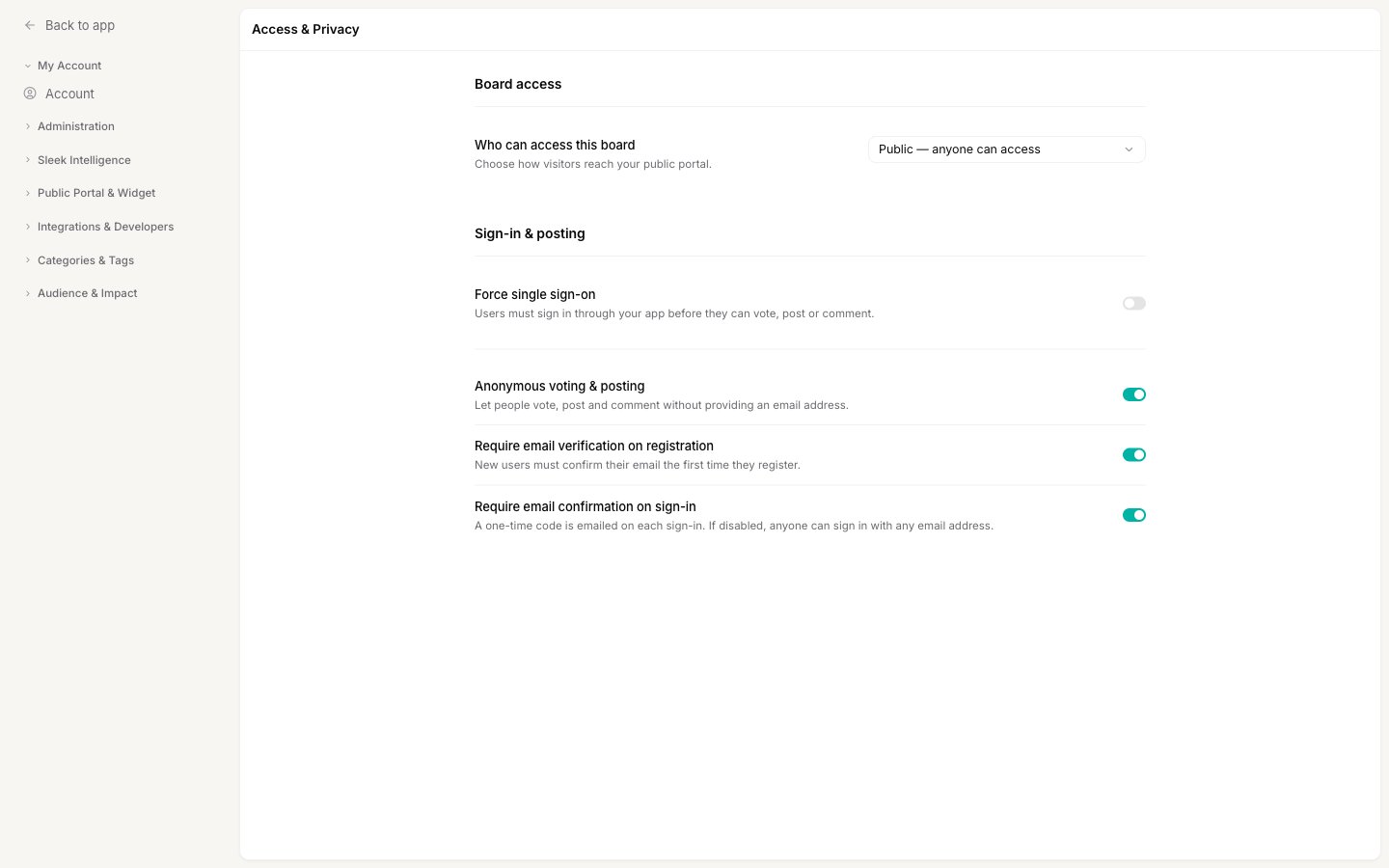
The **Access & Privacy** page controls who is allowed to reach your feedback portal and how they identify themselves once they do. It answers two separate questions:
1. **Who can access this board?** Is the portal open to everyone, or gated behind a password, an allowed list of email domains, or your own login?
2. **How do visitors sign in?** Once someone reaches the board, what does Sleekplan ask of them before they can vote, post, or comment?
The page is split into those two sections. This article walks through both, and shows exactly what each private mode looks like to a visitor, using a demo board at `spacex.sleekplan.app`.
Access & Privacy lives under Administration, and only workspace **owners** and **admins** see it. Board protection (password, email domains) and single sign-on are paid features: if the option you choose is not on your current plan, you will be prompted to upgrade when you save.
## Open the Access & Privacy settings
Go to [**Settings → Public Portal & Widget → Access & Privacy**](https://app.sleekplan.com/settings/privacy).
 ## Choose who can access your board
The **Who can access this board** dropdown, at the top of the **Board access** section, is the single control that sets your portal's front door. Pick one of five options.
## Choose who can access your board
The **Who can access this board** dropdown, at the top of the **Board access** section, is the single control that sets your portal's front door. Pick one of five options.
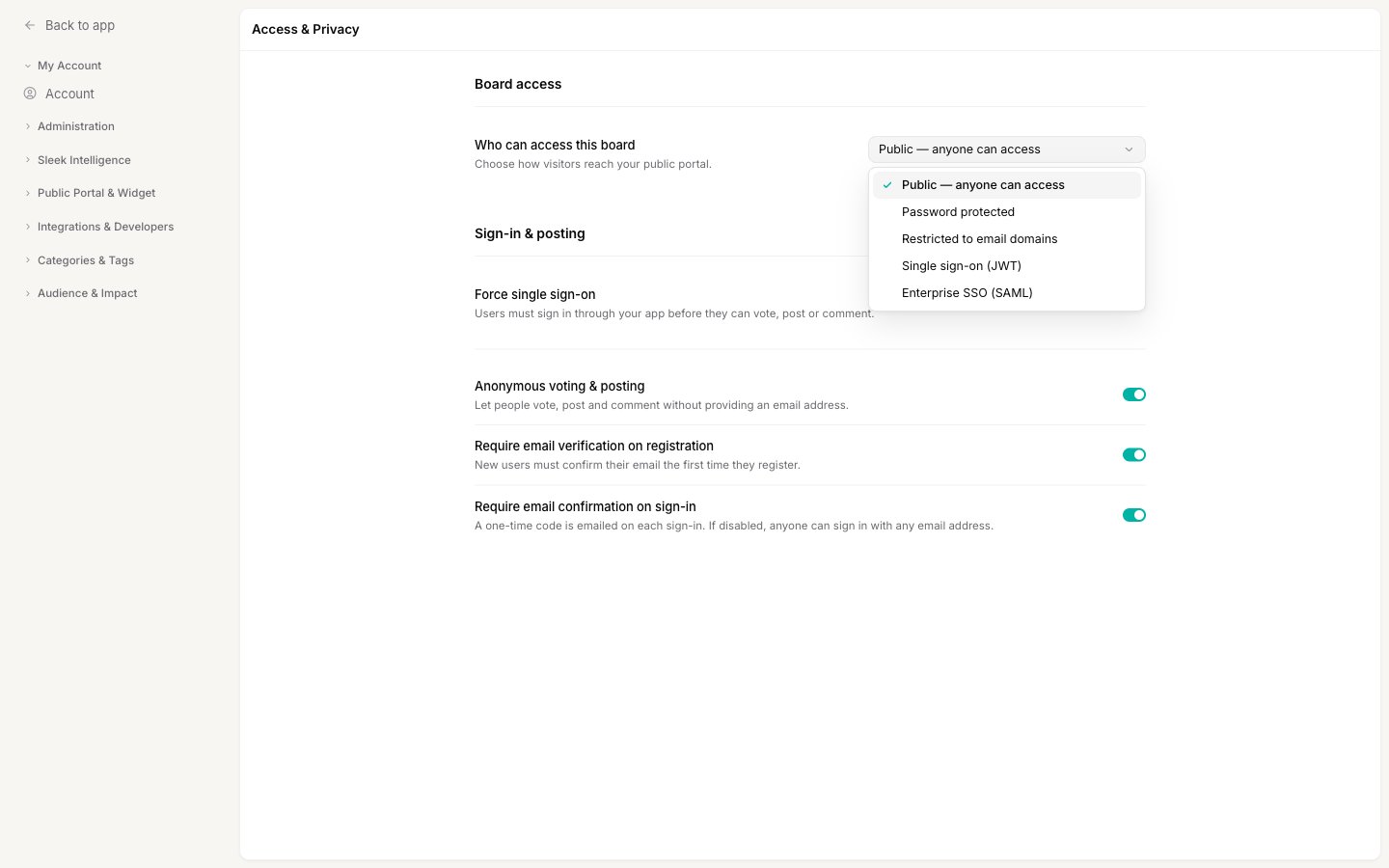 Selecting a gated option reveals an extra field to configure it. After any change, a save bar appears at the bottom of the page: click **Save changes** to make it live, or **Discard** to revert. The sections below cover each option, and what the visitor sees.
### Public
Your portal and widget are open to everyone. This is the default and the right choice for public roadmaps and feature-request boards where you want the widest participation. Visitors land straight on the board with no gate, and a **Sign in** button in the corner lets them identify themselves when they choose to.
Selecting a gated option reveals an extra field to configure it. After any change, a save bar appears at the bottom of the page: click **Save changes** to make it live, or **Discard** to revert. The sections below cover each option, and what the visitor sees.
### Public
Your portal and widget are open to everyone. This is the default and the right choice for public roadmaps and feature-request boards where you want the widest participation. Visitors land straight on the board with no gate, and a **Sign in** button in the corner lets them identify themselves when they choose to.
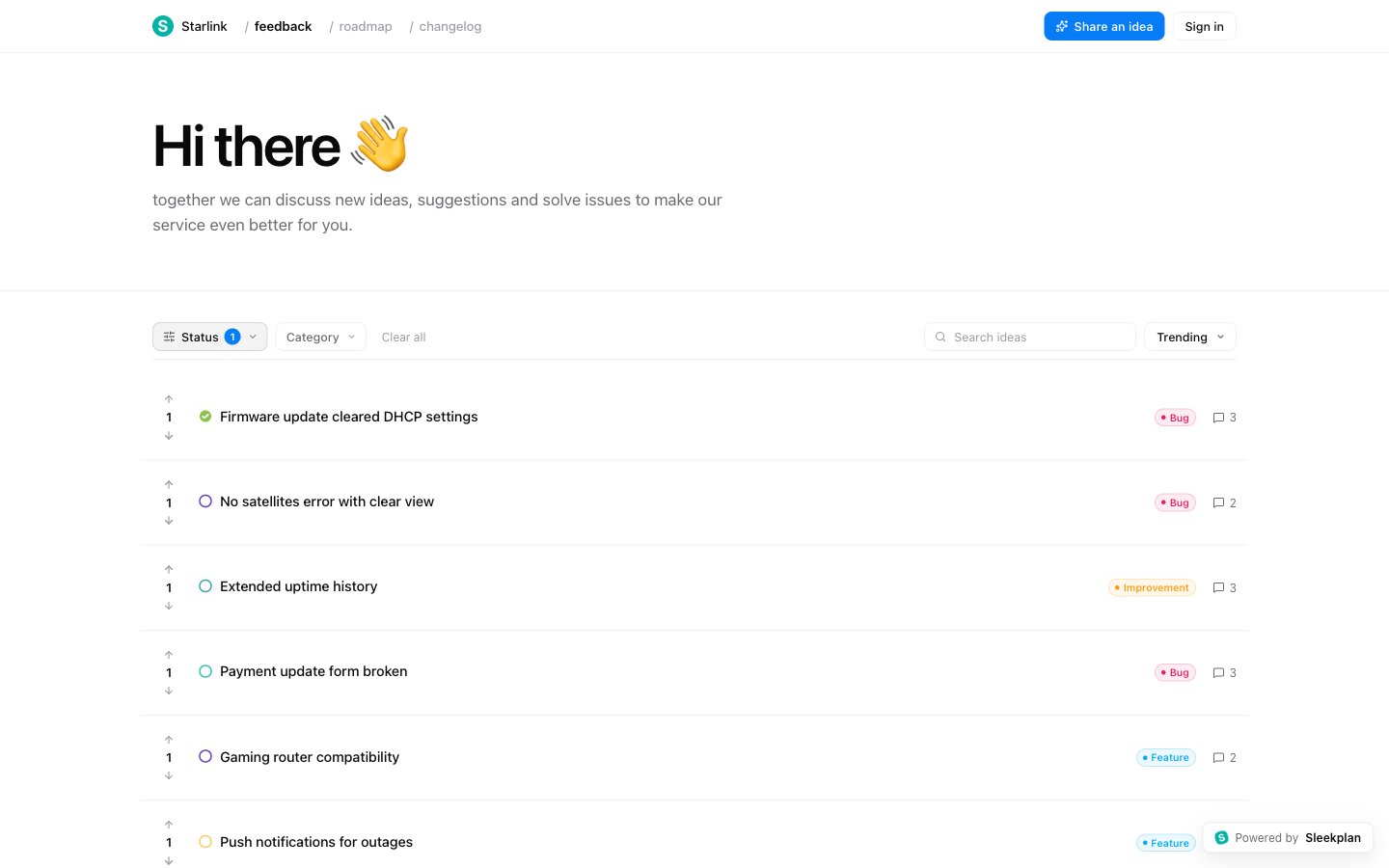 When a board is public you still control how people sign in, using the [Sign-in & posting](#control-how-people-sign-in) section below.
### Password protected
Everyone shares one password to get in. Choose **Password protected**, then set the shared secret in the **Access password** field that appears.
When a board is public you still control how people sign in, using the [Sign-in & posting](#control-how-people-sign-in) section below.
### Password protected
Everyone shares one password to get in. Choose **Password protected**, then set the shared secret in the **Access password** field that appears.
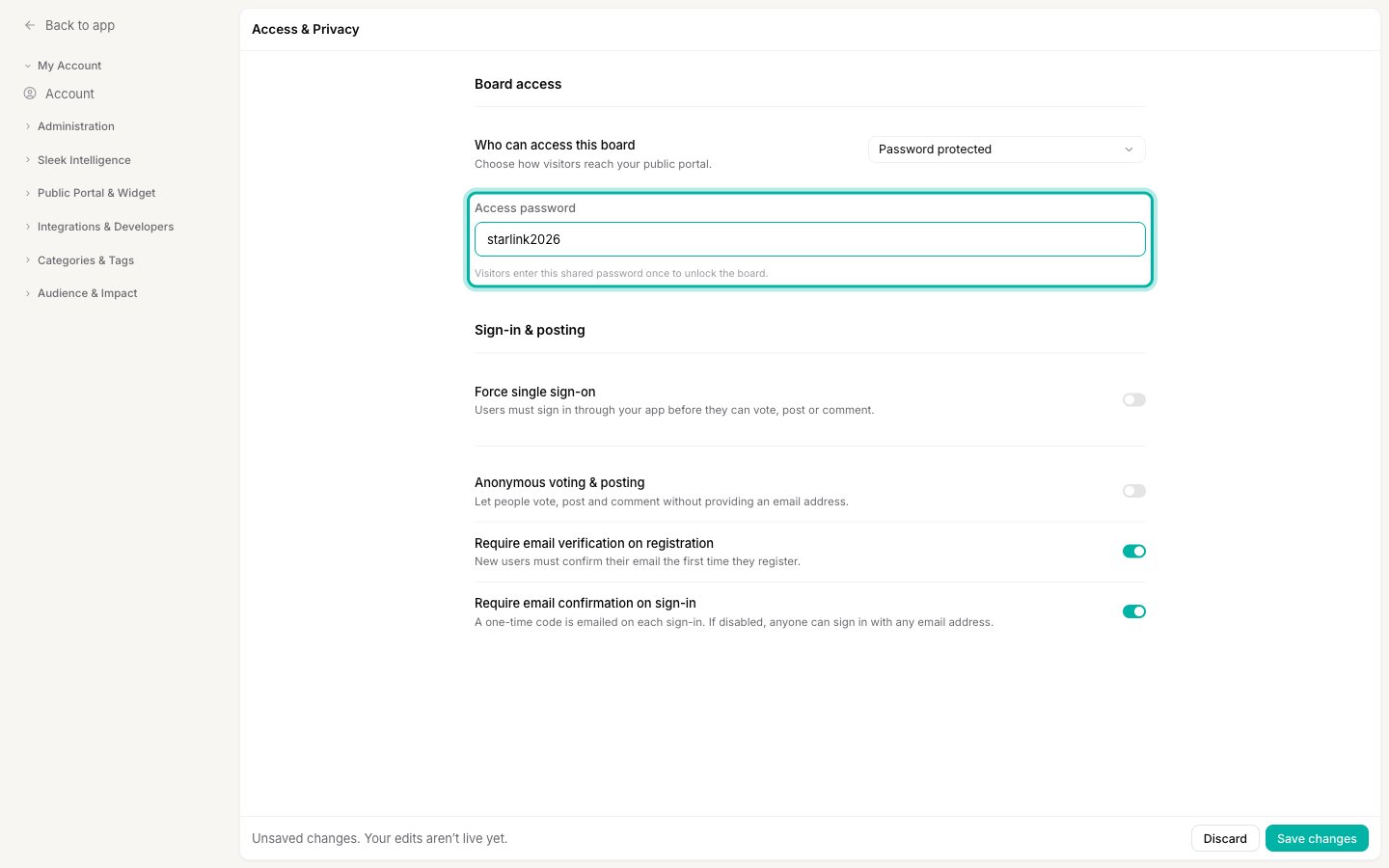 Now anyone reaching the board is stopped by a password screen and must enter that password once to unlock it.
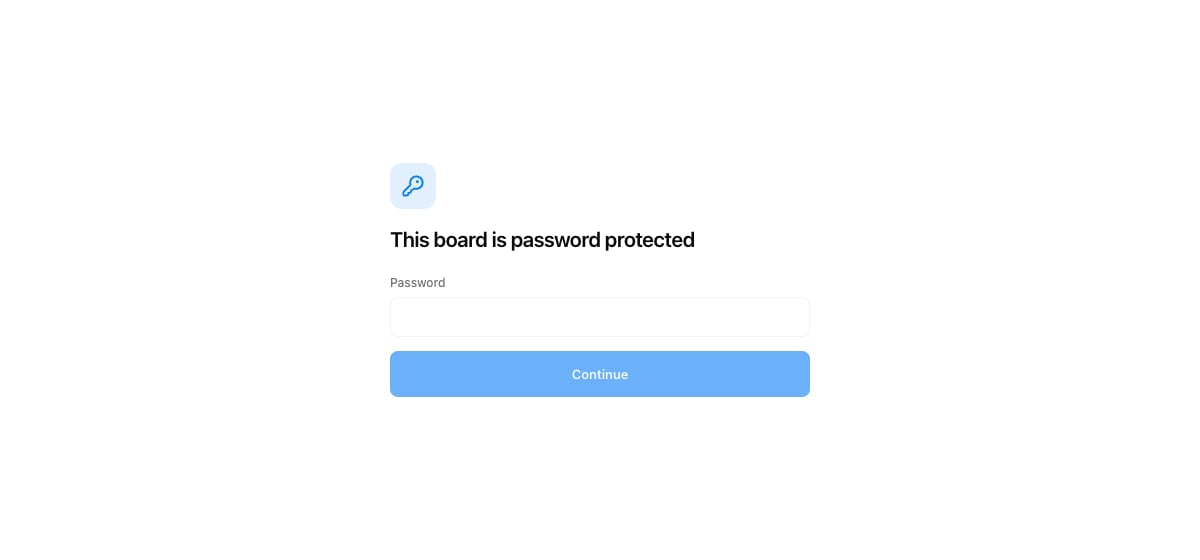 This is the simplest way to close a board. It suits private betas or internal boards where one shared secret is enough. Anyone who has the password gets in, so share it carefully and change it when it should no longer work.
### Restricted to email domains
Only people whose email is on a domain you approve can get in. Choose **Restricted to email domains**, then list the domains in the **Allowed email domains** field, separated by commas.
This is the simplest way to close a board. It suits private betas or internal boards where one shared secret is enough. Anyone who has the password gets in, so share it carefully and change it when it should no longer work.
### Restricted to email domains
Only people whose email is on a domain you approve can get in. Choose **Restricted to email domains**, then list the domains in the **Allowed email domains** field, separated by commas.
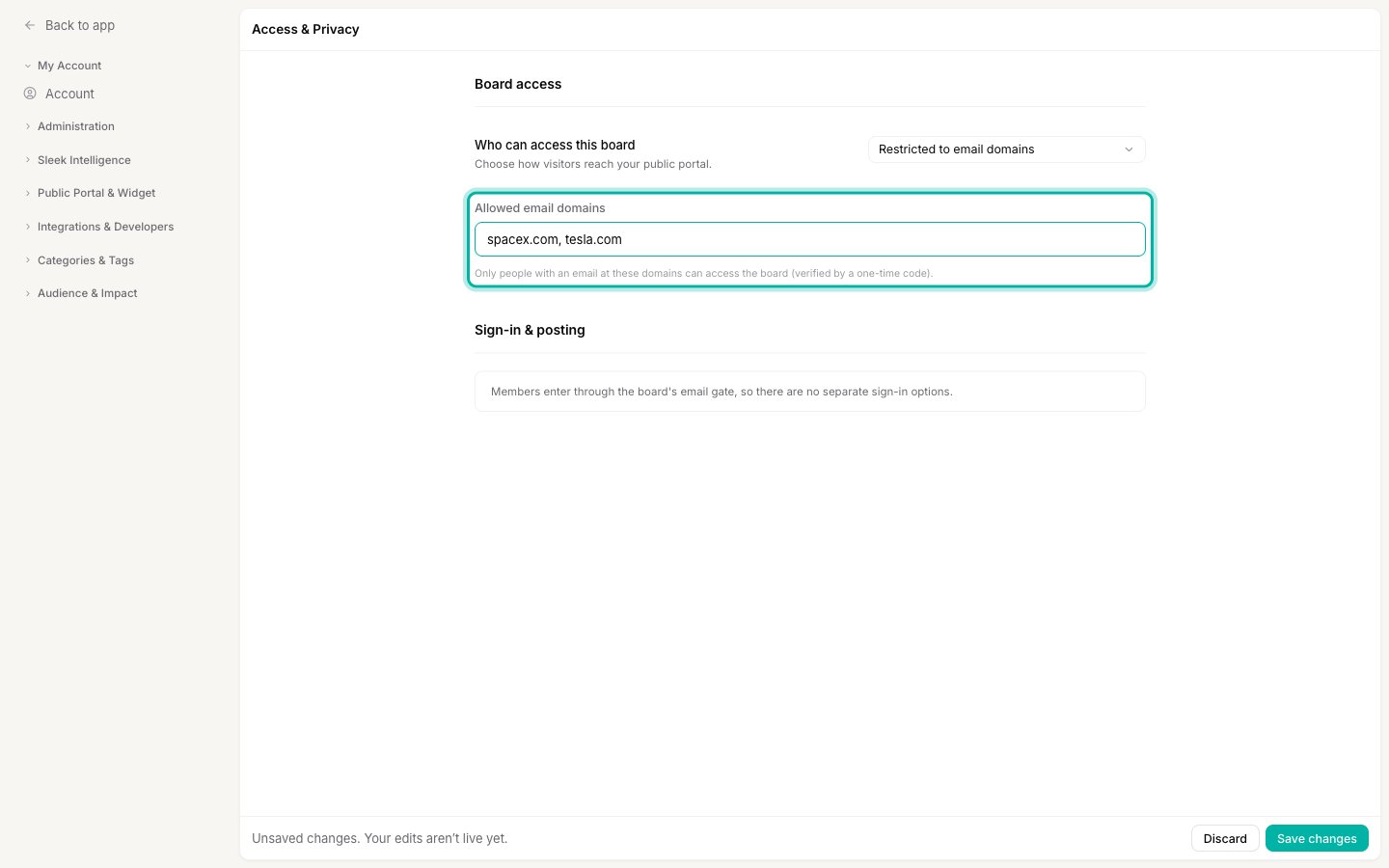 Notice that the **Sign-in & posting** section is replaced by a short note. That is because this mode already identifies every visitor at the gate, so the separate sign-in options no longer apply.
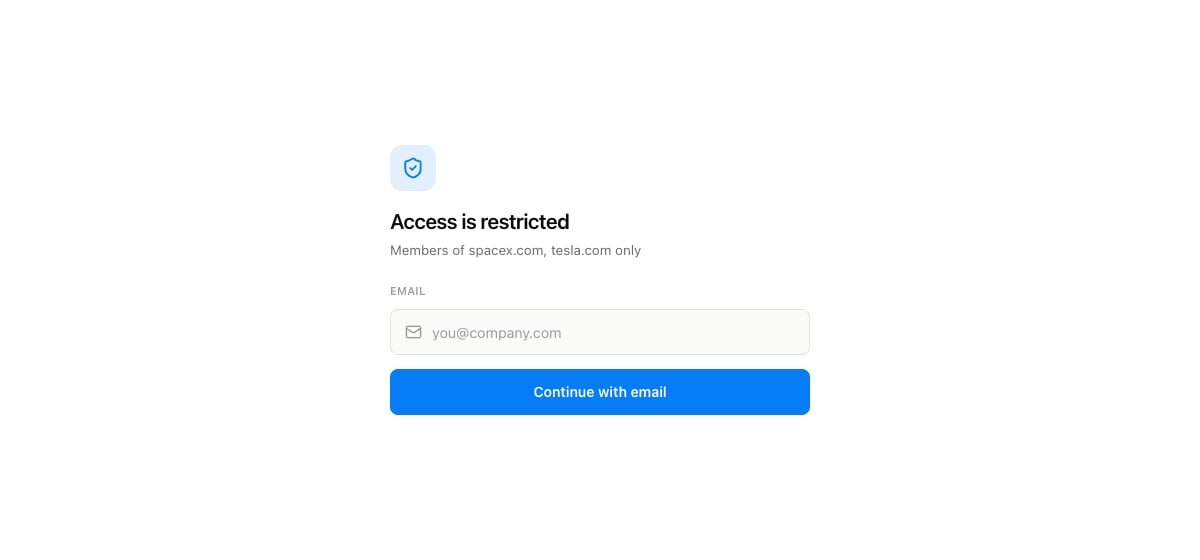
A visitor now sees an email gate that names the domains you allowed. They enter their work email to continue.
Notice that the **Sign-in & posting** section is replaced by a short note. That is because this mode already identifies every visitor at the gate, so the separate sign-in options no longer apply.
A visitor now sees an email gate that names the domains you allowed. They enter their work email to continue.
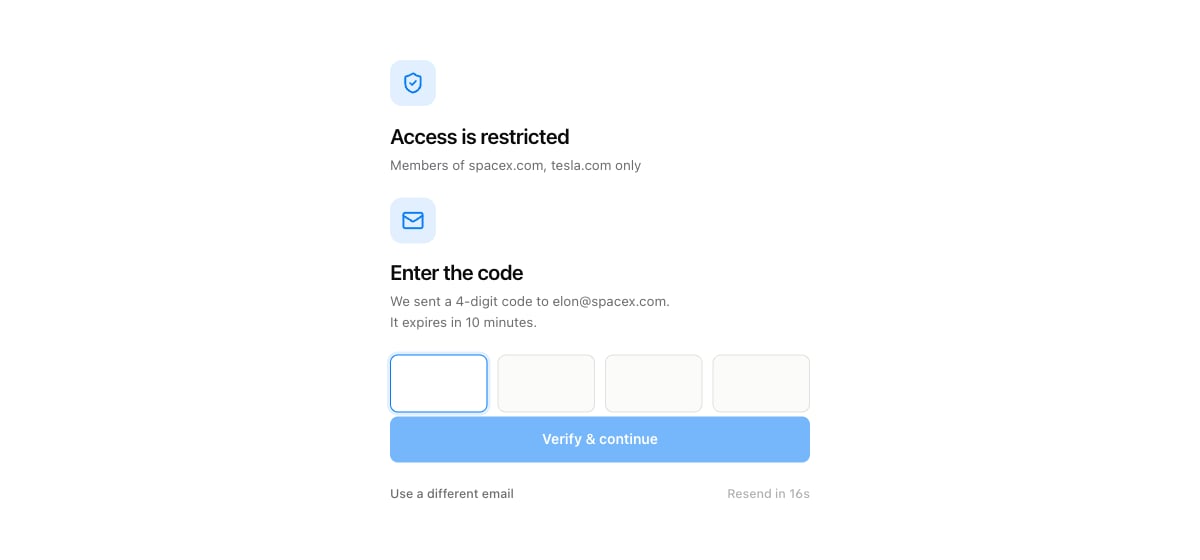
 To prove they own that address, they receive a short one-time code by email and enter it. Only someone who can read the inbox at an approved domain gets through.
 Use this when your board should be reachable by your customers or your own staff, but nobody else, and you would rather not hand out a shared password.
### Single sign-on (JWT)
Visitors are sent to your own **Sign-in URL** to log in, then returned to the board with a signed token that tells Sleekplan who they are. Use this when your product already has its own login and you want those same, already-authenticated users on your board with no second sign-in.
This method needs a one-time technical setup by a developer to generate the token. See the [Single sign-on developer guide](https://sleekplan.com/docs/authentication/single-sign-on) for how.
### Enterprise SSO (SAML)
Every visitor is authenticated against your identity provider, such as Okta or OneLogin. Picking this option prompts you to finish the connection on the **Access Management** page, where you upload your provider's SAML certificate. Open it from the button on this screen, or go to [**Settings → Access Management**](https://app.sleekplan.com/settings/identity).
If a board is set to private but no working access method is selected, nobody can sign in, including your own customers. The page shows a red **No access method selected** warning when this happens. Pick a method above to let people back in.
## Control how people sign in
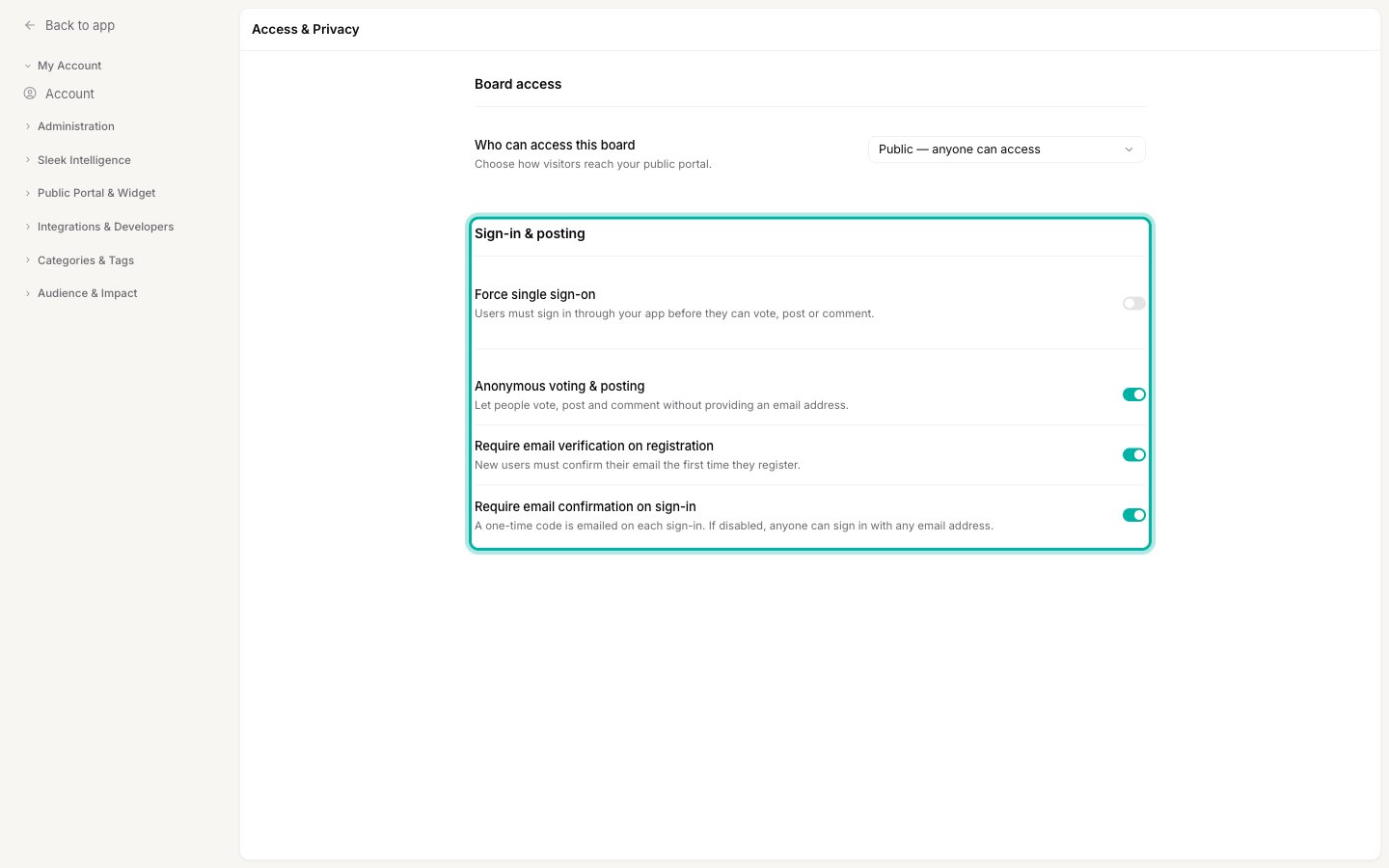
The **Sign-in & posting** section decides what Sleekplan asks of visitors before they vote, post, or comment. These options apply only to **Public** and **Password protected** boards, because those are the only cases where a visitor arrives without already being identified. For **email domain**, **JWT**, and **SAML** boards, this section is replaced by a note, since visitors are identified the moment they pass the gate.
Use this when your board should be reachable by your customers or your own staff, but nobody else, and you would rather not hand out a shared password.
### Single sign-on (JWT)
Visitors are sent to your own **Sign-in URL** to log in, then returned to the board with a signed token that tells Sleekplan who they are. Use this when your product already has its own login and you want those same, already-authenticated users on your board with no second sign-in.
This method needs a one-time technical setup by a developer to generate the token. See the [Single sign-on developer guide](https://sleekplan.com/docs/authentication/single-sign-on) for how.
### Enterprise SSO (SAML)
Every visitor is authenticated against your identity provider, such as Okta or OneLogin. Picking this option prompts you to finish the connection on the **Access Management** page, where you upload your provider's SAML certificate. Open it from the button on this screen, or go to [**Settings → Access Management**](https://app.sleekplan.com/settings/identity).
If a board is set to private but no working access method is selected, nobody can sign in, including your own customers. The page shows a red **No access method selected** warning when this happens. Pick a method above to let people back in.
## Control how people sign in
The **Sign-in & posting** section decides what Sleekplan asks of visitors before they vote, post, or comment. These options apply only to **Public** and **Password protected** boards, because those are the only cases where a visitor arrives without already being identified. For **email domain**, **JWT**, and **SAML** boards, this section is replaced by a note, since visitors are identified the moment they pass the gate.
 ### Force single sign-on
When **Force single sign-on** is on, visitors must sign in through your app before they can do anything on the board. Turning it on reveals a **Sign-in URL** field, where you point Sleekplan at your login page, and it hides the individual sign-in toggles below, because your app now owns identity.
Leave it off if you want Sleekplan to handle sign-in itself, using the three toggles below.
### Anonymous voting & posting
Let people vote, post, and comment without giving an email address at all. Turn this **on** to remove every barrier and collect the most feedback, at the cost of not knowing who left it. Turn it **off** to require an identity (an email) before anyone can contribute.
### Require email verification on registration
When on, a new user must confirm their email address the first time they register. This keeps fake or mistyped addresses out of your user list. It applies once, at registration.
### Require email confirmation on sign-in
When on, Sleekplan emails a one-time code every time a returning user signs in, so only someone with access to the inbox can post as that person.
If you turn **Require email confirmation on sign-in** off, anyone can sign in with any email address without proving they own it. Leave it on unless you have a specific reason not to.
To understand how these accounts work and why your end users never create a Sleekplan login, see [How Sleekplan handles end-user accounts](/help/account-security/end-user-accounts). For the one-time codes and confirmation messages these options trigger, see [Emails Sleekplan sends to your users](/help/account-security/emails).
## Save your changes
Every change on this page is a draft until you save it. Whenever you have unsaved edits, a bar appears at the bottom reading **"Unsaved changes. Your edits aren't live yet."** with **Discard** and **Save changes** buttons. Your board keeps its current access rules until you click **Save changes**, so you can switch modes and fill in a password or domains without locking anyone out mid-edit.
## Next steps
How customer accounts differ from admin accounts and live only in your workspace.
Every message your users receive, including sign-in and verification codes.
The developer guide for wiring up JWT single sign-on with your own login.
Add a second login step to your own admin account.
### Force single sign-on
When **Force single sign-on** is on, visitors must sign in through your app before they can do anything on the board. Turning it on reveals a **Sign-in URL** field, where you point Sleekplan at your login page, and it hides the individual sign-in toggles below, because your app now owns identity.
Leave it off if you want Sleekplan to handle sign-in itself, using the three toggles below.
### Anonymous voting & posting
Let people vote, post, and comment without giving an email address at all. Turn this **on** to remove every barrier and collect the most feedback, at the cost of not knowing who left it. Turn it **off** to require an identity (an email) before anyone can contribute.
### Require email verification on registration
When on, a new user must confirm their email address the first time they register. This keeps fake or mistyped addresses out of your user list. It applies once, at registration.
### Require email confirmation on sign-in
When on, Sleekplan emails a one-time code every time a returning user signs in, so only someone with access to the inbox can post as that person.
If you turn **Require email confirmation on sign-in** off, anyone can sign in with any email address without proving they own it. Leave it on unless you have a specific reason not to.
To understand how these accounts work and why your end users never create a Sleekplan login, see [How Sleekplan handles end-user accounts](/help/account-security/end-user-accounts). For the one-time codes and confirmation messages these options trigger, see [Emails Sleekplan sends to your users](/help/account-security/emails).
## Save your changes
Every change on this page is a draft until you save it. Whenever you have unsaved edits, a bar appears at the bottom reading **"Unsaved changes. Your edits aren't live yet."** with **Discard** and **Save changes** buttons. Your board keeps its current access rules until you click **Save changes**, so you can switch modes and fill in a password or domains without locking anyone out mid-edit.
## Next steps
How customer accounts differ from admin accounts and live only in your workspace.
Every message your users receive, including sign-in and verification codes.
The developer guide for wiring up JWT single sign-on with your own login.
Add a second login step to your own admin account.